Move or rebook an order to another date
- Availability
- Beta
- Last verified
- Last verified Aug 2, 2026
Use this when a customer wants to keep their order but attend on a different date or time, or switch to a different event or admission.
Before you start
- You need a role with permission to update orders.
- Check the order's payment state and invoice state first. Moving a service does not change what was already paid or invoiced, so price differences need a separate payment or refund decision.
- Check the target service's remaining capacity and, when applicable, the target time slot. If your team deliberately overbooks, confirm that an authorized staff member approves the exception.
Change the start time of a booked slot
For services booked into a time slot (an event booked from a template, or an admission with a start time):
- Open Sales > Orders and open the order Overview.
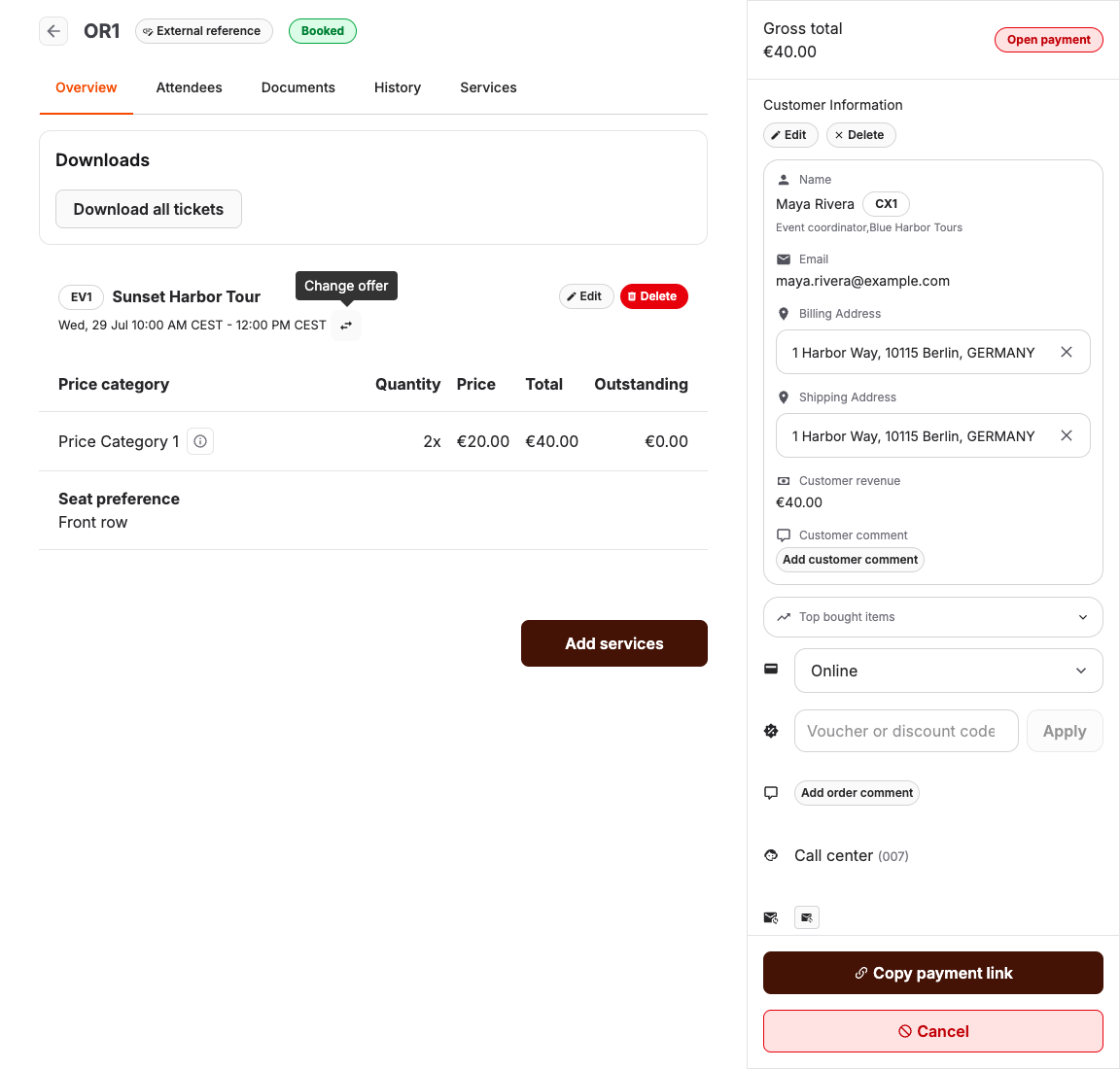
- Find the service line and select the pencil icon next to its date. The tooltip reads Change start time.
- Select the new date and time slot, then select Change start time.
Change to a different event or admission
To move the item to another event, event template, or admission:
- On the order Overview, select the swap icon next to the service line. The tooltip reads Change offer.
- The Services tab opens filtered to services that can replace the item. Select the replacement and its date.
- Confirm the change. The confirmation warns: "Changing the offer will replace the booked offer. Continue?"
Existing quantities, attendees, and collected data are preserved when the offer is changed. The change is recorded on the History tab.
Review a pricing setup warning
After a move, the order Overview may ask you to review its pricing setup. This means that stored pricing for one or more items refers to setup that is archived, missing, or otherwise no longer current. It does not necessarily mean that the order product or total changed.
- Select Show affected lines to move to the first marked price.
- Select Show pricing setup warning next to a marked price and read the status message.
- Compare Order product with Current setup product. They can be identical even when the original price rule was archived.
- Check whether the detail says the price can be recalculated. Keep booked pricing unchanged when financial documents already exist, and confirm the intended payment or refund before changing a price.
Cancel a change without saving it
Select Cancel at any point in the service, date, time, or price selection. KORONA Event returns to the original order Overview without changing the booked service.
Use Cancel when a customer decides to keep the original booking after reviewing another service or a possible surcharge. Do not complete the change and then try to reverse it.
Overbook the replacement when approved
Sold-out services and time slots remain visible to staff during a rebooking. Capacity is shown as a warning instead of removing the target from the list.
- Select the sold-out service or time slot.
- Review the capacity warning and the number of places requested.
- Confirm the overbooking only after the required approval. At the POS, acknowledge the warning before Change offer or Change date/time becomes available. In the back office, select Confirm Overbooking in the confirmation dialog.
- Complete the change and review the order History.
The online shop still prevents customers from exceeding capacity. Staff overbooking is an explicit operational exception.
Resolve any price difference
Discounts depend on the items, quantities, and eligibility after the change. If KORONA Event reports that discount recalculation is unavailable, the change is not saved. Retry when the discount service is available before collecting a payment or issuing a refund.
For completed orders that use bLoyal, changes that affect discounts may remain unavailable even when the service is online. Contact KORONA Event support for guidance before collecting payment or issuing a refund for the proposed change.
After changing the time or offer, compare the order's new total with the amount already settled:
| Result | Next action |
|---|---|
| Total is unchanged | Confirm the order is settled and continue to the customer email and ticket check. |
| Customer owes more | Finalize the changed items, then collect the open amount or send a payment link. |
| Customer should receive money | Finalize the negative correction and complete the refund workflow. |
Use Send or copy a payment link for an open amount and Refund an order and check the result for a negative correction. Do not promise a refund or charge until the open amount, correction invoice, and payment state match the intended difference.
The ticket entitlement is retained and synchronized with the new service and time. After the change, resend or print the current ticket when the customer needs updated event details, then verify it against the new booking before admission.
Rebook by canceling and creating a new order
When the change actions are not available, or the customer wants a different structure entirely:
- Create the new order first and reserve or book the new date, so the capacity is secured. See Add an order manually in the back office.
- Cancel the original order with Cancel. The cancellation confirmation states whether an email is sent and that the services are unblocked.
- Handle payment according to the states of both orders — for example, refund the old order and send a payment link for the new one.
Orders created by an external booking system
Change an externally owned booking in the system where it was sold unless the connector owner has documented another process. Afterward, verify the new date, time, quantity, attendees, and ticket state in KORONA Event.
Do not independently move the same booking in both systems. If an external update is missing, collect the external reference, KORONA Event order number, old and new date or time, and change timestamp for the connector owner. For BookingKit, see Work with BookingKit bookings.
Expected result
The order shows the service on the new date with the same attendees and collected data, or a new order exists for the new date and the old one is canceled. The current ticket scans for the new booking, and the customer has an up-to-date confirmation.
Troubleshooting
| Problem | What to check |
|---|---|
| No pencil or swap icon on the service line | Whether the actions are enabled for your account, your permissions, and whether the item was removed. |
| Target service or date is not listed | Whether the target service is published and available to the staff sales channel. Sold-out targets should remain visible with a capacity warning. |
| Overbooking cannot be confirmed | Your permission to update the order, the requested quantity, whether the required approval was obtained, and whether you acknowledged or confirmed the capacity warning. |
| Prices differ after the move | The order's open items and payment state; collect or refund the difference before closing the case. |
| Updated ticket does not scan | Confirm the change completed, the ticket belongs to the changed service, and the entry system received the update; then follow the ticket-scan troubleshooting workflow. |
