Import coupon codes in bulk
Use external coupon limits A KORONA Event record that validates an externally managed code and counts reserved and completed redemptions. It does not create the discount itself. when you distribute many individual discount codes and need to control how often each code can be redeemed — for example, one-time codes printed on flyers. The discount code A customer-entered code that activates an eligible promotion. It changes pricing but is not proof of identity or access permission. must still match a synchronized promotion A pricing campaign that grants a discount or other benefit when its KORONA.studio Couponing rules are satisfied..
Before you start
- Prepare a CSV file with a
codecolumn and an optionalmaxRedemptionscolumn. Rows without headers also work in the formcode,maxRedemptions. - Every code in the file must be unique; codes are matched case-insensitively.
- Decide the fallback limit for rows without their own
maxRedemptionsvalue.
Import the codes
- In the back office, open Settings > External coupon limits.
- Select Import.
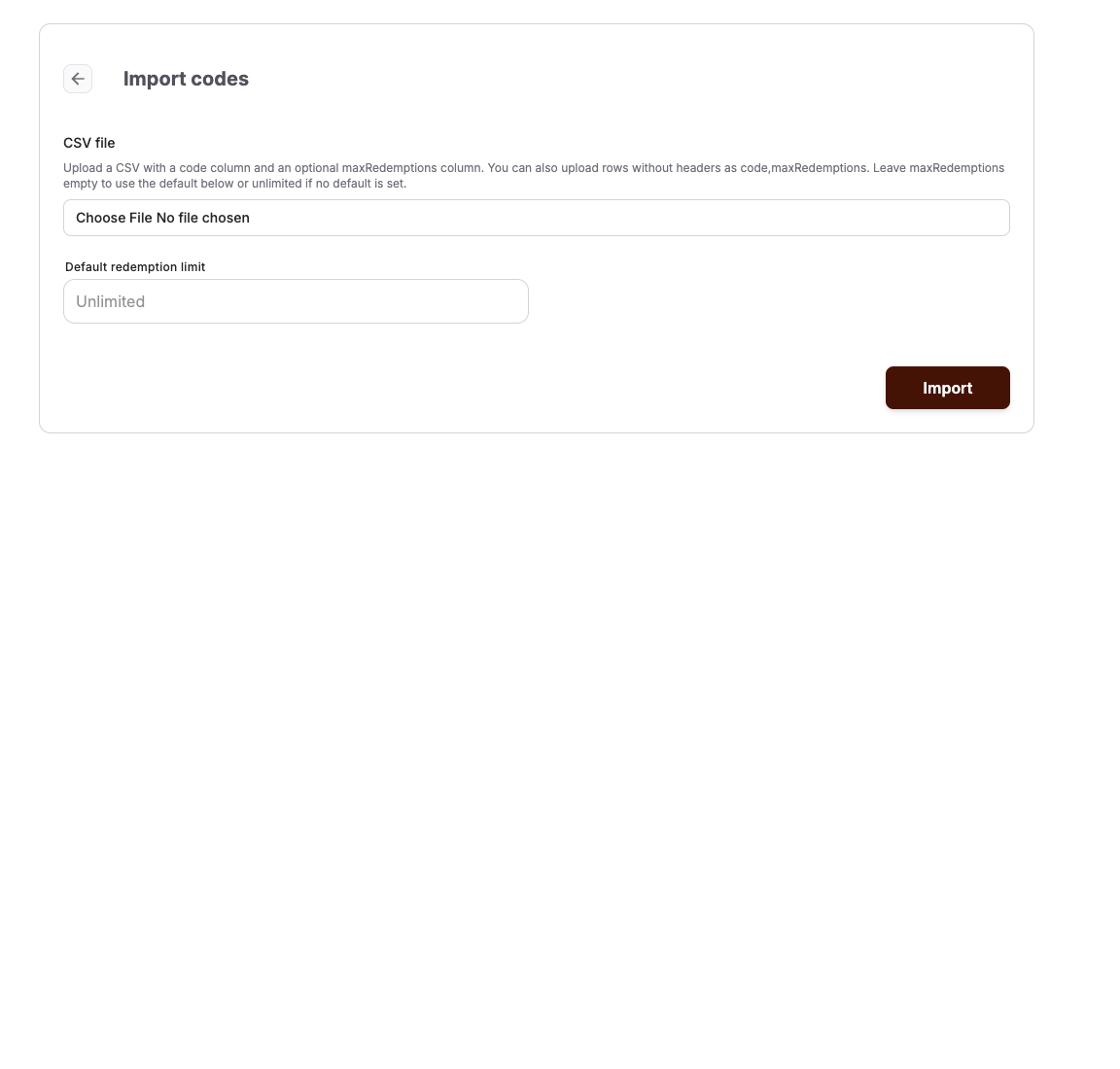
- On the Import codes page, choose your CSV file. Rows may leave
maxRedemptionsempty to use the default below, or unlimited if no default is set. - Optionally enter a Default redemption limit. Leave it empty for unlimited.
- Select Import.
The import is all-or-nothing: if any row has an empty or duplicate code or an invalid limit, no codes are created and the error is shown.
To add a single code instead, select Create and enter the Code, an optional Redemption limit, and the Active state.
Track redemptions
The list shows each code with its Limit, Redeemed, Reserved, Remaining, and Status (Active or Inactive), plus Recent redemptions linking to the order or receipt.
A code applied in an open cart reserves one redemption; completing the purchase turns the reservation into a redemption, and an abandoned or expired cart releases it. When the limit is reached, further attempts to apply the code are rejected.
Deactivate or archive codes
- Edit a code and switch off Active to stop it without losing it from the list.
- Archive a code (or several at once) to retire it: archived codes cannot be redeemed, but their redemption history is kept. Archiving can be undone from the archived list.
Expected result
Each imported code can be redeemed up to its limit; the list shows live redeemed, reserved, and remaining counts with links to the orders and receipts involved.
Troubleshooting
| Problem | What to check |
|---|---|
| Import fails | Empty code cells, the same code appearing twice in the file, and non-numeric limit values. |
| Code is rejected at redemption | Remaining count, Status, archived state, and whether another open cart holds a reservation. |
| Code applies but gives no discount | The matching Couponing Promotion in KORONA.studio, its POS assignments, and the last successful synchronization. |
| Counts look too high | Reserved redemptions from open carts — these are released when the cart expires. |
