Add a custom shop domain
- Last verified
- Last verified Jul 12, 2026
Use this when customers should buy tickets from a branded address such as `tickets.example.org` instead of the default KORONA Event shop address.
Setting up the domain has two parts: your DNS administrator creates a CNAME record, then KORONA Event assigns the domain to the correct shop and activates its secure certificate.
Before you start
Before changing DNS, confirm:
- the exact subdomain you want to use, such as `tickets.example.org`
- who can edit the DNS records for `example.org`
- which KORONA Event shop the domain should open
- the shop's current default domain
- who will contact KORONA Event to request activation
Check the current domain
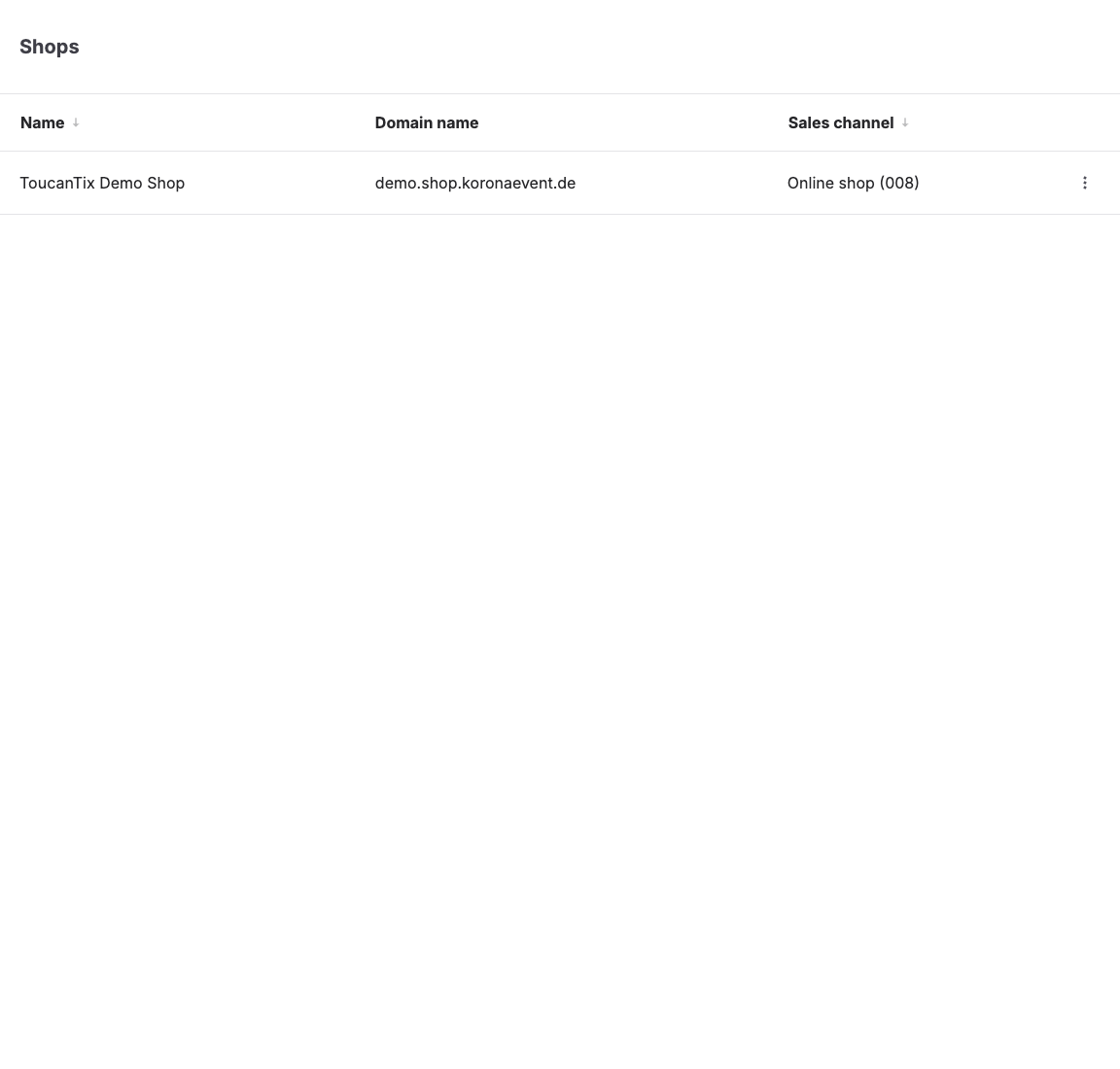
In the back office, open Shops and find the shop. Copy its current Domain name. This is the target for the DNS record and is usually similar to `example.shop.koronaevent.de`.
Create the DNS record
Ask the DNS administrator to add this record at the provider that manages your domain:
| DNS field | Value |
|---|---|
| Type | `CNAME` |
| Name / Host | The branded subdomain. A provider may expect `tickets` or the full `tickets.example.org`. |
| Target | The shop's current Domain name, without `https://` or a path. |
| TTL | Use the provider's default value unless your DNS administrator has a reason to change it. |
For example, if the current shop domain is `example.shop.koronaevent.de` and the new address is `tickets.example.org`, the record points:
Request activation from KORONA Event
Wait until the CNAME resolves, then contact your KORONA Event representative or support team. Include:
- your account and shop name
- the new custom domain
- the current Domain name used as the CNAME target
- confirmation that the CNAME record has been created
- the intended launch date
KORONA Event assigns the custom domain to the shop and provisions its secure HTTPS certificate. DNS propagation depends on the DNS provider, and the certificate can take up to 24 hours after the record has propagated. Do not publish the new address until KORONA Event confirms activation and the checks below pass.
Test before launch
- Open `https://` followed by the custom domain in a private browser window.
- Confirm that the correct shop opens without a browser certificate warning.
- Open a product or event and check that the domain remains correct while you browse.
- Add an item to the cart and complete a test checkout.
- Test every payment method you plan to offer, including Apple Pay or Google Pay where applicable.
- Open an existing link that uses the default shop domain. It should redirect to the same path on the custom domain.
- Update your website, emails, QR codes, and campaigns only after all checks pass.
Expected result
The custom domain opens the intended shop securely and becomes its preferred customer-facing address. Links to the default shop domain redirect to the corresponding path on the custom domain, and checkout and enabled payment methods continue to work.
Troubleshooting
| Problem | What to check |
|---|---|
| Custom domain does not open | The CNAME name and target, DNS propagation, and whether KORONA Event has completed activation. |
| Custom domain opens the wrong shop | The shop and both domains supplied in the activation request. Contact KORONA Event instead of changing the CNAME target yourself. |
| Browser shows a certificate warning | Whether activation is complete. Allow up to 24 hours for certificate provisioning after the DNS record has propagated. |
| Default domain does not redirect as expected | Whether the custom domain is assigned as the shop's preferred domain and whether the link uses the correct shop. |
| Apple Pay or Google Pay is missing or fails | Payment-domain verification for the custom domain and whether the wallet is enabled for the account, browser, and device. |
