Online booking or checkout is not working
- Last verified
- Last verified Aug 7, 2026
Use this when a customer cannot complete a booking online — the shop does not load, the cart blocks them, or payment fails. Start with the message shown to the customer and use the matching action below.
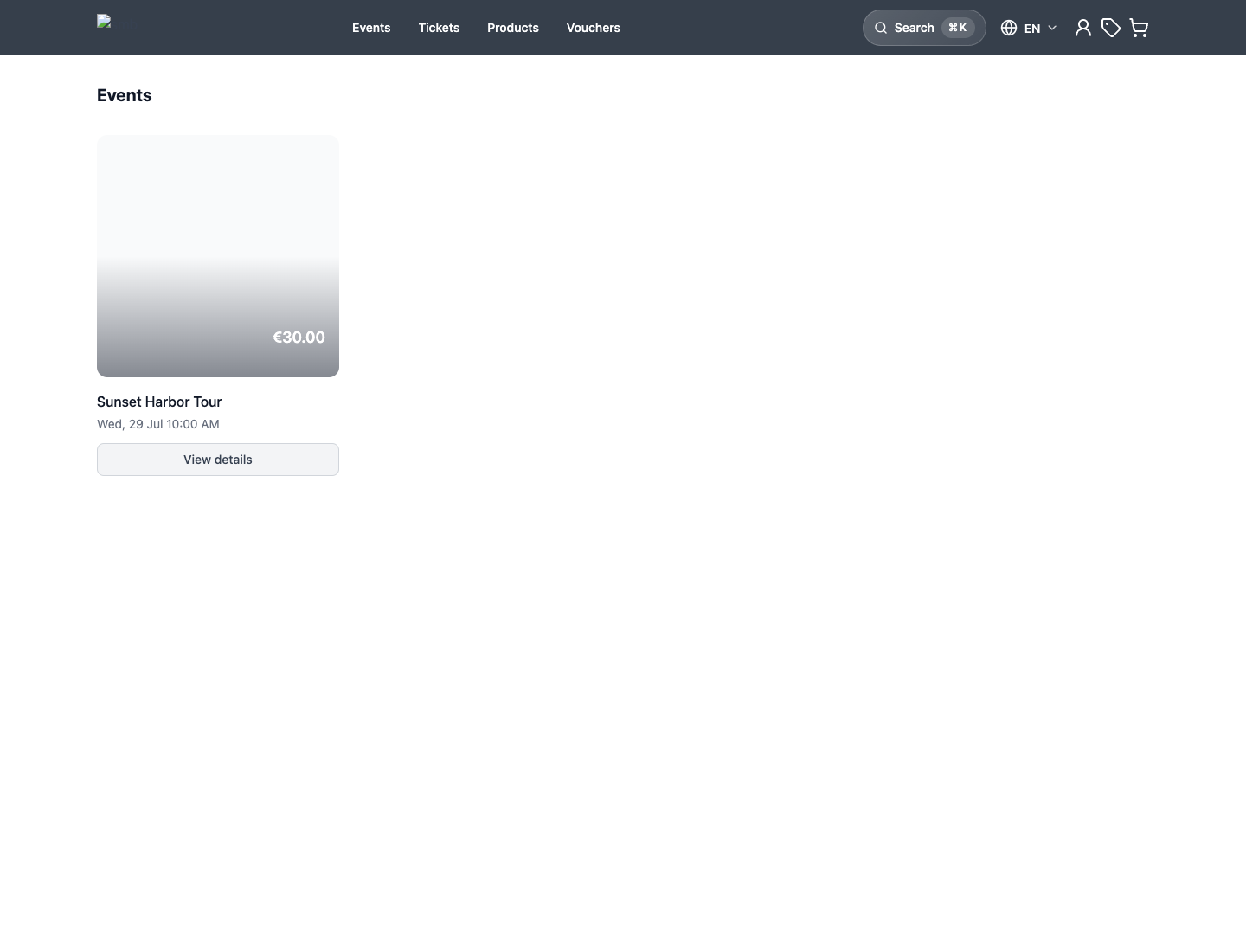
1. Check shop access
If the shop shows a staff login prompt, check whether Require staff login is enabled for the shop. If the shop does not load at all on a custom domain, note whether the default domain works — that separates a domain problem from a shop problem.
2. Use the message shown in the shop
| Error area | Typical messages | Where the problem lives |
|---|---|---|
| Offer selection | Sold out, No times available, Price not available right now | Availability, prices, or sales channels |
| Cart | Some required information for your order is still missing | Required booking or attendee details |
| Cart | Some items in your cart need different checkout handling | Checkout policies of the mixed items |
| Submit | This cart cannot be submitted right now | Checkout policy or cart contents |
| Payment | Payment failed or a provider error | Payment method, provider, or customer eligibility |
For offer and availability blockers, continue in Troubleshoot availability and capacity. If the offer is missing entirely, see An offer is missing from the shop.
Resolve incompatible cart items
If the shop shows Some items in your cart need different checkout handling, the items require different checkout results or payment methods. A cart must use one result and one payment method for all items.
- Identify the offers in the customer’s cart. Open each offer’s Checkout policy settings in the backoffice.
- Compare Checkout result and Payment method. Where a field says Inherit default, check the event template and applicable defaults described in Understand inherited settings.
- If the offers should share checkout, correct the differing offer or template setting and save it. Change shared defaults only if that change is also intended for the other offers using them.
- If different handling is intentional, ask the customer to remove the conflicting items, complete checkout for the remaining compatible items, and purchase the removed items in a separate order. Each order is subject to current availability and its own checkout hold.
Do not change a request-only or unpaid-reservation policy to immediate booking merely to clear the warning. If the customer already submitted payment, check the existing order and payment outcome before asking them to place another order.
When dates or times cannot load
Ask the customer to stay on the current page while the shop tries loading again. If the shop reports that the device is offline, reconnect it to the internet. A loading failure does not mean that the offer is sold out.
If an error remains beside the date or time selection, select Try again. This reloads availability for the current selection without restarting the booking. If the shop still cannot load it, try again later or contact the organizer.
If the interruption happened after submitting a booking or payment, check the order and payment status before repeating that action. The shop's automatic loading retries do not submit a booking or payment again.
When changing a date or time starts a new cart
If the customer's cart is still available, changing the date or time keeps the other cart contents. If the cart session has expired or is no longer available, the shop keeps the newly selected date or time and asks the customer to confirm the ticket and price selection again. The previous cart contents cannot be restored in that case.
Ask the customer to review all quantities and selections before continuing. If they had already submitted payment, check for an existing order before asking them to retry.
3. Check the payment step
If the failure is at payment:
- confirm the provider connection and live mode using Check payment provider setup
- for missing Apple Pay or Google Pay buttons, see Troubleshoot wallet payments
- for methods that appear for some customers only, or differ between checkout and payment links, see Troubleshoot Klarna and pay-by-link payment methods
When Lynck 3-D Secure card verification fails or is canceled
If bank verification fails or the customer cancels it, the shop checks the payment attempt. Once the failed verification is confirmed and another attempt is available, the shop returns the customer to the payment form. They can enter their card details again or choose another available payment method for the same order.
If the page still shows Payment pending, the outcome is not yet confirmed. Wait for the status to change instead of starting a separate booking. Canceling card verification does not cancel the order itself.
4. Check whether an order was created
Failed checkouts often leave a trace. Search Sales > Orders by customer name, and check the abandoned list as described in Find an auto-canceled or abandoned order. Inspect the order state, payment state, History, and the payment provider's transaction evidence before deciding what failed. An abandoned order can mean the customer left, availability changed, validation failed, or payment failed; it is not proof of a payment failure by itself.
5. Check recent configuration changes
Review recent changes to prices, checkout fields, legal documents, payment settings, shop pages, or a custom domain. A domain change is a common cause of wallet payment failures. Complete or revert an unfinished configuration change before asking the customer to try again.
Expected result
The customer can continue checkout after the relevant shop, offer, cart, payment, or order setting is corrected. If all documented settings are correct and checkout remains blocked, contact KORONA Event support.
