Check payment provider setup
Use this when payment methods fail, wallet payments disappear, or payment links do not open.
Safety rule
Do not paste secret keys, passwords, or full payment credentials into tickets, chat, screenshots, or email. Check whether credentials are present without copying their values.
Steps
- Open Admin > Payment or the relevant payment provider page.
- Check whether the provider account is connected.
- Confirm test mode versus live mode.
- Check domain or wallet verification if Apple Pay, Google Pay, or similar methods are affected.
- Check whether the affected payment method is enabled for the intended flow, currency, country, and domain.
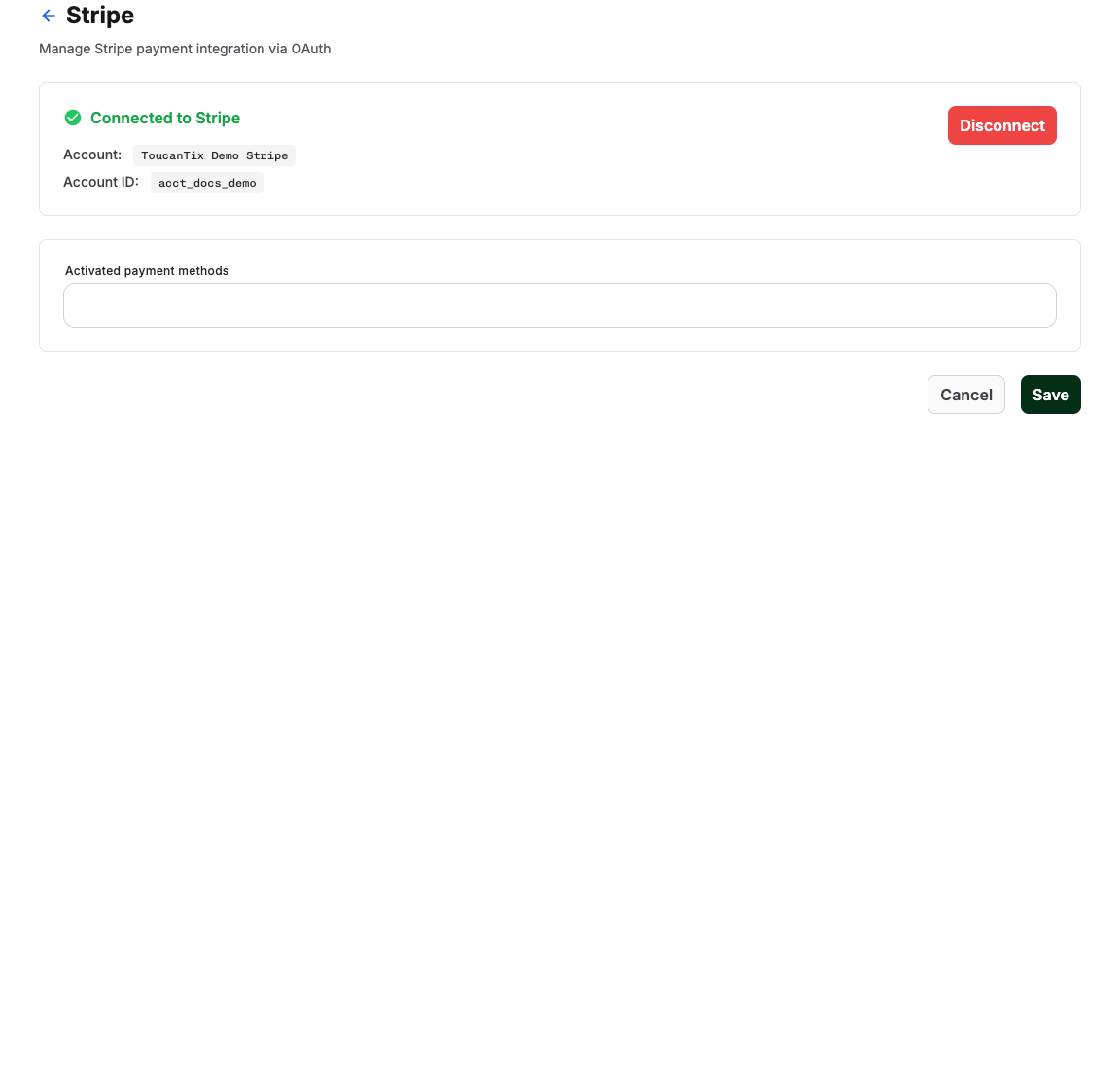
Expected result
The provider is connected in the intended mode, and the affected payment method is available for its supported flow, currency, country, and domain.
Troubleshooting
| Problem | What to check |
|---|---|
| Payment method is missing | Provider connection, shop domain verification, live mode, currency, and checkout configuration. |
| Payment link fails | Order state, invoice state, open items, provider connection, and expired or canceled order. |
| Wallet payment fails after domain change | Custom domain, wallet-domain verification, HTTPS, and provider dashboard. |
| Credentials are read-only | Use Configure on the provider card only when you are authorized to rotate credentials. |
