Orders list: columns, statuses, and filters
- Last verified
- Last verified Oct 19, 2026
The order list in Sales > Orders shows one row for each order The main sales record containing the customer, selected offers, quantities, prices, payment state, invoices, tickets, and documents. in your account. Use this article to read the list: what each column, badge, and icon means, how to search, filter, and sort, and how saved views work.
To work on a single order, select its row. The order detail page is explained in Orders and invoices.
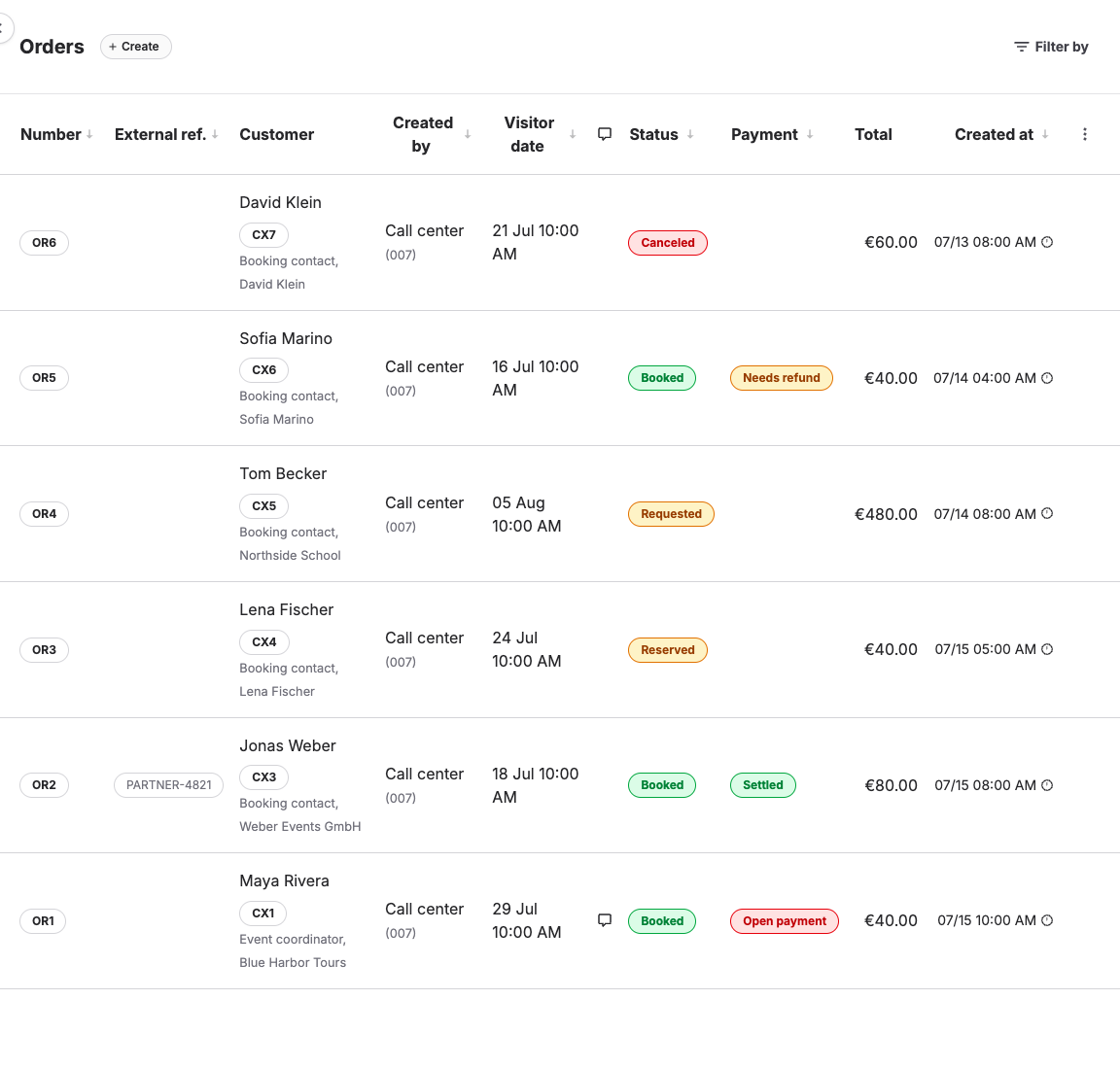
Toolbar
The toolbar above the table contains these controls:
| Control | What it does |
|---|---|
| Create | Starts a new order in the back office. It appears when your account has a back-office sales channel for phone and desk orders and your role can create orders. |
| Reports | Opens Configure Report above the list. Select Generate Report to summarize the orders that match the current filters. This button appears only when reports are enabled for your account. |
| Filter by | Opens the search and filter panel. When filters are active, the button shows only the filter icon, and the active filters appear as chips beside it. |
| List actions | The menu with three vertical dots at the end of the column headers. It contains View abandoned orders. |
The order list has no bulk actions. To change, cancel, or resend documents for an order, open the order.
Columns
| Column | What it shows |
|---|---|
| Number | The order number. Hover over it to preview the order without leaving the list. |
| External ref. | A reference from another system, such as a partner or an integration that created the order. Empty when the order has no external reference. |
| Customer | The contact person's name and customer number, and below them the contact's function and the customer or company name. When a reseller placed the order, an extra line with a shop icon names the reseller. |
| Created by | Where the order came from. For orders created in the back office, it shows the staff member and, below, the sales channel with its number. For other orders, it shows the sales channel, such as the online shop or a POS, with its number. |
| Visitor date | The start date and time of the first service in the order. Empty when the order has no dated service. |
| Internal comment icon | A speech-bubble icon appears when the order has an internal comment. Hover over the icon to read the comment. Customers do not see internal comments. |
| Status | The order state badge. See Status badges below. |
| Payment | The payment badge. It is shown only for booked orders. See Payment badges below. |
| Data collection status icon | Shown when your account collects attendee or booking information with custom fields. See Data collection status below. |
| Total | The gross total of the order. |
| Created at | The creation date with a clock icon. When the order changed more than an hour after it was created, a second, grey date shows the last update. Hover over the dates to see Created at, Updated at, Reserved at, Finalized at, and Last email sent at. |
Status badges
The Status column shows the order's operational state. It does not tell you whether the order has been paid.
Order states
Order state describes the operational progress of an order; read payment and invoice state separately.
| Option | What it does | When to use it | Watch out for |
|---|---|---|---|
| New | Marks an order that is still open or has not progressed to a customer-facing result. | Use it while an order is being created or reviewed before request, reservation, or booking. | Check before sending payment links or documents. |
| Requested | Records a customer request that is waiting for review or a later staff action. | Use it when the booking must not be confirmed automatically. | Do not treat it as a final booking. |
| Reserved | Holds capacity until a reservation deadline or another action progresses the order. | Use it for temporary holds and pay-later workflows. | The reservation can expire and release capacity. |
| Expired | Marks a request or reservation that passed its allowed deadline without progressing. | Use it to identify orders that no longer hold their previous place in the workflow. | Check whether the customer completed a replacement order later. |
| Booked | Confirms the order operationally. | Use it when the selected offers are accepted as a booking. | Booked does not prove that payment or ticket generation completed. |
| Canceled | Ends the operational order and prevents it from being treated as active. | Use it after an approved cancellation workflow. | Payment, refund, invoice, capacity, and customer communication may still need separate action. |
The red Abandoned badge marks an order that KORONA Event canceled automatically because checkout was not completed or payment did not arrive in time. Abandoned orders are hidden from the main list. Open them with View abandoned orders, as described in Find an auto-canceled or abandoned order.
Payment badges
The Payment column shows a badge only when the order is Booked. Orders in any other state have an empty payment cell.
The badge shows the order's payment state:
Order payment states
Order payment state summarizes whether money is still due, settled, or requires refund work.
| Option | What it does | When to use it | Watch out for |
|---|---|---|---|
| Open payment | Shows that the order still has an amount that needs to be paid. | Use it to find orders that need payment follow-up or an available payment action. | Check invoice state and open items before sending a payment link. |
| Needs refund | Shows that money should be returned or refund follow-up is still required. | Use it to route the order into the team’s refund process. | It does not prove that the customer has received the money. |
| Action needed | Shows that the order contains both an amount to collect and an amount to refund. | Use it to identify mixed financial corrections that need deliberate review. | Review invoice details instead of assuming the two amounts cancel each other out. |
| Settled | Shows that the order has no remaining payment or refund difference at order level. | Use it as the order-level financial completion signal. | Still check individual invoices and provider settlement when finance detail matters. |
Instead of Open payment, the badge shows Open items when the unpaid amount comes from booked items that are not on an invoice yet and no invoice is waiting for payment. Create the invoice or start the payment from the order. Needs refund, Action needed, and Settled are always shown as they are.
The badge colour shows how urgent the follow-up is: green for Settled, amber for Open items and Needs refund, and red for Open payment and Action needed. When exactly one invoice is waiting for payment, hover over the badge to see its due date.
Select a payment badge to go to the record that needs attention:
- When one invoice is waiting for payment, the badge opens that invoice.
- When the order has Open items, the badge opens the order.
- Otherwise, the badge opens the order's Documents tab. A Settled badge does not open anything.
For how order state, payment state, and invoice state relate, see How orders, payments, invoices, and tickets fit together.
Data collection status
When an order has attendee or booking fields to fill in, the data collection status column shows an icon. Hover over it to see the details.
| Icon | Tooltip | What it means |
|---|---|---|
| Green check mark | All data collected | Every attendee and booking field is filled in. |
| Green check mark | All required data collected | Every required field is filled in; some optional fields are empty. |
| Red cross | Attendee or booking information still missing | At least one required field is empty. |
The column is empty for orders without attendee or booking fields.
Search the list
- Select Filter by.
- Enter a search term in Search....
- Press Enter or select Text search.
The text search finds orders by order number, external reference, customer first or last name, company name, customer number, and the number of a booked event, template, or admission. The search term appears as a chip with a magnifying glass.
While you type, the panel also suggests matching filter values, such as customers, events, or products. Select a suggestion to add it as a filter instead of a text search.
To find orders by ticket, invoice, or receipt number, use the global Search box in the sidebar. See Search for orders by receipt, ticket, or customer.
Filters
Open Filter by and select a filter group to choose its values.
| Filter group | Use it to |
|---|---|
| Visitor date | Find orders whose services take place in a preset period, such as Today or Next week, or a Custom date or date range. |
| Created | Find orders created in a preset period or a Custom date or date range. |
| Time | Find orders whose services start in a selected four-hour time window. |
| Payment statuses | Find orders by payment state: Open payment, Action needed, Needs refund, or Settled. |
| Open items | Separate orders with Open items from orders with No open items. |
| Shipping statuses | Find orders that are Shipped, Requires shipping, or have No shipping. |
| Payment methods | Find orders by payment method, such as Online, At the venue, Invoice, Collective invoice, or Delivery note. |
| Order statuses | Find orders by order state, for example to include or exclude canceled or expired orders. |
| Buyer customer | Find orders for a customer account. |
| Reseller | Find orders billed through a reseller. |
| Buyer contact | Find orders for one contact person. |
| Customer groups | Find orders for customers who belong to a selected customer group. |
| Events | Find orders that contain a selected event. |
| Templates | Find orders that contain events created from a selected event template. |
| Admissions | Find orders that contain a selected admission. |
| Vouchers | Find orders that contain a voucher from a selected voucher configuration. |
| Products | Find orders that contain a selected product. |
| Tags | Find orders that contain services with a selected tag. |
| Created by | Find orders created by a selected staff member. |
| Sales Channels | Find orders created through a selected online shop, POS, or other sales channel. |
| Order channels | Find orders received through a selected order channel. |
| Internal comment | Choose Has internal comment or Has no internal comment. |
The values in the Order statuses and Payment statuses groups have the same names as the Status and Payment badges. The Payment statuses filter uses the order's payment state, so Open payment also finds orders whose badge shows Open items.
Multiple values in the same filter group match any of the selected values. Different filter groups combine, so an order must match every group. For details on offer, buyer, and reseller filters, see Filter events, orders, customers, invoices, and attendees.
Each active filter appears as a chip next to Filter by. When filters are active, the toolbar also shows the number of matching orders. Select the cross on a chip to remove one filter, or select Clear filters to remove all of them.
If no orders match but abandoned orders do, the list says so and offers View abandoned orders. Otherwise, it offers Clear filters.
Sort the list
Select a column header to sort by it. These columns can be sorted: Number, External ref., Created by, Visitor date, Status, Payment, and Created at.
Each selection moves to the next step: ascending, descending, then unsorted. An arrow on the header shows the current direction. When you sort by more than one column, the list applies the columns in the order you selected them. Each sort also appears as a chip, for example Visitor date (ASC). Remove the chip to stop sorting by that column.
Saved views
A saved view stores a set of filters and sorts so you can return to the same list with one selection. Saved views appear as chips with a layers icon above the column headers.
To create a saved view:
- Set the filters and sorts you want to keep.
- Select Create new view.
- Enter a Name. Optionally, set Email notifications to Immediately.
- Save the view.
Select a saved view chip to apply it. Select it again to return to the unfiltered list.
To change the selected view, add or remove filters, then select Save > Save to this view. Save > Create new view keeps the selected view unchanged and creates a new one.
Open the menu with three horizontal dots on the selected view chip for more actions:
- Edit changes the name, filters, or email notifications.
- Delete removes the view. This cannot be undone.
- Copy point of sale URL copies a link that opens the orders of this view on the KORONA Event POS. It appears only when your account has a POS address. Accounts that publish saved views to KORONA POS see Publish as Orders POS action instead.
Saving, editing, and deleting views depend on your role's saved-view permissions. For email notifications on saved views, see Filter events, orders, customers, invoices, and attendees.
Abandoned orders
Orders that KORONA Event canceled automatically are not shown in Orders. Open them with List actions > View abandoned orders.
The Abandoned orders list has the same columns, search, filters, sorts, and saved views. Select the back arrow next to the title to return to Orders. To find out why an order was abandoned, see Find an auto-canceled or abandoned order.
