Use and read the back-office Calendar
- Last verified
- Last verified Aug 29, 2026
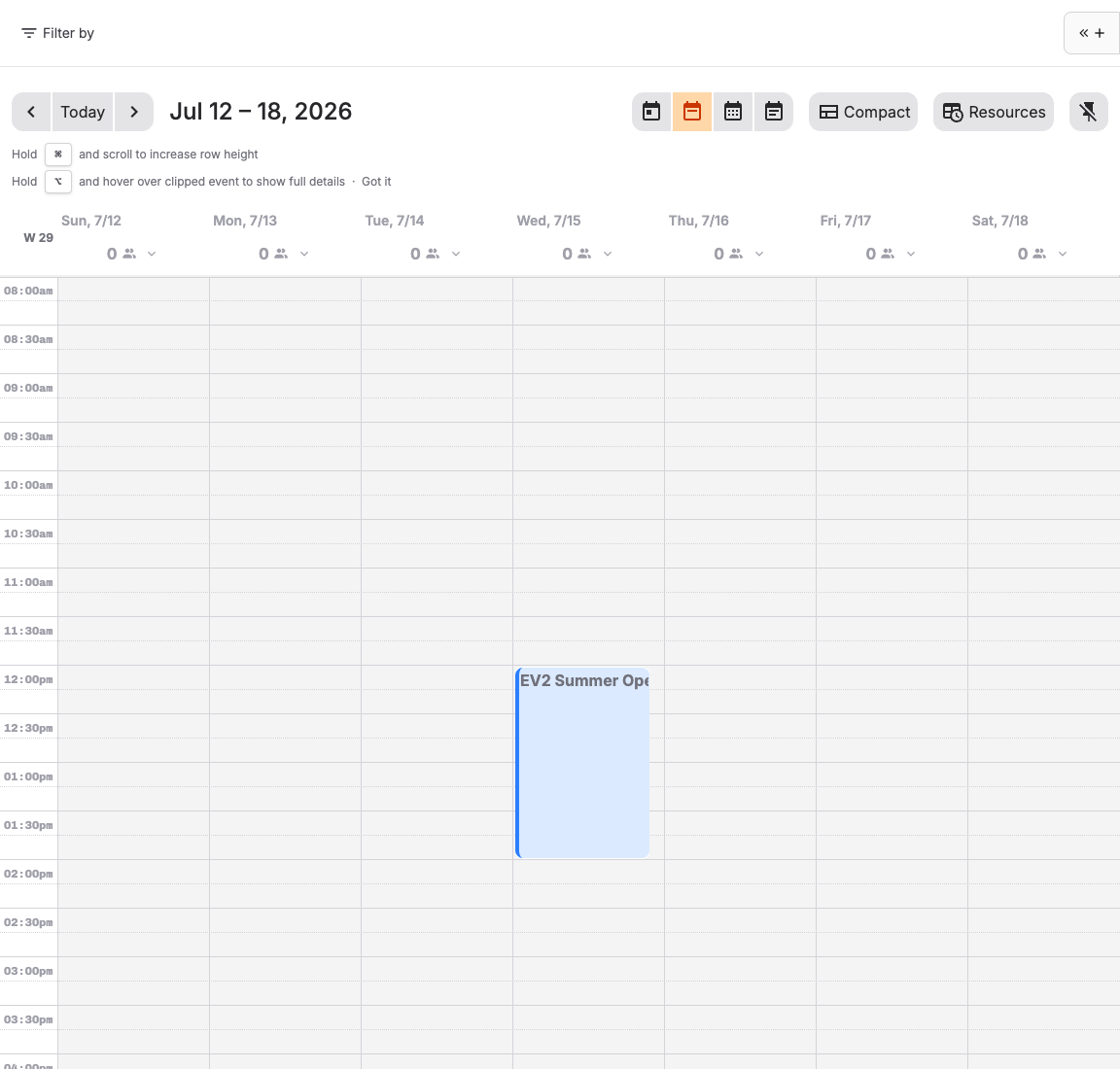
Use the back-office Calendar to review scheduled events and start times, inspect bookings and resources, create events or availability entries, and activate seasonal time-pattern periods.
Choose a view
Open Calendar and use the toolbar:
| View or control | Use it for |
|---|---|
| Day view | Detailed work on one day, including start times and active periods. |
| Week view | Compare operations across a week. |
| Month view | Find busy, quiet, or closed dates across a month. |
| Overview | Scan a broader operational schedule. |
| Resources | Show resources as rows with reservations and availability; use day or week timeline view. |
| Compact | Reduce event-card height when a busy schedule is difficult to scan. |
| Today | Return to the current date. |
Prepare for events in Agenda view
Choose Agenda in the Calendar toolbar, then open Price category breakdown on an event to see its Booked, Reserved, and Total counts for each price category. Total is booked plus reserved; it is not the event capacity. Categories that do not consume quota are included and marked with an information icon.
Use Show all beside Price category breakdown above the agenda to expand every event breakdown. Use Hide all to collapse them. You can then expand or collapse individual events as needed. These controls also apply to other agenda panels on the same Calendar page.
The choices remain while you navigate dates on the Calendar page. Reloading or leaving the page resets them. When attendance data is unavailable, the event has no breakdown control.
Filter what you see vs what you can create
The Calendar has two separate filters. They do not stay locked together.
| Filter | Controls | Persistence |
|---|---|---|
| Calendar Filter by (top of the grid) | Which events and start times appear on the Calendar | Can be saved as a calendar saved view; also kept in the browser session |
| Event template Filter by (create sidebar) | Which event templates appear when you create events from the Calendar | Can be saved as an event-template saved view; kept in the browser on this device |
Use calendar filters when you need a focused schedule (for example one resource or tag). Use the sidebar filters when you repeatedly create from a subset of event templates.
Save or reuse a calendar view
- Select Filter by above the Calendar grid.
- Choose offer type, event template, resource, tag, published state, or other available criteria.
- Select Create new view to keep those filters as a named view.
- Select the saved view chip later to reapply it. Use Clear filters to remove only the temporary filter overlay.
- To update an existing view, select it, adjust filters, then select Save > Save to this view. Use Create new view when you want to keep the original.
Calendar layouts (column setups in day view) are separate from these saved views.
Filter event templates when creating from the Calendar
- Open the event template selector from the Calendar toolbar.
- In the sidebar, select Filter by to narrow the template list (resource, tag, published state, location, and related criteria).
- Select Create new view to keep that template list as a named view, or Save > Save to this view when updating an existing one.
- Those saved views are shared with Services → Event templates. Creating or editing a view in either place updates the other.
- Select Apply filter from calendar under the saved-view chips when you want the sidebar to reuse overlapping criteria from the current Calendar filter (for example the same resource or tags). This is a one-time copy; later Calendar filter changes do not update the sidebar automatically.
Then select a template and choose start times or drag it onto the grid. The sidebar explains the result before you continue:
- For a template with a time pattern, select Add … start times. This updates the named time pattern, so every event template and admission using it can become bookable at those times.
- For a template without a time pattern, select Create … standalone events. Each selected time creates a separate event with its own EV number.
Add prices while creating an event
In the Create event form, choose a Price category and Product for each price. Select Add pricing to include another category, such as Child or Reduced, before creating the event. Use Remove price and confirm Remove to remove an unwanted row from the form.
Add a start time instead of a standalone event
When you select a patterned event template in a generic Create event form, KORONA Event warns that saving the form creates a separate standalone event. That event does not become one of the template's start times.
Choose the action that matches the intended result:
| Intended result | Action | What changes |
|---|---|---|
| Make the event template bookable at one more time | Add start time | Adds the selected date and time to the assigned time pattern. Every event template and admission using that pattern can be affected. |
| Create and manage an independent event | Create standalone event | Creates a separate event with its own EV number. The template's time pattern does not change. |
You can also open an event template under Services → Event templates and select Add start time. Enter the date and time, review the shared-pattern notice, and confirm. Use Create standalone event or Create multiple standalone events from that page only for independent events.
When Add start time is shown on the event-template detail page, open the dropdown beside it to select Create standalone event. Without a time pattern, Create standalone event is shown directly.
Read an event or start time
Select an event card or start time to inspect its time, state, capacity, customer bookings, prices, and allocated resources. Use the available links to open Attendees, Orders, an existing booking, or Book new.
The guidance beside Book new uses the sales period for the Backoffice sales channel selected for your user. If that sales period has not started or has ended, Book new remains available and the detail dialog shows the boundary time as information. Continuing opens the normal booking flow; review the details and confirm the booking there. KORONA Event applies the current confirmation and validation rules before saving.
The Calendar can show both published and unpublished items. An item visible to staff is not necessarily sellable to customers. Check publishing, hidden state, prices, sales channels, sales periods, capacity, and resources before treating Calendar visibility as customer availability.
The Resources view shows reservations and availability on each resource row. An unavailable span means the resource cannot be allocated then; existing reservations may still require manual follow-up.
Choose the scope of resource changes
An uncreated start time shows Resource defaults from the event template. These defaults are read-only in the Calendar details.
- To prepare resources for this occurrence before booking, create the event first, then open its Resource requirements. No booking is needed. In the day, week, or resource-day view, hover the open start time and select Create event for this start time. This action requires permission to create events and a template that allows only one event per start time. If a fixed resource is already reserved, review the warning and choose Create without resource to create the event with that resource unallocated.
- Booking the start time also creates the event. If you choose that route and encounter a resource-capacity conflict, follow Confirm resource overbooking.
- To change defaults for future events created from the template, select Edit template resource defaults. Edit event template opens the template's general settings.
Removing an allocation leaves its resource requirement in place. If an individual event can proceed without that resource, edit that event's requirement and choose Optional. Keep a required, unfilled requirement when staff still need to arrange a resource.
Respond to a missing start time warning
A created on-demand event can remain in the Calendar after its event template's time pattern no longer generates that start. KORONA Event highlights the event card and detail dialog with Start time missing from time pattern.
- Select the highlighted event and review its event template, time pattern, date, and start time.
- If the start time should be available from the event template again, select Add start time back in the warning. KORONA Event adds the event's exact date and time to the assigned time pattern.
- Remember that other event templates and admissions using the same time pattern can also become bookable then. Copy and assign a separate pattern first when only this event template should change.
- If the start time should remain closed, review existing orders and archive the created event when it should leave the Calendar. Rebook, cancel, refund, or contact customers separately when required.
- Check the intended sales channel before accepting more bookings.
Read active periods
The day header shows Active periods. These are named time pattern periods that add, replace, or subtract grouped start-time rules for that date.
Select Edit active periods to change the selected date. Use Apply to date range for a high season, low season, holiday, or other multi-day schedule.
Choose the right way to block or change time
| Need | Use |
|---|---|
| One resource is unavailable | Create an Unavailable availability entry. |
| One open start time should close | Hover the card and use Remove start time, or add it under the pattern's Excluded start times. |
| One created event should leave the Calendar | Hover the card and use Archive event, or select the card and choose Archive. |
| Weekly schedule changes permanently | Edit or copy the time pattern. |
| A named seasonal schedule applies to many dates | Activate a time pattern period with Apply to date range. |
| All online sales should pause | Pause the online sales channel. |
| An existing customer booking must move | Move or rebook the order. |
Use the detailed guides for resource blocks, time patterns, time pattern periods, pausing online sales, hiding or archiving an offer, and moving an order before making the change.
Work with unavailable resource time
Named Unavailable entries appear in the Calendar without selecting their resource in Filter by. Resource, resource type, resource configuration, and resource property filters narrow these entries. Event-only filters, such as tags or publication state, do not hide them. Select an entry to view or edit the resource block.
In ordinary Calendar views, open Filter by and use Show resource unavailability in the Display section. It is checked by default and shows named blocks such as maintenance or staff leave within the applicable resource and date filters. Uncheck it to focus on events. Availability checks remain active when the notices are hidden.
When notices are hidden, a Resource unavailability hidden chip appears beside the active filters. Remove this chip or check Show resource unavailability again to show the notices and open a resource block.
The Calendar remembers your choice when you return. Saving or updating a calendar layout also saves this choice; selecting that layout restores it. Existing layouts show the notices by default. The Resources timeline views continue to show availability and do not offer this display control.
The Calendar handles unavailable time according to its cause:
- If no Available hours cover the selected time, the Calendar opens an availability-only dialog. Create an Available entry when you intentionally want to open that time.
- If one filtered resource causes the conflict, the dialog selects and locks that resource. If several resources cause the conflict, select the resource you want to open; the dialog lists only the conflicting resources.
- If an explicit Unavailable entry covers the time, select that entry and edit or delete it. An overlapping Available entry cannot override it.
- Events cannot be created, moved, or resized into unavailable resource time.
This behavior applies in the normal Calendar views and the Resources day and week timeline views. Existing events and bookings remain visible for follow-up.
Remove or archive from the Calendar
Hover an event card or start time to open the action buttons, or select the card to open its detail dialog.
| What you see on the Calendar | Action | What changes |
|---|---|---|
| Open start time from an event template or admission | Remove start time | Removes the open slot from the time pattern. If the pattern is shared, the dialog shows how many other offers lose that open slot. Affected admissions no longer accept new bookings at that start; created events and existing bookings remain unchanged. |
| Created event (standalone or from an event template) | Archive event | Archives only that one event. Other start times stay on the Calendar. |
When no other offer uses the time pattern, KORONA Event does not show a shared-impact warning. When the pattern is shared, the dialog lists the other affected offers you can access and tells you how many additional affected offers are hidden by your permissions. Review this scope before you continue.
Canceling an order does not remove a created event. If that occurrence should leave the Calendar, archive the event.
Block a resource from the Calendar
- Select Resources in the Calendar toolbar.
- Drag across the affected time range on the resource's row.
- Open the Availability tab.
- Select the resource, enter a clear Name, and set Availability to Unavailable.
- Choose the Repeats rule and select Create.
- Review existing allocations in the blocked period; the block does not remove them.
Remove a start time
- Hover the open start time in the Calendar and select Remove start time, or select the start time and use Remove start time in the detail dialog.
- If a shared-impact warning appears, review the number and list of other affected offers. To change only the selected offer, duplicate the time pattern and assign the copy to that offer before removing the start time.
- Confirm with Remove open slot or, for a shared pattern, Remove open slot from all affected offers. If the impact changed while the dialog was open, KORONA Event reloads it for another review.
- Check the public shop.
Removing a start time removes the open slot generated by the time pattern. Affected admissions no longer accept new bookings at that start, but existing bookings remain unchanged. Review those bookings and rebook, cancel, or contact customers as needed. Depending on sales settings and capacity, an already-created event may still accept bookings; archive the event separately if it should no longer be available.
The Start time removed success message does not offer Undo. To restore the start time later, first review the event templates and admissions currently assigned to the time pattern. Then open Time patterns, select the pattern, expand Excluded start times, remove the matching date and time, and select Update to save the current pattern.
Archive an event from the Calendar
- Hover the created event and select Archive event, or select the event and choose Archive.
- Read the confirmation. It archives only that event occurrence.
- If the event already has bookings, cancel or rebook those orders separately and inform the customers when needed.
- Confirm Archive.
Expected result
Staff can interpret the schedule and booking state, find resource conflicts, identify active seasonal periods, keep Calendar view filters and event-template create filters separate when needed, and use the smallest safe change for a closure without unintentionally changing unrelated offers or existing bookings.
Troubleshooting
| Problem | What to check |
|---|---|
| Event appears in Calendar but not shop | Publishing, Hide from shop, active prices, shop sales channel, sales period, capacity, and shop page. |
| Start time returns after being closed | Whether the recurrence rule still generates it, the exclusion was saved on the assigned pattern, and period mode. |
| Blocking one resource does not close sale | Another matching resource may satisfy the role or function; review the event's resource requirement and allocations. |
| Removing one start time affects other offers | They share a time pattern; restore the shared pattern and assign a copied pattern to the independent offer. |
| Admission, event, or booking remains after removal | The action removes one open pattern slot. The admission remains available at its other starts, and existing bookings remain unchanged. Archive an already-created event separately if it should no longer be available, and handle bookings separately. |
| Many start times disappeared after archiving | Check whether an event template was archived instead of a single event. Restore the template if needed, then archive only the event. |
| Trash or archive is unavailable on a start time | Open start times use Remove start time. Created events use Archive event. Confirm your discard permissions. |
| Event archive details cannot be loaded | Select Retry before archiving. If loading fails again, reload the Calendar and contact KORONA Event support. |
| Calendar stays loading or shows Reload | Save or copy other unsaved work, then select Reload. If loading fails again, contact KORONA Event support. |
| Drag and drop is unavailable and shows Reload | Save or copy other unsaved work, then select Reload. If drag and drop remains unavailable, contact KORONA Event support. |
| Calendar cannot check availability for more than 500 resources | More than 500 resources match. Narrow the resource, resource configuration, resource property, or resource type filters. The Calendar keeps create, move, and resize actions unavailable until it can check the exact displayed resource set. |
| Resource availability could not be loaded | Select Retry. If loading fails again, reload the Calendar and contact KORONA Event support. Unlike the 500-resource message, this usually indicates a temporary connection or server problem. |
| Named unavailability notices could not be loaded | Select Retry to reload the notices. This warning alone does not prevent creating, moving, or resizing unrelated events. |
| Named unavailability notices exceed the 500-resource limit | Narrow the resource filters to show the notices. Resource-specific availability checks still apply when you select resources. |
| Sidebar template list does not match Calendar filter | Expected unless you select Apply filter from calendar; the two filters are independent. |
| Apply filter from calendar is unavailable | The Calendar has no overlapping criteria the sidebar can reuse (for example resource, tag, published, or locale). |
| Template saved view missing from the sidebar | Confirm it was saved under event templates (including Services → Event templates), then reopen the sidebar. |
| New event is missing from a template's start times | A generic create form may have created a standalone event. Open the template and use Add start time to update its assigned time pattern. |
