Set account language, timezone, and contact details
Use this article during account setup. These settings control the language of customer-facing content, the time zone your event times rely on, the address printed on your invoices, and the contact details shown to customers in the online shop.
To change only the language of the back-office interface for yourself, see Switch the back-office display language.
Before you start
- You need back-office access with permission to edit the account profile.
- Have your legal company name, address, customer-facing email address, phone number, and website URL ready.
- Decide which languages your shop should offer in addition to your main language.
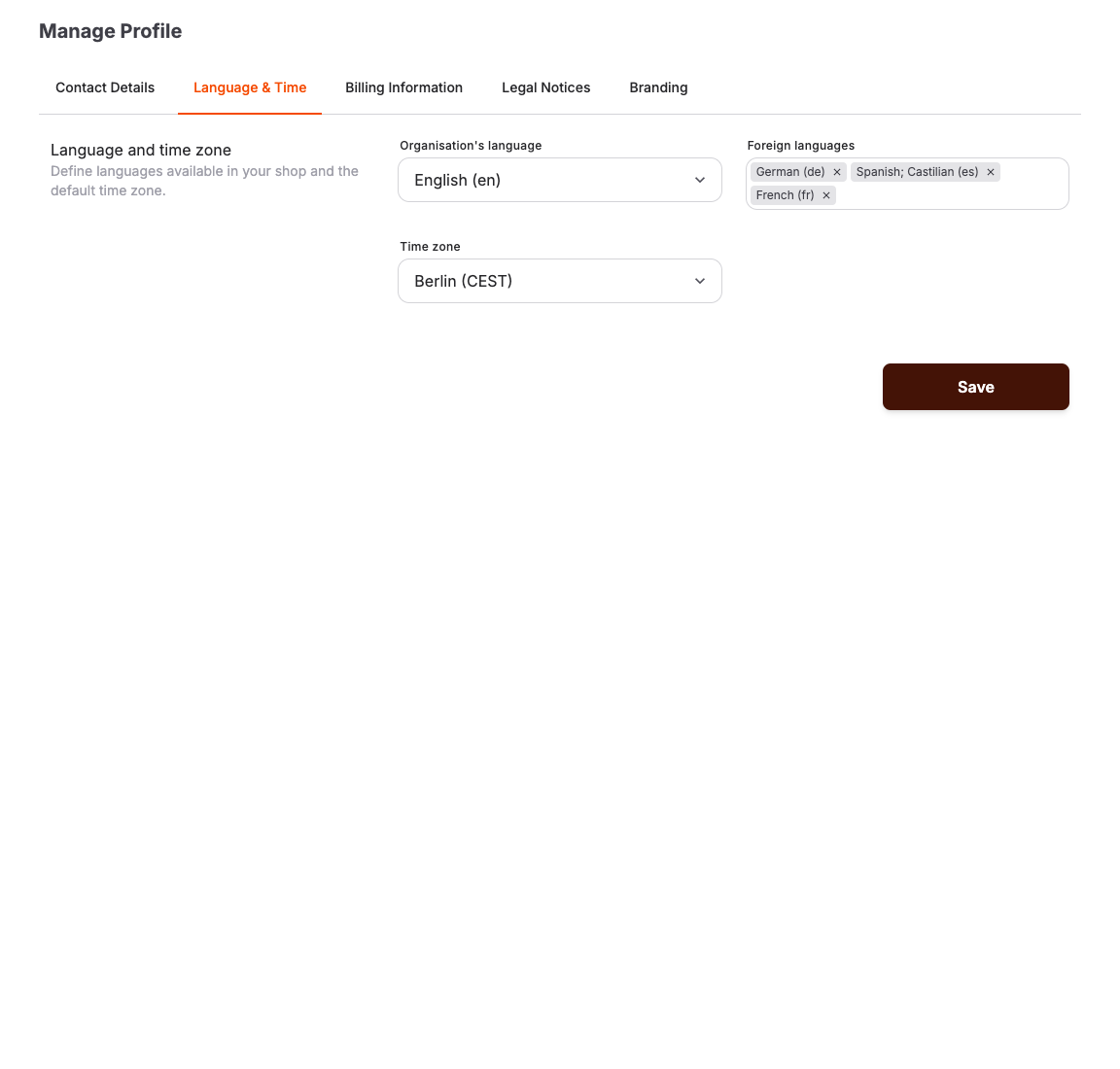
Set language and time zone
- In the back office, open Admin > Account.
- Select the Language & Time tab.
- Select the Organisation's language. This is your account's main language.
- Under Foreign languages, add every additional language your shop should offer. Customer-facing texts such as legal documents offer translation fields for these languages.
- Select the Time zone.
- Select Save.
Set address and contact details
- Still under Admin > Account, select the Contact Details tab.
- In the Address section, enter your organisation's Name and address. This information is displayed on the invoices you create.
- In the Contact section, enter the Email, Phone Number, and Website URL customers should use to reach you. The online shop shows these in its footer.
- In the Social Media section, optionally add profile URLs for Facebook, Instagram, TikTok, X (Twitter), YouTube, and LinkedIn. These can appear in customer-facing places such as the shop footer.
- Select Save.
Expected result
The account has the intended default language, additional shop languages, time zone, legal organization details, customer contact details, website, and social links.
Troubleshooting
| Problem | What to check |
|---|---|
| Customers cannot switch the shop to a language | Whether the language is listed under Foreign languages on the Language & Time tab. |
| Event times look shifted for customers or staff | The Time zone setting, and the time zone configuration of connected entry or POS systems. |
| The invoice shows an old or wrong address | The Address section on the Contact Details tab; new documents use the current values. |
| The shop footer shows no phone, email, or website | The Contact section on the Contact Details tab; empty fields are not displayed. |
| Live mode activation reports missing account details | Name and address on Contact Details, plus the Billing Information tab. |
