Scan tickets at the entrance
Use this workflow to admit customers who arrive with a ticket, QR code, order confirmation, or customer name.
Entrance scanning is handled by connected entry hardware, such as KORONA.entry scanners and turnstiles, and each scan is recorded on the ticket in KORONA Event. Staff check attendees in manually from the back office attendee view. The point of sale (POS) is used to look attendees up at the door; it does not scan tickets itself.
This article is for admissions staff working under queue pressure.
Before you start
Confirm:
- the entry hardware integration is connected and synchronized, for example KORONA.entry under Admin > Integrations
- the event or admission appears in the POS agenda for door lookups
- scanner hardware is charged and connected when used
- staff know the fallback process for manual lookup and check-in
- the entrance team knows which ticket states allow entry
Look up attendees at the door
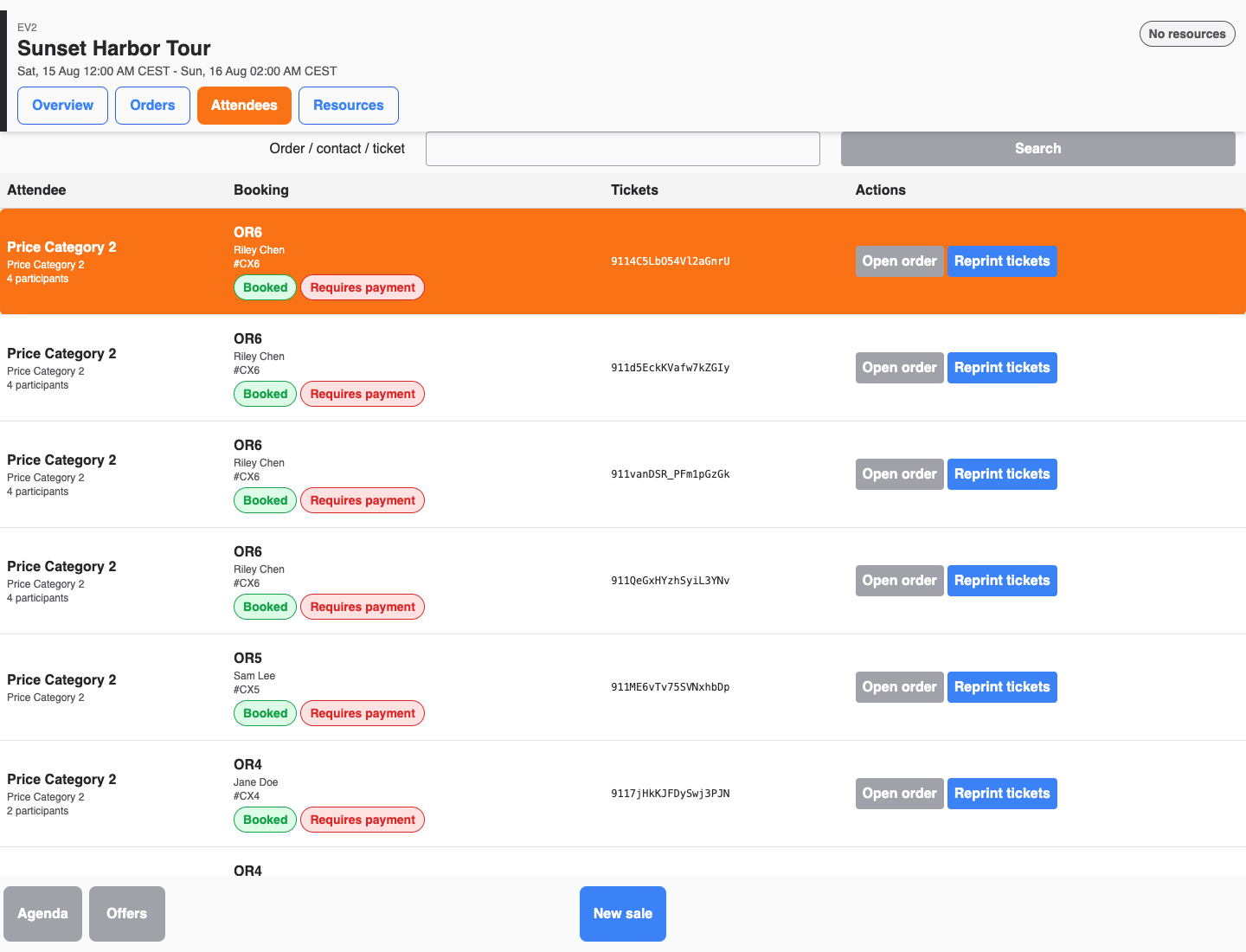
- Open the POS.
- Open Agenda.
- Select the event or admission.
- Open Attendees.
- Search by customer name or ticket number if scanning is unavailable.
Scan or check in a ticket
- Ask the customer to show the ticket or QR code.
- Scan the code with the connected entry scanner or turnstile. The hardware accepts or rejects the ticket, and the result is recorded on the ticket in KORONA Event.
- If the hardware rejects the ticket or scanning is unavailable, open the attendee under Sales > Attendees in the back office and review the ticket.
- Use Check in on the ticket, or Check in selected for a group, to record a manual entry.
- If the ticket cannot be checked in, read the reason shown before deciding whether to admit the customer.
Understand why a ticket cannot be checked in
When a ticket cannot be checked in, the ticket panel on the back office attendee detail shows one of these reasons:
| Reason | What it means |
|---|---|
| Already checked in | The ticket was already used for entry. Check whether the customer is in the same group or whether the code was duplicated. |
| Invalid validity | The ticket is not valid for the current date or time. Check the order and the ticket validity. |
| Ticket is not active | The ticket exists but is not in an active state, for example a pending or locked ticket. |
| Used up | The ticket has no remaining entries. |
For the full set of ticket states behind these reasons, use the canonical reference:
Ticket states
Ticket state describes whether a ticket is ready, usable, consumed, restricted, or no longer valid.
| Option | What it does | When to use it | Watch out for |
|---|---|---|---|
| Pending | Shows that ticket activation or final state is not complete yet. | Use it while waiting for ticket generation or synchronization to finish. | Do not promise entry until the ticket becomes active or its source confirms validity. |
| Active | Shows that the ticket is currently valid for its configured entitlement. | Use it as the normal ready-for-entry state. | Date, time, entitlement, and duplicate-scan rules can still affect admission. |
| Used | Shows that the ticket’s usable entitlement has already been consumed. | Use it to investigate a repeat or duplicate entry attempt. | Check scan history before overriding an admission decision. |
| Expired | Shows that the ticket is outside its valid period. | Use it when the configured validity has ended. | Confirm the selected event or admission date before rejecting the customer. |
| Locked | Prevents the ticket from being used while a restriction is active. | Use it when an operational or external-system rule deliberately blocks entry. | Review the lock reason and owning system before changing it. |
| Cancelled | Shows that the ticket was canceled and is no longer valid for entry. | Use it after the related order item or ticket has been canceled. | Check whether a replacement ticket was issued. |
| Unknown | Shows that KORONA Event cannot determine a reliable ticket state. | Use it as a signal to inspect ticket source, synchronization, and scan history. | Do not infer validity without checking the source system. |
Fallback lookup
When scanning is unavailable:
- Search the POS attendee list by name or ticket number, or open Sales > Attendees in the back office.
- Confirm the event, date, time, and ticket state.
- When the attendee or ticket is found, record the manual entry with Check in in the back office.
- If an emergency venue process cannot record the check-in immediately, add the attendee or ticket number to a manual log and reconcile it with Check in as soon as the system is available.
- If the ticket cannot be found, collect order confirmation details and escalate to a supervisor.
Expected result
Entrance staff can confirm whether a ticket is valid for the selected event or admission, check the attendee in, and capture enough information to resolve failed scans without blocking the queue.
Troubleshooting
| Problem | What to check |
|---|---|
| Event is missing from POS agenda | POS setup, sales channel, event date, POS coupling, and whether the event is still active. |
| Ticket scans as wrong date | Selected agenda item, ticket date/time, rebooking state, and external booking sync. |
| Ticket was already used | Check the ticket's entry events in the back office attendee view, group entry, duplicate scans, and whether another entrance scanned it. |
| Ticket not found | Search by order and customer, confirm the correct shop and POS account, check ticket generation, and ask support to inspect sync if needed. |
| Scanner hardware fails | Use manual lookup and Check in in the back office, record the affected time window, and reconcile attendee state after the event. |
