Sell a ticket at the counter
- Last verified
- Last verified Aug 28, 2026
Use the point of sale (POS) when a customer buys from staff at the counter instead of through the online shop.
This article is written for cashiers who need a short, reliable workflow during live operations.
Before you start
Confirm:
- you are using the correct POS for the venue, shop, or event
- the event or admission is available for the POS sales channel
- the customer knows the date, time, ticket type, and quantity they want
- the connected POS receipt and payment process are ready
- the printer or ticket output process is ready, if tickets or receipts are printed
- you know what to do if payment is interrupted
If the event is not visible at the POS, ask a supervisor to check event prices, sales channels, date, capacity, and POS setup before creating a workaround.
Start a new sale
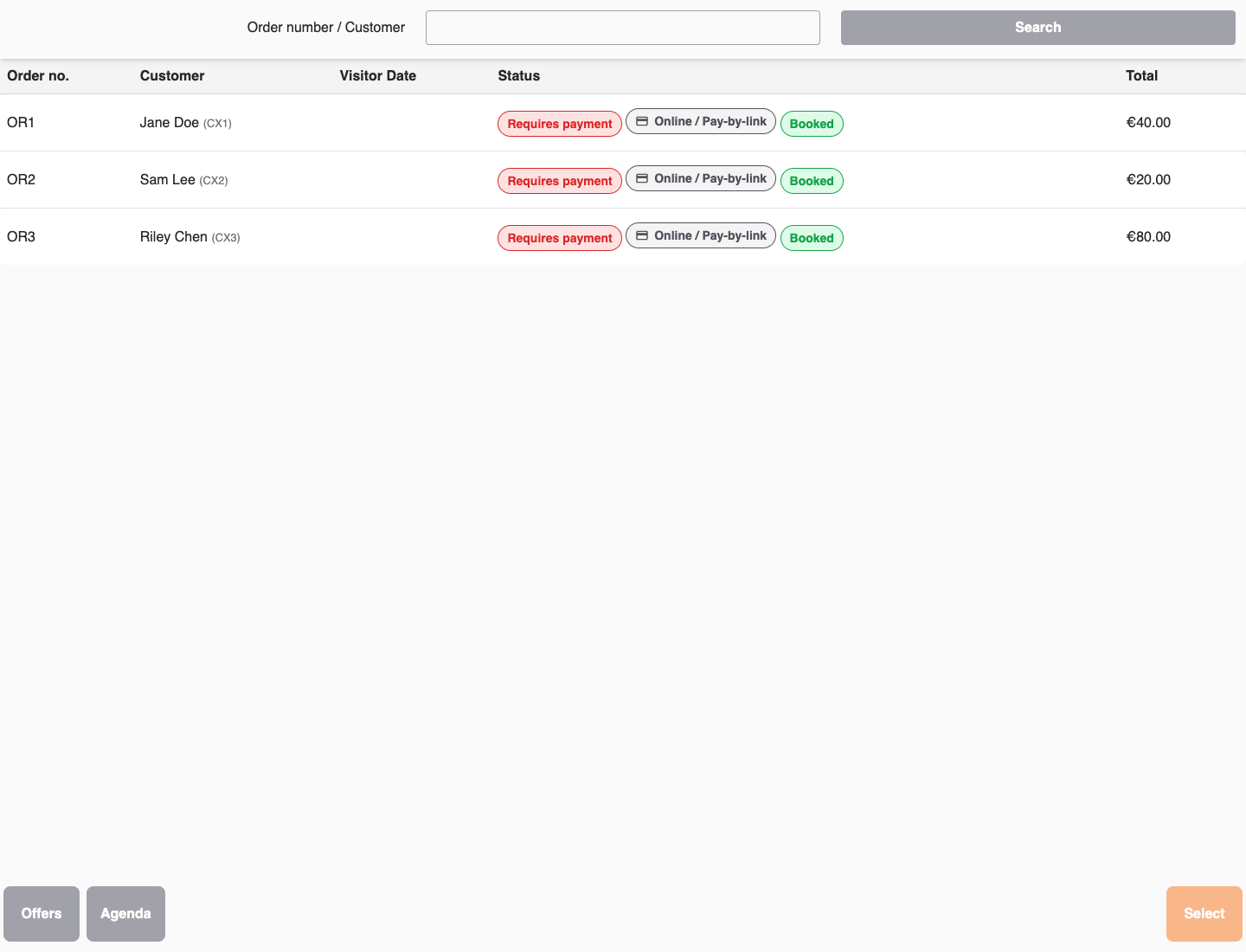
In the POS, select Offers or Agenda.
Use Offers when you know the item the customer wants. Use Agenda when you are selling from a day or event schedule.
If you are in an existing order, use New sale before starting the next customer unless your local process says to add to the current order.
Find the event or admission
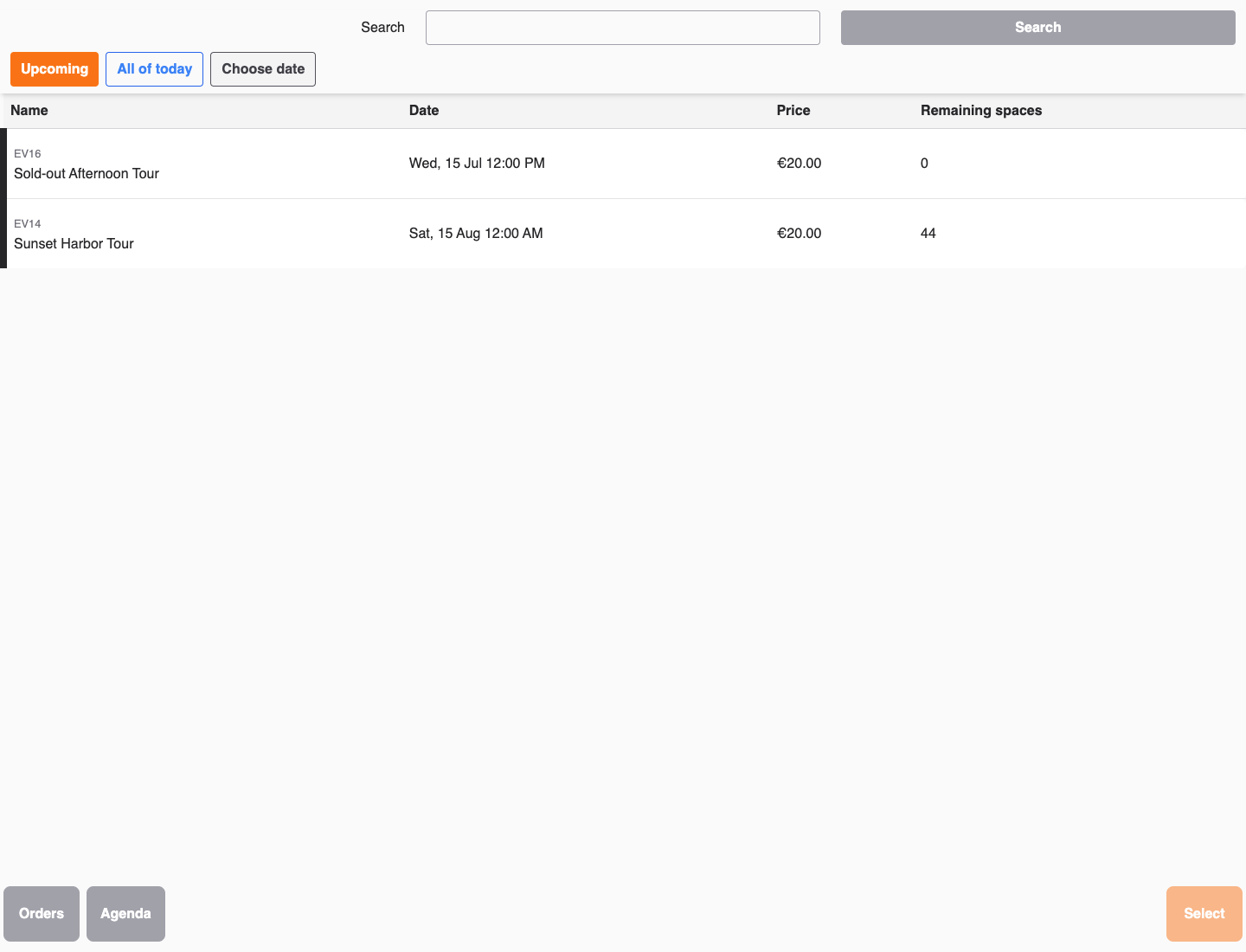
Search or browse for the event, admission, product, or voucher.
The Offers list describes availability at the level it can guarantee:
- A fixed event or an admission without selectable start times can show its exact remaining spaces.
- A recurring offer with selectable start times shows Varies by start time. Select the offer and a start time to see the exact remaining spaces for that occurrence.
The Upcoming view omits completed fixed events. Sold-out upcoming events remain visible so staff can handle approved returns, replacements, or overbooking workflows; follow your supervisor's policy before selecting a sold-out event.
Use the date controls when the sale is not for an upcoming time:
- Select All of today to include every event today, including times that have already passed.
- Select Choose date to show the offers for one calendar date. You can select a date up to seven days in the past.
- Select Upcoming to return to current and future offers.
The All of today view does not use live availability to filter the list, so completed occurrences remain available for correction workflows. The selected date follows a recurring offer into its time selection. Past dates are shown without live availability because current capacity and sales windows no longer describe the historical date. Confirm the intended date and time and check for an existing sale before continuing.
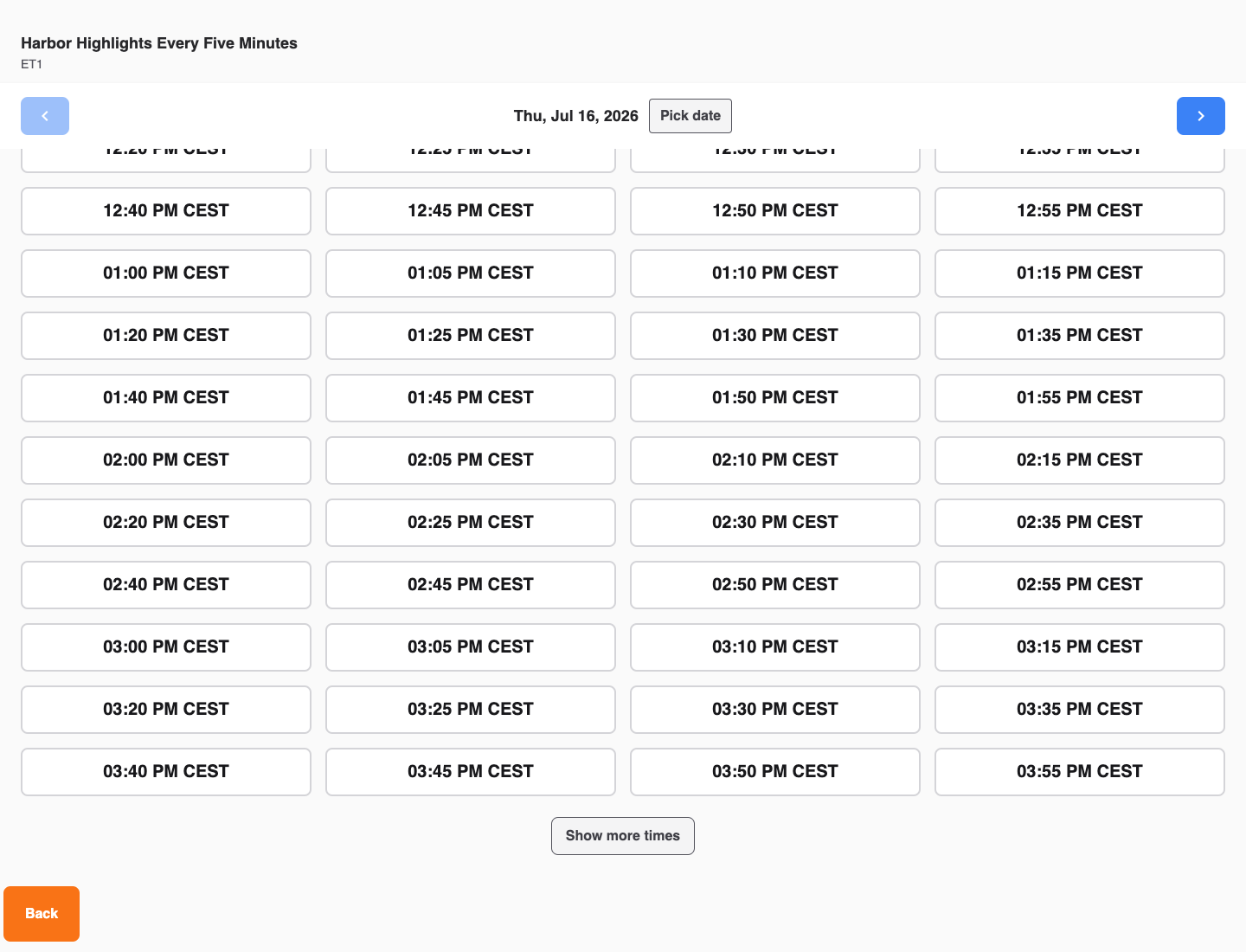
For timed offers, select the correct date and start time. Selecting the start time opens price selection immediately. The price step uses the selected occurrence, so a future occurrence can show different configured prices or early-booking adjustments from a same-day occurrence. Watch for visible POS states such as:
If a day has more start times than the POS initially displays, select Show more times to reveal the next group. Repeat this until the required start time appears.
| State | What it means |
|---|---|
| Sold out | The selected date, time, or event has no remaining POS-sellable capacity. |
| No times available | The selected day has no bookable start times for this POS flow. |
| Only {count} left | Capacity is low. Confirm the customer quantity before continuing. |
| Remaining spaces | Shows the exact spaces remaining for the selected fixed event, untimed admission, or start time. |
| Varies by start time | This recurring offer has separate availability for each start time. Select a start time to see the exact spaces. |
Select price and quantity
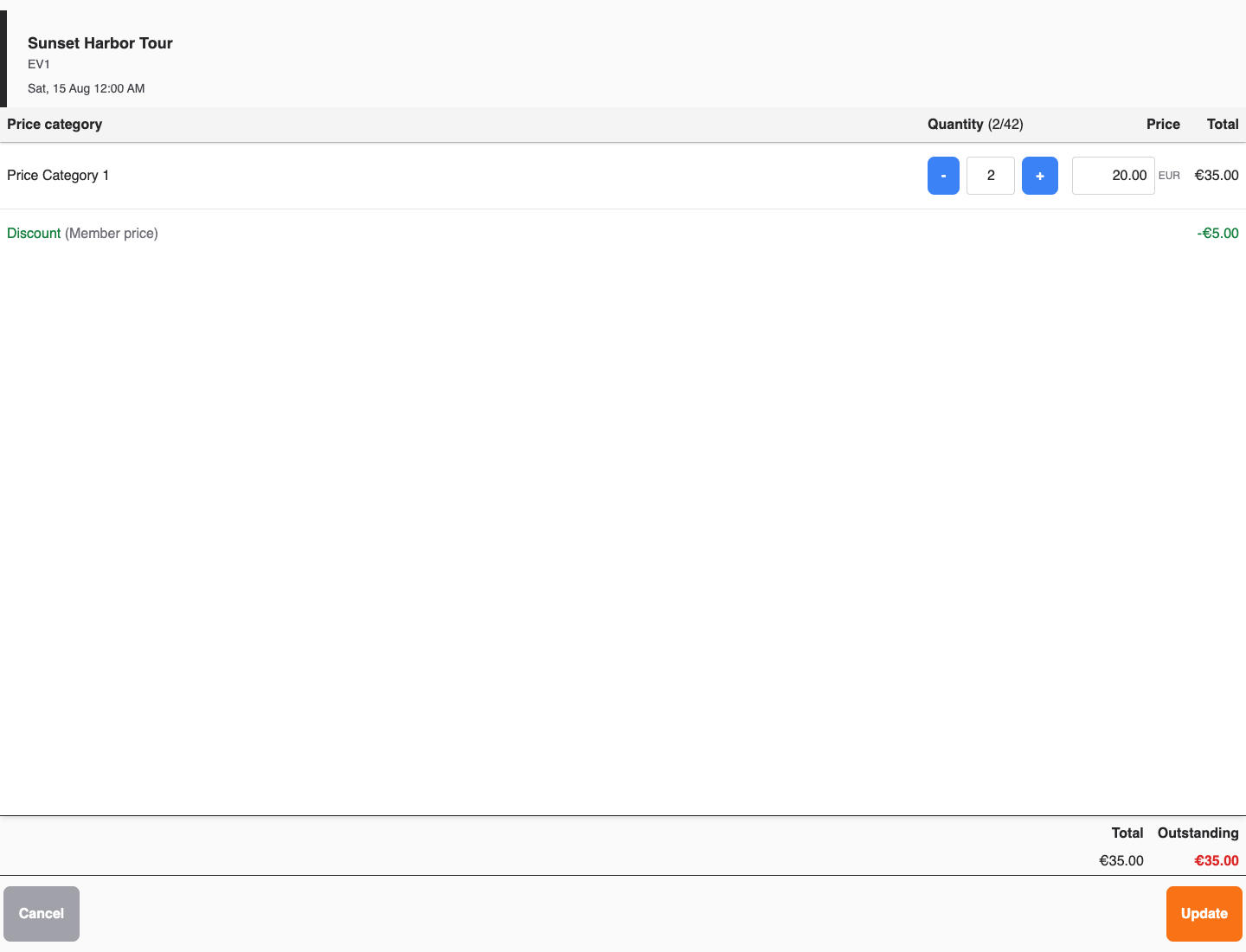
On the price step, choose the correct Price category and enter Quantity.
If the customer buys different ticket types, add each price category separately. Review the selected quantities before continuing.
If the POS shows Min {min}, max {max}, keep the quantity within that range.
Some products are configured with an editable price. For these rows, enter the agreed amount in the Price field. Units that are already financially settled and rows whose price belongs to a redeemed voucher stay locked. Remove or change the voucher through the approved voucher workflow instead of changing that price.
The POS recalculates totals and any visible Discount after you change a price or quantity. Wait for the updated total before selecting Add to receipt.
Confirm resource overbooking
A start time marked Resource capacity exceeded can be selected by staff, but saving requires a separate resource warning and confirmation. Follow your venue's overbooking policy before continuing. Unavailable resource hours, missing or archived resources, and invalid resource settings cannot be overridden this way.
After selecting the quantity, submit the booking to see the current resource warning. Select I understand this will overbook the event and want to continue., then submit again. The same confirmation applies when changing an existing booking's quantity or date/time.
If the booking quantity or resource conflict changes, review and confirm the new warning. Confirmation does not create extra resources or take resources from another event. Open requirements remain on the event for staff to resolve; review resource allocation for the day and arrange the missing resources before the event. Shared-resource demand is still counted, so an overbooked resource can have no remaining capacity.
This staff exception is available in the backoffice and POS. Customers in the online shop and self-checkout cannot use it.
Add the ticket to the receipt
Review the ticket selection:
- event or admission name
- date and time
- Price category
- Quantity
- total price
- customer or attendee details, if required
Select Add to receipt.
The ticket line should return to the connected POS receipt or order flow. Do not start a second sale until you know whether the first sale was added to the receipt.
Take payment
Take payment using the local POS process and payment method.
When a previously reserved order is paid at the KORONA POS, the till sends the finalized receipt back to KORONA Event. Importing that receipt changes the order from Reserved to Booked and records the payment as settled. Wait for that result before repeating the payment or changing the order manually.
While the receipt is being imported, the order shows Receipt payment is being processed. Keep the order open. The POS refreshes the totals and payment state automatically until processing succeeds or fails. When processing succeeds, the message disappears and the refreshed order shows the imported result.
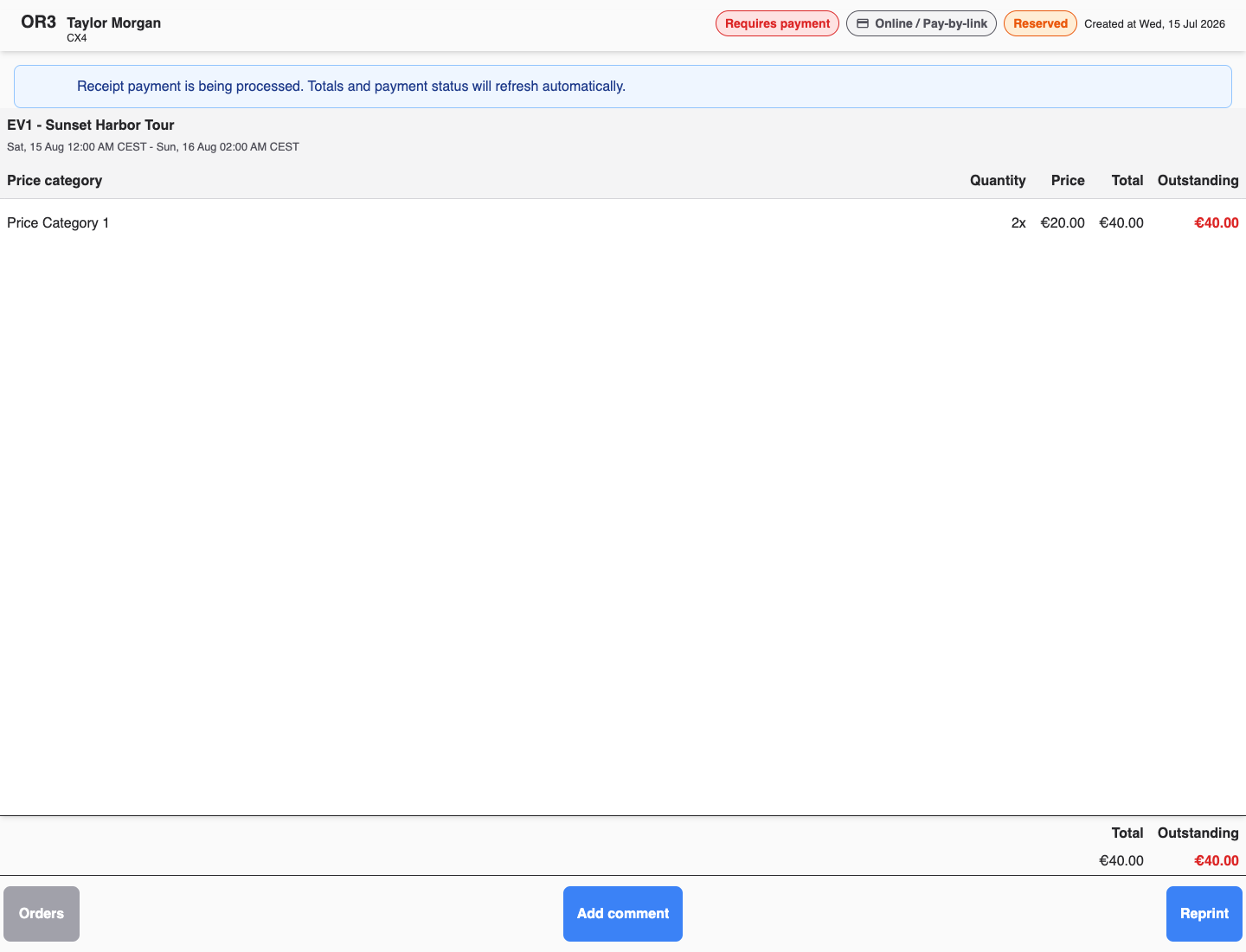
If the order shows Receipt processing failed:
- Do not take the payment again or settle the order manually.
- Record the Support reference. Expand Technical details when a supervisor or support asks for the error text.
- If Retry processing is available, select it to retry the existing receipt import. This action does not take the payment again. If the action is not available, contact support with the Support reference instead.
- Keep the order open and wait for the processing message to disappear before checking the order and payment result.
If payment fails, times out, or is canceled:
- Check whether the receipt or order still exists.
- Check whether any payment state changed.
- Do not create a duplicate order until you know whether the first attempt was completed.
- Ask a supervisor to check Orders if the customer may have been charged.
Provide tickets and receipt
Depending on setup, tickets may print, be attached to a receipt, be available for pickup, or be sent through a confirmation email.
Before the customer leaves, confirm:
- ticket quantity matches the sale
- ticket date and time are correct
- ticket number or QR code is present when entry scanning is used
- receipt output is complete
- any pickup or reprint instructions are clear
Use Orders to find the order again if you need Reprint, Reprint tickets, Partial pickup, or order inspection.
Expected result
The counter sale is complete when:
- the receipt contains the correct ticket line
- payment is complete or the expected invoice workflow was used
- the customer received the expected ticket, confirmation, or receipt
- the order shows the correct event, date, time, price category, quantity, payment state, and POS context
- a reserved order paid at the KORONA POS shows Booked and settled after its receipt is imported
- the receipt-processing message has disappeared and no processing failure remains
- capacity is reduced only for ticket types that should consume capacity
Troubleshooting
| Problem | What to do |
|---|---|
| The offer is missing | Check the date, POS sales channel, active price rules, event publishing, capacity, and whether you are using the correct POS. |
| The price category is missing | Check Visible on the following sales channels, price category setup, product setup, and whether the price is active for POS. |
| Quantity cannot be selected | Check remaining capacity, Min quantity, Max quantity, included options, and resource limits. |
| Add to receipt fails or keeps loading | Do not select Add to receipt again immediately. Check Orders and the current receipt first because the order may already exist. If neither shows a completed sale, contact KORONA Event support. |
| Payment is interrupted | Verify whether the receipt was paid before creating another order. Check payment state and provider or POS terminal status. |
| Payment succeeded, but the order stays Reserved | If Receipt payment is being processed is visible, keep the order open and wait for the automatic refresh. If Receipt processing failed appears, do not repeat or manually settle the payment. Record the Support reference, POS number, order number, receipt number, and payment time. If Retry processing is available, select it to retry the existing receipt import without taking payment again. Contact support if the action is unavailable or processing fails again. |
| Tickets did not print | Check printer readiness, ticket generation, order state, and whether Reprint or Reprint tickets is available. |
| Customer wants a different ticket after payment | Follow your refund, cancellation, or rebooking policy. Do not edit a paid order unless the financial result is clear. |
