Orders and invoices
- Last verified
- Last verified Sep 1, 2026
A KORONA Event order The main sales record containing the customer, selected offers, quantities, prices, payment state, invoices, tickets, and documents. is the main operational record for a sale. It contains the customer, selected services, prices, payment state, invoices, attendees, tickets, vouchers, documents, comments, and history.
An invoice The financial document for an order. Its payment state shows whether payment or refund work is still required. is the financial document side of an order. The customer The person or organization buying through the online shop, POS, or back office. is the person or organization attached to that order. Use the order and invoice states together before you resend documents, copy payment links, cancel, refund, or change a paid order.
When to use this article
Use this article when you need to:
- find a customer order
- check whether an order is paid, booked, reserved, canceled, or expired
- understand whether the order has Open items or an invoice
- resend the last order email
- copy or send a payment link
- download invoice or ticket documents
- decide whether an order can be changed safely
Find an order
In the back office, open Sales > Orders.
The order list search finds orders by order number, customer name, or customer number. For other identifiers, use the global Search box in the sidebar, which also finds:
- tickets by ticket number
- invoices and receipts by invoice or receipt number
- customers by name, email, or customer number
Open the matching result to reach the related order.
When helping a customer, confirm enough details to avoid changing the wrong order. At minimum, compare customer name or email, event name, date, and order total.
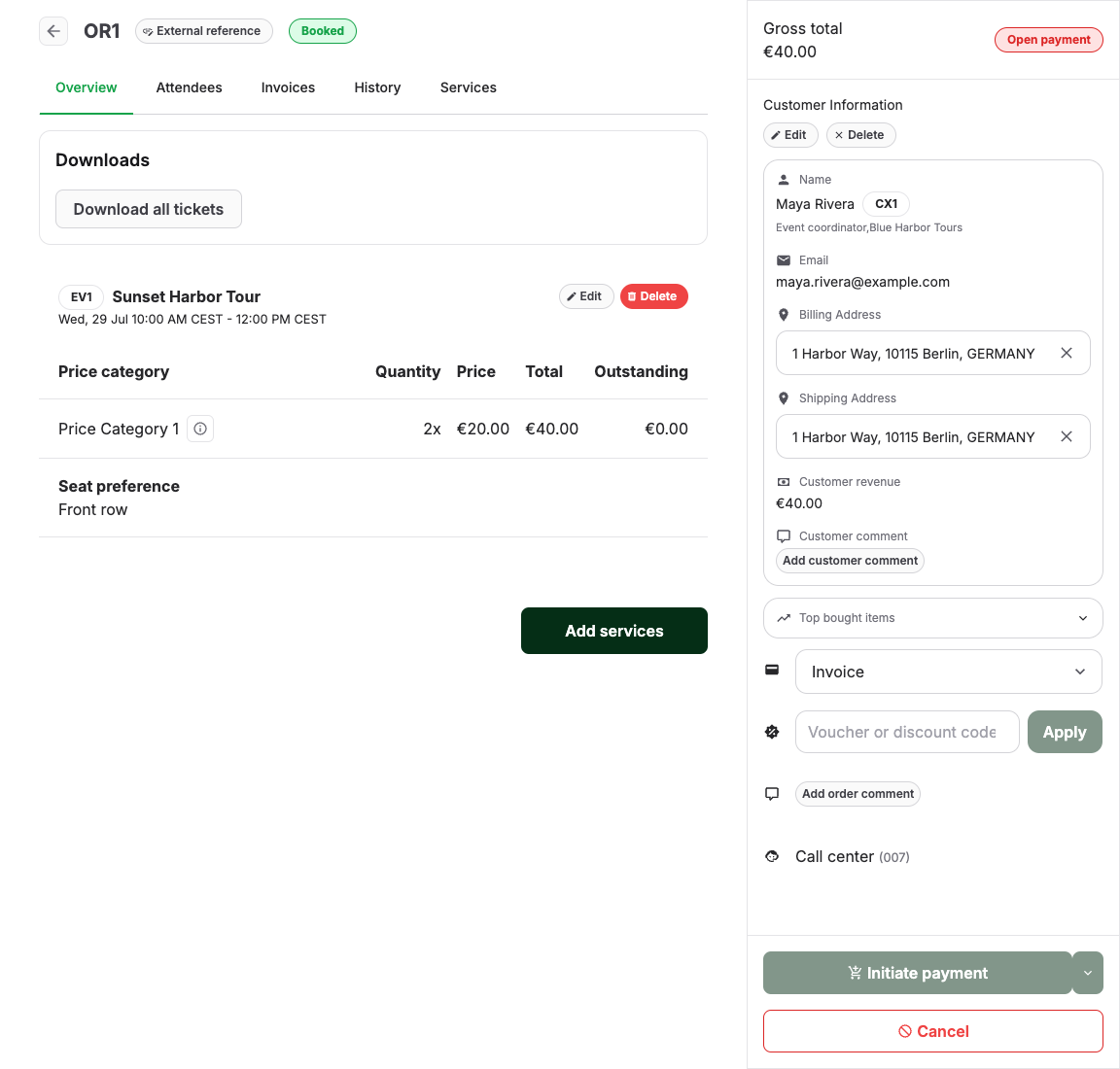
Apply vouchers and discount codes
Add at least one item to the order before applying a voucher or discount code. The code entry is unavailable until the order contains an active item.
Read the order overview
Open the order and start on Overview.
Check:
| Area | What to review |
|---|---|
| Customer sidebar | Name, email, billing address, phone, customer account, and whether the order has the right customer. |
| Services | Event, admission, product, voucher, date, time, price category, quantity, and line item status. |
| Gross total | The total amount for the order and whether there are remaining Open items. |
| Payment | Payment state and selected payment method. |
| Actions | Whether Request, Reserve, Book, Initiate payment, Cancel, Copy payment link, or Send payment link email is available. |
| Downloads | Whether tickets, vouchers, invoices, or delivery notes are available for download. |
Do not assume a customer-facing confirmation means the financial record is complete. Always check payment and invoice state before making changes.
Understand order states
Use the canonical state reference to distinguish an order's operational state from its payment and invoice states.
Order states
Order state describes the operational progress of an order; read payment and invoice state separately.
| Option | What it does | When to use it | Watch out for |
|---|---|---|---|
| New | Marks an order that is still open or has not progressed to a customer-facing result. | Use it while an order is being created or reviewed before request, reservation, or booking. | Check before sending payment links or documents. |
| Requested | Records a customer request that is waiting for review or a later staff action. | Use it when the booking must not be confirmed automatically. | Do not treat it as a final booking. |
| Reserved | Holds capacity until a reservation deadline or another action progresses the order. | Use it for temporary holds and pay-later workflows. | The reservation can expire and release capacity. |
| Expired | Marks a request or reservation that passed its allowed deadline without progressing. | Use it to identify orders that no longer hold their previous place in the workflow. | Check whether the customer completed a replacement order later. |
| Booked | Confirms the order operationally. | Use it when the selected offers are accepted as a booking. | Booked does not prove that payment or ticket generation completed. |
| Canceled | Ends the operational order and prevents it from being treated as active. | Use it after an approved cancellation workflow. | Payment, refund, invoice, capacity, and customer communication may still need separate action. |
Understand invoice payment states
Open the Documents tab or invoice detail when financial state matters.
Invoice payment states
Invoice payment state describes what payment or refund work remains for one invoice.
| Option | What it does | When to use it | Watch out for |
|---|---|---|---|
| Requires payment | Shows that the invoice still needs payment. | Use it when collecting an open invoice through an available payment action. | A payment link exists only when the invoice and provider support it. |
| Requires refund | Shows that the invoice needs a refund or refund follow-up. | Use it to identify invoices that must enter the refund process. | The provider transaction can still be pending or require manual handling. |
| Refunded | Marks the invoice as refunded. | Use it after the approved refund workflow records completion. | Confirm provider and customer receipt when investigating a disputed refund. |
| Paid | Records payment for the invoice. | Use it when the invoice amount has been paid or deliberately marked paid. | Paid does not prove that the order is booked or tickets were generated. |
Use Download invoice when the customer or finance team needs the invoice document. If a delivery note is used, check Download delivery note as well.
Publish a draft invoice
Use this when an invoice is still a draft and is ready to become the final financial document.
- Open Sales > Invoices and select the draft invoice.
- Confirm that the customer, invoice amount, and invoice details are correct.
- Select Publish invoice.
- Confirm the prompt.
Publishing cannot be undone. The action is available only for draft invoices and to staff with permission to update invoices.
Use payment links
Payment links are available only in specific order and invoice states.
If the order still has Open items, staff may be able to use Initiate payment to start the customer payment workflow.
If an invoice already exists and still has an open amount, use Copy payment link on the order or Payment link on the invoice. On an eligible order, Send payment link email sends the initial order email with the payment link. After an order email has already been sent, use Resend last order email when the latest email is the payment request; KORONA Event generates a fresh payment link for the resent email. You can also reload the order or invoice, copy the newly generated link, and paste it into a separate approved message.
Before sending a payment link, confirm the customer email address and make sure the link belongs to the correct open invoice.
Resend emails and documents
Use Resend last order email when the customer did not receive the last order message.
Before resending:
- Confirm the customer email address.
- Check whether the order has the expected tickets, vouchers, invoice, or other documents.
- Open History to see whether the email was already sent or whether delivery failed.
- Tell the customer to check spam or blocked sender rules when delivery appears successful.
If tickets are missing, investigate ticket generation before resending. Resending an email without the expected attachment will not solve a document-generation issue.
Change or cancel an order
Only change an order when the operational and financial result is clear.
Use Cancel when the order should be canceled. The cancellation modal explains whether an email will be sent and whether services will be unblocked.
Use Book, Reserve, or Request only when the order state should move to that exact operational state.
Use Initiate payment when the customer should receive a workflow for required information, legal agreements, and payment. See Ask a customer to complete and pay for an order.
Check attendees and tickets
Open Attendees when entry, personalization, or ticket questions matter.
Check:
- attendee name
- Price category
- Ticket number
- attached tickets or vouchers
- attendee or booking custom fields
- waiver or required information, if used
Use Download all tickets only after confirming the order state supports issuing those tickets.
On the order overview, Download all tickets keeps you on the page if tickets are not ready. Finalize any unfinished order changes before downloading. If the order is already finalized, wait a moment and select Try ticket download again. If the ticket link is no longer valid, refresh the order page to get a current link. Contact support if tickets remain unavailable.
Use history to answer support questions
Open History when a customer reports a missing email, failed payment, auto-canceled order, missing ticket, refund question, or duplicate attempt.
Useful history details include:
- order created, booked, reserved, canceled, or auto-canceled
- invoice created or payment state changed
- payment webhook or provider status updates
- email sent or resent
- receipt or POS actions
- ticket, voucher, or service changes
Expected result
You have enough information to answer the customer or continue the workflow when you know:
- the exact order number
- the customer and affected offer
- order state
- payment state
- invoice state
- whether the order has Open items
- whether tickets, vouchers, or invoices exist
- which action is available and safe
- whether the issue is setup, payment, document generation, delivery, or customer data
Troubleshooting
| Problem | What to check |
|---|---|
| Customer says they paid but no ticket arrived | Payment state, invoice state, order state, History, ticket generation, email delivery, and whether another successful order exists. |
| Payment link cannot be copied or sent | Open items, invoice state, order state, cancellation or expiration, payment provider setup, and whether an invoice payment link exists. |
| Confirmation email is missing | Customer email, History, Resend last order email, email template, attachments, and delivery status. |
| Invoice total does not match the order | Services, discounts, refunds, canceled items, open items, invoice documents, and whether the order changed after invoice creation. |
| Tickets are missing | Order state, payment state, attendee records, ticket documents, ticket activation, and whether the ticket type should generate a ticket. |
| Customer data is wrong | Customer sidebar, billing address, invoice address, and whether the financial document has already been finalized. |
| Invoice page does not update after publishing | Refresh the invoice page before trying to publish it again. |
| Order was canceled automatically | History, payment attempt, expiration timing, duplicate customer attempts, and whether a later successful order exists. |
