Emails are missing or incomplete
Use this when a customer says an email never arrived, or the email arrived without the expected tickets, invoice, or content. Start with evidence, not with resending.
1. Get the evidence from History
Open the order under Sales > Orders and open the History tab. Each sent email shows the recipient address, the subject, and the attached files. This single view answers three questions:
- Was the email sent at all?
- Did it go to the right address?
- Did it contain the expected attachments?
If there is no email entry, the order may never have reached a state that sends one — a new or abandoned order sends no confirmation. See Find an auto-canceled or abandoned order.
2. Sent to the right address, with attachments → delivery problem
Ask the customer to check spam folders and blocked senders, and confirm the address in History character by character against what the customer expects. If delivery keeps failing, download the documents from the order and use your organization's approved secure fallback, such as an authenticated customer portal or an in-person handoff after an identity check. If the approved fallback is a new email, verify the recipient address with the customer before sharing and send only from an authorized staff mailbox. See Resend a confirmation email or ticket.
3. Sent, but attachments were missing → generation problem
First read the email body. If it says that the tickets are still being prepared, the missing attachments are intentional: KORONA Event has confirmed the payment or order and is retrying ticket creation automatically. Once all tickets are ready, the customer receives a separate order confirmation with the tickets attached. Check History for that later email before resending anything.
If the email does not contain the pending-ticket message, resending will not add documents that were never generated. Check order state, payment state, and whether tickets and the invoice exist on the order first — follow A ticket was not generated. Only resend after the documents exist.
4. Wrong or broken content → template problem
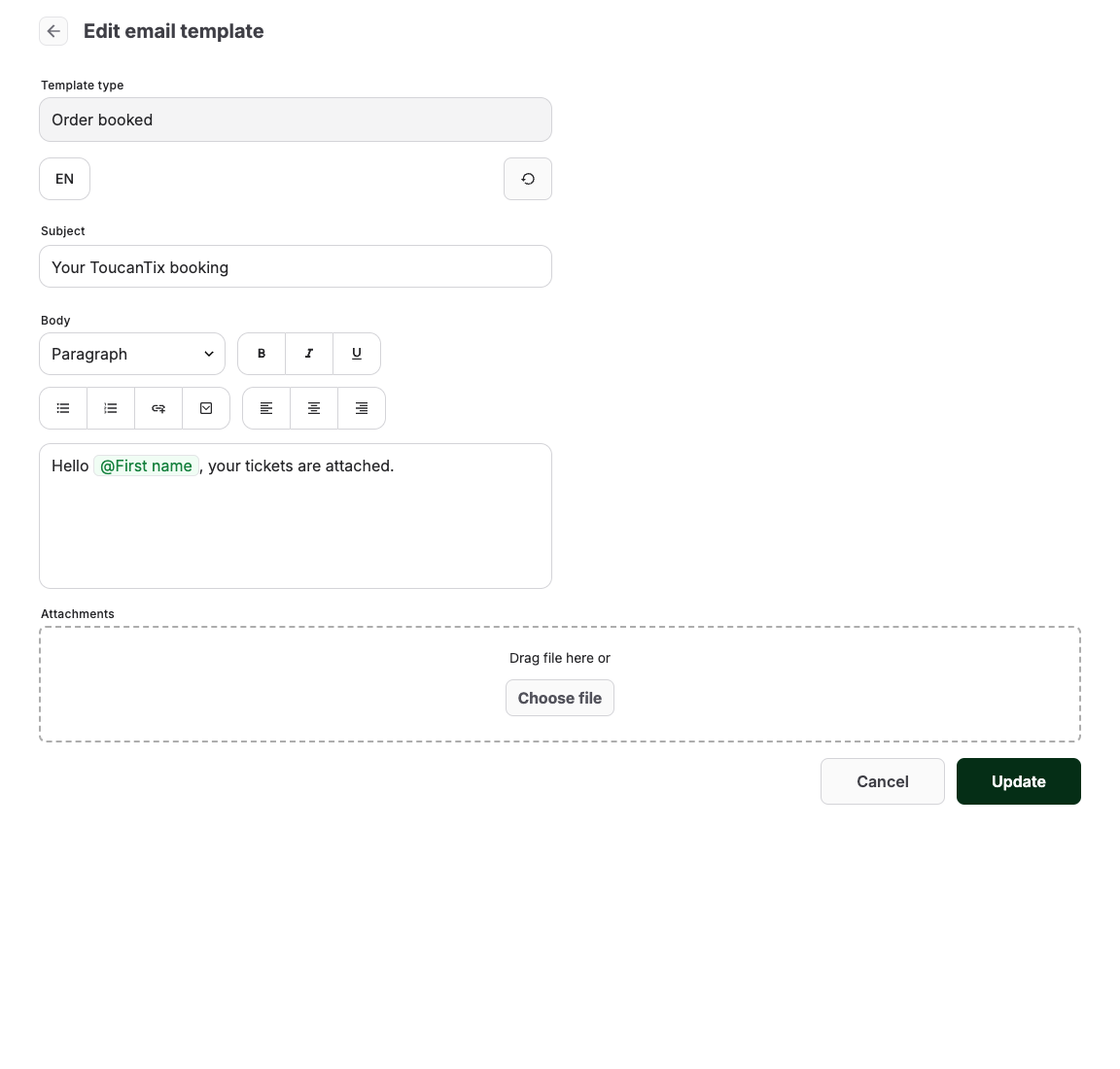
If the email arrived but shows literal placeholder text, the wrong language, or missing information, open Comms > Email Templates and review the template's Subject, Body, language variants, and Attachments. Edit an email template safely explains placeholders and how to test a change. For emails that are scheduled rather than order-triggered, use Check whether a scheduled email was sent.
5. Resend last
Correct the customer email address first if it was wrong — the resend goes to the current address. Then use Resend last order email and confirm the new History entry.
Expected result
You can classify the problem as never-sent (order state), wrong address (customer data), delivery (spam/blocking), generation (missing documents), or template (content) — and each classification has a different fix.
