Check ticket scan history where available
Use this when a ticket is rejected, already checked in, or disputed at the entrance.
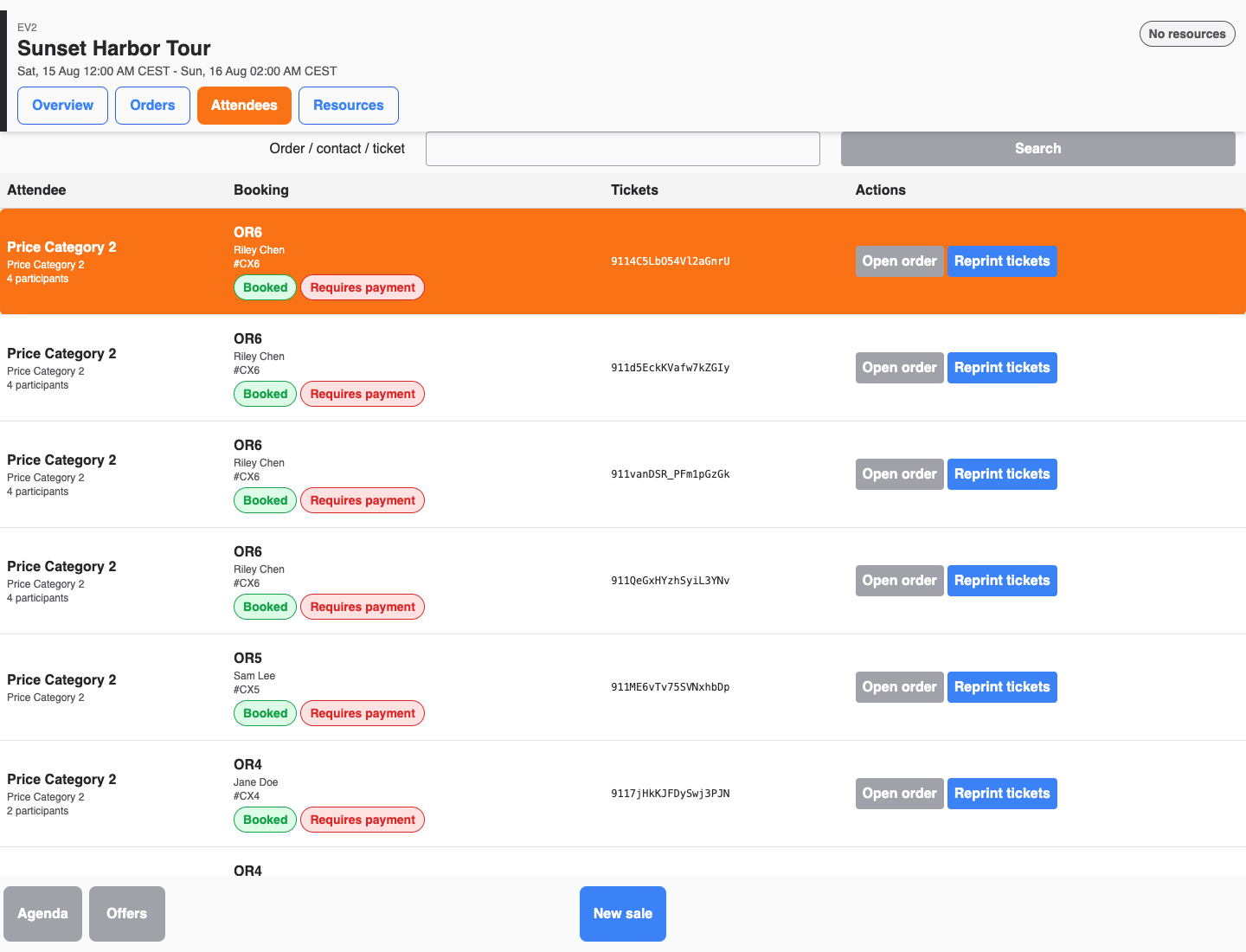
Scan events are recorded on the ticket and shown in the back office attendee detail. Each ticket shows its most recent event, such as Entry recorded or Entry used up, with a timestamp; the POS attendee list is for lookup only and does not show scan events. For a full device-level scan log, check the entry system, such as KORONA.entry.
Steps
- In the back office, open Sales > Attendees.
- Search by ticket number or customer name, or filter by event.
- Open the attendee detail and review the ticket panel.
- Check the ticket state, the check-in state, and the last recorded ticket event with its timestamp.
- Check the event date and the order state on the attendee and the related order.
- Ask a supervisor before overriding a canceled, refunded, wrong-date, or already-used ticket.
Expected result
Staff can decide whether to admit, deny, reprint, reissue, or escalate the ticket issue.
Troubleshooting
| Problem | What to check |
|---|---|
| Ticket already checked in | The ticket's last recorded event, group entry, duplicate scan, and whether another entrance scanned it. |
| Ticket not found | Correct event, ticket number, order number, customer email, and external ticket source. |
| Customer has paid order but no valid ticket | Order state, payment state, ticket generation, and canceled or refunded items. |
| Ticket shows no recorded event | Use attendee check-in state, order history, the entry-system log, and the supervisor process. |
