Troubleshoot a voucher redemption
- Last verified
- Last verified Aug 23, 2026
Use this when a customer cannot redeem a voucher in the online shop, or the deduction does not look right. Find the symptom below and follow the checks in order. The intended end-to-end workflow is in Sell and redeem a voucher.
First verify the voucher type, value, validity, eligible products, and POS behavior in KORONA.studio. If you confirm a mismatch, correct the shared settings there and synchronize. Use the KORONA Event back office for customer-facing name, description, images, communication, checkout presentation, and publishing.
The shop rejects the code
The customer sees "We couldn't apply this code. It may be invalid or has already been applied."
- Check spelling and leading or trailing spaces in the code, and whether the code already appears under Applied vouchers in the cart.
- In the back office, enter the voucher number in the sidebar Search box. The result shows the voucher with its state — active, locked, or expired — and links to the order that sold it.
- Open that original order and confirm its payment state: an unpaid voucher purchase is a common cause of rejection.
- Check the expiration: an expired voucher is rejected when its configuration enforces the validity date.
- Confirm the customer is redeeming in the shop that this voucher belongs to.
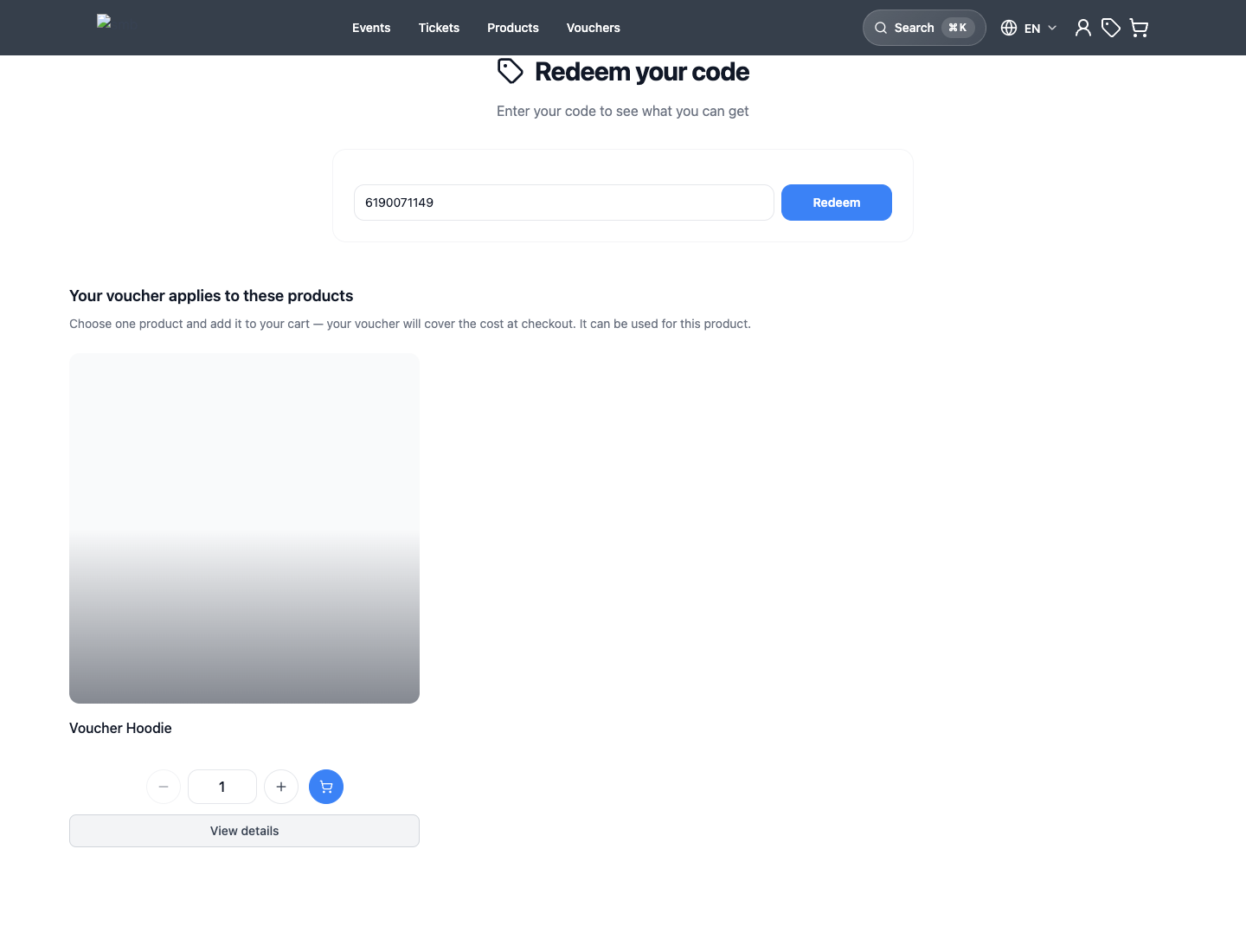
The voucher is accepted but nothing is deducted
The customer sees "Voucher accepted. Add an eligible product to your cart to use it" followed by product names.
This voucher has a product restriction: it redeems only against the listed products. Ask the customer to add one of the listed products to the cart — the voucher then applies to one unit of that product. The cart may contain other products, and one cart row may have a quantity greater than one for the same individually priced eligible product. A value voucher, in contrast, applies against the cart total, capped at whichever is lower: the remaining voucher value or the order total.
When the voucher gives one unit a different price, the online shop, back office, and POS show that unit's selected options and separately priced add-ons as read-only details. The locked row identifies it with the message "Voucher-priced unit — remove the voucher to change its quantity." Back-office staff cannot change that order line to another offer while the voucher-transferred price is attached.
The deduction is smaller than expected or missing
- Confirm the voucher's remaining value: value is consumed by every completed redemption, and a partially used voucher deducts only what is left. If the original order and linked redemption orders do not explain the remaining value, contact KORONA Event support before changing or compensating the balance.
- Check for duplicate rows or removed items in the cart — the applied value follows the order contents.
- For product-bound single-purpose vouchers, confirm that the cart contains at least one eligible product. A cart row may have a quantity greater than one for the same individually priced eligible product; one voucher applies to one unit. If the voucher allows several different eligible products and more than one of those product types is in the cart, leave only the product type the customer wants to redeem.
The voucher seems consumed after a failed payment
A voucher's value is charged against an order when the order is invoiced, not when the code is entered in the cart. After a failed or abandoned payment:
- Search the voucher number in the sidebar Search box and open the linked order.
- Check the order state and payment state. An abandoned order that never completed does not keep the value.
- If a canceled or failed order still appears to hold the voucher's value, do not resell or manually compensate. Contact KORONA Event support so the balance can be confirmed.
Redemption at the POS
Voucher code entry as in the online shop cart is a shop feature. At the POS, vouchers are sold and voucher deductions already attached to an order are applied to the receipt; whether a voucher can be redeemed directly at the POS depends on the POS setup and the voucher type. When a POS redemption fails, check the same voucher state as above, then verify the POS configuration.
The backoffice shows “Voucher deduction unavailable”
KORONA Event cannot determine the voucher deduction for this order, so the invoice preview is unavailable. You can still view the order and its existing invoices. An attached voucher does not by itself establish that the voucher paid an invoice.
Contact KORONA Event support before changing the attached voucher or issuing another invoice. Do not create an additional redemption or refund solely to clear this warning. Valid redemptions in another shop do not need correction because of this message.
