Collect customer and attendee information at checkout
- Availability
- Beta
Use this to ask customers for extra details during booking — dietary requirements, dates of birth, photos, or anything else your operation needs — and to control whether each answer is collected once per order, once per attendee, or once per contact.
Before you start
Decide:
- which details you need and which are optional
- which answers apply to the whole order and which apply to each person attending
- which offers should ask which questions
You need permission to manage form sections and edit offers.
Create questions
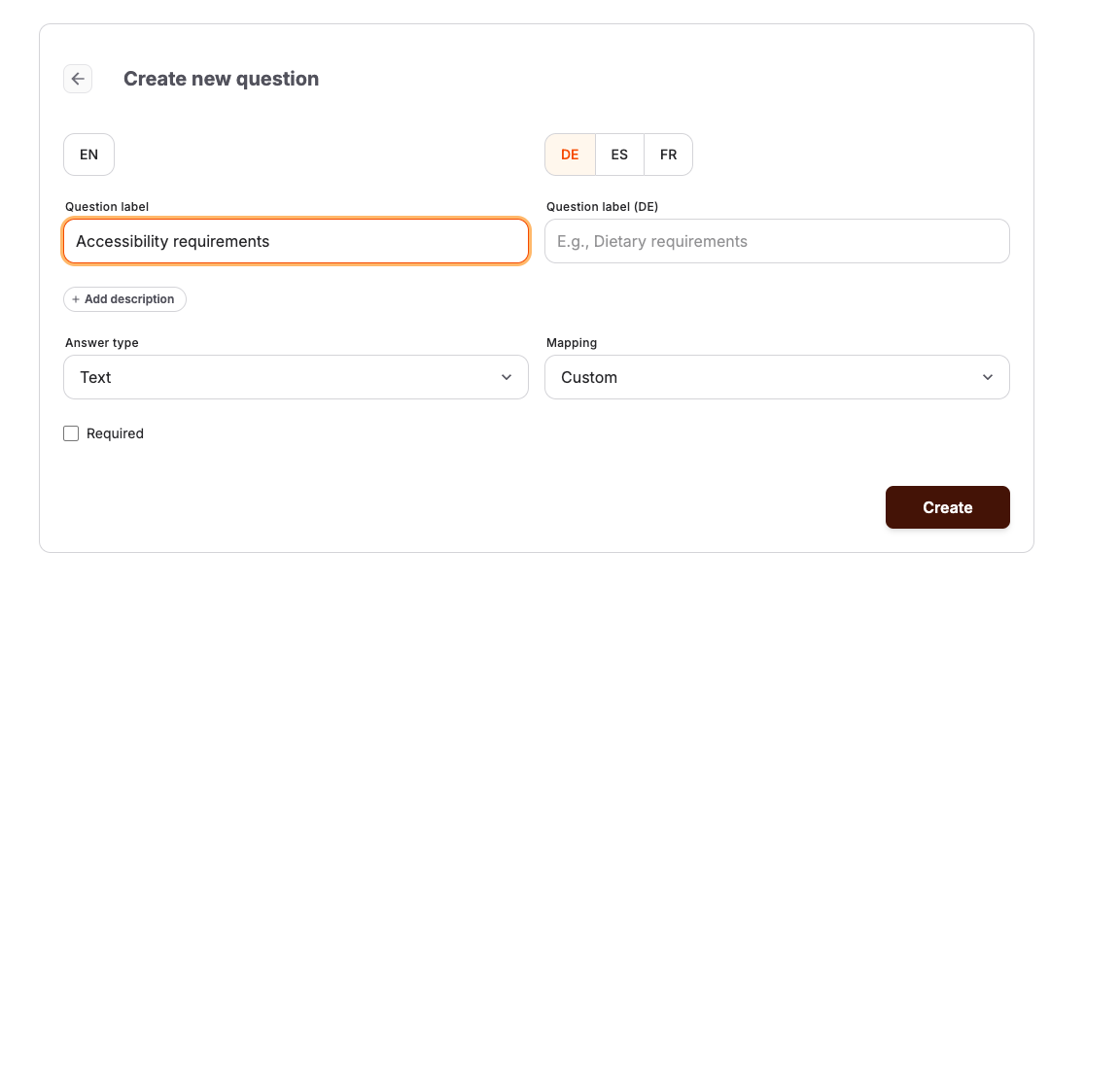
- In the back office, open Settings > Questions and create a question. The page title is Create new question.
- Enter the Question label customers will see, for example "Dietary requirements".
- Select the Answer type. Available types include Text, Textarea, Email, Telephone number, Date, Date of birth, First name, Last name, Checkbox, Select field, Radio field, File attachment, and ID Photo.
- For Select field and Radio field, add the Options customers choose from. Options on a checkbox question allow multiple selections.
- Turn on Required when customers must answer before continuing.
Use First name and Last name instead of plain text questions when the answer is the attendee's name — those answers identify the attendee in lists and search.
Group questions into form sections
- Open Settings > Form Sections and create a section. The page title is Create new form section.
- Enter the Title shown above the group of questions.
- Select the Input scope — this is the order-level versus attendee-level decision:
- Per attendee — asked once for each person attending.
- Per booking — asked once for the whole order.
- Per contact — asked once per customer.
- Select Required by stage to control when required answers must be completed, for example Before payment.
- Under Manage questions, add questions from the available list and order them.
A form section is shared: changing it in settings updates it everywhere it is used.
Attach the form section to an offer
- Open the offer under Services and select the Data collection tab.
- Select Assign form section to reuse a section you already configured, or Add new form section to build one in place.
- Save the tab.
Removing a section from an offer does not delete it; it stays available in Settings.
Where the answers appear
- Open Sales > Attendees and select an attendee. The Additional information tab shows the answers, grouped into Booking Information and Participant Information, with an Edit response action for staff corrections.
- Open Sales > Customers, select a customer, and open Custom fields to review or edit answers collected Per contact.
- The attendee list marks records that have additional booking or participant information.
- Staff-created orders in the back office step through the same forms during booking.
When you save a new file attachment from a customer's Custom fields tab, wait while the form briefly becomes unavailable. KORONA Event refreshes the saved answer before allowing another edit, and existing file attachments remain attached when you change a different answer.
If the refresh fails, the form stays unavailable and shows Reload. Reload the page before making further changes so you are editing the saved version.
Expected result
Checkout asks the configured questions at the configured scope, customers cannot skip required answers past the selected stage, and staff can read and correct every answer on the appropriate attendee or customer record.
Troubleshooting
| Problem | What to check |
|---|---|
| Questions do not appear at checkout | The section is assigned on the offer's Data collection tab and the section is not archived. |
| A question is asked once instead of per person | The form section's Input scope is Per attendee, not Per booking. |
| Customers get stuck at checkout | Which questions are Required and the section's Required by stage setting. |
| An answer is missing on the attendee | Whether the question is order-level; order-level answers appear under Booking Information. |
| Customer answers stay unavailable after saving | Select Reload to fetch the saved answers before editing again. |
If your account uses the simple form
Accounts without form sections see a simpler Data collection tab on the offer with an Additional customer information list: each entry has a Name, an Answer type of Text or Attachment, a Collect this information per choice of Booking or Attendee, and a Must answer switch. The answers appear on the attendee record in the same way.
