A ticket was not generated
Use this when a customer paid or booked but has no ticket, or when staff open an order and the expected ticket documents are missing.
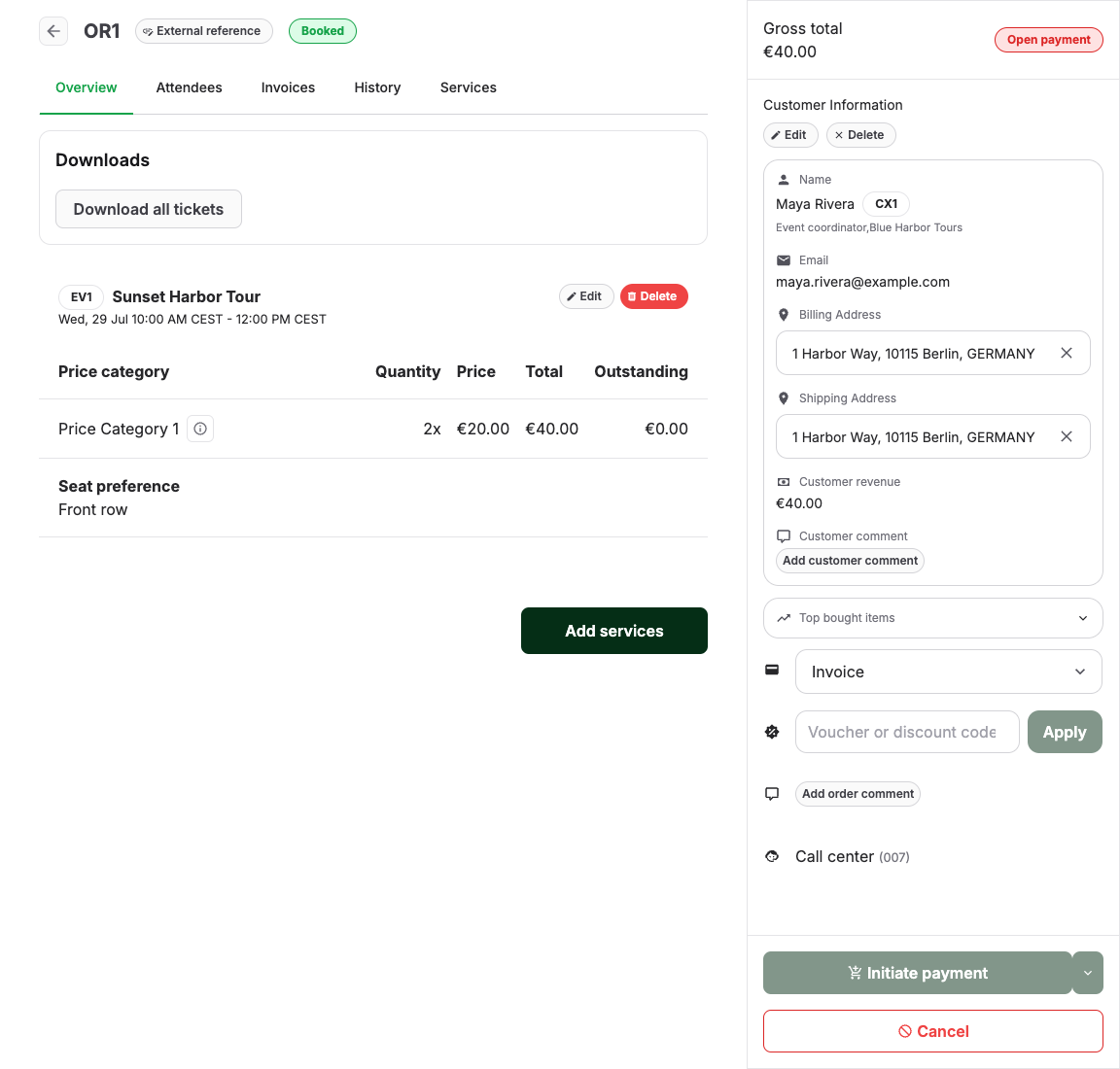
1. Confirm the order and payment state
Open the order under Sales > Orders and check the order state and payment state together. An order that is not booked, or whose payment never arrived, may correctly have no tickets yet. Use How orders, payments, invoices, and tickets fit together for the state reference — Booked does not prove payment, and a paid invoice does not prove tickets were generated.
If the order cannot be found at all, check the abandoned list first: Find an auto-canceled or abandoned order.
2. Check whether tickets exist on the order
- On the order Overview, look under Downloads for Download all tickets.
- Open the Attendees tab and check whether each attendee has a Ticket number and an attached ticket.
If tickets exist here, the problem is delivery, not generation — continue in Emails are missing or incomplete.
3. Check whether the item should create a ticket
Not every order line produces a ticket. Check whether the purchased product is set up to create tickets and attendee records. A product without a ticket setup, or one that intentionally groups several people onto one ticket, can make ticket counts differ from the purchased quantity without anything being broken.
4. Check the timing
After a payment or booking, ticket creation can be delayed temporarily. KORONA Event still sends the normal payment or order confirmation so the customer knows the order was received. That first email contains no partial tickets and explains that the tickets are still being prepared.
KORONA Event retries ticket creation automatically. Once every expected ticket is ready, the customer receives a separate order confirmation with the completed tickets attached. Automatic retries can continue for up to seven days. Check the order and History during this period. If the tickets are still missing after seven days, contact support.
When a PDF download says that your tickets are being prepared, leave the page open. The download retries automatically for up to three minutes. If it still needs more time, select Try download again or use the download button on the payment confirmation page again. A waiting download does not mean that payment failed.
5. Read the history
Open the order's History tab. Compare when payment was recorded, when documents were created, and which emails were sent with which attachments. A delayed delivery normally appears as a first payment or order confirmation without tickets, followed by an order confirmation with the ticket files. This tells you whether generation is still pending, happened late, or happened but was never delivered.
Expected result
You know whether the missing ticket is explained by order or payment state, by a product that does not create tickets, by timing, or by email delivery. If the order should have a ticket and none is generated after the automatic retry, contact KORONA Event support.
