Edit an email template safely
- Last verified
- Last verified Aug 29, 2026
Use email templates to control the subject, body, translations, placeholders, and attachments for customer communication.
Edit templates carefully. A broken placeholder or missing attachment can affect confirmation emails, payment-link emails, ticket delivery, or operational messages.
Before you start
Confirm:
- which template type you are editing
- which languages need content
- which placeholders must remain in the message
- whether default content should be restored before editing
- whether attachments are required
- how you will test the resulting email
Open an email template
- In the back office, open Comms.
- Open Email Templates.
- Search for the template by type or purpose.
- Open the template.
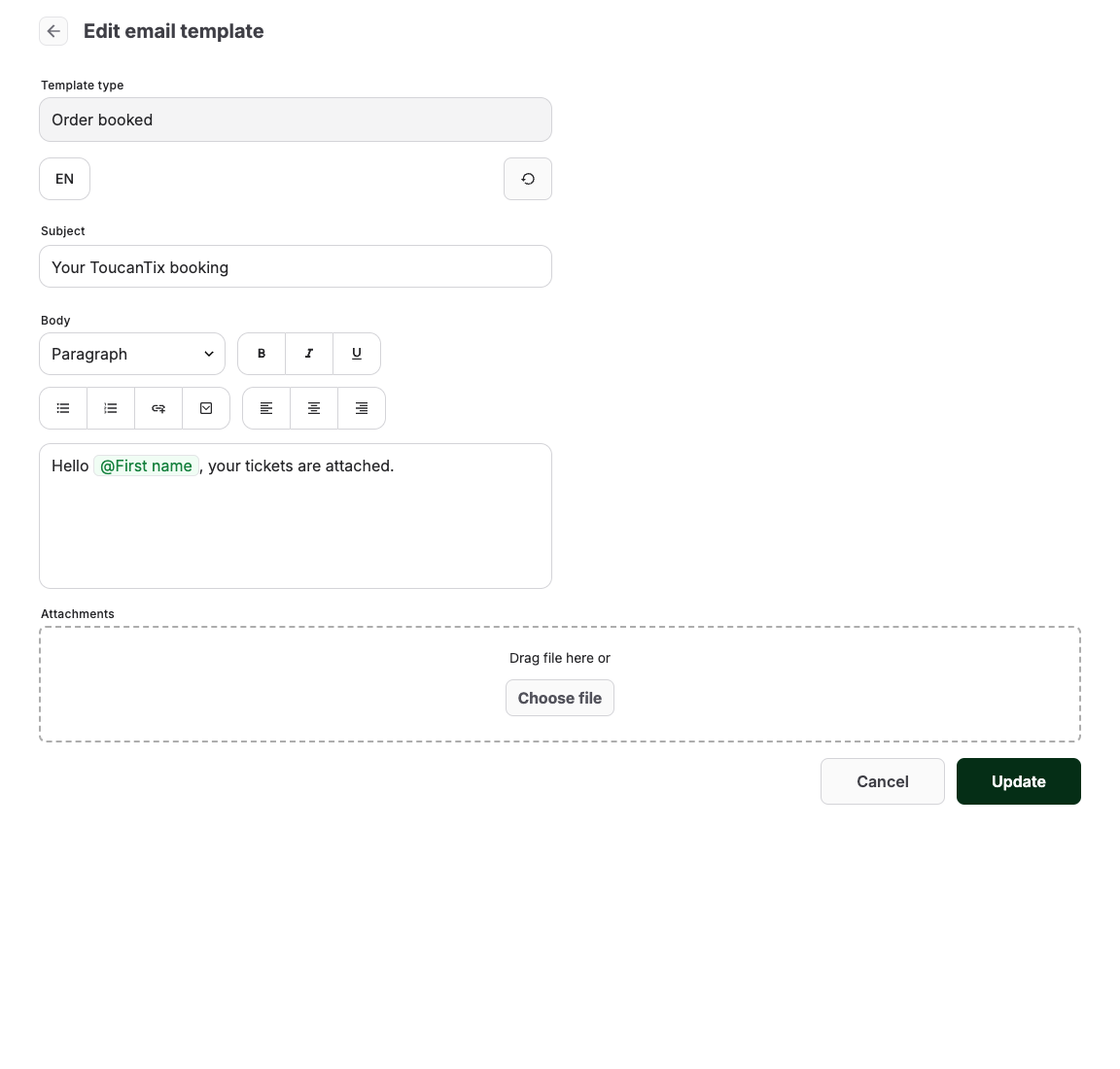
- Review Template type, Subject, Body, language tabs, and Attachments.
Choose the template by trigger
Template type is read-only because it identifies the event that sends the email. Edit the row whose trigger matches the customer journey:
| Template type | Sent to / when | Typical attachments or content |
|---|---|---|
| Order reserved | Customer when an order is reserved but not yet booked. | Reservation summary, deadline, or payment instructions. |
| Customer action required | Customer when the workflow needs payment or another customer action. | Payment link and clear next step. |
| Order booked | Customer when the order becomes booked. | Confirmation details and configured ticket or order attachments. |
| Order updated | Customer when an update workflow explicitly sends this notification. | Current order details; verify whether new tickets are attached. |
| Order canceled | Customer after cancellation. | Cancellation details and any next steps. |
| Order paid | Customer when payment completes in a workflow that sends this message. | Payment confirmation and relevant order documents. |
| Order refunded | Customer after a refund is recorded as complete. | Refunded amount and reference information. |
| Invoice created | Invoice recipient when invoice creation triggers the template. | Invoice document. |
| Login, confirmation, invitation, or password types | The user or customer whose account action triggered the message. | Secure action link; normally no event ticket. |
| Resource requirement types | Resource user when an inquiry, response, allocation, or cancellation occurs. | Event and resource-assignment details. |
Scheduled emails are separate. They are created under Comms > Scheduled Emails, assigned to services, and sent relative to booking or start time. See Create a scheduled email.
Attachments configured on a template are added only when that template is the one sent. Tickets, invoices, and other generated documents also depend on the order state and the sending workflow. Test the real trigger instead of assuming that every confirmation includes the same files.
Add ticket download links
Use the Ticket download page link placeholder as the main ticket action in Order booked, Order updated, and Order paid. The link opens a branded page where the customer can download the ticket PDF or add supported tickets to Apple Wallet or Google Wallet.
The placeholder list also provides direct PDF, Apple Wallet, and Google Wallet links. Use a direct link only when the message needs a format-specific secondary action. Keep the ticket download page as the primary action so customers can choose the format that works on their device.
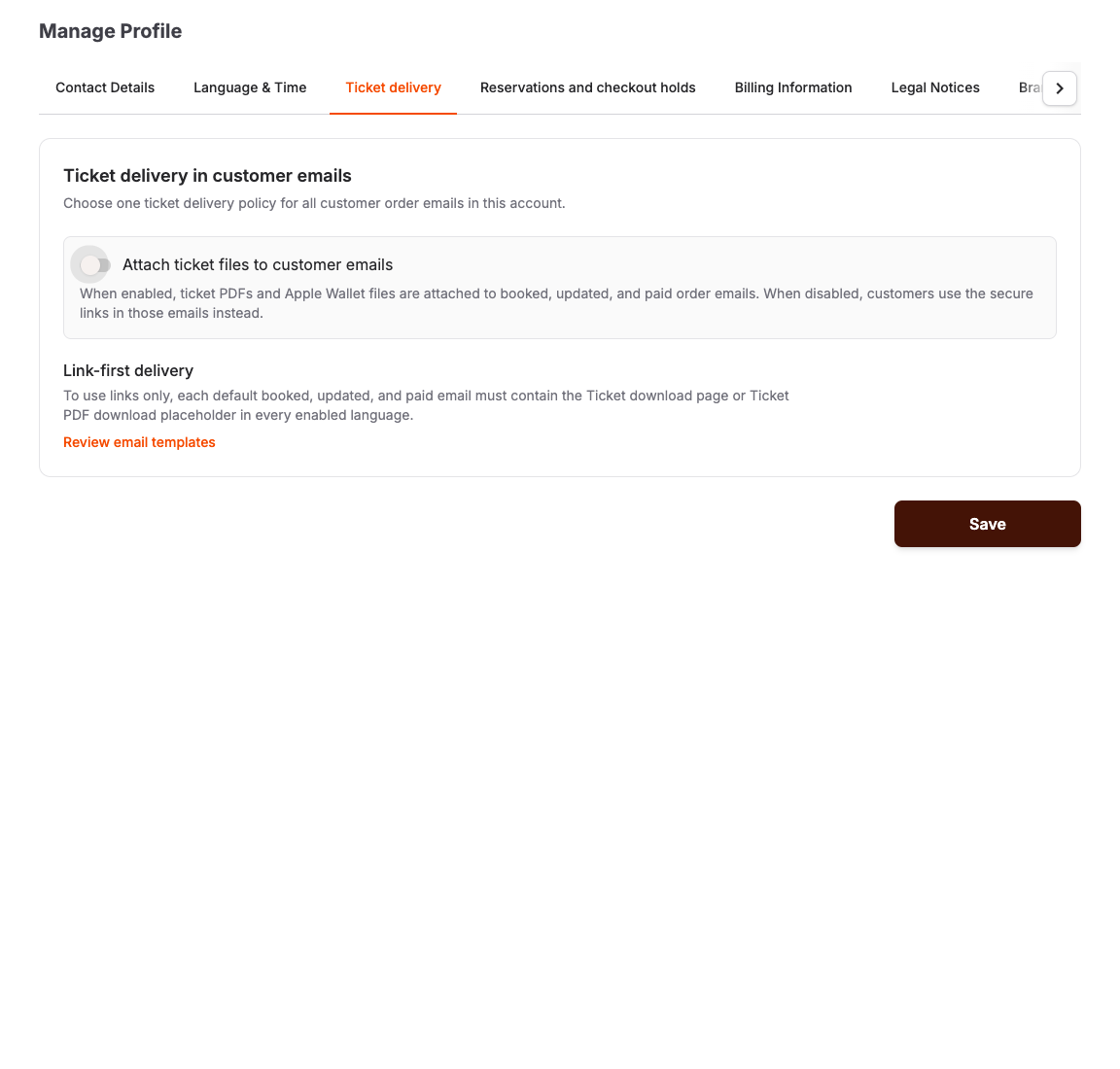
Open Admin > Manage Profile > Ticket delivery to choose one delivery policy for the account. Turn off Attach ticket files to customer emails to stop attaching ticket PDFs and Apple Wallet files to the default Order booked, Order updated, and Order paid emails.
Before KORONA Event accepts link-first delivery, all three default templates must contain the ticket download page placeholder in the body and every enabled language. A direct PDF placeholder does not satisfy this safety check because ticket preparation may still be in progress when the email arrives. Apple Wallet and Google Wallet placeholders also do not satisfy it because those formats may be unavailable for an account or ticket. After link-first delivery is enabled, KORONA Event prevents the required page link from being removed in the email editor.
The ticket page uses the official localized Add to Apple Wallet and Add to Google Wallet badges when those formats are available.
Edit subject and body
- Update Subject.
- Update Body.
- Insert placeholders only from the template's available suggestions.
- Keep required operational information, such as order number, event name, date, time, payment link, or ticket download link.
- Repeat the edit for each enabled language.
- Save with Update.
Include booking and attendee answers
Use Booking and attendee details inside the order-items block when the recipient should receive the custom-field answers saved for each ordered service. The standard Order booked template includes this placeholder automatically. During rollout, KORONA Event updates only unchanged standard versions that it can identify exactly, including older automatically created standards and versions that received earlier standard-template updates. Existing customized templates are not changed; add the placeholder from the suggestions if you want to opt in.
The summary can contain both booking-level answers and a separate section for each attendee. It is sent to the booking recipient, who may not be the attendee who supplied the information. Before adding it to another template, confirm that sharing every included answer with that recipient is appropriate for your process and privacy policy.
Labels and answers are inserted as plain text. Uploaded files are represented by their filenames only; the email contains no private file link or file contents. Waiver questions, signatures, and other waiver material are deliberately omitted.
Restore default content
Use the reset-to-default action when a template needs to return to the KORONA Event default subject or body.
After restoring, compare the default content with your current operational needs before saving. The default may not include organization-specific wording or attachments.
Test the email
After editing:
- create or use a safe test order
- trigger the email the same way staff or customers will
- confirm subject, body, placeholders, links, attachments, and language
- check that the ticket download page, ticket PDFs, wallet actions, and payment links open as expected
- confirm the email appears in the order history when applicable
Expected result
Customers receive readable emails with the intended order, payment, event, ticket, and language information.
Troubleshooting
| Problem | What to check |
|---|---|
| Placeholder text appears literally | Placeholder spelling, whether it was inserted from suggestions, and whether the template supports that placeholder. |
| Attachment is missing | Template attachments, order document generation, historical resend behavior, and file size or type. |
| Wrong language was sent | Customer language, shop language, available translations, and fallback content. |
| Email did not arrive | Order email history, customer address, blocked sending, provider state, spam folder, and resend action. |
| Subject or body editor stays loading or shows Reload | Save or copy any other unsaved work, then select Reload. If loading fails again, do not update the template; contact KORONA Event support. |
| Payment link or ticket link is wrong | Order state, payment state, invoice state, and whether the email template belongs to the right workflow. |
| Raw HTML appears in the email | Check every language for editor attributes such as data-type, data-label, or contenteditable. |
Raw editor HTML appears in an email
If a received email shows a <span> tag or editor attributes such as data-type, data-label, or contenteditable:
- Open the template whose Template type matches the email trigger.
- Check Subject and Body in every enabled language. The broken content may exist in only one language.
- Delete one affected placeholder and insert it again from the available suggestions, then select Update. When saving, KORONA Event restores the other recognized legacy placeholder remnants that it can identify safely.
- If raw editor text remains, reinsert each remaining affected placeholder. KORONA Event leaves unmatched or mismatched block start and end placeholders unchanged for safety, so reinsert both placeholders for that block. If the whole template is affected and the standard wording is suitable, use Reset to the default subject and body text instead, then select Update again.
- Trigger a safe test email and check every language before resending the email to a customer.
Do not copy the raw <span> fragment back into the editor. If the attributes remain after reinserting the placeholder, contact KORONA Event support before sending the template to customers.
