Review resource allocation for a day
Use this as a daily check that every event has the staff, rooms, and equipment it needs. The Allocation view lists resource requirements with their current state so you can allocate resources, send inquiries, or fix conflicts before the event starts.
Before you start
Confirm that events for the day have their resource requirements set up; the Allocation view shows requirements, not events without them.
Filter the list to one day
- In the back office, open Resources > Allocation.
- Open the filter and select the Date filter. Choose Today or Tomorrow, or select Custom for a specific date.
- Narrow further by Allocation state, Resource type, Roles / Functions, or Resource tags as needed.
- Save the combination as a view if you repeat this check daily.
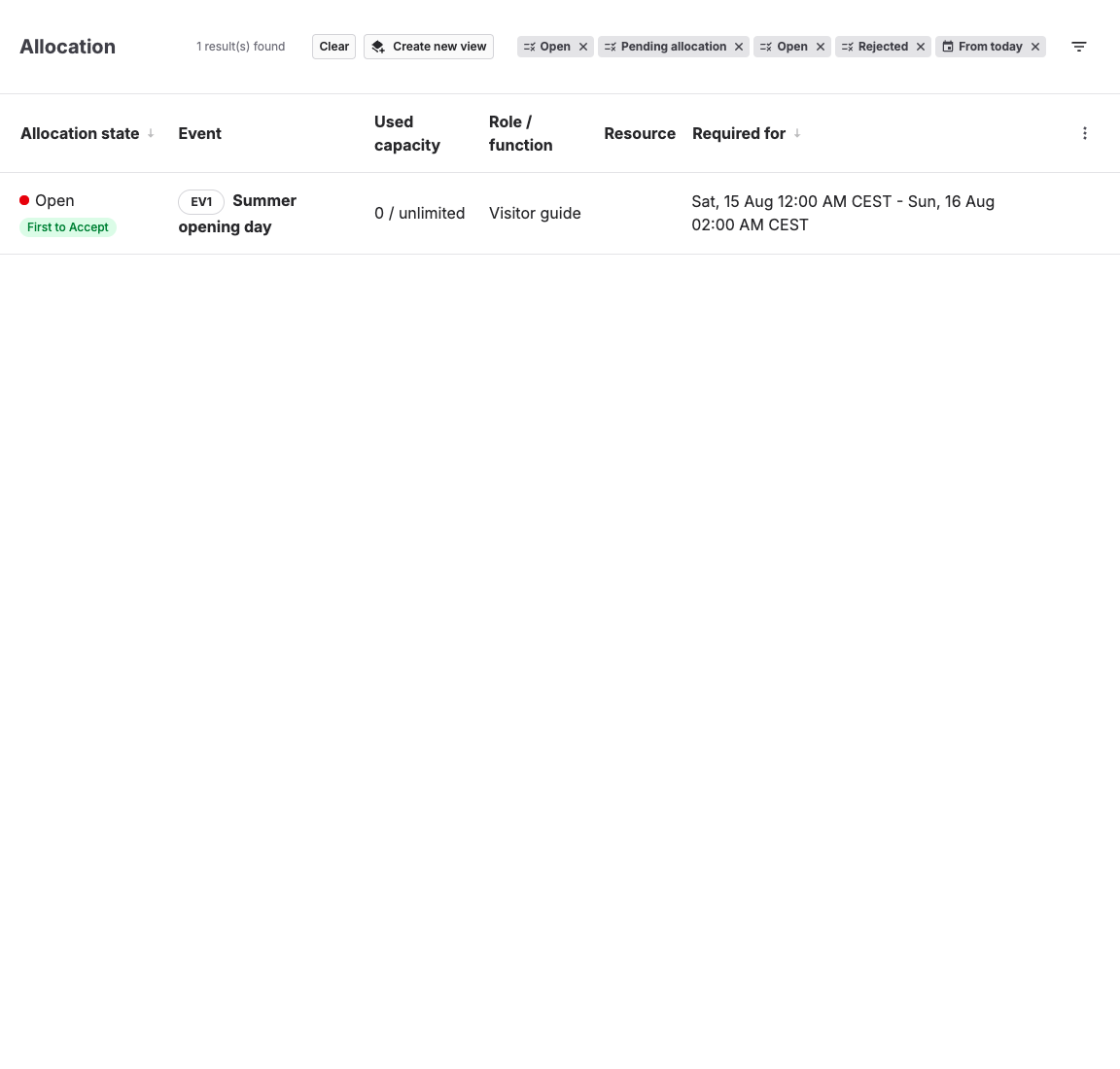
Each row shows the Event, the Role / function, Tags, the allocated or inquired Resource, and the time span the resource is Required for. The Allocation and Inquiry tabs on a row separate direct allocation from the email inquiry process.
Resolve open rows
- Select Allocate and pick a resource to fill a slot directly, or select several rows and use Allocate to all selected.
- Select Inquire to email resources and let them accept or reject, or Broadcast Now to send inquiries to all available resources.
- When a manual-review inquiry has responses, select Choose Resource to pick from the resources that accepted; other inquiries for that slot are canceled.
- Use Cancel inquiry or Remove allocation to undo a pending inquiry or an existing allocation.
For a visual check of the same day, open Calendar and switch to the resource timeline with the Resources button; it shows resources as rows with their reservations and availability.
Review assignments after participant numbers decrease
For a participant-linked requirement, fewer participants can mean fewer resources are needed. A warning such as 1 required · 2 assigned shows when retained slots exceed current demand. Accepted and manually allocated resources remain reserved until you decide to release them.
You can keep the extra assignments intentionally. To release one resource, open the event's resource requirements or Resources > Allocation, find that resource's slot, and select Remove allocation. Review the cancellation email explanation and choose whether to keep the resource's fees before selecting Save. Closing the dialog leaves the allocation in place. You need permission to update resource requirements.
Pending inquiries remain active when demand decreases. Use Cancel inquiry and its confirmation to stop inquiries that are no longer needed. Empty excess slots can be removed automatically.
Understand the allocation states
The Allocation view shows the state of each resource requirement. Use these states to decide whether a row needs direct allocation, inquiry follow-up, or manual review:
Resource requirement allocation states
The requirement-level allocation state shows the progress of one required role, room, staff member, or equipment slot.
| Option | What it does | When to use it | Watch out for |
|---|---|---|---|
| Open | Shows that at least one slot still needs a resource and no later inquiry or allocation state applies. | Allocate a matching resource, send inquiries, or correct the requirement and resource setup. | Open does not guarantee that a matching resource is currently available. |
| Open | Shows that every active slot has a provisional preselected resource. | Review and confirm the provisional resources when the workflow requires manual completion. | The back office displays this state as Open because preselection is not final allocation. |
| Allocated | Shows that every active slot was allocated directly to a selected resource. | Use it to confirm that direct allocation for the requirement is complete. | Removing an allocation or changing the requirement can reopen it. |
| Inquiry pending | Shows that inquiries are active and responses or completion are still outstanding. | Monitor responses, cancel obsolete inquiries, or send additional inquiries when necessary. | An inquiry does not become an allocation until the applicable inquiry workflow completes. |
| Pending allocation | Shows that at least one resource accepted and manual review is waiting for you to choose the resource. | Select Choose Resource and finish the allocation from the accepted responses. | Accepted responses are not allocated automatically in manual-review mode. |
| Accepted | Shows that every active slot is allocated through an accepted inquiry. | Use it to confirm that the inquiry-based allocation completed successfully. | Canceling or removing the resulting allocation reopens the requirement. |
| Rejected | Shows that all active slots reached a rejected terminal state. | Send new inquiries, allocate manually, or change the requirement so another resource can match. | The requirement is still unresolved and may reduce bookable capacity. |
| Canceled | Shows that the inquiry or allocation process for the requirement was canceled. | Start a new inquiry or allocate a resource manually if the requirement is still needed. | Canceling the allocation workflow does not remove the resource requirement itself. |
Event lists and event details combine their requirements into an event-level summary state:
Event resource allocation states
The event-level allocation state summarizes the resource requirements that currently determine whether an event is ready.
| Option | What it does | When to use it | Watch out for |
|---|---|---|---|
| None | Shows that the event has no resource requirements to allocate. | Use it to distinguish events that do not need resources from events with unfinished allocation work. | If the event should need staff, rooms, or equipment, add the missing resource requirements. |
| Open | Shows that at least one requirement still has an unfilled slot. | Use it to find events that need allocation, inquiries, or a resource-setup correction. | Open does not guarantee that a matching resource is currently available. |
| Open | Shows that one or more requirements have provisional preselected resources but are not finally allocated. | Treat it as open work until the allocation is confirmed. | The back office deliberately displays this state as Open; a preselection is not a final allocation. |
| Inquiry pending | Shows that at least one resource inquiry is waiting for responses or completion. | Use it to monitor inquiry progress before following up or sending more inquiries. | A sent inquiry does not allocate a resource by itself. |
| Pending allocation | Shows that a resource accepted an inquiry and the manual-review workflow is waiting for a staff choice. | Open the requirement and select the accepted resource to finish allocation. | The event remains unfinished until the accepted resource is chosen. |
| Allocated | Shows that all requirements considered by the event summary have allocated resources. | Use it as the event-level signal that resource allocation is complete. | Later availability changes or removed allocations can make the event open again. |
| Canceled | Shows that at least one requirement's allocation or inquiry process was canceled. | Review the affected requirement and start a new inquiry or allocate a resource manually. | This describes resource allocation; it does not mean the event itself is canceled. |
Expected result
All requirements for the day show as allocated, and any remaining open or pending rows are ones you have deliberately left for later.
Troubleshooting
| Problem | What to check |
|---|---|
| A requirement stays Open | Resource availability for that time, unavailability blocks, and allocations to overlapping events. |
| Inquiries get no responses | Resource email addresses and whether the inquiry was sent to the right people. |
| Accepted inquiry did not allocate anyone | The allocation mode; manual review needs you to select Choose Resource. |
| Two events claim the same resource | The shared setting on the requirement and the shareable setting of the role or function. |
