Use customer subscriptions
- Last verified
- Last verified Oct 9, 2026
Use a customer subscription when customers should be able to opt in to a newsletter, an interest list, or another communication topic. A subscription records the customer's choice and lets you send scheduled emails only to the customers who signed up.
Create a subscription
- In the back office, open Settings > Subscriptions and create a subscription.
- Enter the Name and the checkbox text customers see.
- Select Allows marketing contact if signing up should also count as consent to marketing contact.
- Save the subscription.
Subscriptions can also be imported from a connected bLoyal account. Imported subscriptions have the type bLoyal; subscriptions you create have the type Custom.
Show the subscription in the online shop
- Open Shops, select the shop, and open Checkout.
- Under Subscriptions, enable the subscriptions customers should see.
- Save the shop settings.
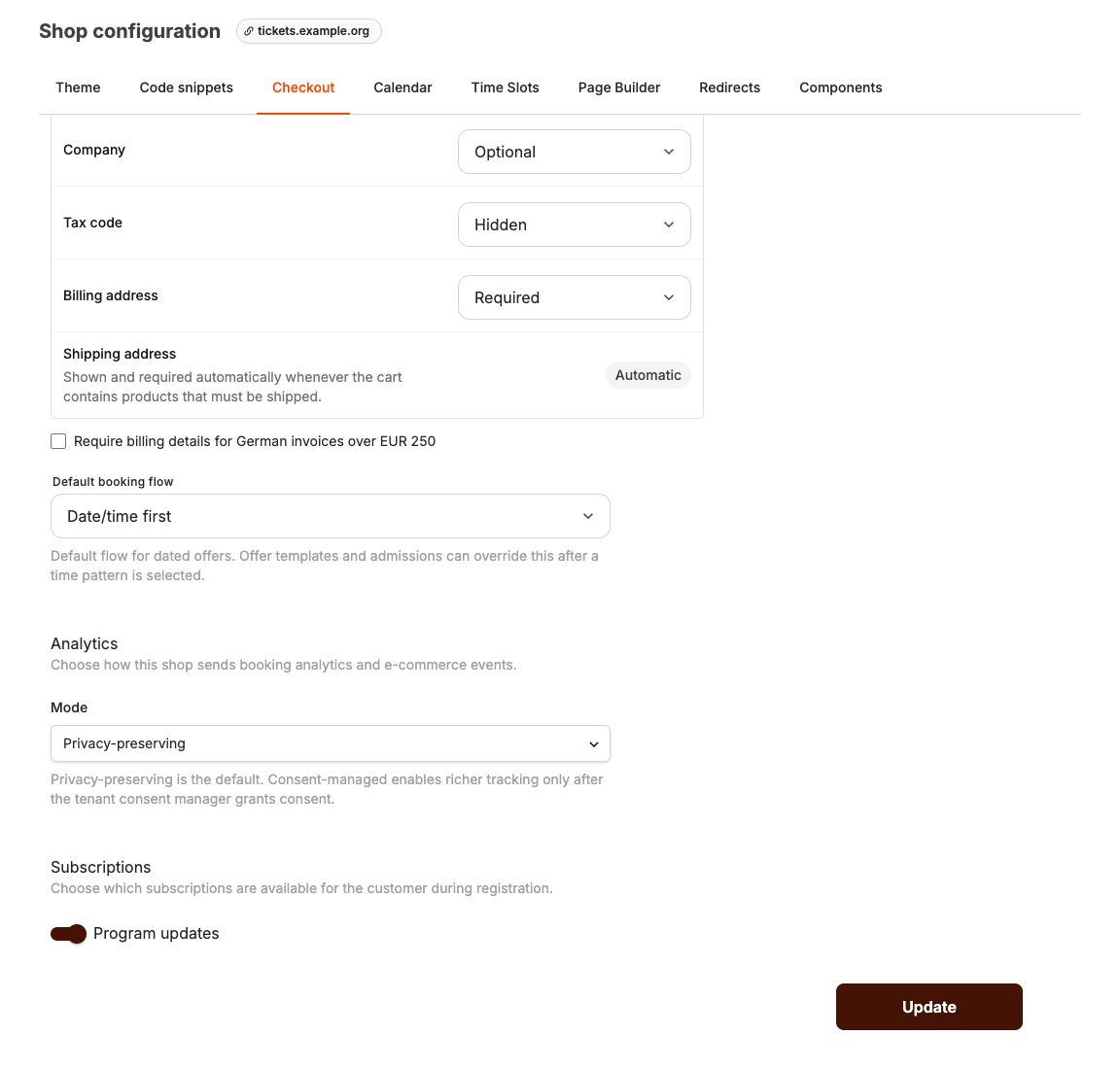
Customers see the enabled subscriptions as checkboxes under Marketing preferences during registration and checkout. Signed-in customers can review or change their choice, including opting out, on Account > Profile.
Review or change a customer's subscriptions
- Open Sales > Customers and select the customer.
- Open the Consents tab. The Subscriptions section shows a toggle for each subscription, and Marketing Preferences shows the customer's marketing consent.
The customer Overview tab also shows a Subscriptions summary.
Use subscriptions in scheduled emails
When you create a scheduled email, select one or more subscriptions under Subscriptions. Only customers signed up for these subscriptions receive the email. See Create a scheduled email.
