Close or remove future time slots
- Last verified
- Last verified Aug 20, 2026
Use this when future dates should no longer be bookable because of maintenance, weather, private use, staffing, or schedule changes.
Before you start
Check existing orders for the affected dates. Decide whether customers keep their bookings, are rebooked, or are canceled.
Before using a period to close a complete date, inspect Added start times in every affected time pattern. Manual additions need matching Excluded start times because Subtract does not remove them.
Steps
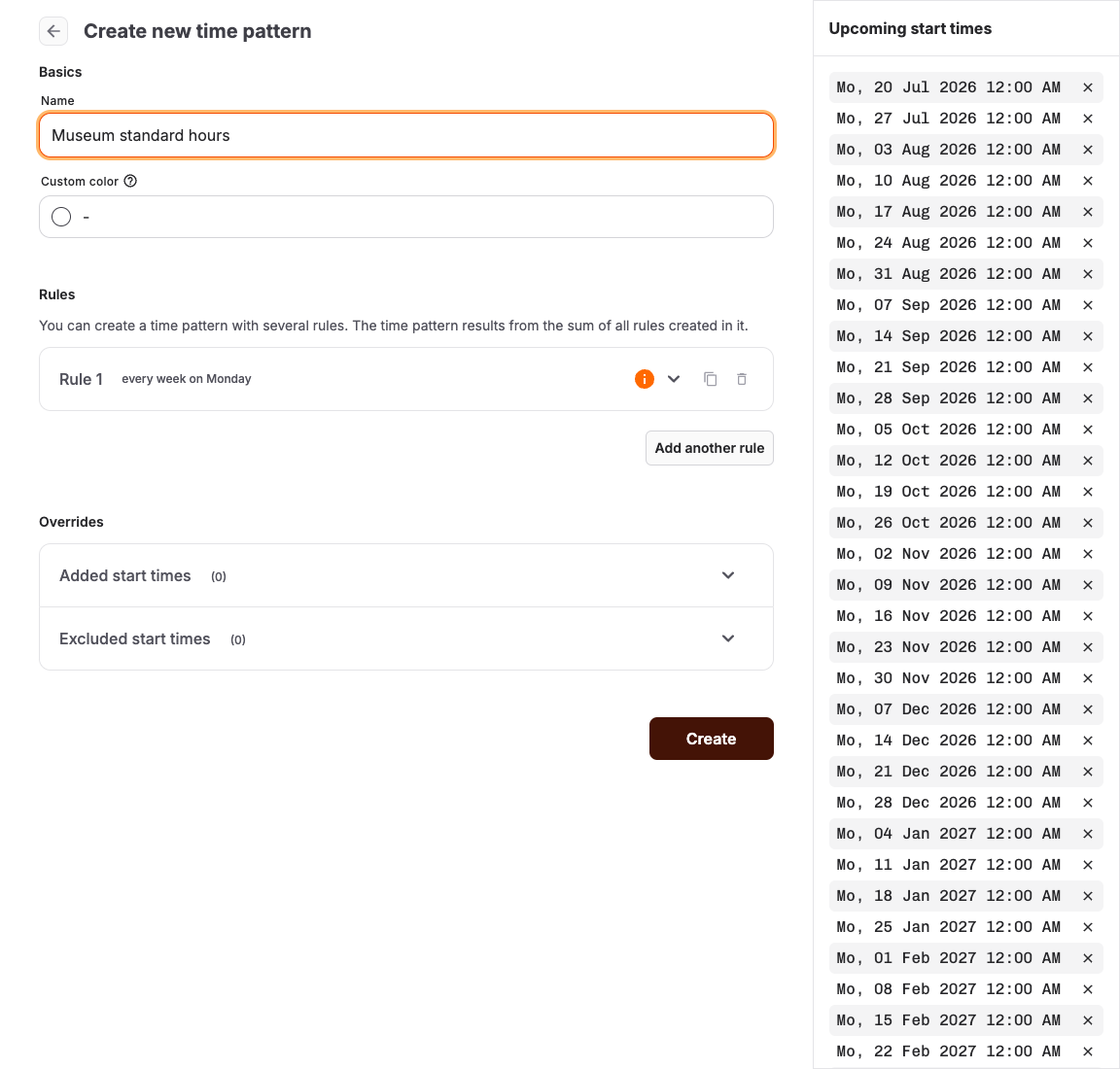
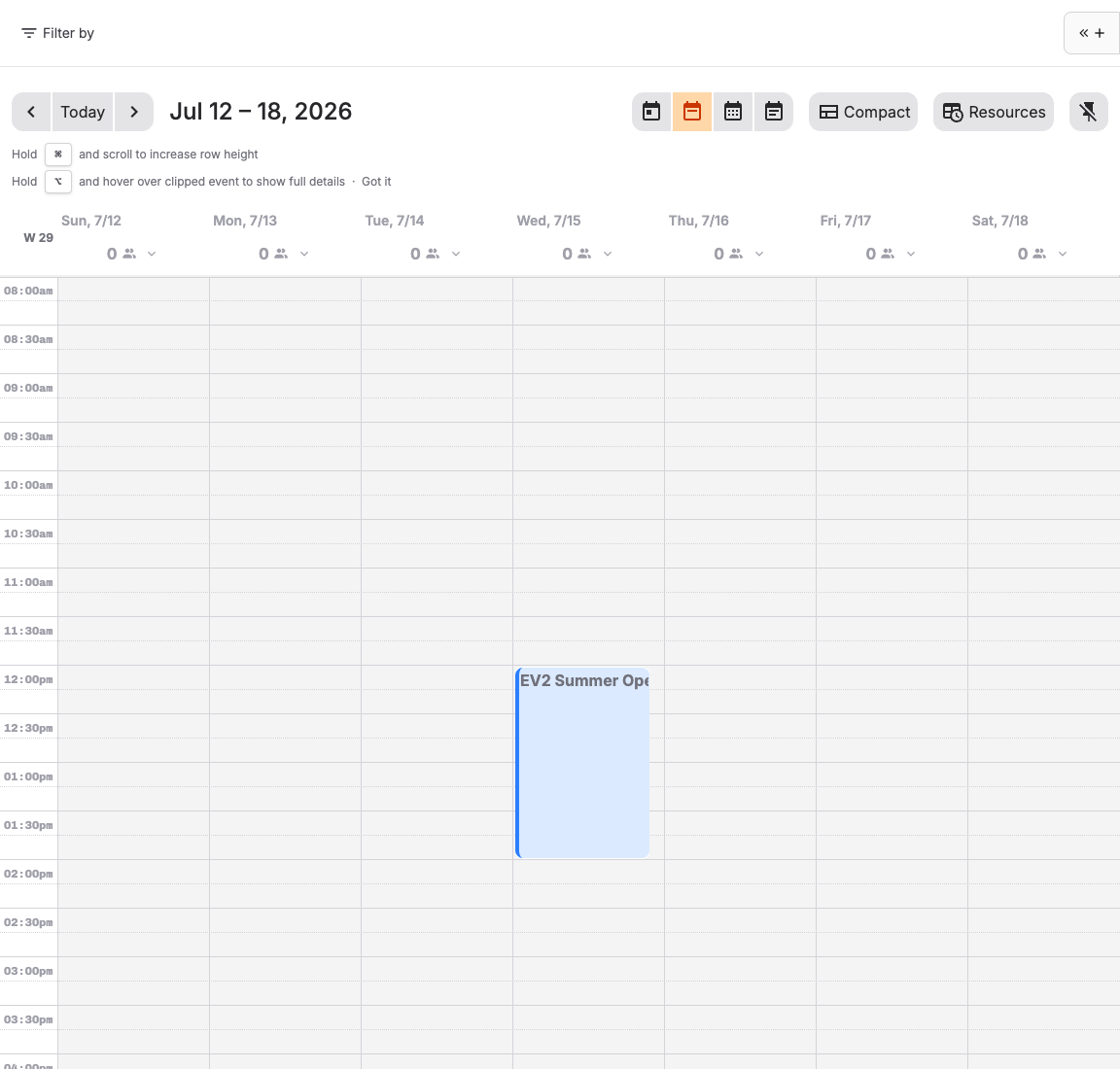
- Open Settings > Time Patterns and select the time pattern the offer uses, or open the Calendar and select the affected start time.
- If you are editing the time pattern, use Excluded start times and Exclude another start time to add each affected start time, or adjust the recurrence rules so the dates are no longer generated. Then save the time pattern.
- If you are using the Calendar, select Remove start time. If the time pattern is shared, review the affected offers in the dialog and select Remove open slot from all affected offers. For a single-use pattern, select Remove open slot.
- If the slot is already booked, open the affected orders and decide whether to rebook, cancel, or contact customers.
- Open the online shop and confirm the affected start time is no longer bookable.
Choose exclude or edit recurrence
| Choice | Use it when |
|---|---|
| Exclude start times | Only a few future start times should close. |
| Archive an event | One created event occurrence should leave the Calendar, without changing the event template schedule. |
| Edit recurrence | The repeating schedule is changing permanently. |
| Resource block | The slot should close because a room, staff member, or item is unavailable. |
| Time pattern period | A seasonal or named schedule should change for one or more date ranges. |
Remove start time closes an open slot on its time pattern. Archive event retires one created event occurrence. Do not archive the event template when only one date or time should change. See Use and read the back-office Calendar for the Calendar actions.
Use Pause online sales during operational downtime when the whole online sales channel should stop selling. It is not the right choice for closing only a few future slots.
Close complete dates with a period
Use a time pattern period when the same time patterns should close on several named dates or date ranges:
- Open Settings > Time Patterns and note every base recurrence rule for the affected time pattern.
- Check the existing periods for that time pattern. Active ranges for periods other than the default schedule on the same time pattern cannot overlap.
- If another period overlaps a closing date, split or adjust its active range before adding the closing period.
- Open Settings > Periods, create a period, and select Subtract.
- Add the closing dates under Active date ranges.
- Under Rules, add the affected time pattern and recreate rules that generate every base start time on the closing dates. Copy every visible recurrence setting, including the frequency and interval, selected days, hours, minutes, and end setting.
- Return to the base time pattern and inspect Added start times. For each manual addition on a closing date, add the same date and time under Excluded start times.
- Repeat for every time pattern that should close, then save.
- Check every affected date in the Calendar and the public shop.
Expected result
The open slots generated by the time pattern are no longer available for new bookings, including for affected admissions at the removed start. Existing orders remain visible for staff follow-up. Depending on their sales settings and capacity, already-created events may still accept bookings until you archive them separately.
Troubleshooting
| Problem | What to check |
|---|---|
| Closed date still appears | Time pattern, shop cache, calendar configuration, and whether a child event was already generated. |
| Some starts remain during a subtract period | Compare the period rules with every base rule. Their generated dates and local times must match; the active date range alone removes none. |
| A manually added start remains bookable | Subtract does not remove Added start times. Add the same date and time under Excluded start times in the base time pattern. |
| Existing bookings were affected | Review affected orders before deleting or changing generated instances. |
| External system still sells it | Integration sync, external availability, and which system owns the slot. |
| Affected offers do not load | Select Retry and do not confirm until the affected-offer list or single-offer guidance loads. |
