Review the customer checkout before launch
- Last verified
- Last verified Aug 26, 2026
Use this review before sharing a new shop or offer. It focuses on customer-facing content and choices that your team configures.
Before you start
Have these decisions ready:
- the public shop URL customers will use
- the offers and pages you intend to publish
- the customer and attendee information you need to collect
- required legal documents and waivers
- the live payment methods customers should be offered
Keep the shop restricted and offers hidden while the content is still being edited.
Review offer presentation
Open the shop or its preview and review the content your team maintains:
- offer name, description, image, venue, date, and time
- customer-facing price-category names and amounts
- page placement, categories, tags, and translations
- whether the offer should be published, hidden, or restricted
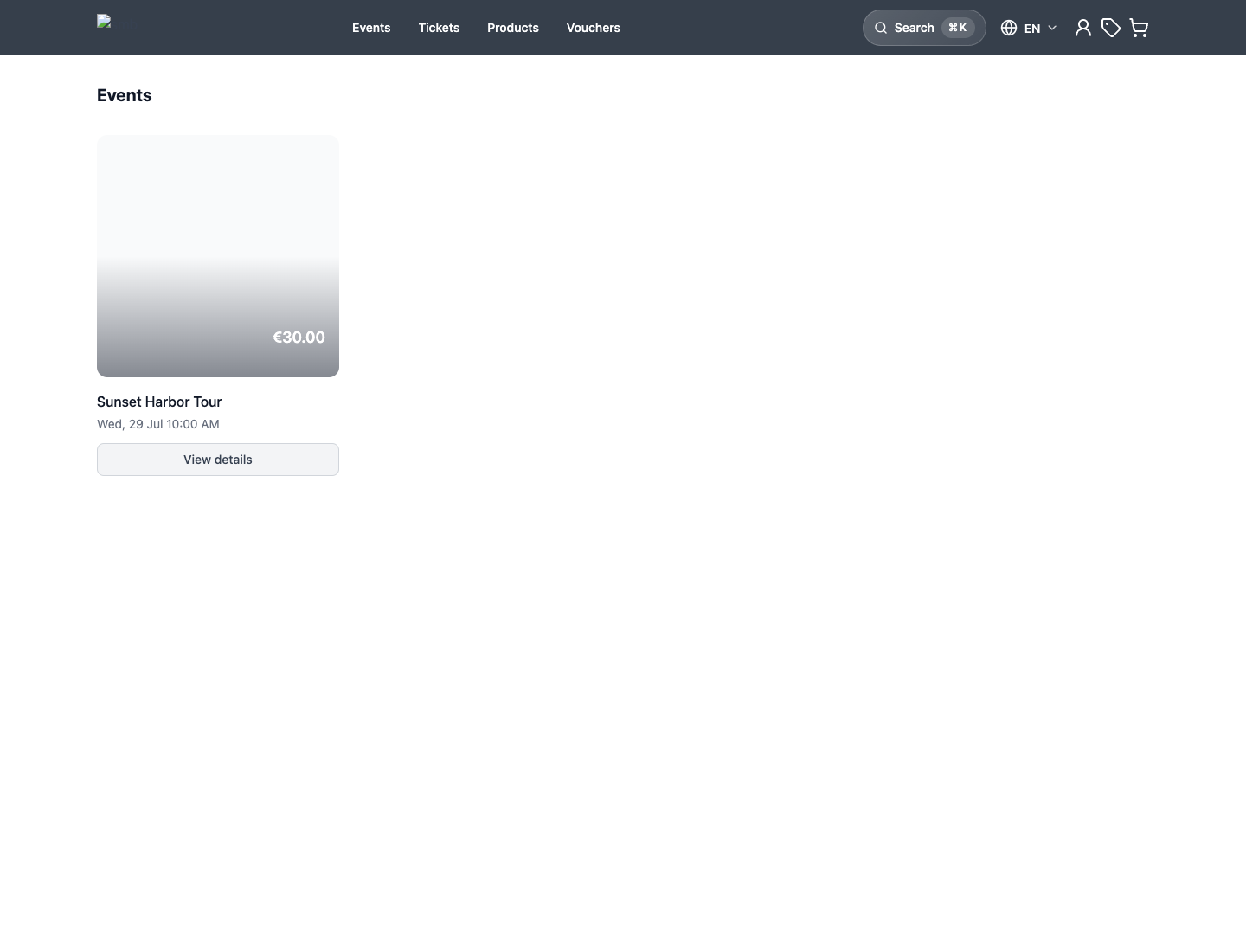
For an offer that should be listed but is missing, see An offer is missing from the shop.
Review cart choices
Review the choices customers can make for the offer:
- available dates and times
- price categories and quantity limits
- attendee or booking questions
- included or optional sub-products
- voucher or discount-code entry, when used
These choices come from the offer, price, sales-channel, capacity, and data-collection settings. Correct the source setting rather than documenting a workaround for a wrong result.
Review checkout content
Open Checkout configuration and the offer's data-collection settings. Confirm the policy decisions your team owns:
- which customer details are required
- which questions apply once per booking or once per attendee
- whether guest checkout or customer sign-in is available
- which legal documents require acceptance
- whether a waiver is required
- which confirmation wording and translations customers receive
Ask only for information your organization needs. Required questions add friction and can prevent a customer from continuing until every answer is complete.
Review payment choices
In Admin > Payment and the shop checkout settings, select the intended live provider and payment methods. Some methods depend on provider support, customer eligibility, currency, country, device, or domain. Use Payment setup overview for those constraints.
Do not create unnecessary real charges as part of launch review.
After submitting payment details or confirming a wallet payment, the payment options are disabled while the result is checked. Wait until the confirmation page, Payment pending page, or an error message appears before continuing.
If the Stripe payment form explicitly says that it could not start and shows Try again and Choose another payment method, you can use either recovery action. This differs from a processing or pending payment whose final provider result is not yet known.
If you leave a payment before confirming it, select a different payment method from the list. Before opening the new method, the shop checks whether the previous payment has progressed. If it has, checkout continues to the pending- or successful-payment page instead. If the shop cannot confirm the result, the current method remains selected and you can select the alternative again to retry. If the check completes but the next page does not open, select Try again; this action is also available when the shop offers only one payment method.
Closing a PayPal window before confirming the payment starts the same check automatically. This also applies when PayPal cannot load, or when an Apple Pay link is reopened on an unsupported device. Leave the page open while the payment is being checked.
After a Lynck payment, the shop may also show the pending-payment page after returning through the failure path while it checks the provider's authoritative result. Do not start another payment during this check because the browser redirect may arrive before Lynck reports a successful charge.
When testing Lynck card payments, cancel bank verification once. If another attempt is available, the shop returns to its payment form and explains that card verification was not completed. Enter the card details again to retry on the same order. If Payment pending remains visible, leave the page open while the payment is checked.
Publish when the configuration is ready
When the customer-facing content and policy choices are approved:
- Remove Hide from shop only for offers that should be listed.
- Publish the intended shop pages and theme changes.
- Remove Require staff login only when the shop should be public.
- Share the public shop URL.
Expected result
The published shop presents the approved offer content, choices, customer questions, legal requirements, and payment methods.
Troubleshooting
| Problem | What to check |
|---|---|
| Shop should not be public yet | Require staff login, page publication, offer publication, and Hide from shop. |
| Offer is missing | Publishing state, Hide from shop, shop sales channel, page builder offer list, active prices, sales period, inventory, and capacity. |
| Checkout asks the wrong fields | Checkout configuration, event data collection, attendee questions, waiver setup, and legal documents. |
| Payment method is missing | Provider support, connection and live mode, currency, country, domain, customer eligibility, and the shop's payment configuration. |
| Payment remains in progress | Wait for the provider result, then check the payment and invoice state in the back office. Do not test another payment method until the first result is known. |
| The payment method does not change | Keep the page open while the shop checks the previous payment. If the current method remains selected, select the alternative again. If Try again appears, select it to continue. |
The payment provider shows success, but the order is still open
A successful provider transaction should settle the matching invoice and order. If the provider shows a successful charge while KORONA Event still shows Open payment:
- Open Sales > Orders, find the order, and reload it once after the provider has returned its final result.
- On Documents, compare the invoice amount and payment state with the provider transaction.
- On History, check the payment, invoice, and order entries around the transaction time.
- Do not ask the customer to pay again while the first charge is successful or its status is uncertain.
- If the order remains Open payment, contact support with the order number, invoice number, provider, transaction reference, amount, currency, and transaction time.
