Connect a POS to ticket sales
Use this when a counter till should start selling events, admissions, products, or vouchers from KORONA Event.
A point of sale A configured selling endpoint or order origin. It can represent a till or kiosk, the online shop, or a back-office or telephone ordering flow. in KORONA Event represents a configured selling endpoint such as a till or kiosk. An offer's sales-channel rule An offer rule that selects one or more points of sale and controls where, when, and with what channel-specific limit the offer can be sold. selects which POSs may sell it; the order channel A classification stored on an order to identify how it entered KORONA Event and support routing, reporting, and defaults such as point of sale or payment method. recorded later describes how an order entered the system.
Before you start
Confirm:
- KORONA Event support has configured the KORONA.studio ecosystem connection, because points of sale are imported from KORONA
- you know which events or admissions the POS should sell
- you have permission for Points of sale and Integrations
Sync and review the point of sale
- In the back office, open Admin > Integrations and confirm a recent Last successful synchronization. If the connection is missing, contact KORONA Event support rather than entering service credentials yourself.
- Spot-check that the expected points of sale and organizational units were imported.
- Open Settings > Points of sale. The list shows Name, Number, Type, Coupling, Order channel, and Shops for each point of sale.
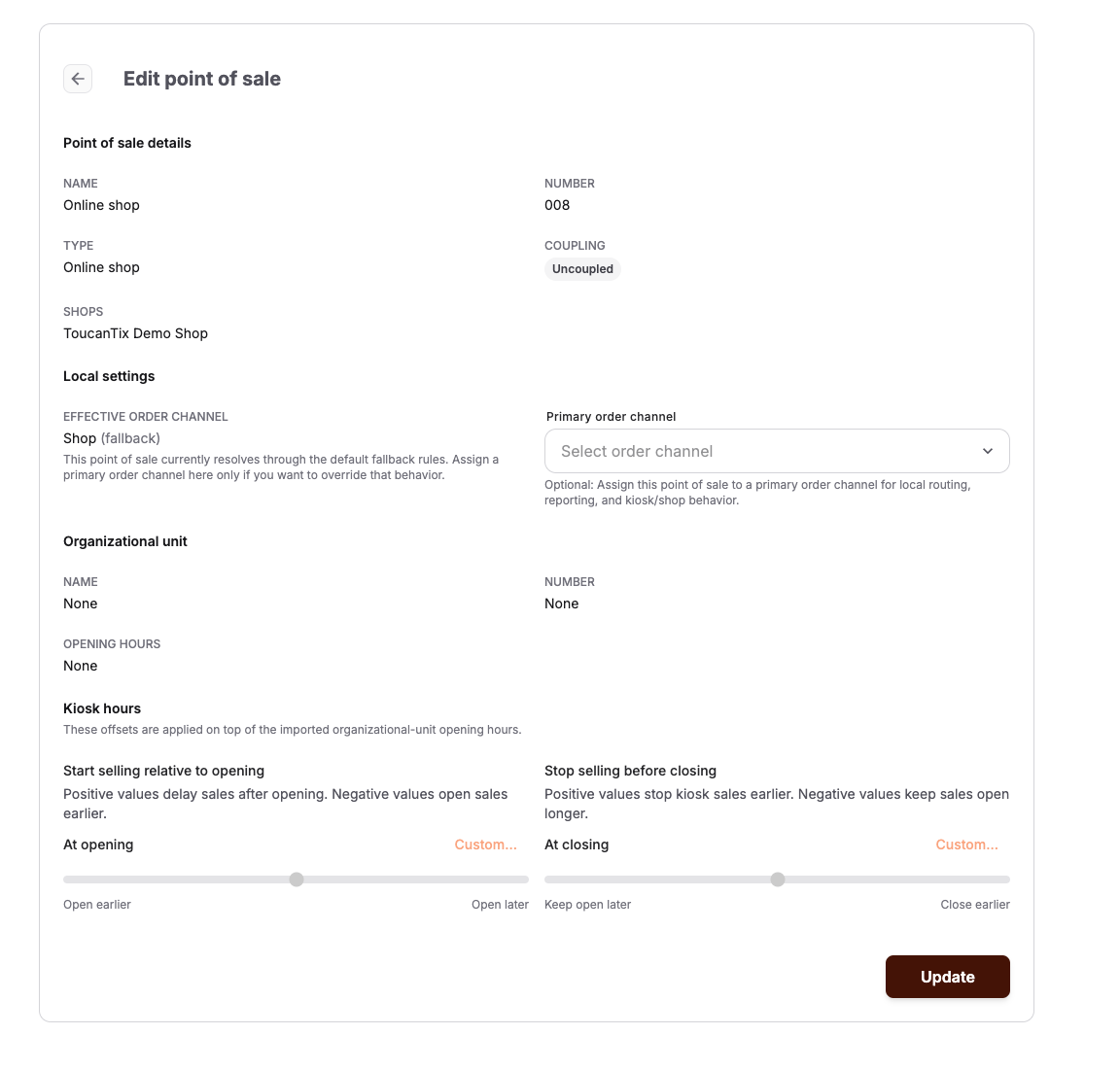
- Open the point of sale to review it. Synced entries are managed externally: core details stay read-only in KORONA Event, and you edit only the local settings, such as an optional Primary order channel and, for kiosks, Kiosk hours.
Couple the point of sale
- In Settings > Points of sale, check the Coupling column. Each point of sale shows Coupled or Uncoupled.
- Select Couple on the point of sale you want to connect. Use Decouple to disconnect it again.
Coupling registers the point of sale with your KORONA account so KORONA Event and the till can exchange receipt data for sales made through it.
Make offers sellable on the POS
Events and admissions appear on the POS only when a sales channel rule points at that point of sale:
- Open the offer under Services and select the Sales channels tab.
- Add or edit a rule and include the point of sale under Sales channels.
- Check that at least one price is visible for the channel: on the price rules, review Visible on the following sales channels.
See Control where an offer is sold for quantity limits and sales periods per channel.
Open the ticket screens on the till
Cashiers open the KORONA Event POS screens from the KORONA till. On accounts with managed external system calls, create an order view and publish it as an Orders POS action, or create an event view and publish it as an Agenda POS action. Add the resulting external system call to the applicable KORONA.studio POS button layout. Other saved-view and destination combinations are not published automatically.
If the saved-view publish action is not available, use the Orders root Display URL and the current credentials under Admin > Integrations > External system calls to configure an Orders action manually in KORONA.studio. The manual root action opens Orders without applying a saved view.
Account admins can verify receipt-cancellation and delivery-note callbacks under Admin > Integrations > External system calls. KORONA Event synchronizes these callbacks to the imported POS profiles. Do not replace the service credentials unless support requests it.
Expected result
The point of sale shows Coupled, the intended events appear on the POS Offers and Agenda screens, and counter sales create orders attributed to that point of sale.
Troubleshooting
| Problem | What to check |
|---|---|
| Point of sale is missing from the list | Record Last successful synchronization, the expected POS number, and contact support; do not create a duplicate POS locally. |
| Coupling fails or shows Uncoupled | Whether the entry was synced from KORONA and your KORONA account accepts the coupling; retry Couple. |
| Event is missing on the POS | The offer's Sales channels rule includes this point of sale, prices are visible for it, and sales are still open. |
| POS screens ask for credentials | Record the POS number, screen, URL, and timestamp and ask support to check the external-system-call configuration. |
