Limit event capacity with resources
Use this when an event should only sell as many places as your staff, rooms, or equipment can serve. A resource requirement connects the event to a role or function, and the bookable capacity becomes the lower of the event's own capacity and what the required resources can support at that time.
Before you start
Confirm:
- the resources exist with the right roles or functions and a realistic capacity
- the resource availability covers the event times
- whether one resource can serve several events at once (shared) or must be exclusive
Add a resource requirement
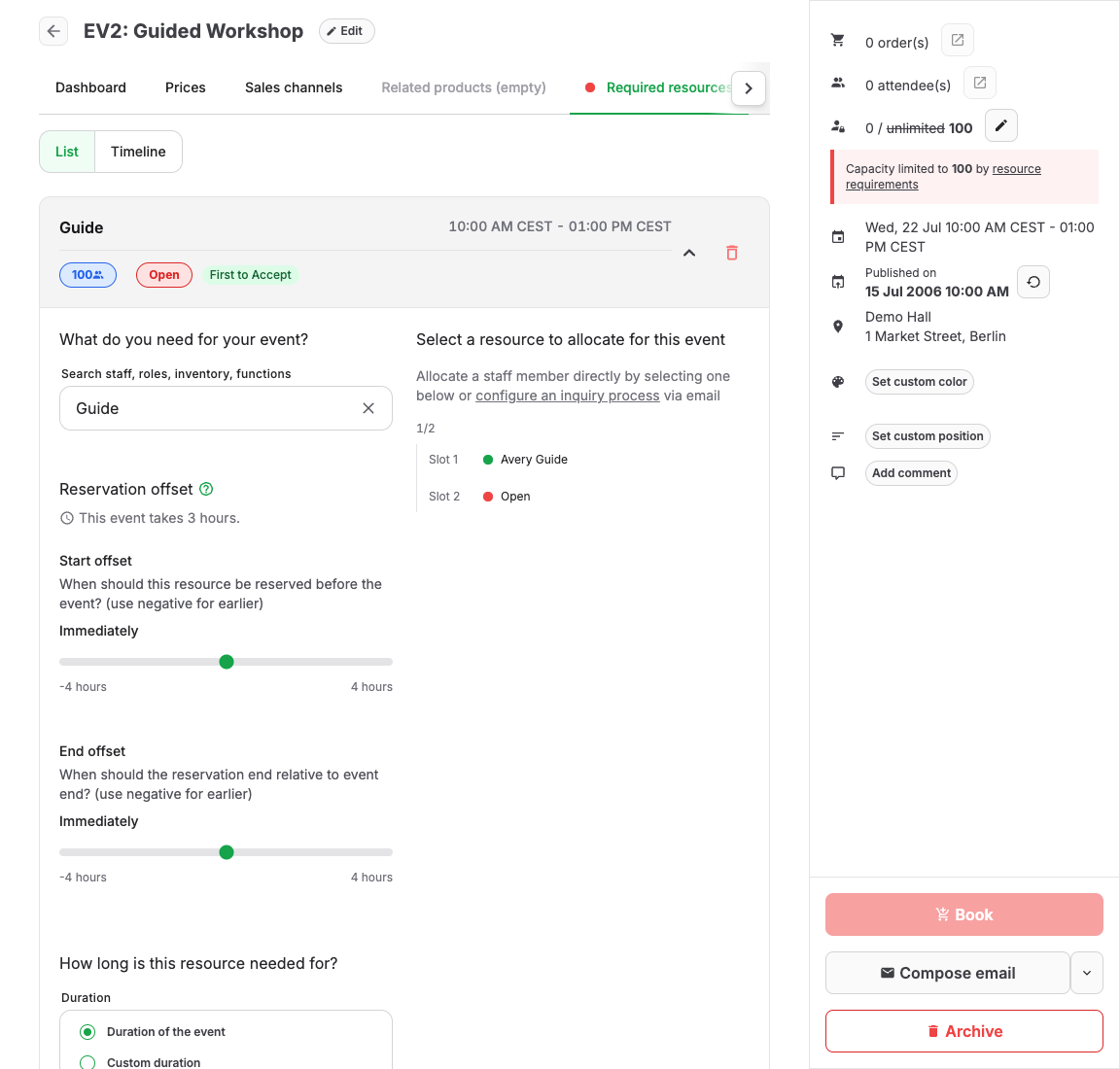
- Open the event or event template and select the Required resources tab.
- Select Add requirement.
- Search for a specific resource or for a role or function. Requiring a role or function lets any matching resource fill the slot; requiring a specific resource restricts it to that one.
- Set the Quantity. With the Quantity mode Fixed quantity, the event needs that many resources. With Based on participants, enter how many resources are needed per group of participants, and the quantity grows with bookings.
- Select This resource can be shared with other events only when the same resource may serve overlapping events. Sharing is not available for Based on participants or when Fixed quantity is greater than one; those modes require distinct resource capacity for each event.
- Under When is this resource needed?, choose For the whole event when the resource is needed from event start to event end. Choose At a different time (for example, for setup or teardown) to set Needed from relative to the event start and Needed until relative to the event end, for example 1 hour before event start for setup and 30 minutes after event end for cleaning. The sliders use five-minute steps up to 4 hours earlier or later. Select Custom... beside a slider to enter an exact duration, then choose whether it applies before or after the event start or end. Press Escape before leaving the custom input if you want to restore the slider value you started from. Below the sliders, KORONA Event shows the resulting time window. For an event, it shows the clock times and the total time; for an event template, it shows the total time compared with the event length.
- Save the requirement.
Mark a requirement Optional when the event can proceed without it; optional requirements do not block capacity the way required ones do.
How resources constrain capacity
- A role or function with Limited capacity limits participants. If one guide handles 15 participants and the event requires one guide, only 15 places are bookable even when the event capacity is higher.
- If no matching resource is available for the event time, because of availability settings or allocations to other events, the constrained capacity can drop to zero and the event stops being bookable.
- If an already allocated required resource becomes unavailable, the allocation remains visible but contributes zero capacity until you replace or remove it. Valid alternatives appear alongside the unavailable allocation.
- The Required resources tab shows a Capacity diagnostic when resource requirements limit the current capacity below the event's own maximum.
- Each requirement shows the capacity its current resource or candidate pool can support. One participant-based requirement can therefore show positive capacity while the event remains at zero because a different required allocation is unavailable; the Capacity diagnostic identifies the blocking requirement.
- Fixed quantity is useful for requirements that do not change with attendance, such as one room, two guides, or three vehicles. Based on participants is useful when another resource is required for every group of customers.
Expected result
The shop, POS, and back office offer at most as many places as the required resources can serve, and the event shows which requirements limit capacity.
Verify the capacity boundary
Test the largest quantity that should fit and one quantity above it in every active sales channel. Check the shop, POS, and back-office booking flow because channel limits, existing reservations, and resource allocation can produce different available quantities.
For a participant-based requirement, repeat the test just below and just above the point where another resource becomes necessary. For example, if one guide covers 10 participants, test quantities 10 and 11.
Troubleshooting
| Problem | What to check |
|---|---|
| Event shows no availability at all | The Capacity diagnostic, unavailable allocated resources, resource availability for the event time span, offsets, allocations to other events, and requirement quantity. |
| Capacity is lower than expected | The Capacity diagnostic, role or function capacity, and whether several requirements overlap. |
| A requirement shows capacity but the event shows zero | Another required allocation can still be unavailable. Use the Capacity diagnostic and replace the resource marked as unavailable. |
| Capacity is higher than resources allow | Requirement missing, marked Optional, or capacity set to Unlimited on the role or function. |
| Quantity does not grow with bookings | The Quantity mode; only Based on participants scales with group size. |
| Shared switch is unavailable | Sharing is incompatible with Based on participants and Fixed quantity greater than one. |
For symptom-by-symptom checks, see Troubleshoot availability and capacity; the underlying model is explained in How capacity and availability work.
