Run a go-live readiness check
Use this checklist in the days before you announce ticket sales. It covers the configuration and operational decisions your team owns.
Before you start
- The event, prices, and sales channels are set up. If not, start with the First event setup checklist.
- Users, legal texts, and account details are in place. See Invite a user and choose their role, Add legal texts before launch, and Set account language, timezone, and contact details.
- Your team has approved the customer-facing content and launch date.
1. Shop visibility
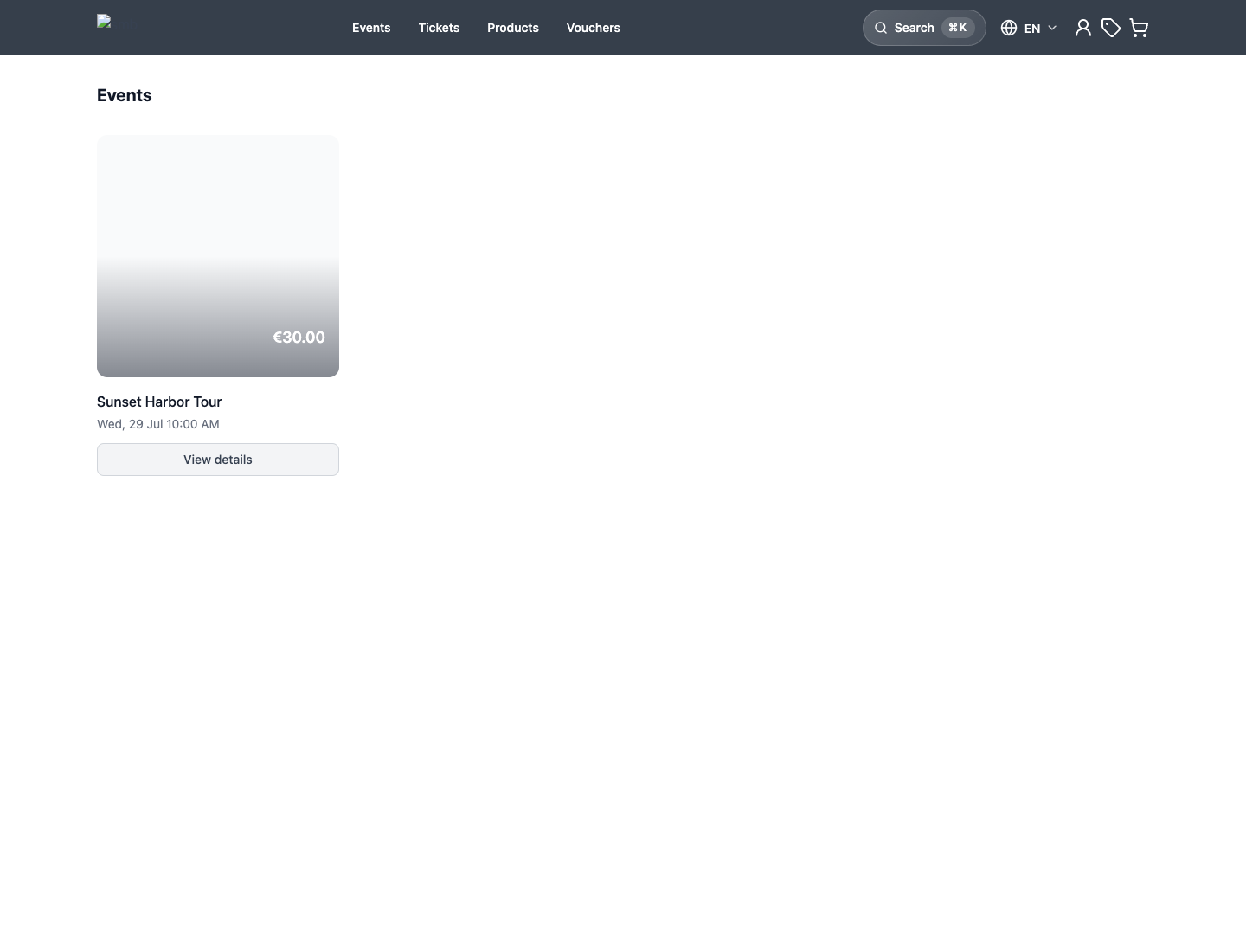
Review the shop page, offer publishing state, Hide from shop, sales channel, sales period, customer-facing name, date, prices, and image.
Details: Publish your first online shop and First event setup checklist.
2. Payment methods
Select the intended live provider and payment methods, and agree who owns refunds, chargebacks, and provider reconciliation.
Details: Payment setup overview.
3. Checkout policy
Review the customer and attendee fields, waivers, legal confirmations, reservation policy, and payment choices your team configured. Remove questions that are not needed and make policy-critical fields required.
Details: Review the customer checkout before launch.
4. Emails and ticket PDFs
Review the maintained email templates, translations, ticket layout, attachments, and sender details. Preserve required placeholders when editing templates.
Details: Prepare customer emails and tickets before go-live.
5. Entrance scanning
If the event uses entry scanning, assign the correct event and admission setup to the entrance hardware. Make sure door staff know the manual lookup and check-in fallback.
Details: Scan tickets at entrance.
6. Operations and reporting
Give cashiers, admissions staff, finance, and event managers the access and workflows they need. Agree who reconciles the event afterward, which report and date basis they will use, and who handles customer exceptions.
Details: Orders and invoices and Reconcile one event after it ends.
Expected result
The account, offer, shop content, checkout policy, payment methods, customer communication, staff access, entrance process, and reporting ownership are ready for launch.
Troubleshooting
| Problem | What to check |
|---|---|
| The event is not visible in the shop | Publishing state, Hide from shop, sales channels, prices, sales period, capacity, and shop page. |
| Checkout asks for the wrong details | Shop checkout fields, event questions, attendee questions, waivers, and legal documents. |
| A payment method is not offered | Provider support, connection and live mode, currency, country, domain, and customer eligibility. |
| Customer content is wrong | Offer content, shop page, email template, PDF template, translation, and publishing state. |
