Use text blocks for reusable copy
Use a text block when the same wording appears in several places — for example arrival instructions, a legal notice, or a signature. You maintain the wording once, in every language, and insert it wherever it is needed.
Text blocks can be inserted into email templates, scheduled emails, and PDF template boxes.
Before you start
- Prepare the final wording, including the variants for each language your account uses.
- Choose a recognizable name — you pick text blocks by name from a suggestion list while editing.
Create a text block
- In the back office, open Comms > Text Blocks.
- Select Create.
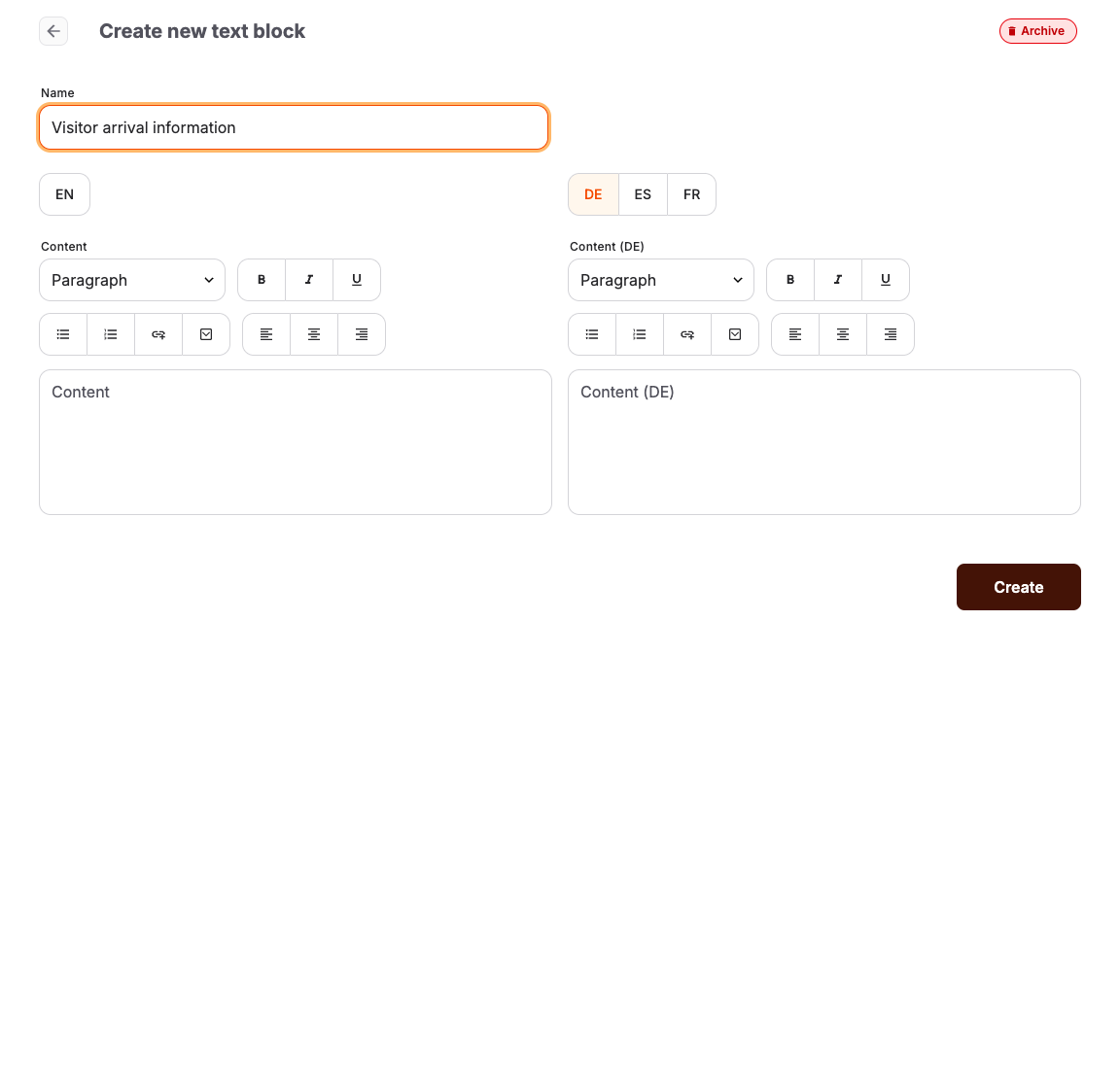
- Enter a Name. The name must be unique and is only visible to staff.
- Enter the Content for your default language.
- If your account has more languages, add the Content for each additional language in the language panel next to it.
- Select Create.
Insert a text block
- Open the template you are editing — an email template, a scheduled email, or a PDF template box.
- In the subject, body, or content field, type
@to open the suggestion list. - Keep typing to filter by name, then select the text block. Its content is inserted into the field.
When you insert a text block while editing a translated field, the block's content for that language is inserted; if no translation exists, the default-language content is used.
Update or archive a text block
- Open Comms > Text Blocks and select the block to change its Name or Content, then select Update.
- Use Duplicate to start a variant from an existing block.
- Use Archive to retire a block: it moves to the archived text blocks list and no longer appears in suggestion lists. The action can be undone from the archived list. Content that was already inserted into templates is not removed by archiving.
Expected result
Staff editing customer communication insert approved wording by name instead of retyping it, and each language gets its maintained variant.
Troubleshooting
| Problem | What to check |
|---|---|
| Block missing from the suggestion list | Archived text blocks, the spelling of the name, and your permission to read text blocks. |
| Wrong language inserted | Whether the block has content for that language; without a translation the default is used. |
| Old wording still in a template | Templates keep the content from when the block was inserted — reinsert the block after editing it. |
