Revert an email template variable
Use this when an email shows missing order details, raw variable text, or wrong customer information after a template edit.
Steps
- Open Comms > Email Templates.
- Open the affected template.
- Review Subject and Body in every language.
- Use the variable suggestions in the editor to insert the approved variable again.
- Save the template.
- Create or use a test order and send a test message where your process allows it.
- Check the received email for customer name, order number, event date, ticket links, and attachments.
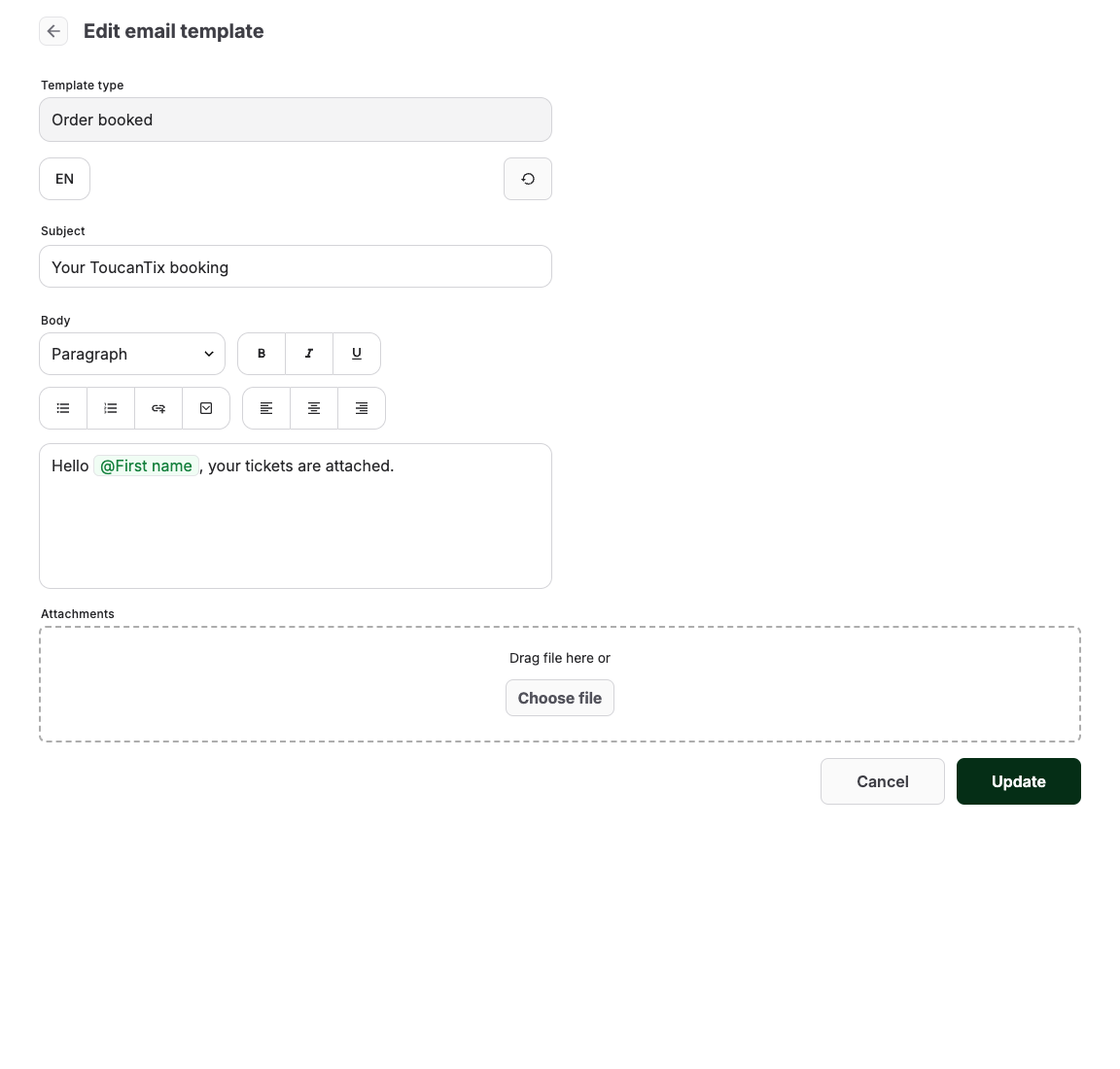
Variable rules
| Rule | Why it matters |
|---|---|
| Insert variables from the editor | It reduces spelling and formatting mistakes. |
| Check every language | A fixed default-language body does not repair translations. |
| Test with a real order | Some variables need order, invoice, attendee, or ticket data. |
| Do not remove ticket links casually | Customers may lose access to documents. |
Expected result
The email renders real customer and order data instead of raw or missing variable text.
Troubleshooting
| Problem | What to check |
|---|---|
| Variable still appears as text | The placeholder was typed manually or is not supported for that template. |
| One language is still broken | Update that language variant separately. |
| Attachment is missing | Order state, ticket generation, invoice generation, and template attachment behavior. |
