Create a time pattern
A time pattern A reusable schedule of recurrence rules, added start times, and excluded start times that generates availability for event templates and admissions. is a reusable schedule that generates start times for event templates and admissions. One pattern can contain several rules, and the result is the combined set of start times from those rules.
Use a separate pattern when offers must be changed independently. Reuse a pattern only when all assigned offers should always share the same schedule.
Before you start
Prepare:
- the account time zone
- the first valid date and start time
- frequency, such as daily, weekly, or monthly
- weekdays and additional start times
- whether the pattern ends on a date, after a number of occurrences, or never
- known one-off additions or closures
- any high-season, low-season, holiday, or special-event schedules
Create the base schedule
- In the back office, open Settings > Time Patterns.
- Select Create. The page title is Create new time pattern.
- Under Basics, enter a clear Name. Include the operational purpose, such as “Museum standard hours” or “Boat tours – hourly”.
- Optionally choose a Custom color to make the pattern easier to recognize internally.
- Under Rules, set Start, Frequency, Interval, and End.
- Select the weekdays, months, hours, or minutes required by the frequency.
- Select Add another rule for another start-time sequence. For example, use one rule for 10:00 and another for 14:00 if that is clearer than one advanced rule.
- Save the time pattern.
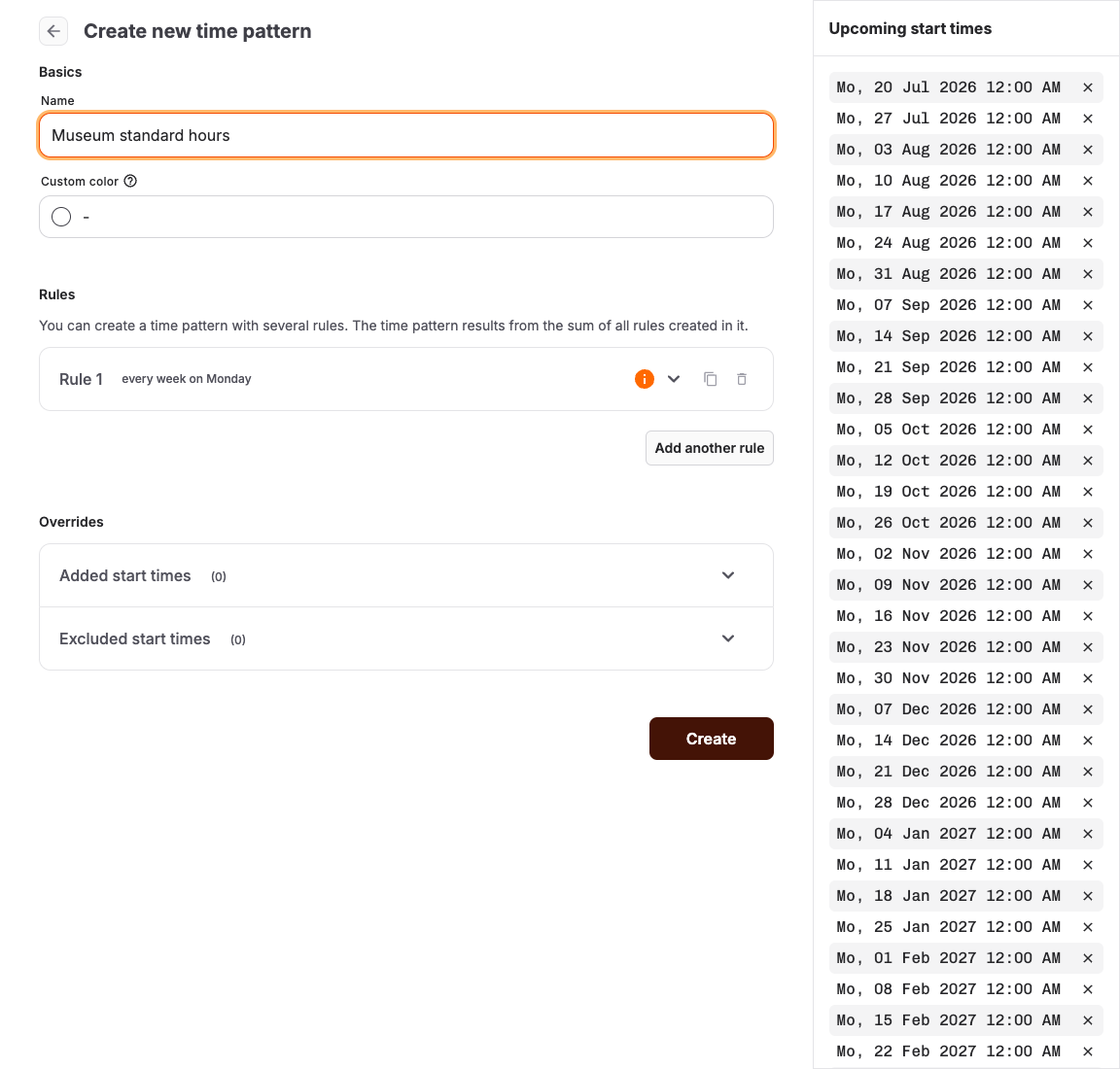
Use Show advanced options only when the normal frequency controls cannot describe the schedule. Advanced fields such as Week starts on, Month days, Nth weekday, and Set positions can produce unexpected dates if they are combined incorrectly.
Check upcoming start times
Review Upcoming start times after every rule change. Check dates on both sides of month boundaries, daylight-saving changes, and the configured end date.
KORONA Event creates dates only within its supported future window and limits how many occurrences one rule can generate. If a warning appears, narrow the date range or simplify the rule before assigning it to a live offer.
Add or exclude one-off start times
Use Overrides for exceptions that do not justify changing the repeating rule:
- Added start times > Add another start time adds one exact date and time.
- Excluded start times > Exclude another start time removes one exact date and time.
You can also add one exact start time from an event-template detail page or the Calendar:
- Open the event template and select Add start time, or open the event-template selector in the Calendar and choose the template.
- Select the date and time. In the Calendar sidebar, you can select several times.
- Read the shared-pattern notice and select Add start time or Add … start times.
- Confirm the new start time in the Calendar and in the intended sales channel.
When Add start time is shown on the event-template detail page, open the dropdown beside it to select Create standalone event. Without a time pattern, Create standalone event is shown directly.
Use an exclusion for an isolated closure. Edit the recurrence rule for a permanent weekly change. Use a time pattern period when a named seasonal schedule should be activated over a date range.
Assign the time pattern
- Open the event template or admission.
- Open its time-pattern settings.
- Select the saved pattern.
- Save the offer.
- Open Calendar and confirm several upcoming start times.
- Test one date in the intended sales channel.
Expected result
Upcoming start times, the back-office Calendar, and the customer booking flow all show the intended dates and times in the account time zone.
Troubleshooting
| Problem | What to check |
|---|---|
| No upcoming start times | Start, Frequency, selected weekdays or hours, End, active period ranges, and the account time zone. |
| Too many or duplicate-looking times | Overlapping rules, added start times, and whether two rules generate the same schedule. |
| One date should be closed | Add it to Excluded start times or use Exclude start time in the Calendar. |
| One season needs different hours | Create a named time pattern period and activate it for the season instead of repeatedly editing the base schedule. |
| Another offer changed unexpectedly | The pattern is shared; copy it and assign the copy to the offer that needs an independent schedule. |
| A newly created event does not appear among an event template's start times | Check whether you selected Create standalone event. Use Add start time to update the template's assigned time pattern. |
