A payment link cannot be created or opened
Use this when Copy payment link or Send payment link email is not available on an order, or when a customer reports that a link they received does not open or shows no payment methods.
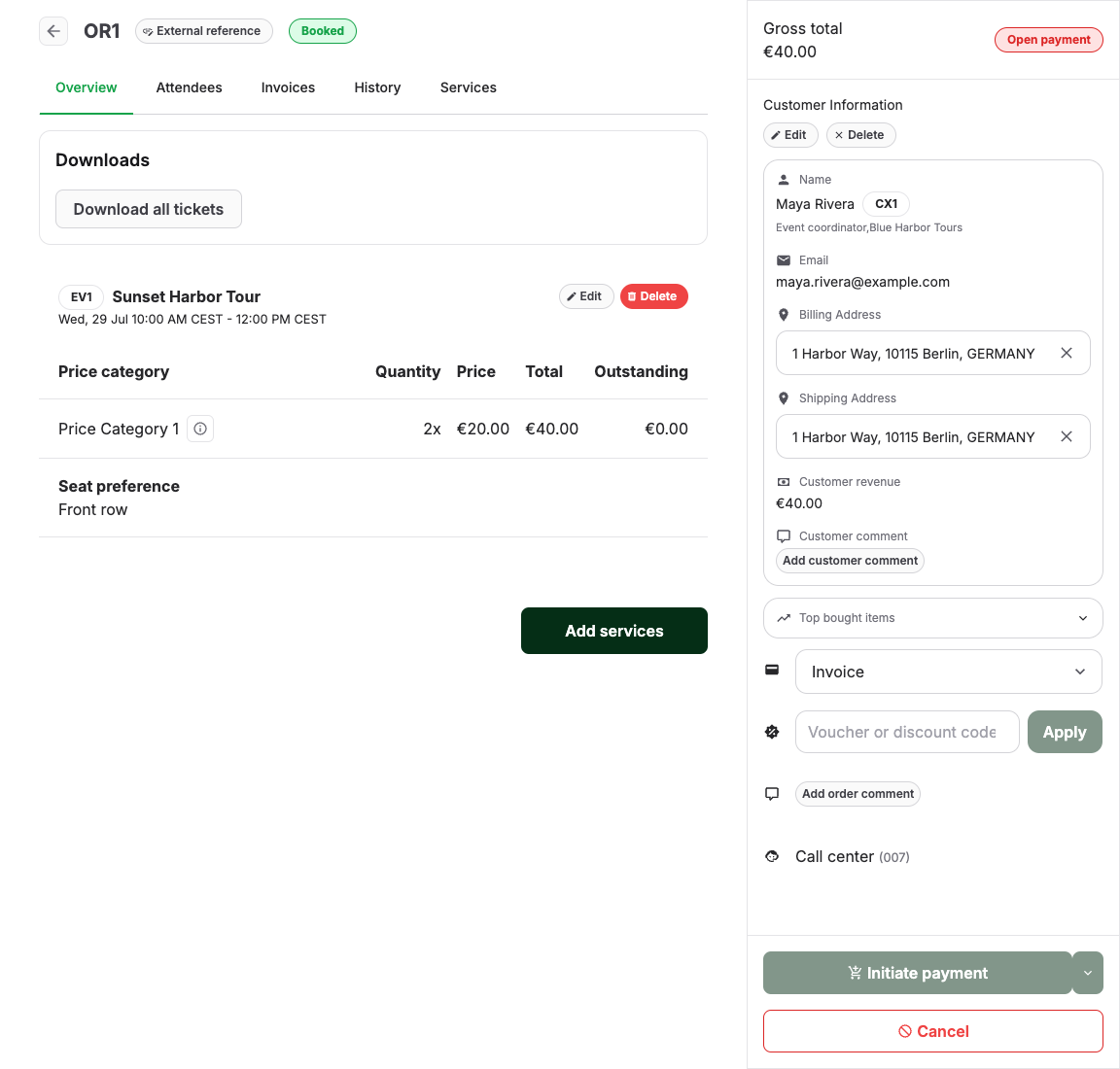
1. Check the open amount
Payment links exist to collect an open amount. On the order Overview, check the gross total and whether Open items remain; on the Documents tab, check the invoice's open amount. A fully paid order or invoice offers no link — that is correct behavior, not a fault.
2. Check the order state
A canceled or expired order does not get a new payment link. Check whether the order state is Canceled or Expired and whether an eligible online-checkout order was auto-canceled after a payment timeout — see Find an auto-canceled or abandoned order. A staff-created back-office order that is already Booked is not auto-canceled merely because its payment link expires. If the customer still wants to buy after an order was canceled or expired, create a new order instead of reviving the old link.
3. Check whether the action lives on the invoice
The link action can belong to the invoice rather than the order. If the order has a finalized invoice with an open amount, open the invoice and use its payment link actions there. Send or copy a payment link walks through choosing the right action.
4. Check the payment provider
Payment links are supported for the Stripe, PayPal, Saferpay, and Authorize.Net payment flows. If the account's methods come from another provider integration, a method can work in the shop checkout but never on a payment link — see Troubleshoot Klarna and pay-by-link payment methods. Confirm the provider connection itself with Check payment provider setup.
5. Check whether the link expired
Payment links are time-limited: a link stops working one week after the invoice due date, or one week after it was generated, whichever is later. When a customer reports a dead link, check its age first and confirm the order is still valid and the open amount still exists. If the latest order email is the payment request, use Resend last order email; the resent email contains a newly generated link. Alternatively, reload the order or invoice and copy the newly generated link into a separate approved message. The initial Send payment link email action is not available after an order email has already been sent.
Expected result
You can explain the missing or failing link as a paid order, a canceled or expired order, an action that lives on the invoice, an unsupported provider flow, or an expired link. If none applies, contact KORONA Event support rather than constructing or reusing a link manually.
