Add or change a customer-facing image
Use this when a customer-facing logo, offer image, voucher image, banner, or wallet pass image is outdated.
Choose the image location
| Image | Where to edit |
|---|---|
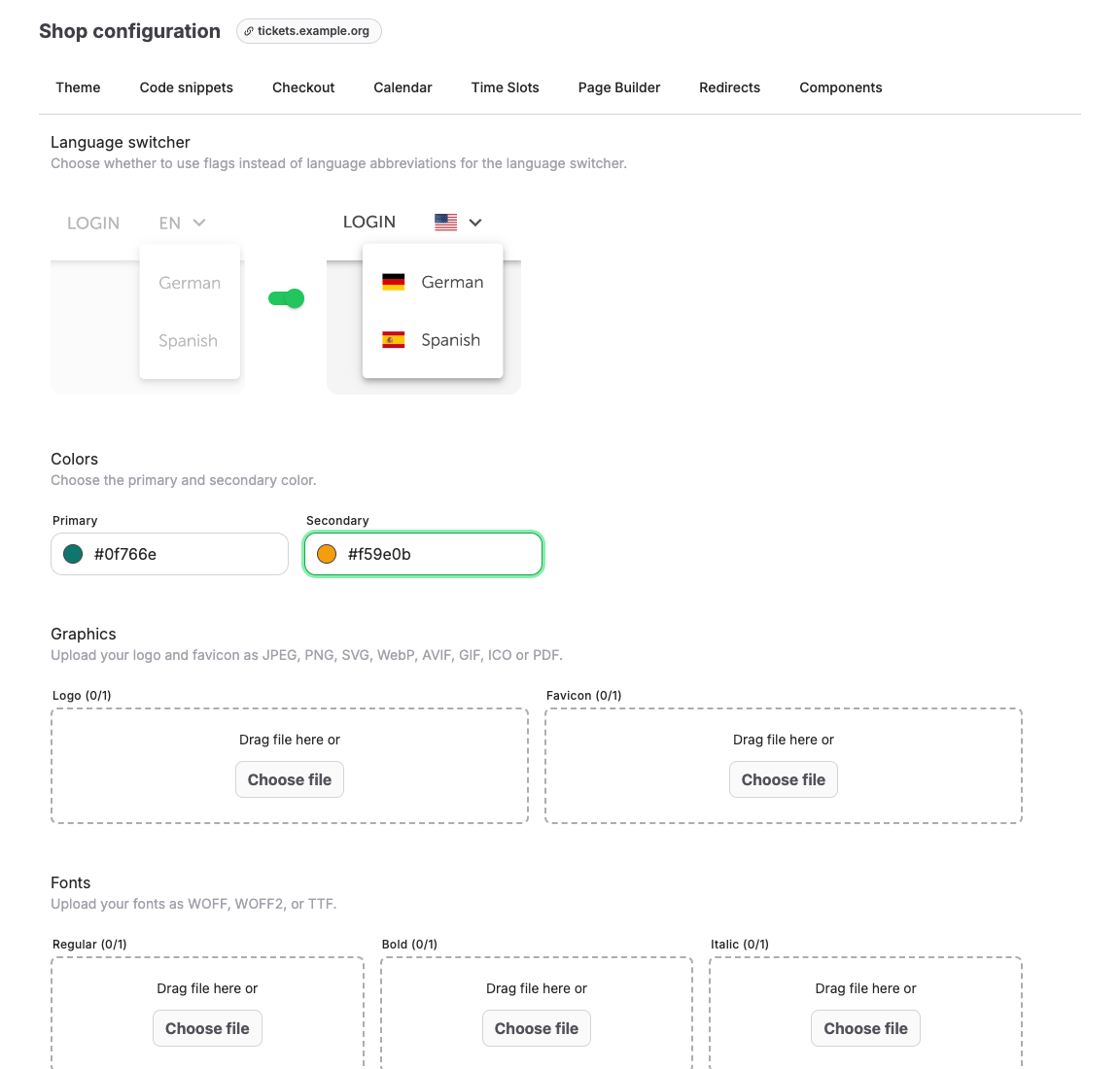
| Shop logo or favicon | Shops > shop > Branding. |
| Shop banner | Shops > shop > Pages or Page Builder. |
| Event image | The event or event template Edit page. |
| Voucher image | Voucher Online display tab. |
| Wallet pass logo, icon, or background | Comms > Passbook. |
Steps
- Open the page that owns the image.
- Select the image upload field, such as Logo, Favicon, Image, Background, or Icon.
- Upload the approved image.
- Save the page.
- Open the online shop or customer document preview.
- Check desktop, mobile, and any translated shop pages where the image appears.
Expected result
Customers see the updated image in the intended place without broken cropping, unreadable text, or old cached branding.
Troubleshooting
| Problem | What to check |
|---|---|
| Old image still appears | Browser cache, shop preview versus live shop, and whether the image belongs to another page. |
| Image is cropped | Aspect ratio, safe area, and whether the target uses cover or contain behavior. |
| Upload fails | File type, file size, permissions, and network connection. |
| Wallet image looks wrong | Passbook image size, contrast, and mobile wallet rendering. |
