Create an event template
Use an event template when the same activity repeats and customers should choose a date or start time. Examples include daily tours, timed workshops, recurring classes, and bookable activities.
An event template stores the shared setup. Its time pattern supplies the start times, and each booked or generated occurrence behaves like an event.
Before you start
Prepare:
- customer-facing name, description, image, location, and duration
- the days and times customers can book
- capacity per occurrence
- price categories, synchronized products, and any non-default sales restrictions
- resources required for every occurrence
- customer and attendee information to collect
Create the schedule first with Create a time pattern, or be ready to create one while editing the template. Use Choose between an event, event template, admission, product, and voucher if you are unsure whether a template is the right type.
Create the template
- In the back office, open Services > Event templates.
- Select Create.
- Enter the customer-facing Name and Description.
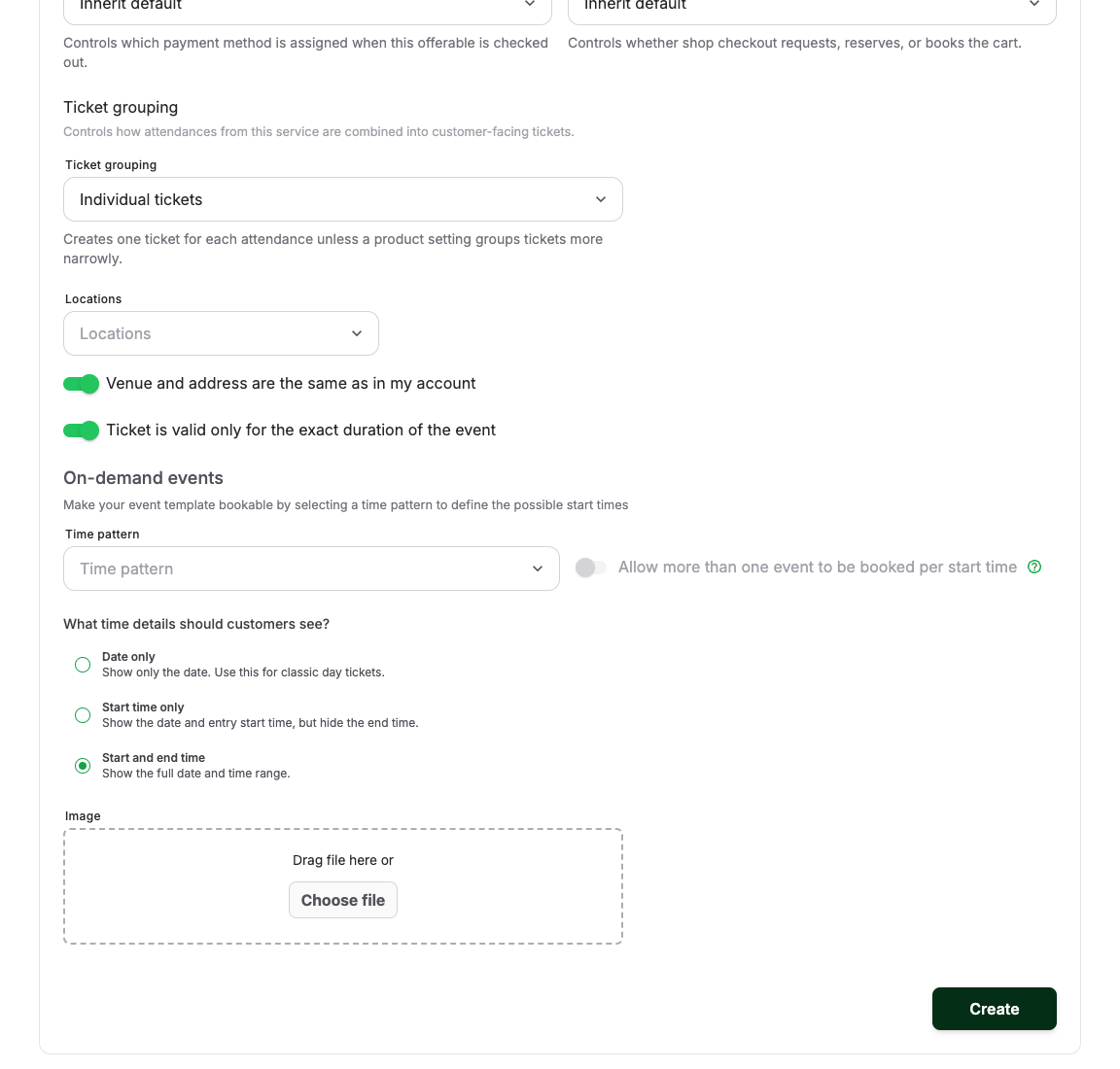
- Set the Duration and customer time display.
- Set the capacity for each occurrence.
- Turn on Hide from shop while the setup is incomplete.
- Add the image, venue, address, tags, ticket grouping, checkout policy, and required customer information that apply.
- Select Create.
Review the canonical ticket grouping options and checkout policies before overriding shop defaults.
Connect the schedule
Open the template's time-pattern settings and select the time pattern that should supply its start times.
Before continuing, compare Upcoming start times with the intended schedule. Check the account time zone, first date, weekdays, start times, and end rule.
If the schedule changes by season, keep the reusable base pattern and add time pattern periods. For example, a summer period can add evening starts while a winter period replaces the base schedule with fewer starts.
Assign prices and review sales defaults
- Open Prices and add every sellable price category.
- Select the synchronized product, check its displayed customer price, set quantity limits, and verify whether it reduces capacity and represents an attendee.
- Make each price visible on the intended sales channels.
- Keep the default all-POS rule with no channel-specific limit unless the template needs a reserved allocation, POS restriction, or sales window.
- If it does, open Sales channels and split or edit the rule.
Products for every counted person — including free infant or toddler tickets — must reduce capacity. Add-ons, merchandise, and donations normally should not.
An offer is not sellable on a channel unless both its sales-channel rule and at least one active price allow that channel.
Add resources and customer communication
Open Required resources and add any guide, room, vehicle, equipment, staff role, or function that controls whether the occurrence can run. Choose Fixed quantity when every occurrence always needs the same number of resources, or Based on participants when the need grows with the booking quantity.
Then open Customer communications. Add operational information, attachments, and scheduled emails that should apply to this template.
Review generated start times
- Open Calendar and locate several upcoming start times from the template.
- Check that the start times appear on the correct dates and in the correct time zone.
- Turn off Hide from shop and publish the template.
- Open the public shop and select the template.
- Choose a date, start time, price category, and realistic quantity.
- Complete a test checkout.
- Open the resulting order and confirm the event occurrence, attendees, tickets, price, payment state, and resource allocation.
Expected result
The template has the intended schedule, time zone, prices, capacity, resources, sales channels, customer communication, and generated start times.
Troubleshooting
| Problem | What to check |
|---|---|
| No start times appear | Assigned time pattern, recurrence start and end, account time zone, active period ranges, exclusions, and publishing. |
| Template appears but cannot be sold | Active price, sales-channel rule, sales period, capacity, resource availability, and hidden state. |
| Another offer's schedule also changed | Whether both offers use the same time pattern; restore it and assign a copied pattern to the offer-specific schedule. |
| Existing occurrence kept old details | Whether that value was copied when the occurrence was created; inspect and update the occurrence separately. |
