Publish shop snippets and trusted origins
- Availability
- Beta
Use Snippets and security to maintain HTML, JavaScript, CSS and the external services that your shop trusts as one revision.
Before you start
Have an approved snippet and a list of HTTPS origins supplied by its provider. Review privacy, consent and availability before trusting a service. KORONA Event manages the permissions required by its shop and payment integrations separately; you cannot change the live security mode here.
Save a complete draft
- In the backoffice, open Shops, select your shop and open Code snippets.
- Add or edit the HTML/JavaScript and CSS snippets. Keep the intended order and choose the HTML snippet position.
- Enter the provider's origins in the appropriate Trusted origins fields, separated by commas.
- Select Save draft. This saves HTML, CSS and all origin categories together. It does not publish them.
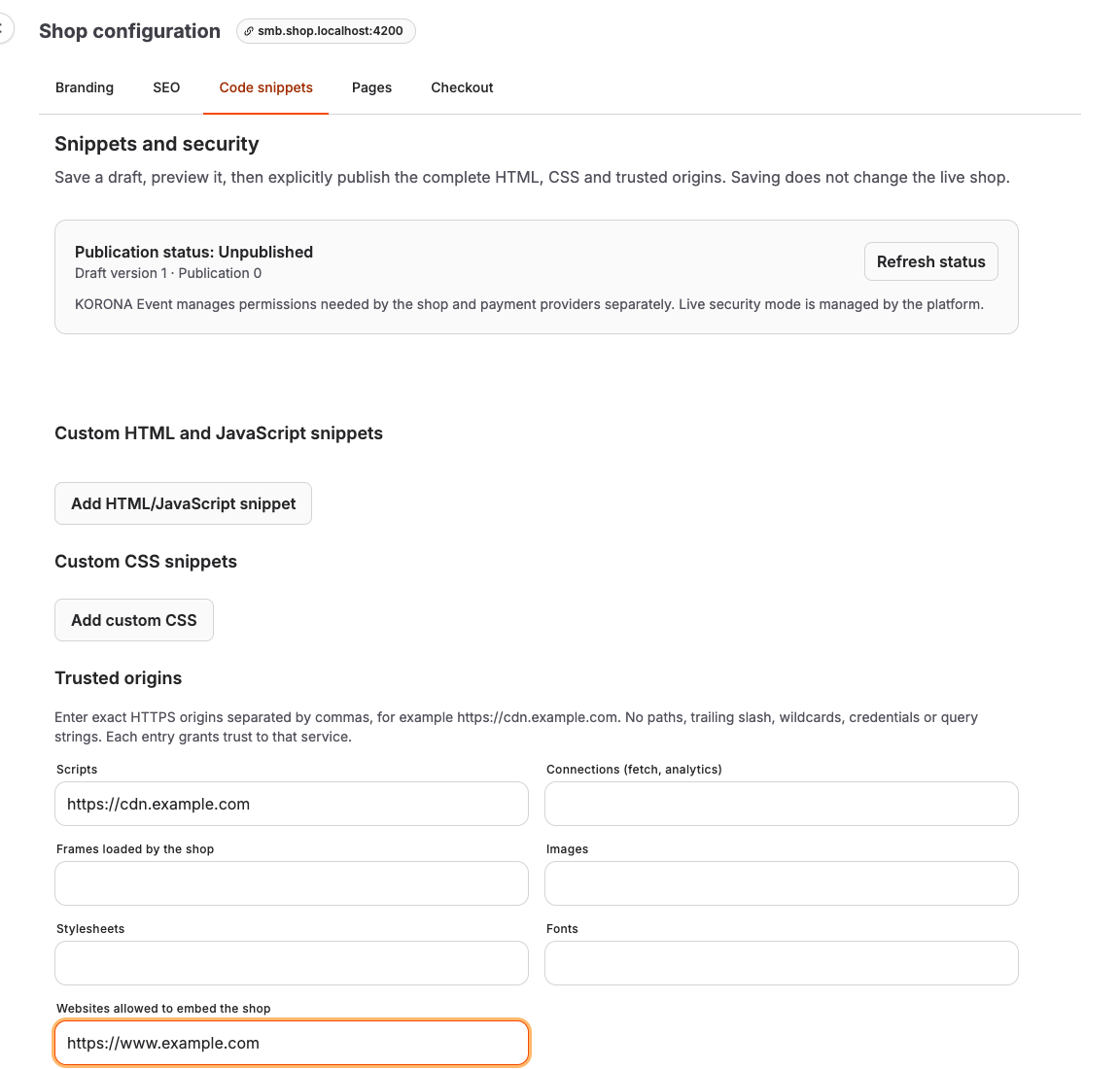
Use an exact origin such as https://cdn.example.com or https://cdn.example.com:8443. Do not include a path, trailing slash, wildcard, username, password, query or fragment. Each category supports up to 32 origins.
| Field | What you trust |
|---|---|
| Scripts | External JavaScript loaded by snippets. |
| Connections (fetch, analytics) | Network requests from scripts. |
| Frames loaded by the shop | Websites displayed inside your shop. |
| Images | Image resources. |
| Stylesheets | External CSS resources. |
| Fonts | Font resources. |
| Websites allowed to embed the shop | Parent websites that display your shop in an iframe. |
The last category is separate from Frames loaded by the shop. Adding a website as a loaded frame does not allow that website to embed your shop. Inline CSS remains supported for compatibility; inline event handlers and dynamic JavaScript evaluation do not gain permission automatically.
Preview the saved revision
- Save any local edits. Preview and publish are unavailable while changes are unsaved.
- Select the Shop domain and Preview mode.
- Choose Discovery (report only) to observe policy violations without blocking resources, or Enforcement rehearsal to block resources outside the candidate policy.
- Select Open isolated preview.
The preview executes only the saved snippets. It is isolated from shop sessions and contains no cart, checkout or payment context. It does not verify complete provider flows or whether a parent website can embed the shop. Browser reporting also depends on report collection being available. A quiet preview is not proof that a complete purchase will work. Plan a separate full buying-path check before making a customization available to customers.
If the preview is unavailable or expires, return to settings and create another preview. A later saved draft does not change a preview already open.
Publish and follow the status
Select Publish complete draft, review the confirmation and confirm. Publication applies the complete saved revision, including all origin grants.
| Publication status | Meaning and next action |
|---|---|
| Unpublished | This workflow has not published a revision yet. Existing shop snippets remain in use. |
| Propagating | Distribution is in progress. Select Refresh status to check again. |
| Active | Distribution of the published revision has been verified. |
| Publication failed | Distribution could not be verified. Refresh the status, restore an earlier published revision if appropriate, or contact support if the failure remains. Do not assume the revision is active. |
Already open tabs retain their previous policy until a full page reload or navigation that loads a new document. Saving a draft never means it is active.
Restore an earlier revision
Under Revision history, select Restore this published revision for the revision you need. Confirm only after checking its identifier and timestamp. Restoration replaces the complete saved draft and publishes that earlier HTML, CSS and origin set together. It must propagate again. Draft-only entries cannot be restored this way.
If another editor changed the saved draft, the operation fails and preserves your local edits. Copy anything you want to retain, then select Reload saved draft and confirm discarding local edits. Reapply your changes to the latest draft before saving.
Review browser reports
Browser reports shows the last synchronization time, whether data may be stale and whether only a limited selection is available. No synchronization and an empty synchronized result are different states. An empty result does not establish that all resources work.
Counts are browser claims, not proof of an attack or a failed purchase. Preview reports are identified separately. Review the reported service and the relevant category before selecting Add origin to draft. This action is available only for valid HTTPS origins with an identifiable category. It changes the local draft and never publishes automatically.
