Refund an order and check the result
- Last verified
- Last verified Jul 16, 2026
Use this article when a paid order must be refunded in full or in part, or when an order shows Needs refund and you need to confirm the money went back to the customer.
For a return started from the KORONA Event POS, follow Refund or return a POS sale. Select Refund, then choose Refund online for a supported provider payment or Add refund to receipt to return the amount through the KORONA receipt.
There is no standalone refund button in the back office. A refund is the financial result of an order change: canceling a paid order, or reducing a paid order and finalizing the change, creates a negative correction invoice, and KORONA Event can refund that amount through the payment provider automatically.
Before you start
Confirm:
- the order number and the amount that should go back to the customer
- that the payment was made through a payment provider; payments taken outside a provider (for example cash) must be refunded outside KORONA Event
- who in your team confirms refunds before customers are told the money is on its way
Trigger the refund
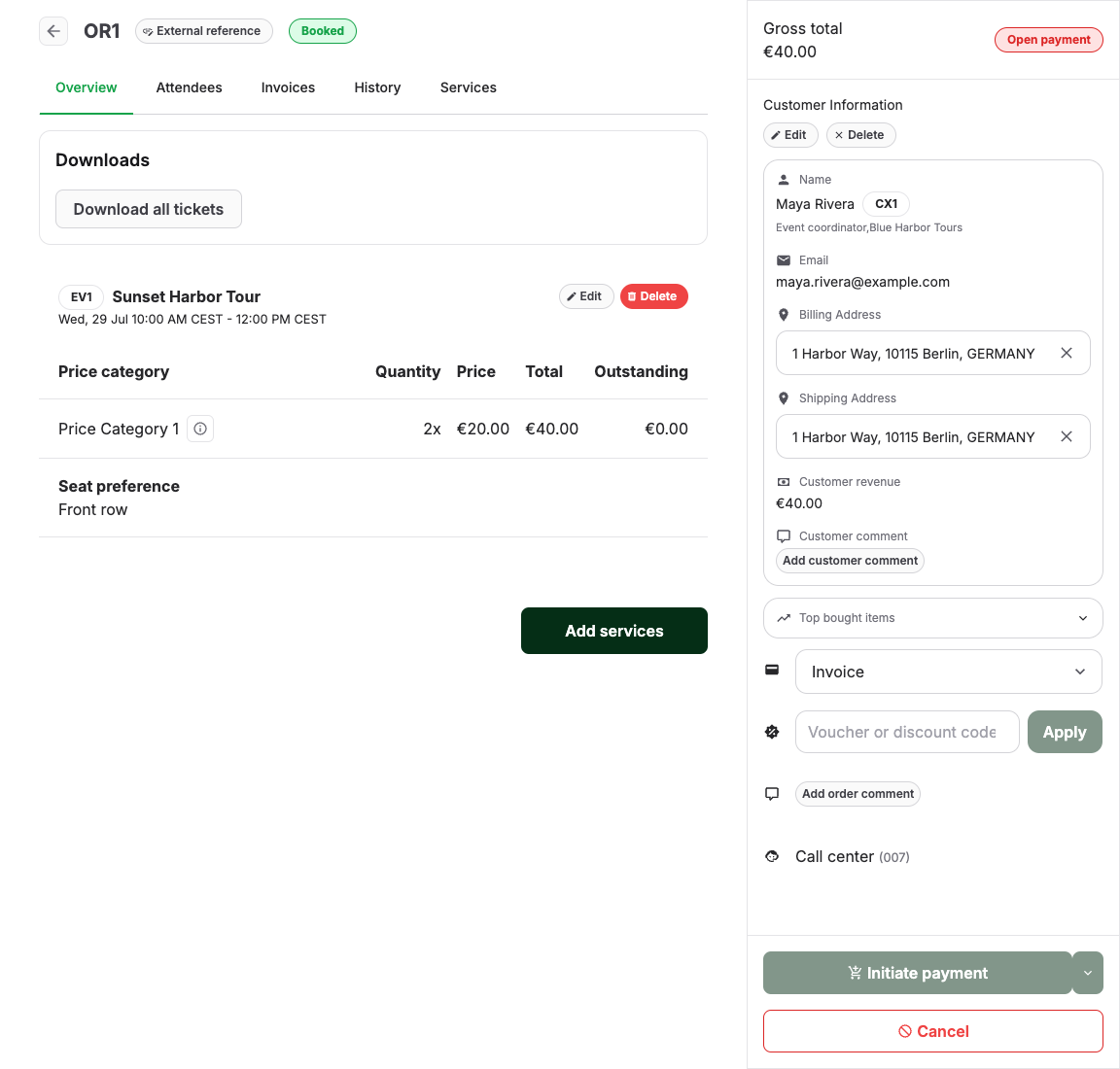
- In the back office, open Sales > Orders and open the order.
- For a full refund, select Cancel. For a partial refund, first remove or reduce the paid items, then select Initiate payment to finalize the change.
- In the confirmation dialog, review the amount. When the amount can be refunded through the payment provider, the dialog shows the checkbox Automatically refund invoice via the payment service provider, selected by default. Leave it selected.
- If the dialog instead states that an automatic refund is not possible, the shown amount must be refunded manually — through the provider dashboard or by bank transfer — and recorded afterward (see below).
- Confirm the action. The refund runs in the background through the payment provider.
Check the result
- Refresh the order and check the payment state. An outstanding refund shows Needs refund (or Action needed when a payment is also outstanding); a completed refund returns the order to Settled.
- Open the order's Documents tab. The correction invoice should show Refunded. See How orders, payments, invoices, and tickets fit together for all states.
- For the money itself, check the refund in the payment provider dashboard. KORONA Event states confirm the refund was created with the provider, not when the customer's bank credits it.
Handle a failed refund
If the invoice stays in Requires refund:
- Open Sales > Documents and open the invoice.
- Read the Refund failed panel. It shows the provider's reason and a debug ID for support.
- Select Retry refund after fixing the cause (for example, insufficient provider balance). The button is disabled when no retryable refund transaction exists.
- If the refund cannot be completed through KORONA Event, refund the amount in the provider dashboard, then select Mark invoice as refunded on the invoice.
Expected result
The order shows Settled, the correction invoice shows Refunded, and the refund appears in the payment provider dashboard for the same amount.
Troubleshooting
| Problem | What to check |
|---|---|
| No refund checkbox in the dialog | Whether the order was paid through a payment provider and the amount is fully refundable. |
| Order stays on Needs refund | The invoice's Refund failed details, Retry refund, and the provider dashboard. |
| Customer says no money arrived | Provider dashboard refund state and processing time; refunds can take several days to reach the bank. |
| Refunded more or less than expected | The correction invoice items and amounts before retrying anything. |
| Refund needed for a cash or external payment | Refund outside KORONA Event, then Mark invoice as refunded to record it. |
