Block resources for maintenance or private use
- Last verified
- Last verified Jul 22, 2026
Use this when a room, device, vehicle, or staff member must not be booked for a period, for example during repairs, cleaning, holidays, or a private rental. There is no separate "maintenance" feature; blocking is done with availability entries and the resource's availability settings.
Before you start
Confirm:
- which resource is affected and for which period
- whether the block is a one-off period or a recurring pattern
- whether the resource already has allocations in that period
Block a period from the calendar
- In the back office, open Calendar.
- Select the time range you want to block by dragging on the calendar. In the resource timeline view (the Resources button in the calendar toolbar), drag directly on the resource's row.
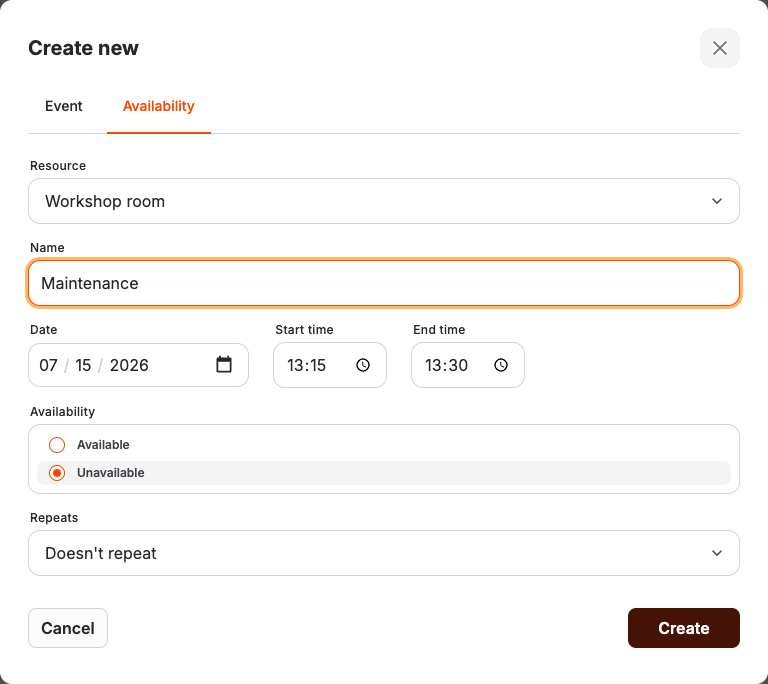
- In the dialog, open the Availability tab.
- Select the Resource.
- Enter a Name that explains the block, for example "Maintenance" or "Private rental".
- Set Availability to Unavailable.
- Under Repeats, keep Doesn't repeat for a one-off block, or select Daily, Every weekday (Monday to Friday), Weekly on the selected weekday, or Custom... for recurring blocks.
- Select Create.
The entry appears on the calendar. Select it later to update it, or remove it with Delete in the same dialog.
An explicit Unavailable entry always wins over an overlapping Available entry. To reopen time covered by an explicit block, select the existing unavailable entry and shorten, change, or delete it.
When you create an event from an event template in the Calendar, KORONA Event checks individually assigned resources against the event time. An unavailable resource stays visible with a warning and available replacements. Create and book remains unavailable until the conflict is resolved. Create saves the event with the template's publication state so you can finish the allocation later. Publication does not make unavailable resources bookable.
Change the resource's general availability
For longer or open-ended blocks, edit the resource itself:
- Open Resources > Staff or Resources > Inventory and open the resource for editing.
- Under Availability, select Unavailable to stop all booking, or adjust the Working hours (Available hours for materials, Open hours for spaces) to exclude the affected days or times.
- Save the resource.
Use Unavailable for indefinite blocks such as a broken device; use a calendar entry for anything with a known start and end so the resource frees itself automatically.
If the resource has no available hours for a period, select that uncovered time in the Calendar to open the availability-only creation flow. Add an Available entry to open an exception, for example one working Saturday. This works only when no explicit Unavailable entry overlaps the same time.
Expected result
During the blocked period the resource cannot be allocated. Events with an existing required allocation to that resource show zero resource capacity until the allocation is replaced or removed.
Troubleshooting
| Problem | What to check |
|---|---|
| Bookings still come in during the block | The entry's resource, time span, and repeat rule; other resources with the same role or function may still cover the event. |
| Cannot see the Availability tab | Your account needs permission to create availability entries; ask an administrator. |
| Event in the blocked period still shows the resource | Existing allocations stay visible for follow-up. Open the event's Required resources and select an available replacement, or remove the allocation. |
| Create and book is unavailable in the Calendar | A selected resource from the event template is unavailable for the event time. Choose a replacement, change the time, or use Create to save the event and resolve the allocation before booking. |
| Resource stays unbookable after maintenance | A leftover Unavailable setting on the resource or a recurring unavailability entry. |
| An Available entry does not reopen the time | An explicit Unavailable entry overlaps it. Edit or delete that unavailable entry; unavailable entries take precedence. |
