Resend a confirmation email or ticket
- Last verified
- Last verified Aug 25, 2026
Use this when a customer says they never received their confirmation, payment request, tickets, or invoice, or when they need the message or documents again.
Before you start
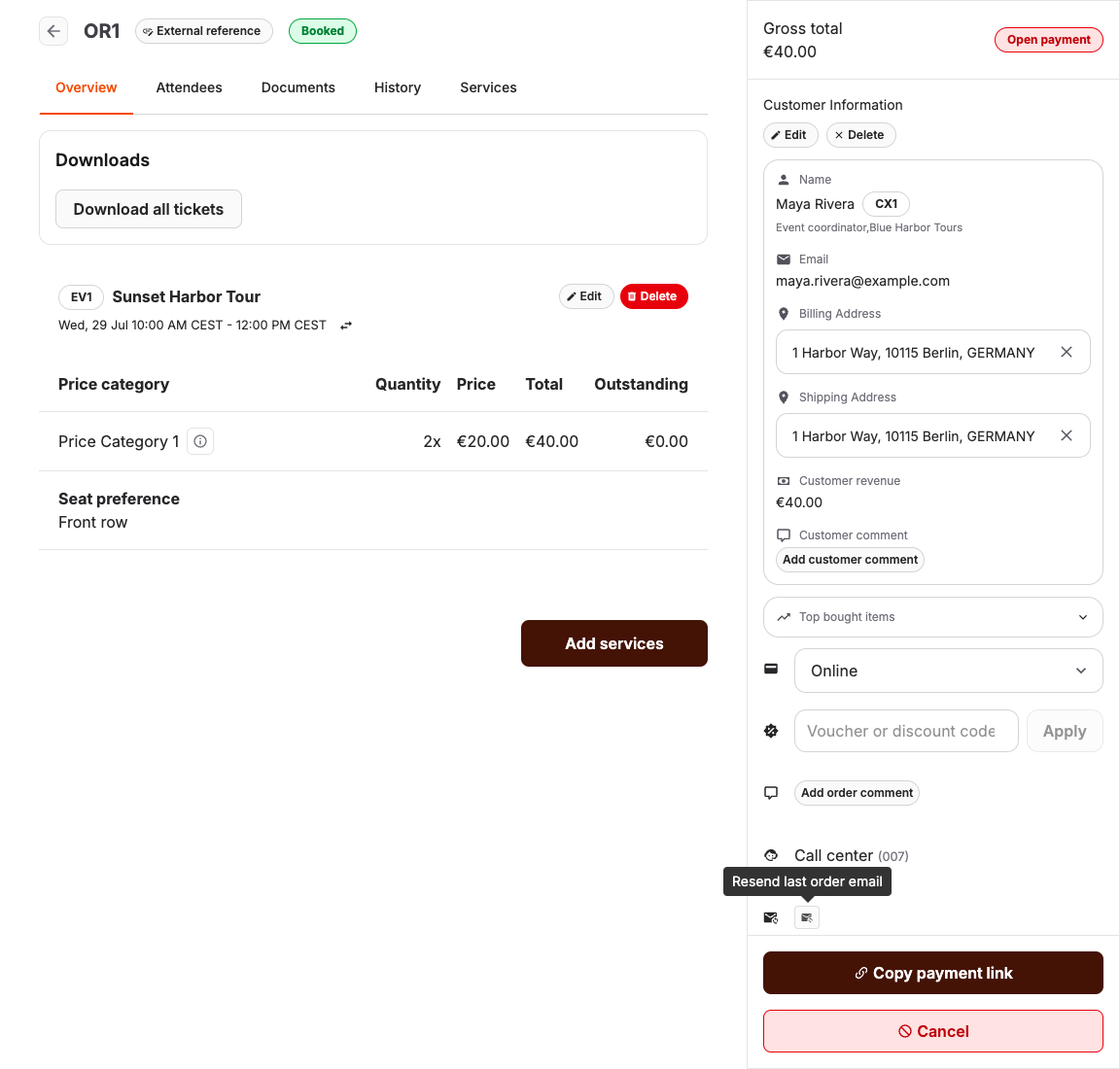
- Confirm you have the right order. Compare the customer name or email, the event or service, the date, and the order total.
- Check the customer email address in the order sidebar. If it is wrong, correct it first — the resend goes to the customer's current email address. See Correct customer or invoice address details.
Check what was already sent
- Open Sales > Orders and open the order.
- Open the History tab.
- Look for email entries. Each sent email shows the recipient address, the subject, and the list of attached files.
- Select View email to inspect the saved recipient, subject, language, body, and attachment list for that send.
The preview shows the saved message from that send, not the current email template. If the expected email entry exists with the right address and attachments, KORONA Event handed the message to the mail service. Ask the customer to check spam folders and blocked senders before resending.
If there is no email entry, the order may never have reached a state that sends one. A new or abandoned order sends no confirmation; see Find an auto-canceled or abandoned order.
Resend the last order email
- In the order sidebar, select the resend button with the tooltip Resend last order email.
- Wait for the confirmation that the last order email has been resent.
The resend sends the most recent order email again, rebuilt from the order's current data, to the customer's current email address. If that email contains a payment link, KORONA Event generates a new link instead of reusing the link from the earlier message. Resending requires a customer on the order and at least one previously sent order email.
Download documents for the customer
When email delivery keeps failing, download the documents and send them through another channel:
- On the order Overview, use Download all tickets and Download all vouchers under Downloads.
- On the Attendees tab, use Download ticket for a single attendee's ticket.
- On the Documents tab, open the invoice and use Download invoice (and Download delivery note where one exists).
Expected result
The customer has the confirmation email with its attachments, or you have the ticket and invoice files to deliver another way, and History shows what was sent and when.
Troubleshooting
| Problem | What to check |
|---|---|
| Resend button is disabled | Your permission to update orders and whether the order has a customer. |
| Resend reports an invalid state | Whether the order ever sent an email; new orders have nothing to resend. |
| Email sent but customer sees nothing | Spam and blocked senders, the exact address in History, and typos in the customer email. |
| Tickets missing from the email | Order state, payment state, and whether tickets exist under Downloads on the Overview. |
| Invoice missing | The Documents tab, the payment method, and whether the order was finalized. |
