An offer is missing from the shop
Use this when an offer should be for sale online but customers cannot find it. These checks cover the most common configuration causes. For detailed availability and capacity settings, use Troubleshoot availability and capacity; for the underlying model, see How sales channels and visibility work.
1. Check the publishing state
Open the offer in the back office and check its header:
- Not published or Will be published on a future date — the offer is invisible to customers.
- Hidden from shop — Hide from shop is on, so the offer is excluded from listings and search even though it is published.
- Archived — the offer is not sellable until restored.
Hide, unpublish, or pause an offer explains these mechanisms and how to reverse each one.
2. Check the sales channel and sales period
Open the offer's Sales channels tab:
- The offer needs a rule for Online shop.
- Check Sales start and Sales end — outside the sales period the offer is unavailable even when everything else is correct.
3. Check prices
Open Prices. At least one active price must be visible on the Online shop sales channel. An offer with prices only for POS or back-office channels can be invisible or unbuyable online. If the back office shows Sales channels are missing prices, fix that first.
4. Check dates, inventory, and capacity
- For events and time-slot offers, the event date or next generated time slot must be in the future. Products and vouchers do not need a future event date.
- For offers that consume event, admission, resource, or sales-channel capacity, enough capacity must remain for the requested quantity, including any online-channel allocation.
- Products sold on their own and vouchers have no stock or capacity allocation. For these, check that the offer is active, priced, and available on the online sales channel.
These checks are covered step by step in Troubleshoot availability and capacity.
5. Check the shop page
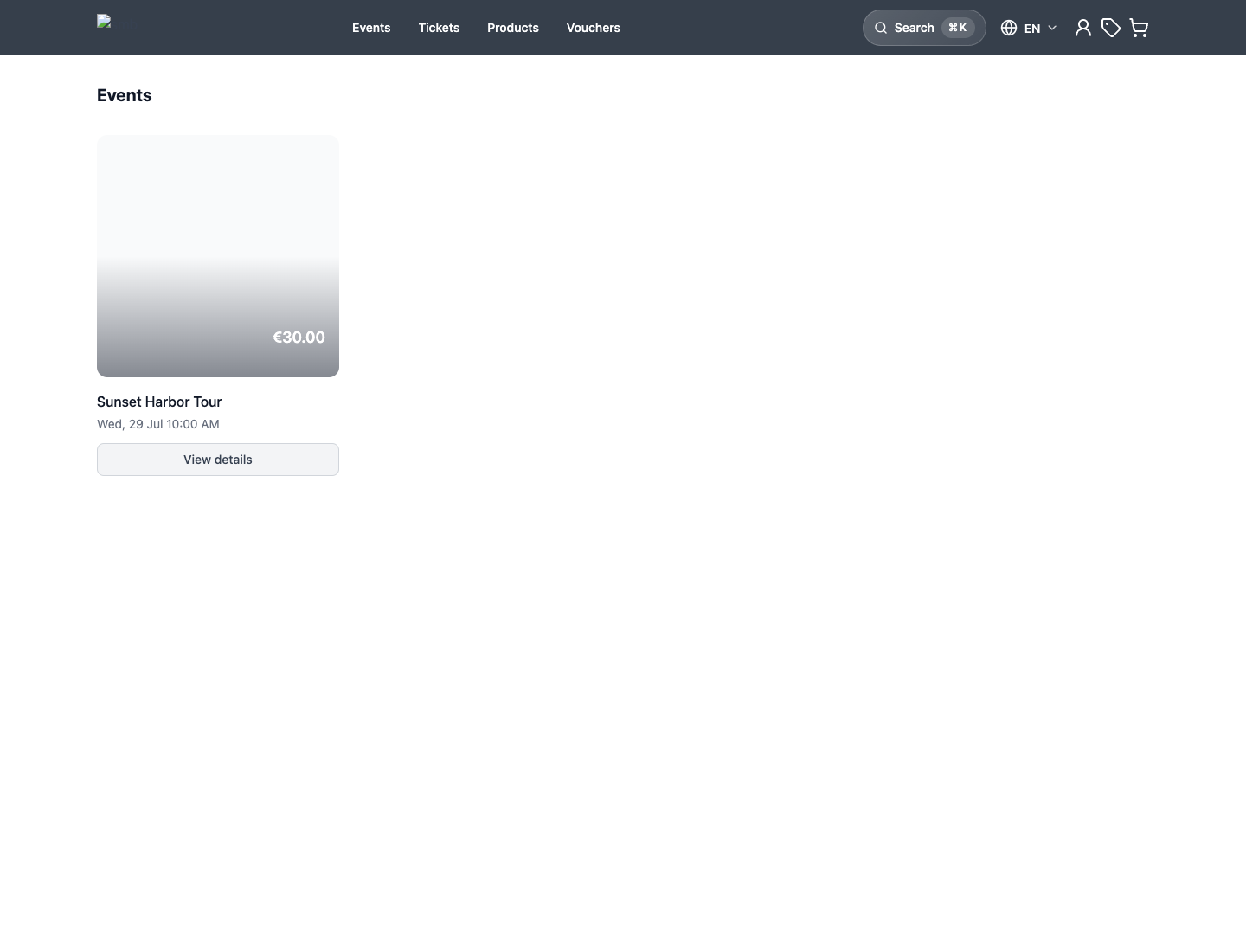
An offer can be sellable but unlisted. Open Shops, select the shop, and confirm that an active page includes an offer list that covers this offer type, and that filters, categories, or tags do not exclude it. Test a direct link to the offer: if the direct link works but listings do not, the problem is page setup, not the offer.
Expected result
The offer is published, listed on the intended shop page, and available through the online sales channel for its configured sales period, price, inventory, and capacity.
