Set prices and price categories
Use this to make an event, event template, or admission sellable at the right prices. You create price categories The customer-facing label for a price, such as adult, child, reduced, or group. once in settings, then add price rows to each offer.
Before you start
Prepare:
- the customer-facing price labels you need, such as Adult, Child, or Group
- the KORONA.studio product that carries the customer-facing price for each label
- which sales channels each price should be available on
- minimum and maximum quantities per order, if any
You need permission to manage price categories and edit offer prices.
Create price categories
- In the back office, open Settings > Price Categories.
- Select the create action. The page title is Create new price category.
- Enter the Name customers will see.
- Select the Type: Individual for per-person prices or Group for prices that cover a group.
- Select Create.
Price categories are shared across all offers, so reuse the same category for the same audience everywhere. Archiving a category removes it from new prices but can be undone.
Add prices to an offer
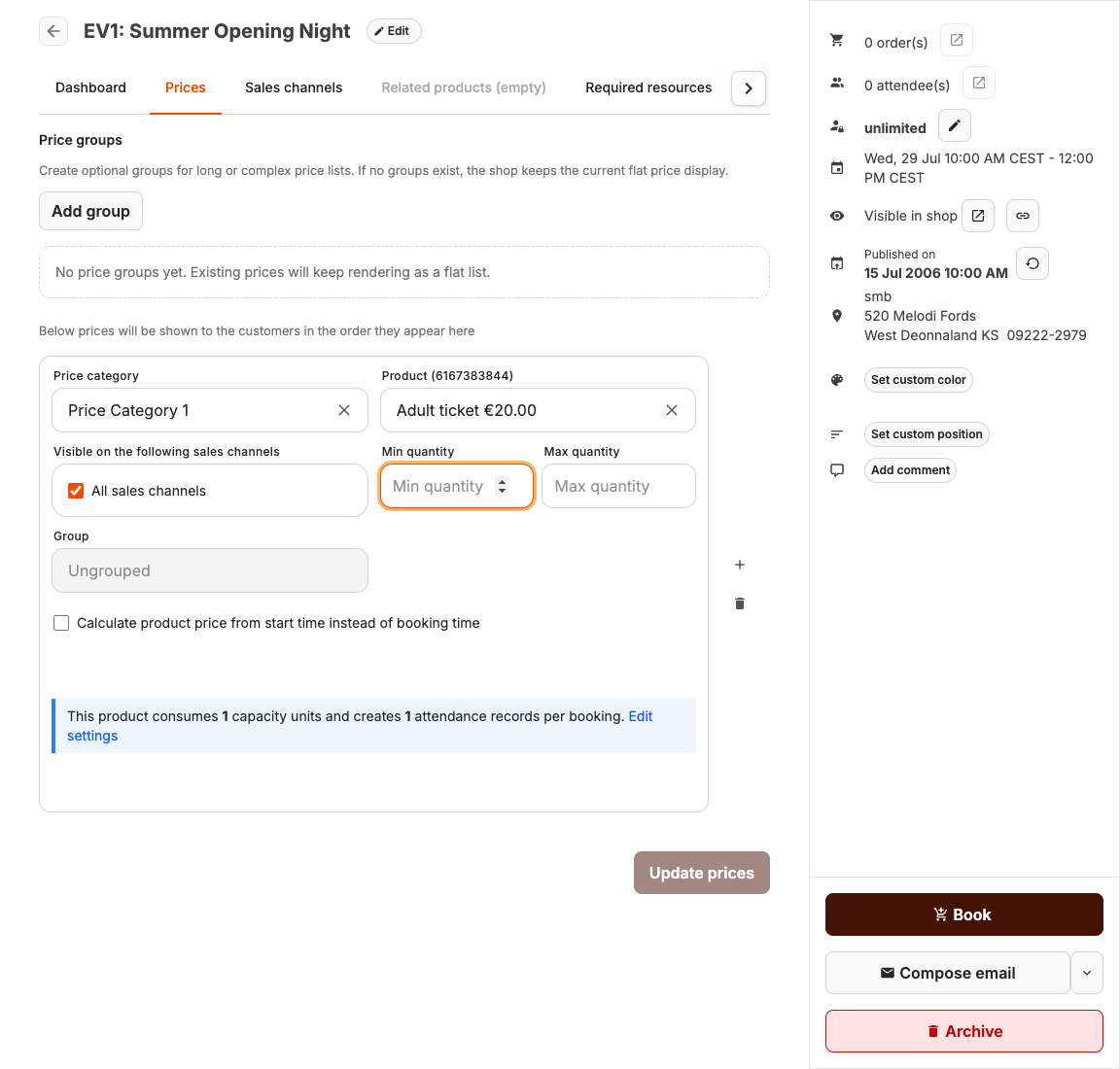
- Open the offer under Services and select the Prices tab.
- Select Add pricing to add a price row.
- For each row, select the Price category and the Product. The synchronized product defines what is sold and carries its gross price The customer-facing amount including applicable sales tax. For synchronized products, the commercial amount is maintained in KORONA.studio and displayed in KORONA Event. — the amount customers pay including applicable sales tax. Maintain the commercial price A selectable buying option shown to customers or staff, such as adult, child, reduced, group, member, or add-on pricing. in KORONA.studio, synchronize, then check the amount shown here.
- Under Visible on the following sales channels, select every POS where this price can be chosen. This includes the POS assigned to the online shop and the POS used for staff orders.
- Enter Min quantity and Max quantity to limit how many tickets one order can contain for this row. Leave them open when any quantity is fine.
- Select Update prices.
Price rows are shown to customers in the order they appear on this tab, so put the most common price first.
Override quantities in staff sales
Authorized staff can enter a quantity below Min quantity or above Max quantity when adding or editing a booking in the back office or POS. In the back office, select Update or the create action, review the warning, and select Confirm Overbooking to save outside the configured range. POS edits allow these quantity overrides directly; new POS bookings can require confirmation.
An unused price category can remain at zero. Quantity limits still apply in the online shop. Staff overrides do not unlock quantities assigned to price-transfer vouchers or remove required choices for included products.
If saving fails, read the message above the form actions, correct the reported problem, and submit again. Your entered quantities remain available to edit.
Resolve unavailable products
A warning below the selected product identifies deactivated or archived products, including fixed and selectable sub-products. Open the product link to inspect its configuration. Deactivated products are excluded from new price selections; existing selections remain visible so you can repair them.
If the product should still be sold, reactivate it in KORONA.studio and synchronize the products. If it was retired intentionally, replace it in the affected price rows or sub-product configuration.
When enabled for your account, Configuration issues on the dashboard lists unavailable products used in published offers and links to the affected prices. Viewing these issues requires View permission for Account in your role. Product imports and price changes refresh the issues; an hourly check also clears expired references and checks existing configurations. Issues disappear when the product is available again or no affected active prices remain. Unpublished offers and past events do not create these issues.
These warnings describe known product restrictions. Other sales-system rules can still reject a particular purchase. When checkout cannot proceed, the online shop displays an error instead of advancing to the next step.
Check whether a price reduces capacity
Each price row states either This price rule reduces the capacity or This price rule does not reduce the capacity.
- Ticket prices should reduce capacity so sold tickets count against the offer's limit.
- Add-ons and extras should reduce capacity only when each purchased unit also consumes a place.
- Free participants, including infants, toddlers, carers, or other zero-price ticket holders, must reduce capacity whenever they count toward the venue's physical or safety limit.
The behavior comes from the selected product's capacity settings; follow the edit link next to the note to adjust it.
For products with included items or customer-selectable extras, see Configure product capacity and sub-products.
Expected result
Customers and staff see the intended price categories in the intended channels. Online orders follow the configured quantity limits, authorized staff can override them, and sold tickets count against capacity as configured.
Troubleshooting
| Problem | What to check |
|---|---|
| A price is missing in the shop or POS | Visible on the following sales channels on the price row, and the offer's sales channel rules. |
| Customers cannot buy a single ticket | Min quantity on the price row, and whether the price category Type is Group. |
| Sales do not reduce availability | Whether the row states This price rule reduces the capacity, and the product capacity settings. |
| A price category is missing when adding a price | Whether the category was archived under Settings > Price Categories. |
