Resource user workflow
- Last verified
- Last verified Sep 4, 2026
Resource users are people connected to a resource Something needed to run an event, such as staff, guides, rooms, equipment, vehicles, or other operational capacity., such as a guide, instructor, or staff member.
Use this article when resource staff need to understand what they can see, how to respond to inquiries, and when to contact a back-office user.
Before you start
Confirm:
- the person is connected to the correct resource
- the resource has the right role or function, such as guide, room, or equipment
- the event has a resource requirement that uses that role or function
- whether email-link responses are sufficient or the person also needs optional login access
Respond without a login
A resource user can accept or reject an inquiry from the secure link in the inquiry email. They do not need a KORONA Event account for this normal response path.
- Open the inquiry email.
- Check the event name, date, time, location, and requested role or function.
- Use Accept when you can take the assignment or Reject when you cannot.
- Contact the organizer when the details are unclear instead of accepting an incorrect assignment.
The configured inquiry process A workflow that asks available staff members whether they can accept a resource assignment before allocation is confirmed. decides what happens next: a response can allocate immediately, use first-to-accept behavior, or wait for manual organizer review.
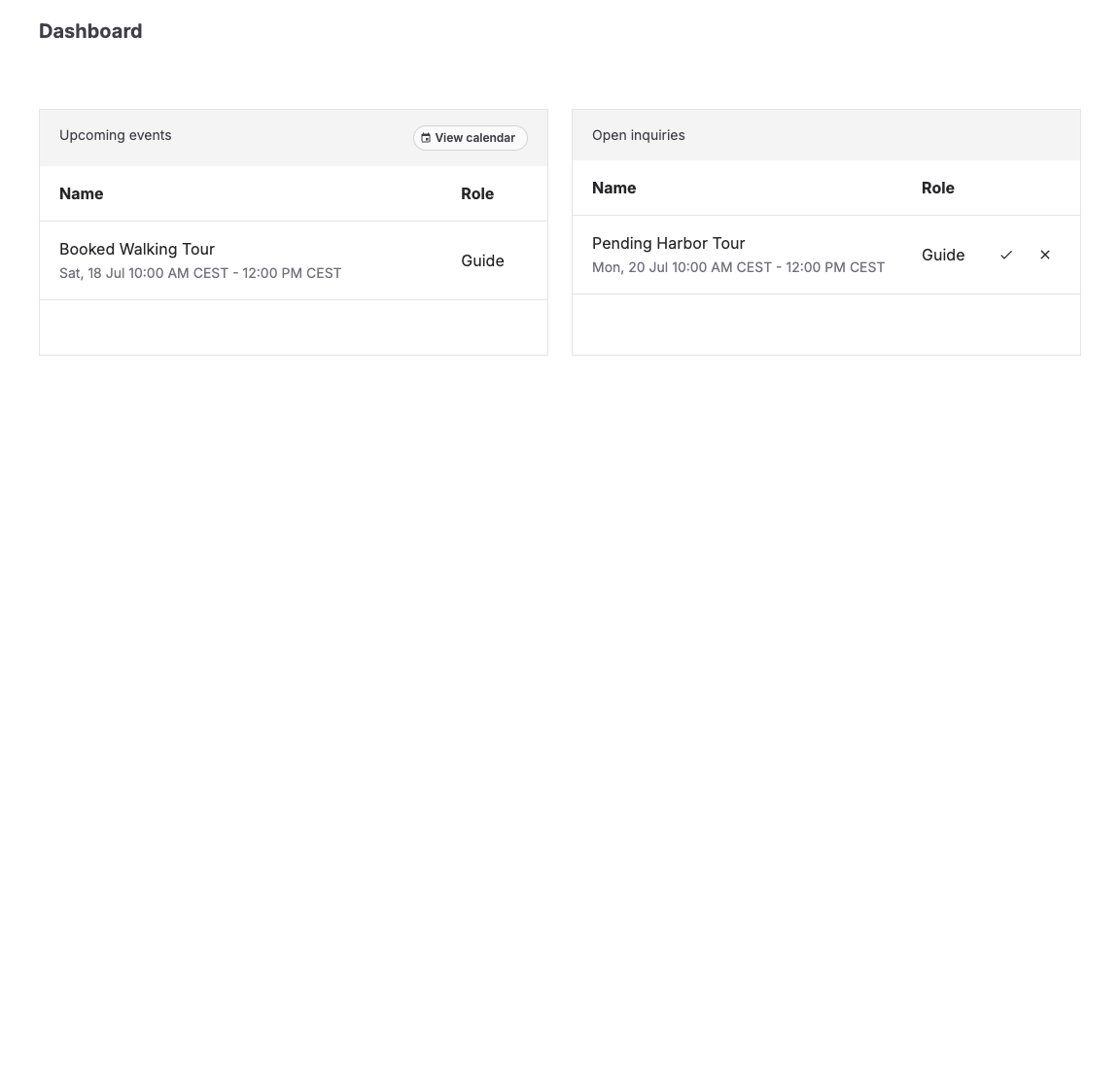
Optional dashboard and calendar access
Resource users may be able to open:
- Dashboard for upcoming assignments and open inquiries
- Calendar for relevant assigned or requested events
- Profile for their own user information
Enable login access only when the person should also use these views. They do not need full back-office access for email-link responses.
Understand the states
| State | What it means |
|---|---|
| Open inquiry | The organizer is asking whether the resource can take the assignment. |
| Accepted | The resource user accepted the inquiry. Depending on setup, this may allocate the resource or tell the organizer the resource is available. |
| Rejected | The resource user declined the inquiry. The organizer may need to choose another resource. |
| Allocated | The resource is allocated to the event and should appear in relevant schedules. |
| Open slot | The event still needs a resource for that role or function. |
Expected result
Resource users can see the assignments and inquiries relevant to them, respond accurately, and give organizers enough information to keep event capacity and staffing reliable.
Troubleshooting
| Problem | What to check |
|---|---|
| Resource user cannot see the dashboard item | User account, resource connection, role/function, event requirement, and route permissions. |
| Invitation link is no longer active | Ask an administrator to send a new invitation, then open the link from the newest email. |
| Inquiry is missing | Confirm the event has an open resource requirement and that the inquiry was sent to the correct resource. |
| Accepted resource still shows as open | Check whether the inquiry process requires organizer confirmation or whether multiple slots must be filled. |
| Calendar shows too much or too little | Confirm resource-user permissions and whether the person is connected to more than one resource. |
| Event capacity is lower than expected | Check resource requirements, open slots, unavailable resources, and resource allocation state. |
