Configure search and social sharing
- Availability
- Beta
- Last verified
- Last verified Oct 1, 2026
Use the SEO settings for an online shop The customer-facing sales channel where customers browse offers, select tickets, enter checkout details, and complete payment or confirmation. when you want search results and shared links to use approved names, descriptions, images, and organization details.
Before you start
You need back-office access to update the shop. Prepare:
- a short public site name
- a default description for pages that do not have their own description
- a landscape social image and meaningful alternative text
- the legal and public display names of the organization
- the public address, phone number, and website
Set the shop defaults
- In the back office, open Shops and select the shop.
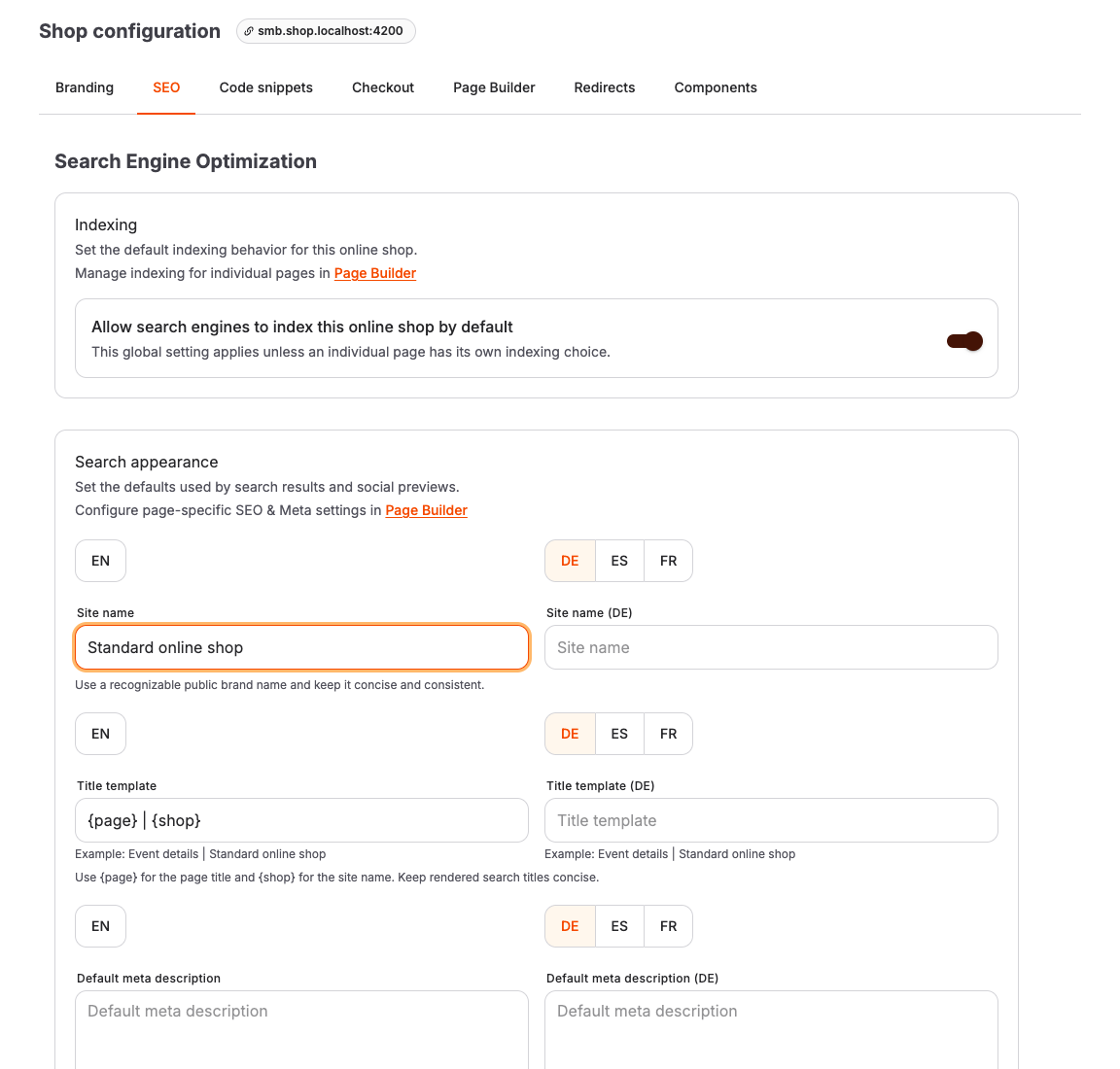
- Open SEO.
- Under Search appearance, enter the defaults:
| Field | What it controls |
|---|---|
| Site name | The public shop name used in page titles and shared-link metadata. |
| Title template | The pattern used to combine the current page and shop names. Use {page} and {shop} as placeholders. |
| Default meta description | The description used when a page or offer does not provide more specific text. |
| Default social image | The image used when a page or offer has no suitable image. |
| Image alternative text | A text alternative that describes the default social image. |
Add translations for customer-facing text in every language available in the shop. The same social image can have different alternative text for each language.
Use the example and guidance shown below each field while editing. Keep the site name and rendered title at 60 characters or fewer, aim for 70–160 characters in the default description, and keep image alternative text at 125 characters or fewer. For a clear shared-link preview, use a 1200 × 630 pixel image.
Set the organization identity
Under Organization identity, choose whether the shop should use the account profile.
- Keep Use organization details from the account profile enabled when the legal name, address, phone number, website, logo, and social links already describe the organization that operates the shop.
- Turn it off when this shop represents a different legal or public identity. The form starts with the current account-profile details so you can adjust only the shop-specific legal name, display name, URL, address, or phone number. Enter the organization URL as a complete
http://orhttps://address.
The inherited-value panel shows exactly which account-profile details will be used. Follow Contact details, Manage logo in Theme, or Manage social links in Page Builder from the SEO page when a source value needs to change. The organization logo follows the shop branding, with the account logo as its fallback. Social links follow the current shop's footer settings in Page Builder, with account links as their fallback.
Control search-engine indexing
Under Indexing, enable Allow search engines to index this online shop by default only for a public shop that is ready to appear in search results.
The shop prevents indexing when it is access-restricted, in preview, unpublished, or part of a private buying step such as the cart, sign-in, or checkout. These protections remain active even when a page is set to Index.
For an individual page, open Page Builder, select the page, and use its SEO indexing choice:
- Automatic (use online shop setting) follows the shop, publication, access, and page-type rules.
- Index this page requests indexing when all public-shop requirements are met.
- Do not index this page keeps the page out of search results.
Override metadata for one page
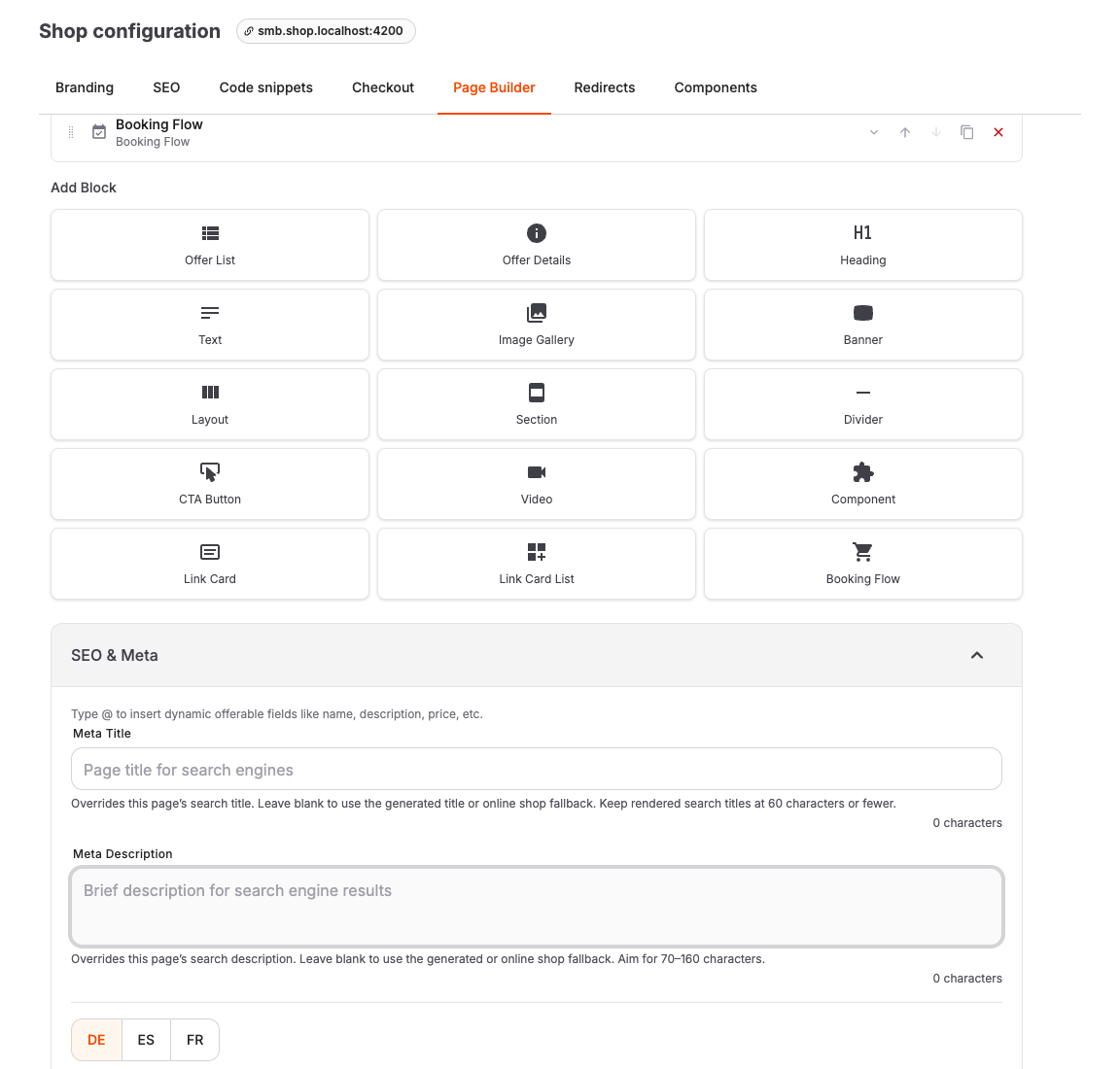
- Open Page Builder and edit the page.
- Expand SEO & Meta.
- Enter a Meta Title or Meta Description only when the page needs to differ from the generated value or shop default. The editor shows a character count and warns when the text is likely to be too short or too long.
- For a detail template, type
@to insert dynamic offer fields. Paragraphs in a multi-paragraph description are kept as readable plain-text separators in the saved metadata. - Optionally upload a Social Sharing Image (OG Image). After uploading it, add concise Social image alternative text for every shop language; whitespace-only text is treated as missing.
- Choose the Indexing override, preview the page, and select Save.
Override metadata for one offer
Use offer-specific SEO settings when one event, event template, admission, product, or voucher needs its own search title, description, or customer-facing URL.
- Open the offer in the back office.
- Open SEO.
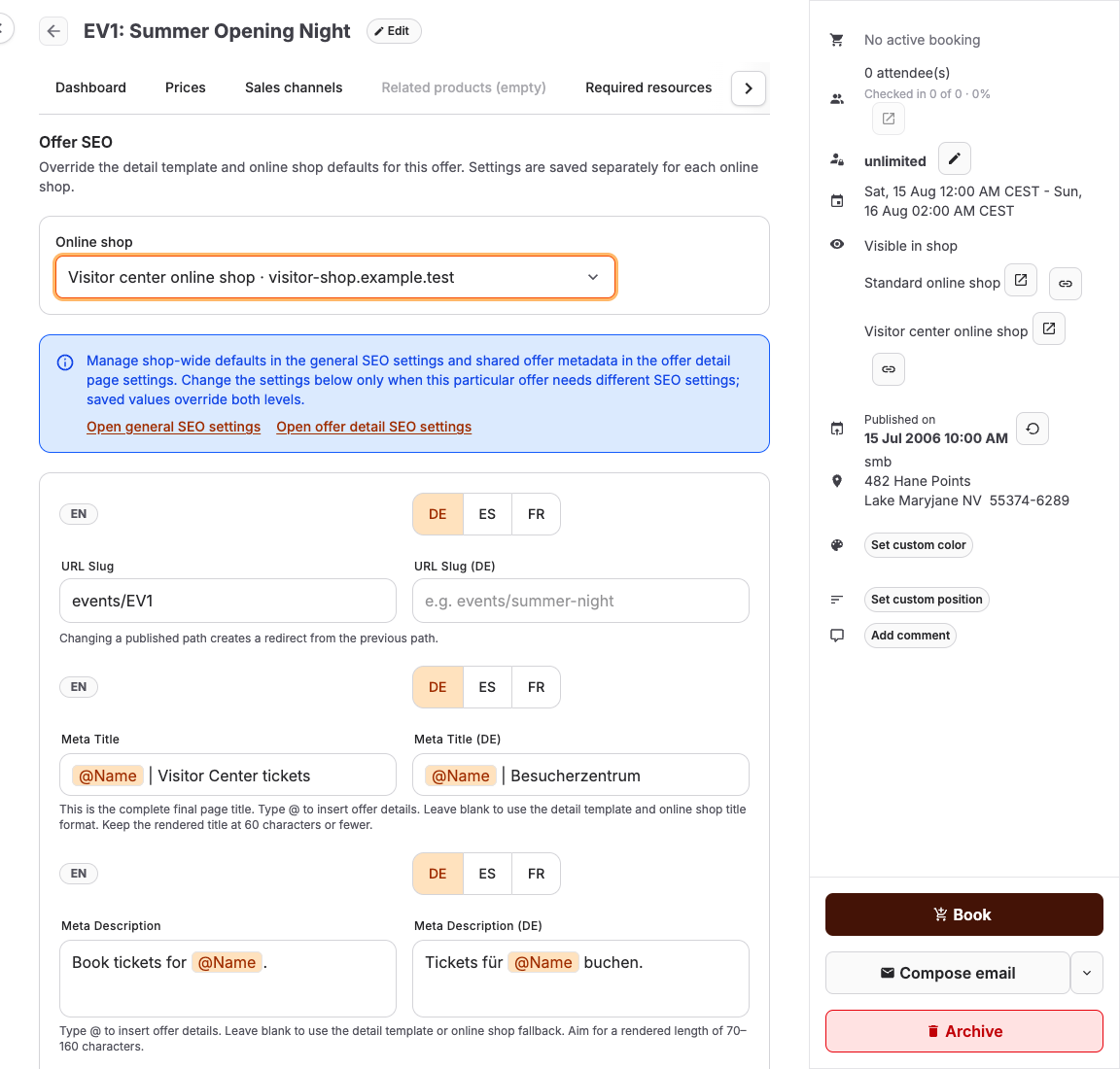
- If Online shop is shown, select the shop you want to change. Each shop has independent settings. When the offer belongs to only one online shop, no selector appears and the settings apply to that shop automatically.
- Use Open general SEO settings or Open offer detail SEO settings in the information panel when you want to change a shared default. Change the fields on the offer only when this particular offer needs different metadata; saved offer values override both shared levels.
- Enter the URL Slug. Changing an existing path automatically keeps the old path as a redirect.
- Enter a Meta Title only when this offer needs a title that differs from its detail template. This value is the complete final browser and search title; the shop title template is not added to it. Type
@to insert dynamic offer fields such as the name, location, date, or price. - Enter a Meta Description, where the same dynamic offer fields are available, choose an Indexing override, and add translations for every relevant shop language.
- Select Save SEO settings.
Leave the title or description blank to use the detail template and shop defaults. Restricted shops remain excluded from indexing even when the offer is set to Index this offer page.
How page metadata is selected
KORONA Event uses the most specific available content for each language:
- An offer page title resolves any dynamic fields in the offer-specific meta title and uses the result as its complete final title. Otherwise it uses the detail-template title, offer name, page name, and site name with the shop title template.
- A description uses the offer-specific override, then the page or detail-template override, offer description, first meaningful page text, and shop default.
- A social image uses the page or offer override, then the first content image, and shop default.
- A canonical URL always uses the shop's preferred domain and the page or offer slug for the selected language.
Expected result
Public pages use the configured search and sharing defaults while retaining more specific page and offer content. Private, preview, and transactional pages remain excluded from indexing.
