Send an e-invoice with ZUGFeRD
- Availability
- Beta
- Last verified
- Last verified Sep 15, 2026
Use this guide when a company or public authority asks for an e-invoice An invoice with structured data that compatible accounting software can process automatically. A plain PDF without structured invoice data is not an e-invoice.. KORONA Event can embed structured invoice data in the invoice PDF using ZUGFeRD / Factur-X with the EN 16931 profile. The recipient can read the PDF and process the embedded data with compatible accounting software.
PDF, ZUGFeRD and XRechnung
| Format | What the recipient receives | What this means in KORONA Event |
|---|---|---|
| Plain PDF | A readable document without structured invoice data. | A PDF download alone does not show whether e-invoice data is included. |
| ZUGFeRD / Factur-X | A readable PDF with embedded XML invoice data. | For eligible invoices, KORONA Event embeds factur-x.xml in the invoice PDF. |
| XRechnung | Structured XML following the German XRechnung requirements. | The back office does not offer a separate XRechnung XML download or a format selector. |
ZUGFeRD has several profiles. The EN 16931 profile used here is not the XRECHNUNG profile. Adding a Leitweg-ID or extracting the XML from the PDF does not convert it into XRechnung. For background on the formats, see FeRD's ZUGFeRD specification and the federal XRechnung FAQ.
Configure the e-invoice policy
You need permission to edit your account profile.
- Open Admin > Account and select Billing Information.
- Under E-invoices, select an E-invoice policy. Platform default shows the policy inherited when you select Use platform default. The explanation below the field describes the selected behavior.
- Select Save.
If the control is disabled, e-invoicing has not been activated for your account. Contact support; selecting a policy does not activate the feature by itself.
E-invoice policy
Requires e-invoicing activation for the account.
| Option | What it does | When to use it | Watch out for |
|---|---|---|---|
| Use platform default | Uses the platform policy shown beside the field. | Keep the centrally configured behavior. | A later change to the platform default also changes the inherited behavior. |
| Off | Generates invoice PDFs without structured e-invoice data. | Use when structured invoice data is not needed for your invoicing workflow. | A plain PDF does not satisfy a recipient requirement for an e-invoice. |
| Automatic | Adds ZUGFeRD XML when the invoice is eligible and generation succeeds. | Allow ordinary PDF delivery when structured data cannot be generated. | Unsupported invoices or validation failures can produce a plain PDF. |
| Required | Requires valid ZUGFeRD XML when generating invoice PDFs. | Use when invoices must not be delivered as plain PDFs. | Unsupported invoices or validation failures stop PDF generation and can block document delivery. |
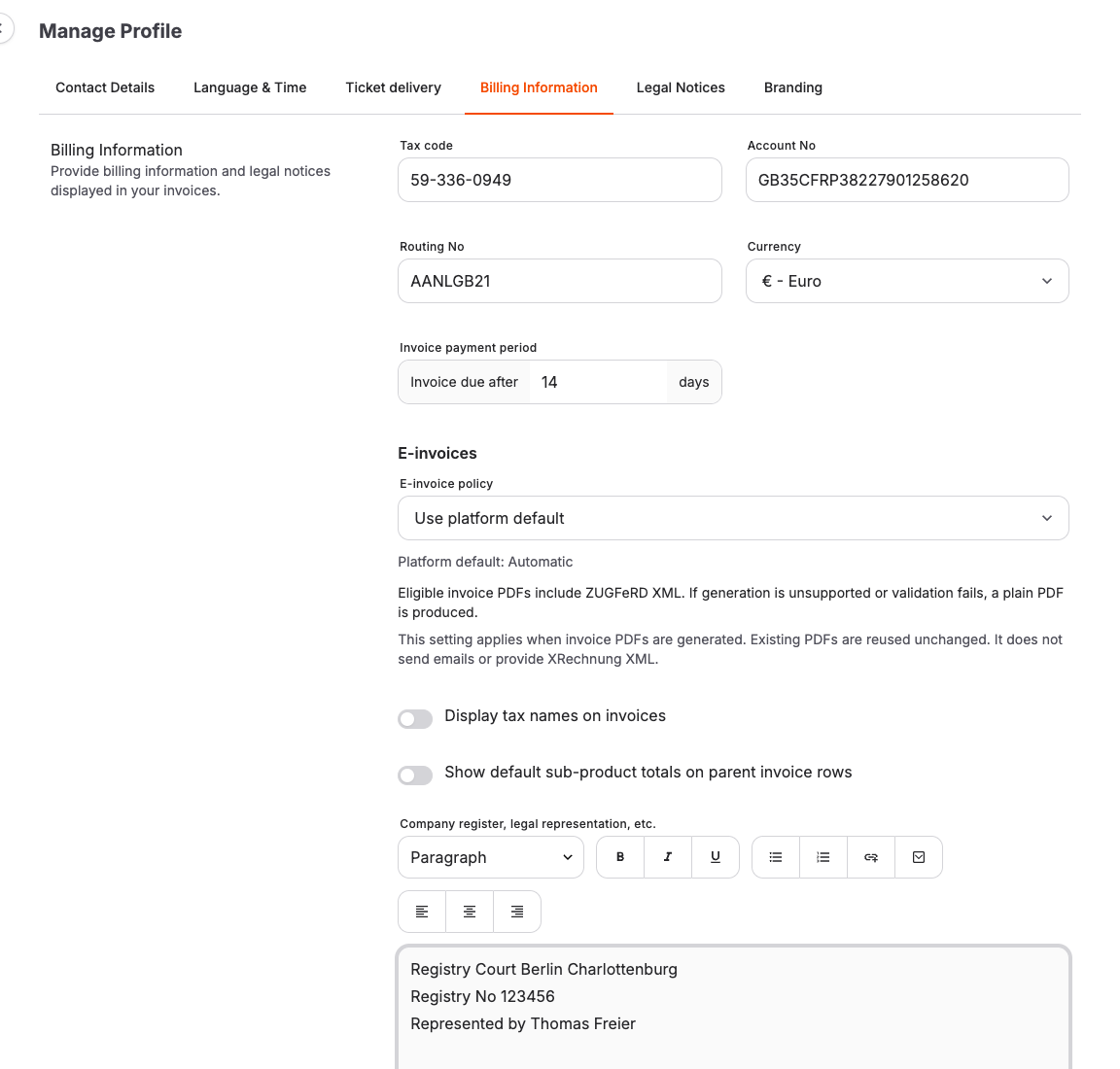
The policy applies when invoice PDFs are generated, including invoices for private customers. It is not restricted to companies or customers with a Leitweg-ID. Country, tax, amount, and settlement eligibility checks still apply.
Existing invoice PDFs are reused unchanged. Changing this setting does not add or remove XML in an existing PDF. It also does not send emails: the normal invoice email workflow sends the invoice PDF, including its embedded XML when present. These choices control ZUGFeRD data in the PDF; they do not provide a standalone XRechnung download.
Before you issue the invoice
- Ask the recipient which format, profile, and delivery channel they accept. If they explicitly require XRechnung or a particular submission portal, clarify the delivery process with KORONA Event support before promising that the KORONA Event PDF meets that requirement.
- Ensure your organization's name, address, country, tax details, and invoice bank details are complete and correct.
- Select the correct customer and billing address, including the company name and country.
- For a German public authority, obtain its Leitweg-ID and save it on the company customer before issuing the invoice. Follow Manage company customers.
KORONA Event copies the customer's Leitweg-ID into the invoice's buyer reference (BT-10) when it is issued. A draft uses the value current at issuance. Changing the customer later does not update an already-issued invoice's buyer reference.
Download and send the invoice
- Issue the invoice through your usual workflow. For an existing draft, follow Publish a draft invoice.
- In the back office, open Sales > Invoices, select the invoice, and select Download invoice.
- Send the downloaded PDF through the channel agreed with the recipient. Keep the original downloaded file; printing or exporting it to a new PDF can discard its embedded XML.
When generation succeeds, the PDF contains factur-x.xml. To inspect it, open the file in a PDF reader that supports embedded attachments. A browser PDF preview may show only the readable invoice. The recipient needs compatible software to process the structured data.
If the e-invoice is unavailable
| Situation | What to do |
|---|---|
| The PDF has no embedded XML | Ask support to confirm account activation and whether the invoice is eligible. If your account allows PDF-only fallback, an unsupported invoice or a validation failure can still produce a plain PDF. |
| The invoice PDF cannot be generated | If your account requires e-invoice data, generation stops when valid structured data cannot be produced. Contact support before trying to deliver the document. |
| The recipient requires XRechnung | Confirm the required profile and delivery channel with the recipient and support. Do not rename the PDF or its embedded XML to present it as XRechnung. |
| An issued invoice is missing a Leitweg-ID | Updating the company customer affects future invoices. Contact support about the existing document; downloading it again does not add the new buyer reference. |
