Create resources for rooms, guides, equipment, or staff
- Last verified
- Last verified Sep 4, 2026
Use this when you set up the people, rooms, and equipment your events depend on. Events later reference these resources Something needed to run an event, such as staff, guides, rooms, equipment, vehicles, or other operational capacity. through requirements The event area where staff define which resources are needed, how many are needed, and when they are reserved., so the setup here decides what can be allocated and how much capacity a role or function provides.
Before you start
Decide:
- who or what you are registering: people go under Staff, rooms and equipment go under Inventory
- which roles (for people) or functions (for rooms and equipment) each resource can fill, such as guide, room, or audio guide
- how many participants each role or function can handle at the same time
- when the resource is available
Create a staff member
- In the back office, open Resources > Staff and select Create.
- Enter Name and Email. An email address is required if the person should respond to inquiries or sign in.
- Turn on Enable login access if the person needs their own limited account.
- Add Tags to group similar staff, for example by language or location.
- Under Roles, select the Role the person can work as, then set the Capacity: Unlimited, or Limited with the number of participants the person can handle in that role. Select Capacity of this role can be shared across multiple events when the same person can serve several events at once. Use Add another role for people with more than one job.
- Set the Availability: Always available, Working hours with time spans per weekday, or Unavailable.
- Review the complete form, then select Create below the fields.
If Enable login access is turned on and the email address belongs to an archived staff member, KORONA Event shows the matching archived record instead of creating a duplicate. Select Restore and send invitation to reactivate that record, keep its event history, and send a fresh login invitation. Select View archived record if you want to review it before restoring it.
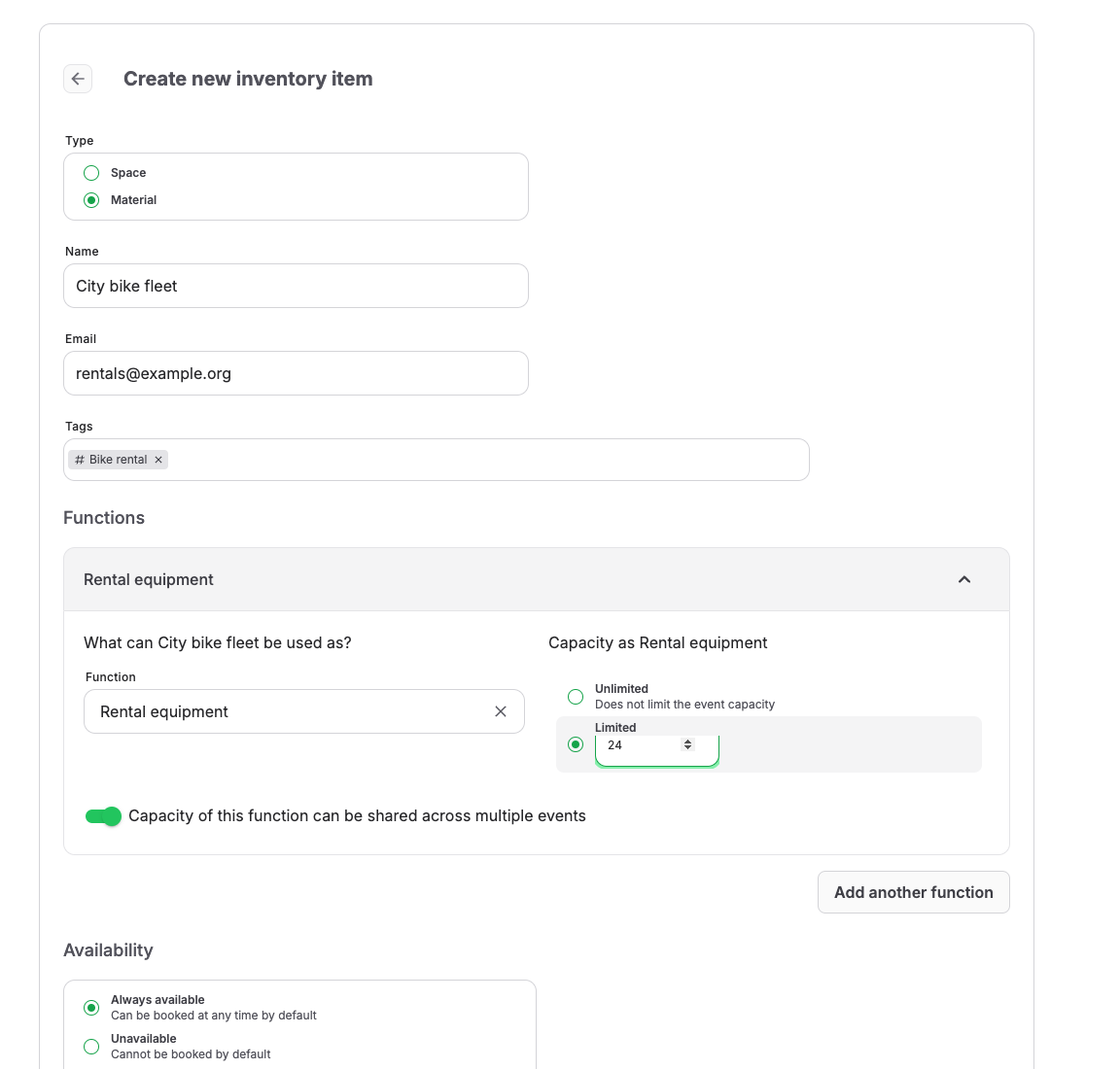
Create an inventory item
- Open Resources > Inventory and select Create.
- Choose the Type: Space for rooms and fixed locations, Material for moveable items.
- Enter Name, and Email if a team mailbox should receive resource communication.
- Add Tags, then define Functions with capacity, the same way as staff roles.
- Set the Availability: Always available, Available hours (Open hours for spaces), or Unavailable.
- Review the complete form, then select Create below the fields.
Manage roles, functions, and tags
Select the gear icon next to the Roles, Functions, or Tags column header in the staff or inventory list:
- Resource functions lists all roles and functions. Each one defines whether multiple events can use a resource with this function at the same time, the Inquiry Mode (Automatic or Manual), and the Allocation Mode (Auto Allocate, First to Accept, or Manual Review).
- Resource tags lists tags with their Associated type.
Expected result
The resource appears in the staff or inventory list with its roles or functions, tags, and availability, and events can select it when you add a resource requirement for a matching role or function.
Troubleshooting
| Problem | What to check |
|---|---|
| Resource does not appear when adding a requirement | The requirement's role or function must match one assigned to the resource; archived resources are excluded. |
| Resource cannot receive inquiries | The resource needs an email address. |
| Login access reports an archived staff member | Restore the matching record shown in the form. This preserves its history and sends a fresh login invitation. |
| Capacity seems too low on events | Role or function capacity, the shared-capacity checkbox, and overlapping events. |
| Resource is never bookable | Availability set to Unavailable, or working hours that do not cover the event times. |
