Refund or return a POS sale
- Last verified
- Last verified Aug 30, 2026
Use this when a paid order needs a full or partial return at the point of sale (POS). The POS shows a refund only after the order has been changed so its unsettled total is negative.
Do not use this workflow only to move a booking to another date. Follow Move or rebook an order and handle any price difference explicitly.
Before you start
Confirm:
- the correct order number, customer, event, date, price category, and original quantity
- which items or quantities should be returned
- how the original payment was taken
- whether your role is allowed to refund and whether supervisor approval is required
- whether tickets must be revoked, replaced, or reprinted
Never repeat a refund because the screen appears slow. Check the order and receipt first to avoid refunding twice.
Find and change the order
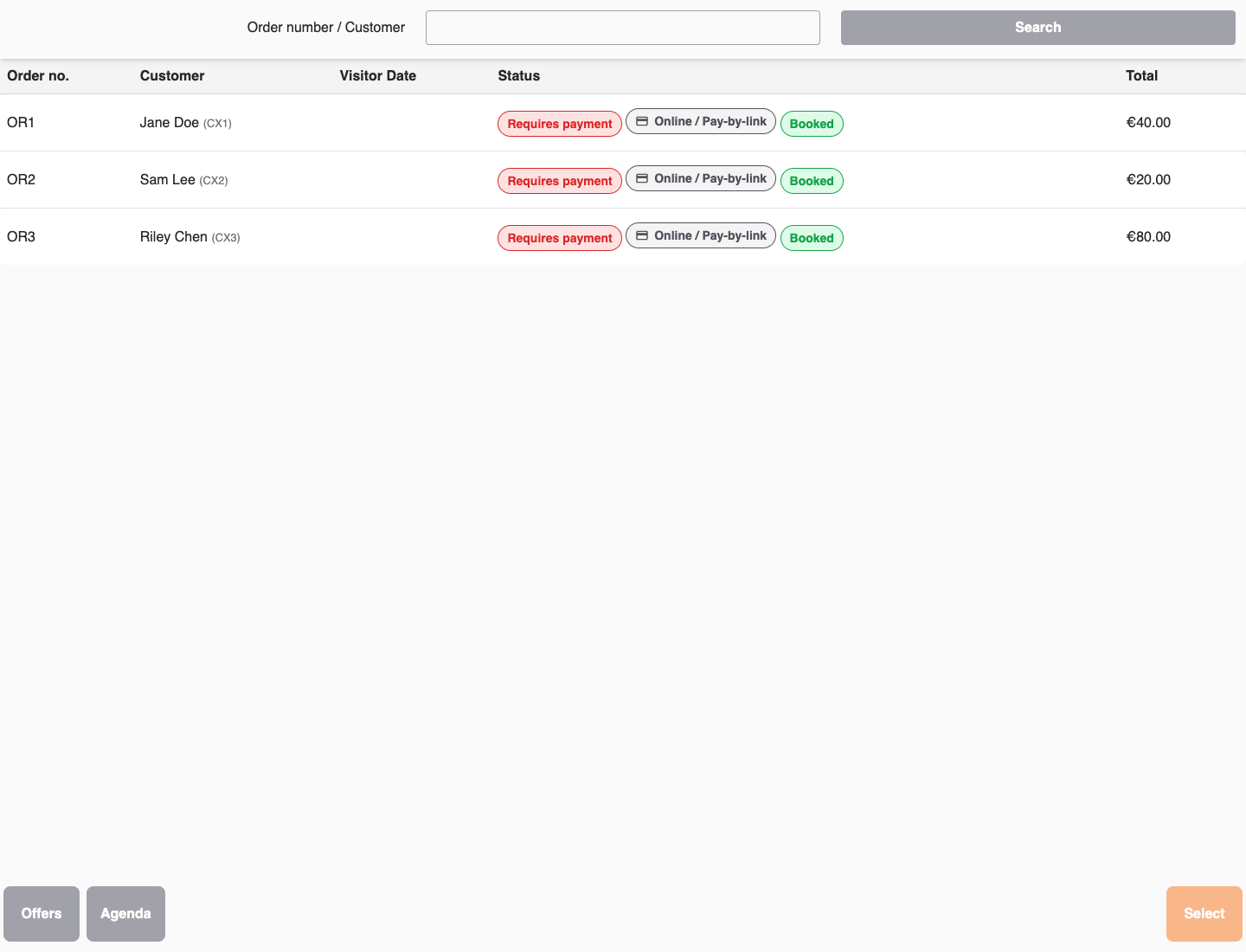
- In the POS, open Orders.
- Search for and open the order.
- Compare the order with the customer's ticket or receipt.
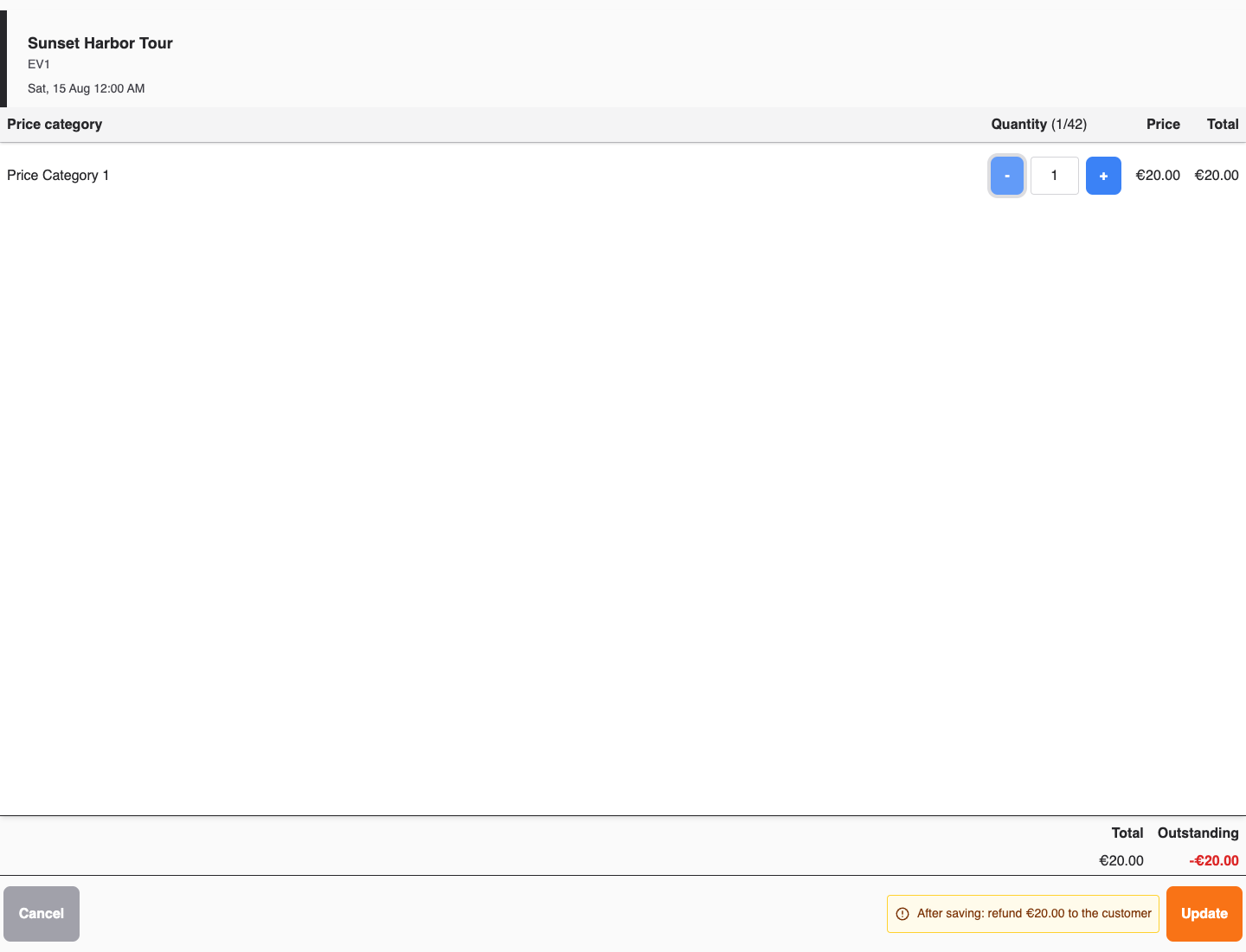
- Reduce the affected Quantity, or remove the item for a full return. Next to Update, the POS shows what saving changes:
- After saving: refund {amount} to the customer — the amount paid exceeds the item’s new total by at least this credit, so return this amount after saving.
- Credit after saving: {amount}. Nothing has been paid, so no refund is due. — the credit only reduces an unpaid invoice or corrects a delivery note. Do not pay out money.
- Credit after saving: {amount}. Check whether a refund is due. — the POS cannot confirm that payment covers this entire credit, for example after a partial payment or when a later unpaid invoice is being reduced. Check the original payment before issuing a refund.
- Amount to bill after saving: {amount} — the change adds an amount to bill.
If the adjustment is unexpected, do not save.
- Select Update. If the reduction would remove attendees with tickets, ticket entitlement links, vouchers, check-in status, personalizations, collected answers, or waivers, Select attendees to remove opens.
- Select exactly the requested number in each displayed group. Use the ticket, voucher, or entry number, the attendee name when available, and indicators such as Checked in, Attachments, Custom answers, or Waiver to identify the records the customer is returning. KORONA Event does not display the contents of collected answers in this selection. Then select Remove selected attendees.
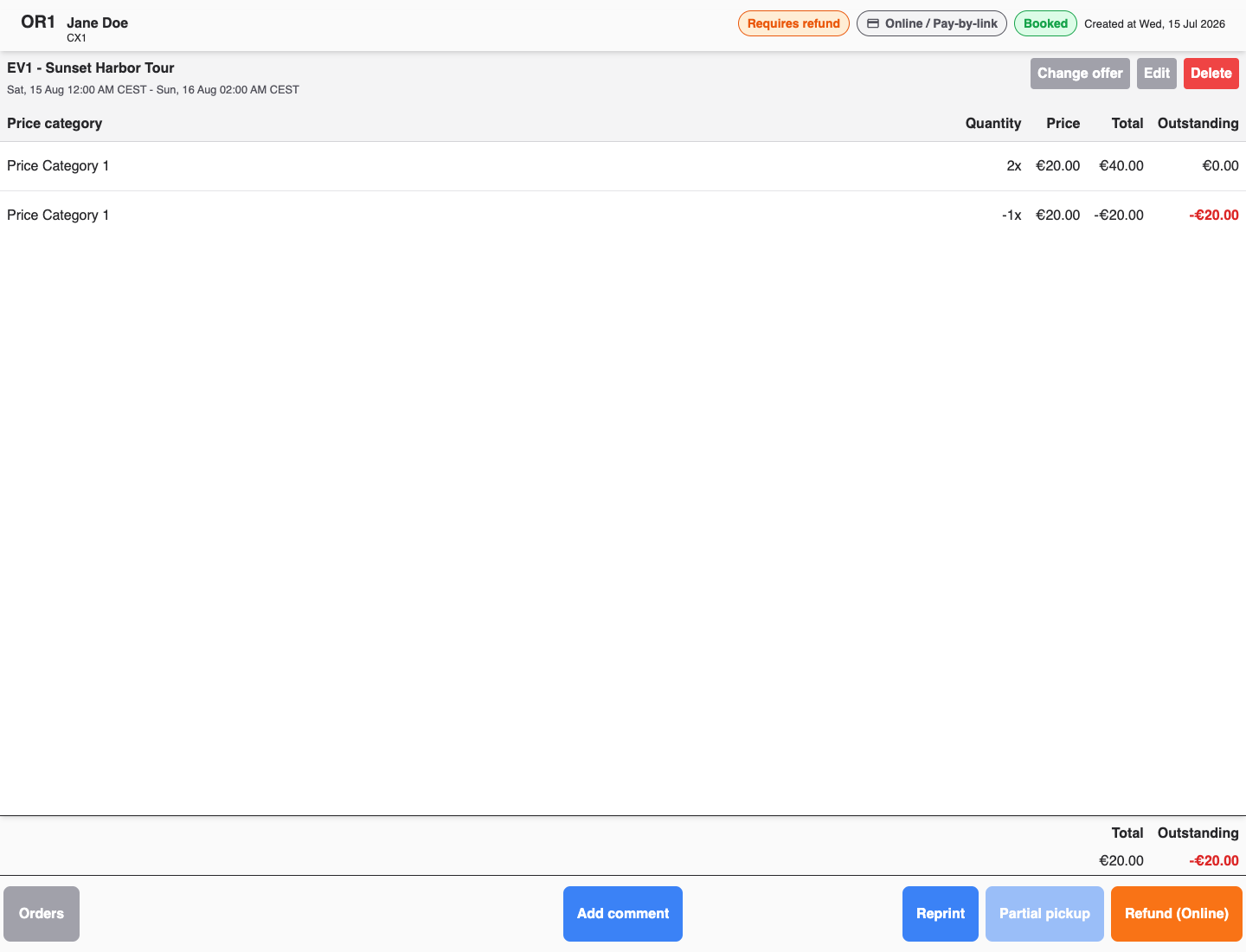
- Review the order total. A negative unsettled amount indicates a credit. Return money only when the notice in step 4 asked for a refund or the original payment confirms that one is due.
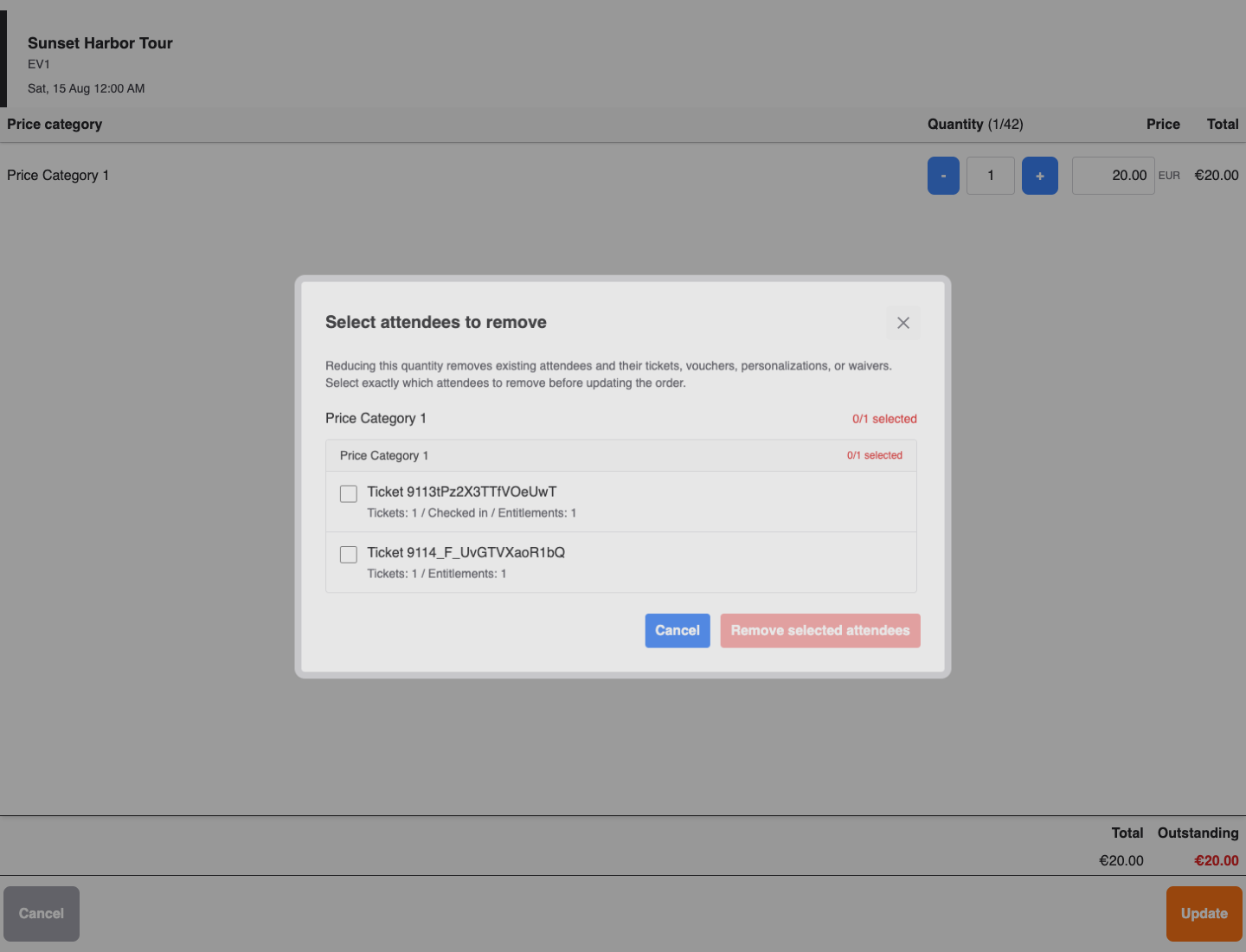
If the records being removed contain no ticket, ticket entitlement link, voucher, check-in status, personalization, collected answer, or waiver, KORONA Event removes them automatically and does not show the selection.
Choose how to issue the refund
- Select Refund. The Choose how to issue the refund dialog offers the available refund paths.
- Select one of the two refund paths:
| Choice | Use it when |
|---|---|
| Refund online | The order has a supported refundable online payment. KORONA Event sends the refund through that payment provider. |
| Add refund to receipt | The negative line must be added to the KORONA receipt so the till handles the return through its normal payment process. |
If Refund online is disabled, the existing online payment cannot cover this refund through the supported provider flow. Use Add refund to receipt instead.
After Refund online completes, verify the provider transaction and amount as described below.
After selecting Add refund to receipt, confirm the negative sale lines and amount on the till, choose the correct refund tender, and finalize the receipt according to your local POS process.
Reserve replacement places during a return
If the customer returns one booking and buys another on the same receipt:
- Add the return to the receipt, then open Offers and select the replacement service and time.
- Sold-out services and times remain visible to staff. Select the requested price and quantity.
- If the quantity exceeds the remaining capacity, review the overbooking warning and select the acknowledgement checkbox after supervisor approval.
- Add the replacement to the receipt and verify that the negative return and new positive sale lines are both correct before payment.
Cancel the offer selection if the customer decides not to accept the replacement or its price. The return remains available for review on the receipt without creating the new booking.
Verify the result
After the action completes:
- Refresh the order and confirm the new item quantities and total.
- Confirm the connected POS receipt or online refund was finalized once.
- Check that returned tickets are no longer valid and that retained tickets still match the remaining quantity.
- In the back office, review the order Overview, Documents, and History when the refund state is unclear.
- For an online refund, confirm the provider transaction when the customer needs proof that the refund was submitted.
The customer's bank may take additional time to credit an online refund even after the provider accepted it.
Expected result
The order contains only the retained quantity, the correct amount was returned once through the original or approved tender path, returned tickets are revoked, and the order, document, receipt, and payment states agree.
Troubleshooting
| Problem | What to check |
|---|---|
| No Refund button appears | Whether the paid quantity was reduced and the unsettled total is negative. |
| Refund online is disabled | Whether the original order has a supported refundable provider payment; otherwise use Add refund to receipt. |
| Refund was added to the receipt twice | Stop before finalizing again; compare the current receipt, order quantities, and order History with a supervisor. |
| Online refund stays incomplete | Order and invoice refund state, provider dashboard, error or debug ID, and the back-office retry process. |
| Customer still has a valid old ticket | Whether the correct attendee was selected, returned quantity, ticket state, reprint or resend history, and whether the order change was finalized. |
| Remove selected attendees is disabled | Whether every displayed group has exactly the requested number selected. |
| Sold-out replacement cannot be added | Whether supervisor approval was obtained, the capacity warning was acknowledged, your staff permissions, and the requested quantity before finalizing the receipt. |
