Reconcile one event after it ends
Use this article when finance, operations, or an organizer needs to compare what happened at one event after sales and admissions are complete.
Reconciliation means checking attendance, ticket grouping A setting that controls how selected attendances are combined into customer-facing tickets., ticket quantities, revenue, free or reduced tickets, refunds, POS sales, and exports against the same event and date range.
Before you start
Confirm:
- event name, date, and time
- whether POS sales should be included
- whether canceled, refunded, or free tickets should be counted
- which report or export finance expects
- whether attendee count or revenue is the primary question
Start from the event
- In the back office, open Services > Events.
- Search for the event.
- Open the event detail.
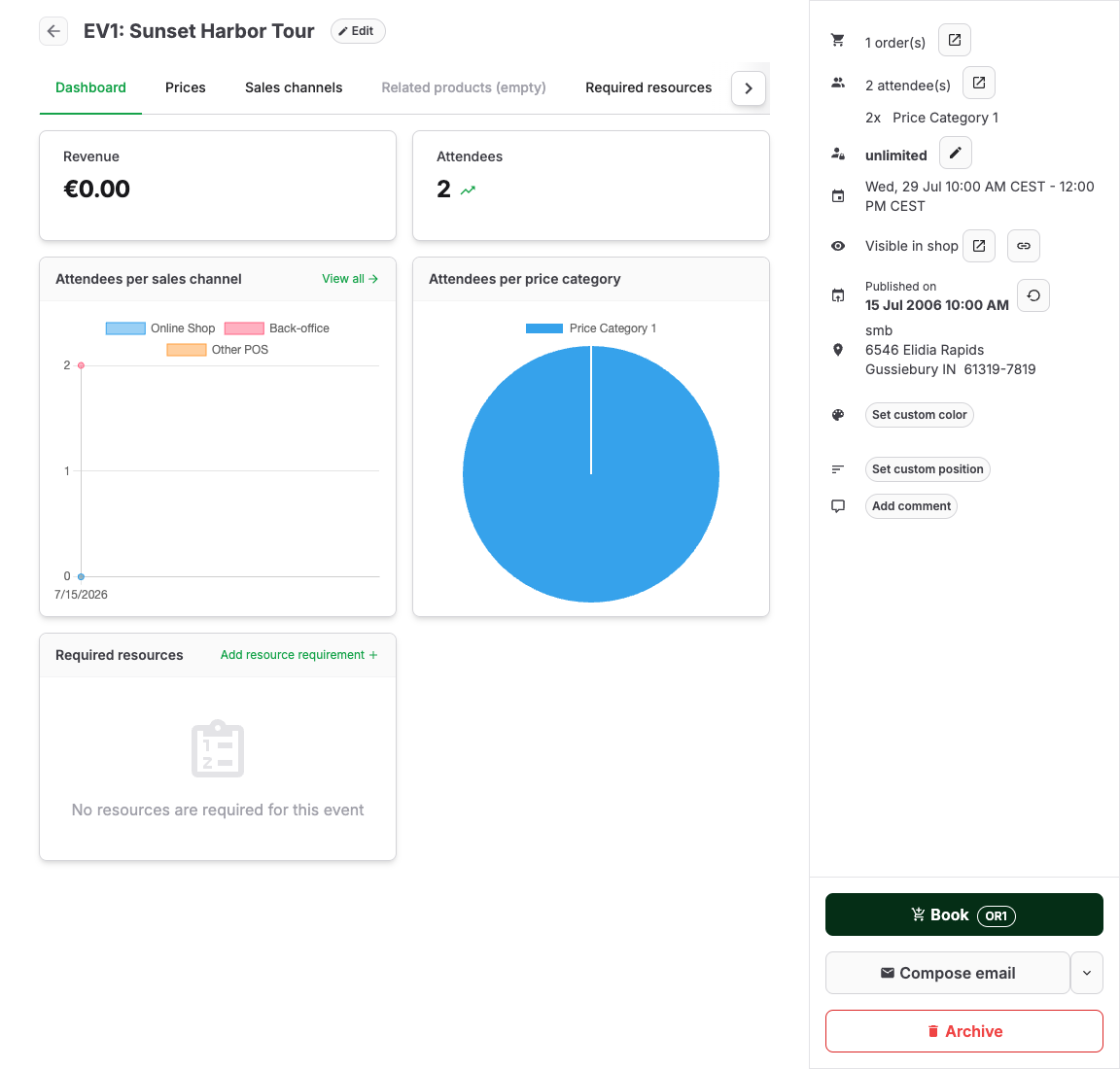
- Review dashboard or report tiles for the event.
- Open attendees, orders, or report actions from the same event when possible.
Compare the right totals
| Question | Check |
|---|---|
| How many people attended or were expected? | Attendee list, checked-in state, canceled attendees, and ticket grouping. |
| How many tickets were sold? | Order items, ticket quantities, price categories, and POS sales. |
| How much revenue was generated? | Paid orders, invoices, receipts, refunds, free tickets, discounts, and payment state. |
| Why does revenue not match attendee count? | Free tickets, group tickets, reduced prices, refunds, canceled order items, and deleted items. |
| What should accounting receive? | Invoice or receipt data, payment provider totals, tax, and discounts. |
Reconcile step by step
- Export or filter the attendee list for the event.
- Export or filter orders for the same event.
- Separate paid, open, canceled, refunded, and free orders.
- Compare POS sales and online sales if both channels were used.
- Check discounts, coupons, vouchers, and manual price changes.
- Compare refund-needed and refunded states.
- Compare provider dashboard totals when payment-provider settlement is the finance source of truth.
- Save the filters or exports used for the reconciliation note.
Expected result
You can explain the event's attendee count, ticket count, revenue, refunds, and export totals using the same filters and date basis.
Troubleshooting
| Problem | What to check |
|---|---|
| Dashboard revenue differs from manual total | Discounts, free tickets, refunded orders, canceled items, POS sales, and whether gross or net totals are being compared. |
| Attendee count differs from ticket count | Ticket grouping, family/group tickets, canceled attendees, no-shows, and check-in state. |
| Provider total differs from KORONA Event | Fees, refunds, pending payments, settlement date, payment method, and provider dashboard filters. |
| Export is missing customer data | Order customer, invoice address, receipt customer, guest checkout, and accounting handoff settings. |
| Finance uses another date range | Confirm event date, order date, payment date, invoice date, and settlement date. |
