Manage attendees and entry status
Use the attendee view when you need to prepare event-day lists, check whether a customer has a valid ticket, review custom field answers, or export attendance data.
An attendee A person connected to an event or admission ticket. Attendee data supports check-in, attendance lists, exports, and ticket details. record represents a person connected to a sold ticket and stores entry status and collected attendee information. An admission An offer type for general admission without a fixed start time, or for simple timed entry when a time pattern supplies entry slots. is an offer type and can produce many attendee records. The order The main sales record containing the customer, selected offers, quantities, prices, payment state, invoices, tickets, and documents. remains the commercial record; the attendee view is the operational record.
Before you start
Confirm:
- which event, admission, date, or time slot you are checking
- whether you need a full attendee list or one customer record
- whether staff will use the back office, POS, scanner, or printed list at the entrance
- which customer or order information is safe to share with event-day staff
Open the attendee list
In the back office, open Sales and then Attendees.
Use filters to narrow the list by event, admission, date, ticket state, customer, or free-text search. When you are preparing one event, filter before exporting so the file does not include unrelated customer data.
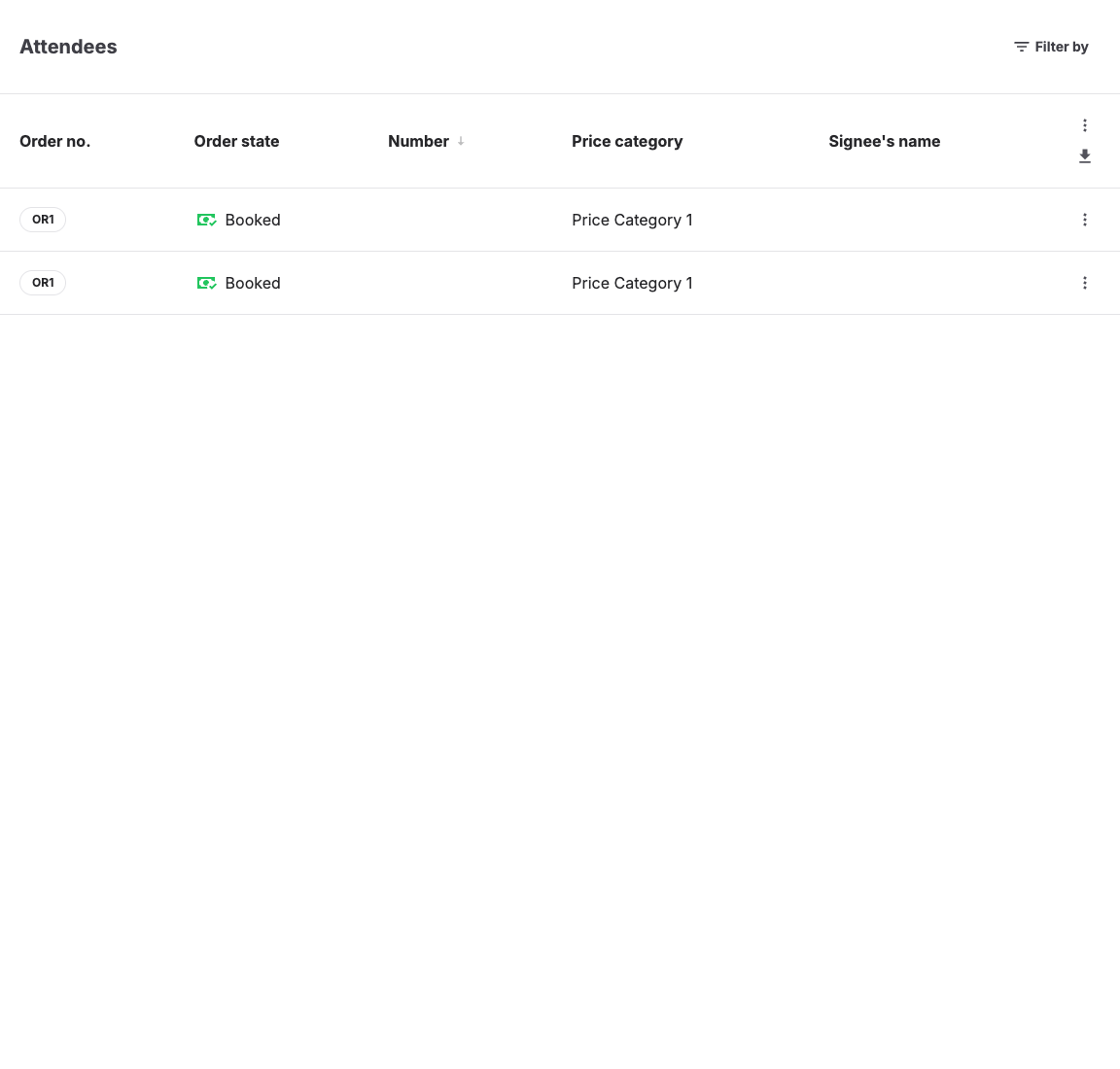
Read the list
| Column or state | What it means |
|---|---|
| Attendee name | The attendee name or placeholder shown for the ticket. It may come from checkout fields, attendee questions, or the order contact. |
| Order | The order number connected to the attendee. Open the order when you need payment, invoice, resend, or customer history. |
| Ticket | The ticket number or code used for entry. Missing ticket data usually means the order, payment, or ticket generation state needs review. |
| Status | The operational status of the attendee, combining the order state and the check-in state. |
| Event / Admission | The offer the attendee belongs to. Check this before moving, rebooking, or admitting someone at the door. |
For the canonical order and ticket state definitions behind the status column, see How orders, payments, invoices, and tickets fit together.
Open an attendee record
- From Sales > Attendees, select the attendee row.
- Review Overview for customer, order, ticket, event, and state information.
- Open Additional information when the checkout flow collected attendee answers, personalization, or custom fields.
- Open Waiver when the event or admission requires a signed waiver.
- Return to the connected order if you need to resend tickets, correct payment, or change invoice details.
Move a standalone attendee to another event
Use this action when an attendee was created without an order and is assigned to the wrong event.
- Open Sales > Attendees and select the attendee.
- Select Move to another event in the attendee header.
- Under New event, search for and select the destination event. The current event is not offered as a destination.
- Select Move attendee.
KORONA Event assigns the attendee to the destination event and updates the ticket validity and attendee counts for the affected events.
For an imported standalone attendee, this manual destination remains authoritative. Later imports can refresh the attendee but do not move them back to the previously imported event.
The action is available only for standalone attendees that are assigned directly to an event. If the attendee belongs to an order, move or rebook the order so the purchased service, price, capacity, and ticket stay together.
Export attendee data
Use export or report actions only after applying the filters you want. Include custom answers only when the event-day team needs them.
For event-day exports, check:
- the event and time slot filters
- whether canceled attendees should be excluded
- whether ticket numbers are included
- whether attendee answers or waiver state are needed
- whether the file contains personal data that should not be printed broadly
The CSV and Excel exports include the order's Point of sale number and Point of sale name, plus Order channel ID and Order channel name. Use the point-of-sale columns to group bookings by the assigned operational POS, and the order-channel columns to distinguish where the order originated, such as the shop, back office, POS, or an integration. Attendees without a connected order have empty values in these columns.
Expected result
You can identify who is expected, which ticket or order proves their booking, whether the attendee is valid for entry, and which operational details staff need for event day.
Troubleshooting
| Problem | What to check |
|---|---|
| Attendee is missing | Confirm the order state, selected event or admission, date/time filter, and whether the order was canceled or abandoned. |
| Ticket number is missing | Check whether the order is paid or confirmed, whether tickets were generated, and whether ticket output is configured for the offer. |
| Customer details look wrong | Open the connected order and customer record; attendee data can differ from billing or order contact data. |
| Waiver is missing | Check whether the waiver was required for the selected offer, whether it applies per order or per attendee, and whether the customer completed the waiver step. |
| Export totals do not match reports | Compare filters, canceled attendees, deleted order items, free tickets, and date ranges. |
