Edit a shop page in the visual editor
- Availability
- Beta
- Last verified
- Last verified Oct 28, 2026
Use the visual editor when you want to arrange a shop page while seeing how its blocks appear to customers. You can select blocks in the preview, edit text in place, configure blocks in the inspector, and publish a saved draft when it is ready.
Before you start
Open Shops, choose the shop, and open Page Builder. Select the page to edit, then select Visual editor. The preview needs a shop domain. To preview a Detail Template, a shop offer with a shop URL must use that template; assign one under Applies to for a custom template.
The visual editor has three panes:
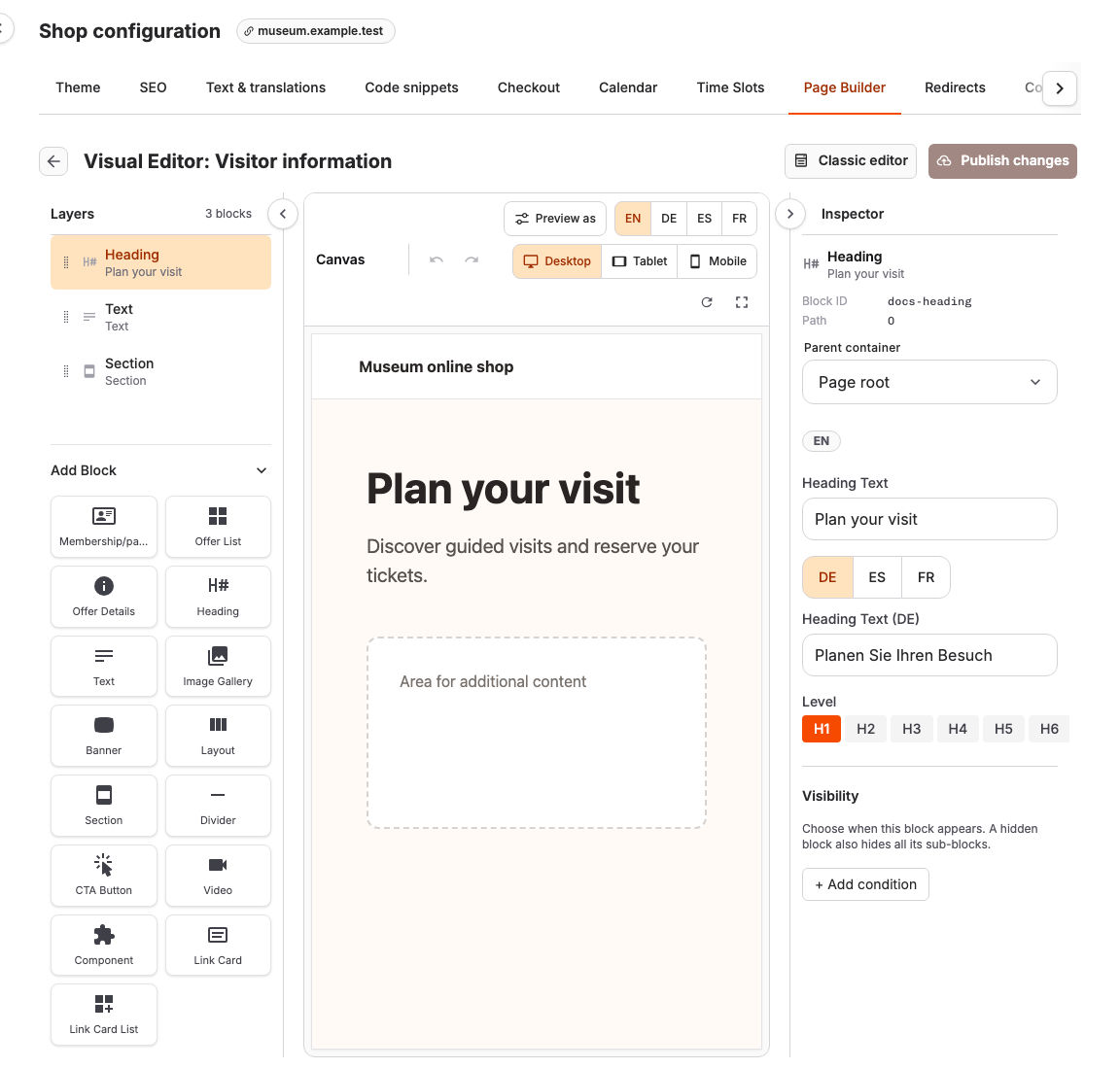
| Pane | Use it for |
|---|---|
| Layers | Find every block in page order, including blocks inside containers. A Visibility badge marks a block with display conditions. Collapse Add Block at the bottom for more list space. |
| Canvas | See the shop page, select a block, move it, and check responsive sizes and languages. The selected block has an orange outline and a toolbar. |
| Inspector | Change all settings for the selected block, including its text, layout, parent container, and visibility. |
Drag a pane divider to resize it, collapse Layers or Inspector, or expand the canvas to full screen when you need more room. A block's position in Layers is its page order; shop navigation or blocks hidden by a visibility rule can affect where its content appears in the preview.
Add and edit blocks
- Select a block in Layers or directly in the Canvas. The Inspector shows its settings. For example, select a Heading to change its text, translation, or heading level. On an Events page, the title above the offers is a separate Heading block; the Offer List controls the offers below it.
- To add a block, select a type in Add Block at the bottom of Layers, or drag it to a drop position in the canvas. The palette includes text and media blocks, offer blocks, buttons, and containers such as Section and Layout. Some block types are available only on suitable pages or inside suitable containers.
- Use the Inspector for full configuration. For supported headings, text, banner text, button labels, and Link Card text, you can also double-click the text in the preview or focus it and press Enter. Press Enter to apply, Escape to cancel, or Shift+Enter for a line break in a multiline field. Switch the preview language before editing a translation.
- Select the block's toolbar to duplicate or delete it. Undo and Redo in the canvas toolbar also cover block additions, moves, settings, and text changes during this editor session. Ctrl/Cmd+Z undoes a page change outside text fields; Ctrl/Cmd+Shift+Z or Ctrl/Cmd+Y redoes it. Text fields keep their own undo behavior.
Arrange blocks and nested content
Drag a block by its handle in Layers or in the selected block toolbar. Drop indicators show where it will land. The selected block toolbar also offers Move up, Move down, Move to top, and Move to bottom. These actions change its order among blocks in the same container; they do not move it out of a Section or Layout.
For a precise move between containers, select the block and choose Parent container in the Inspector. Choose Page root to take it out of a container. The available destinations depend on the block type: a Link Card List accepts Link Cards, while a Layout cannot contain another Layout, Section, or Component.
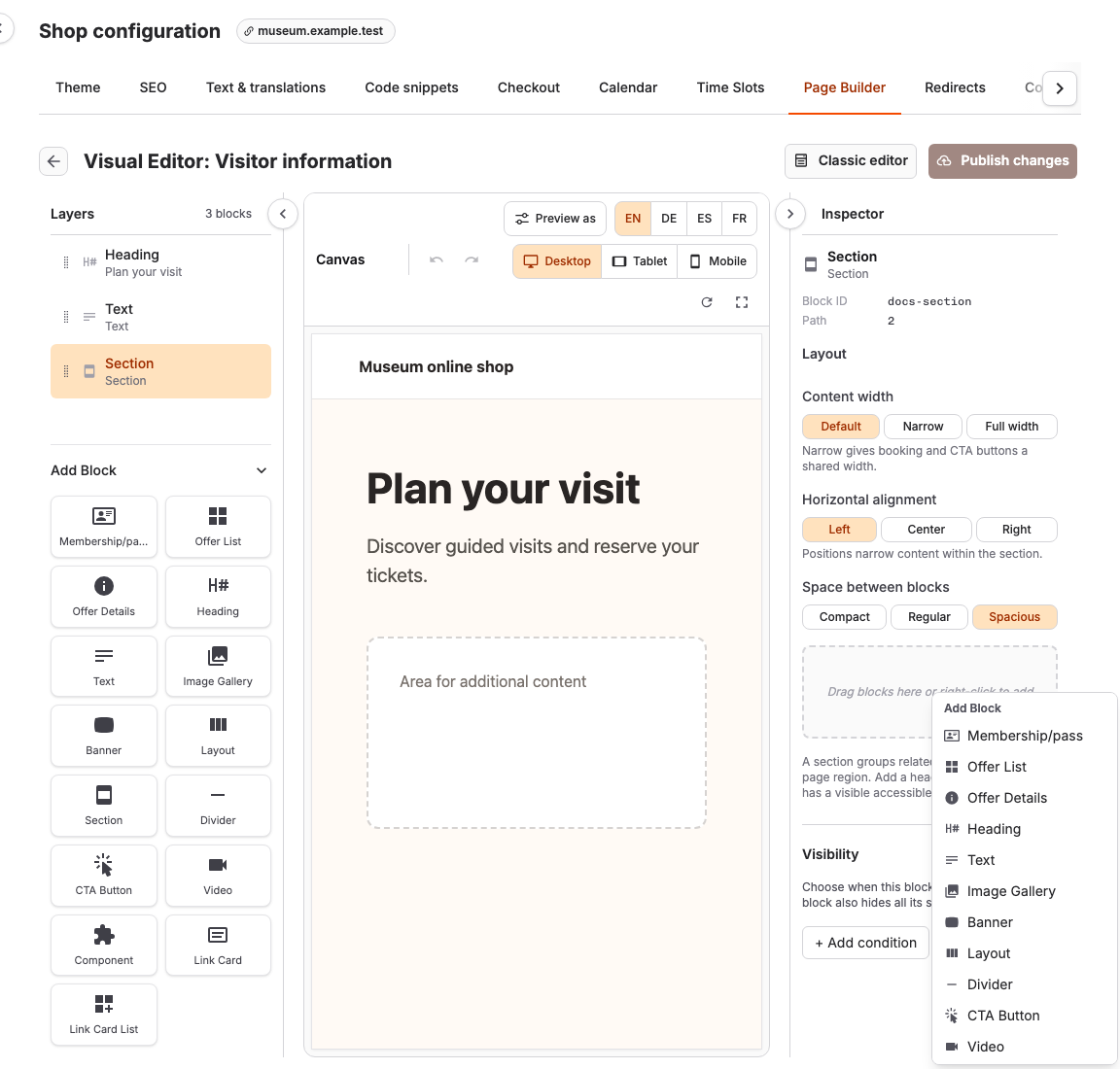
To add a block inside an empty Section, Layout, or Link Card List, right-click its empty drop area in the canvas or inspector and choose a type under Add Block. The menu only offers blocks accepted there. You can also focus the drop area and press Shift+F10 or the Context Menu key. This is useful when a long page makes dragging into a small target difficult.
Show different content in different contexts
Select a block and open Visibility in the Inspector. Add a condition for an offer type, specific offers, a shop page, a shop language, or an offer-list state. A condition can include several values; Does not match reverses it. For several conditions choose All conditions match or Any condition matches. With no conditions, the block is always shown.
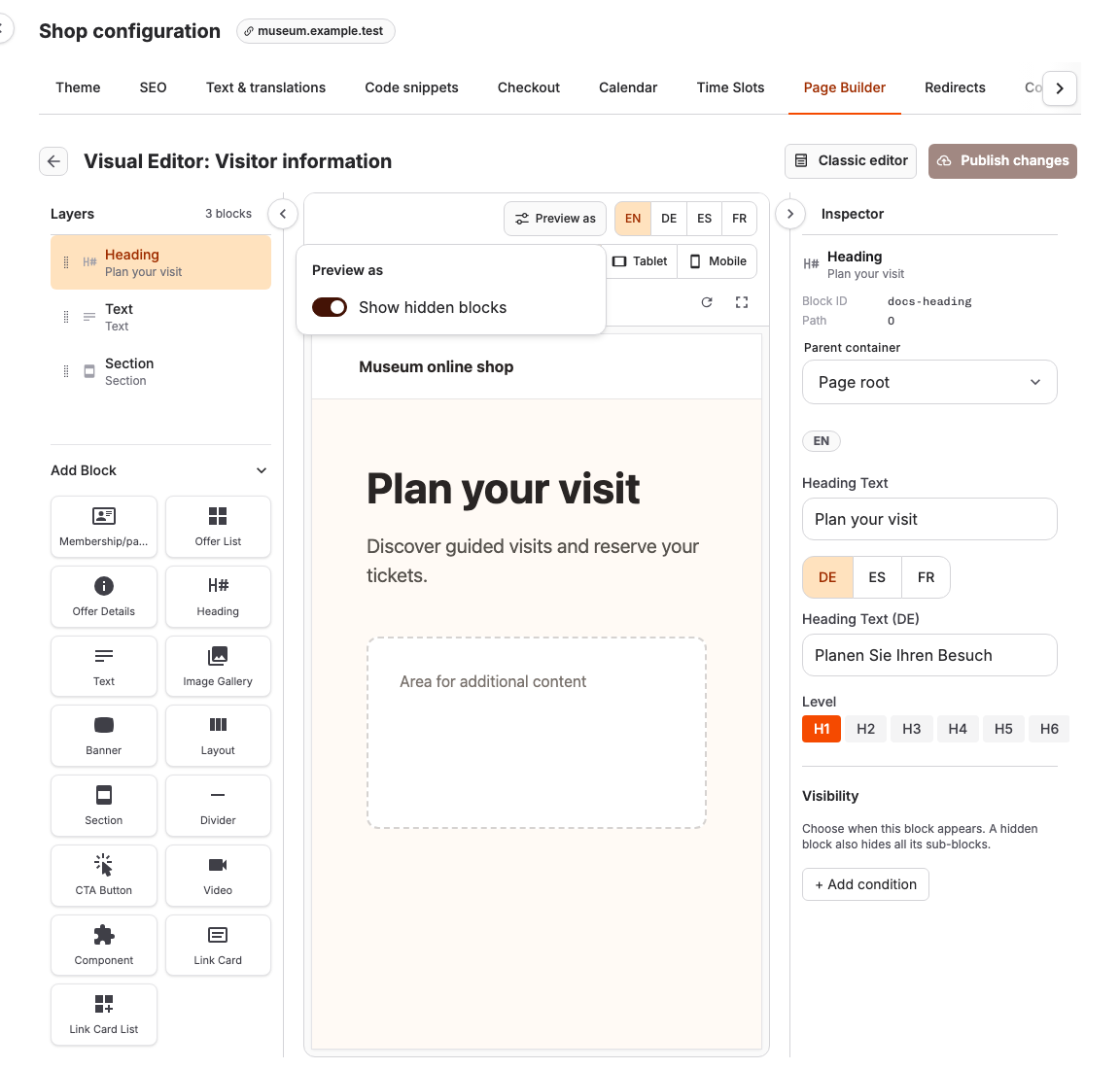
For two alternative groups of content, put the first group in a Section (stacked content) or Layout (columns), set its visibility rule, and select Add alternate content. Add blocks to the new container. Layers and the canvas label the pair If and Otherwise. A hidden container hides everything inside it. Select Show hidden blocks under Preview as to keep hidden content available as placeholders while editing.
Check the page in preview
Use Desktop, Tablet, and Mobile above the canvas to check the layout at different widths. Switch preview languages to inspect translated content. Under Preview as, choose a representative offer for a Detail Template, set Preview list state when the page has an offer list, and toggle Show hidden blocks. The list-state choices simulate results for visibility rules in preview; they do not change the offers in the shop.
If following a link in the preview takes you to another shop page, select Refresh preview to return to the page you are editing. Edit this page, when available, opens the page you reached. If blocks cannot be selected or the preview is blank, refresh the preview; if the warning remains, sign in again and reopen the editor.
Save a draft and publish it
The visual editor saves changes as a draft automatically. Wait until Saving draft... changes to Draft saved before leaving. Unpublished changes means customers still see the previously published page. Select Publish changes when the draft is ready for customers. Edits made during publication remain in the next draft. If Draft save failed appears, keep the editor open and use Refresh preview to retry saving.
A custom Detail Template can be published while disabled. Enable it in Page Settings when you want the assigned offers to use it. To use the form-based workflow instead, select Classic editor.
For page settings, offer-list filters, and detail-template assignments, see Customize shop page content and ordering.
