Change a price after sales have started
Use this when a price should change for future sales after customers have already bought tickets.
Before you start
Check existing orders, invoices, payment state, refund policy, and who approved the change. Decide whether existing customers keep the old price.
Steps
- In the back office, open Services > Events or Event templates.
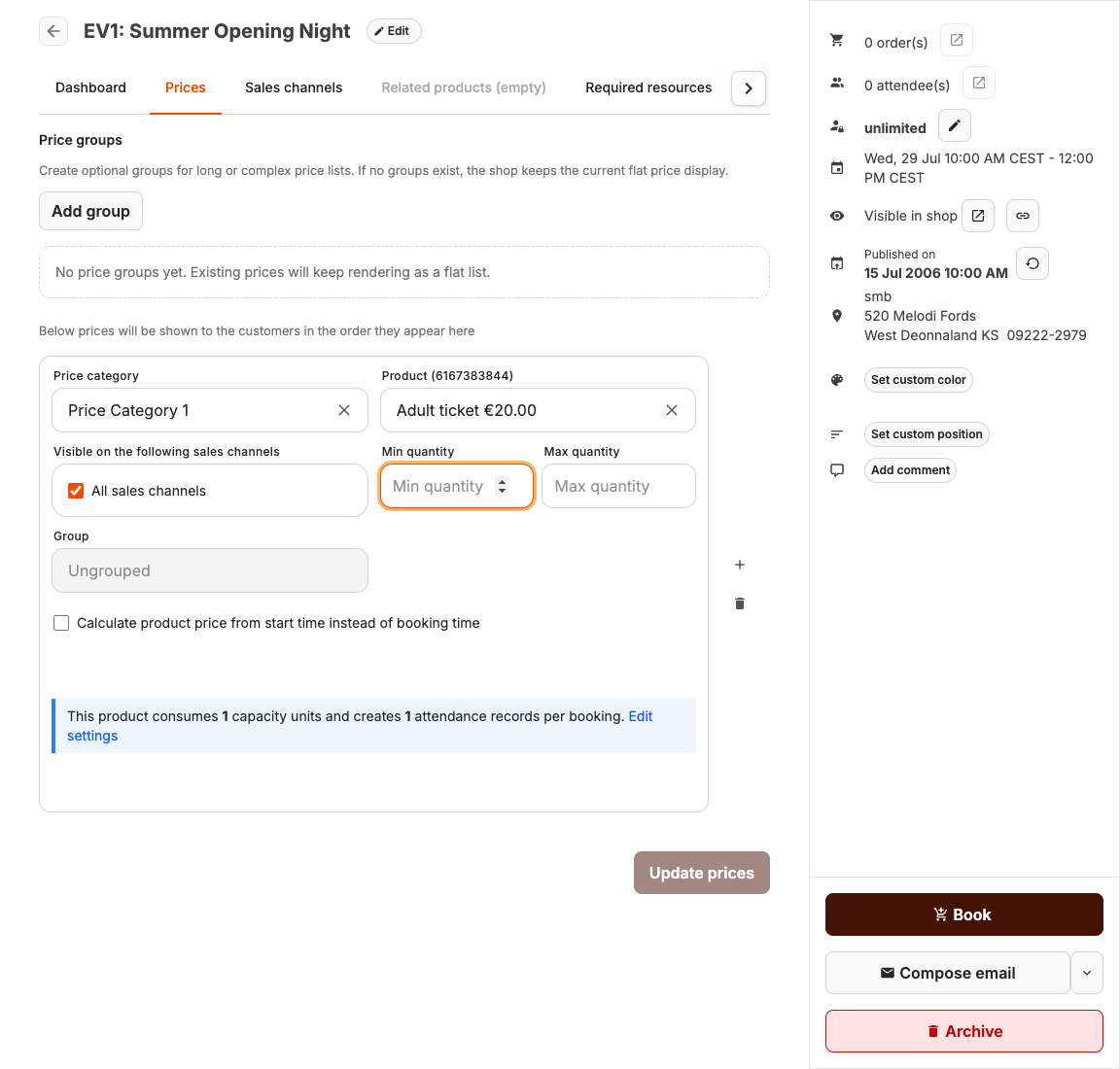
- Open the offer and select Prices.
- Find the affected Price category and Product row.
- Update the product's commercial price in KORONA.studio and synchronize it. The displayed gross price is the amount the customer pays including applicable sales tax.
- Keep the existing row when future sales can use the new synchronized amount, or assign a new product/category combination when old and new prices must remain distinguishable.
- Review Visible on the following sales channels, Min quantity, Max quantity, and capacity behavior.
- Select Update prices when you changed the row assignment.
Choose update or new price
| Choice | Use it when |
|---|---|
| Update the existing price | Old orders can remain historical and only future sales need the new amount. |
| Add a new price category or product | Staff need to report old and new prices separately. |
| End sales for the old price | The old price should not be selectable but must remain understandable on existing orders. |
Expected result
New carts and POS sales use the changed price. Existing orders keep their recorded totals unless staff deliberately change them.
Troubleshooting
| Problem | What to check |
|---|---|
| Shop still shows old price | Published state, cache, active price row, sales channel visibility, and whether the customer had an old cart open. |
| Existing invoice changed unexpectedly | Review whether staff edited an existing order instead of only future pricing. |
| Report totals look mixed | Use price category, product, sale date, and order history to separate old and new sales. |
