Run front desk operations for a busy event day
Use this guide before doors open when cashiers, admissions staff, and supervisors need one operating plan.
Before you start
Confirm:
- POS devices are charged, online, and assigned to the correct POS
- the event or admission is visible in the POS
- prices are active for the POS sales channel
- scanners can read ticket QR codes
- receipt or ticket printers are ready, if used
- staff know the fallback entry rule
- supervisors know who may cancel, refund, or rebook orders
Start with POS sales readiness
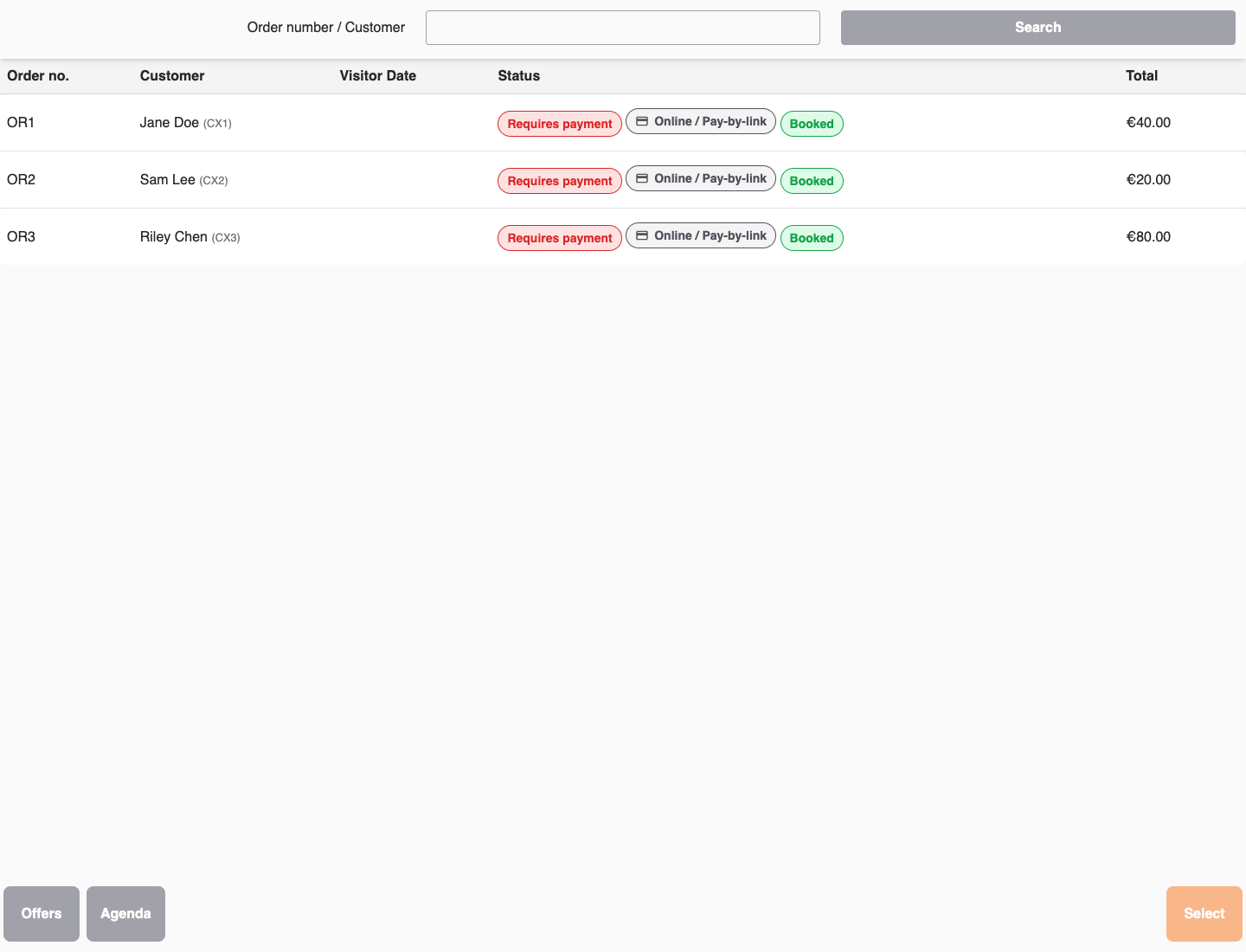
Open the POS and select the event, admission, product, or voucher being sold.
Add each ticket with Add to receipt, confirm the quantity, and select the payment method. Complete one small test sale before the queue starts if this is a new setup or device.
Prepare admissions
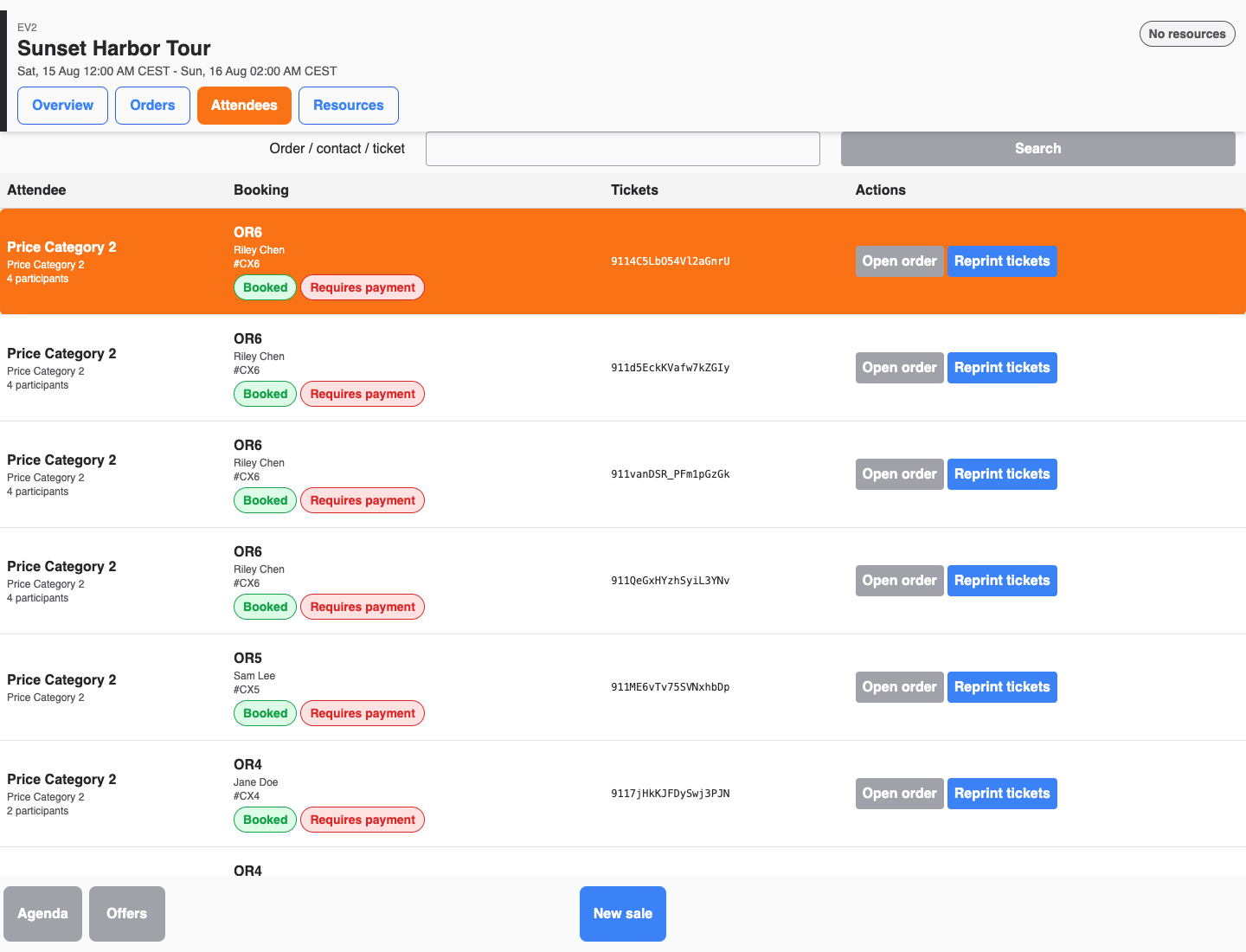
Open the POS Agenda for the event and open Attendees. Confirm the event date and attendee count. The POS attendee list is for lookup; check-in state and scan results are recorded in the back office attendee view.
Make sure staff know the reasons a ticket can be refused at check-in — Already checked in, Invalid validity, Ticket is not active, and Used up — and the fallback process described in Scan tickets at the entrance.
Handle exceptions at the door
For a failed scan:
- Search the attendee list by ticket number or customer name.
- Compare event name, date, and price category.
- Check whether the ticket is already checked in.
- Ask a supervisor before admitting canceled, refunded, or wrong-date tickets.
- Record any manual entry according to your team process.
For a customer who needs to buy at the door, send them to the cashier POS instead of changing entry data at the scanner.
End-of-day checks
At closing:
- Compare POS order totals with cash drawer and card terminal totals.
- Review canceled, refunded, and failed-payment orders.
- Export or note attendee counts for the event report.
- Confirm unresolved manual entries are attached to an order or support note.
- Save device, printer, and scanner issues for follow-up before the next event.
Expected result
Cashiers can sell and find orders, admissions staff can admit valid tickets, supervisors can make exception decisions, and finance has enough information to reconcile the day.
Troubleshooting
| Problem | What to check |
|---|---|
| Event is missing from POS | POS sales channel, active POS prices, event date, published state, and remaining capacity. |
| Scanner rejects a valid customer | Ticket number, event date, payment state, duplicate scan, and whether the ticket was reissued. |
| Customer paid but POS stopped | Recent POS orders, payment terminal result, order state, receipt, and whether a duplicate order exists. |
| End-of-day totals differ | Cash/card split, canceled orders, refunds, unpaid reservations, online sales, and manual entries. |
