Customize shop page content and ordering
- Availability
- Beta
- Last verified
- Last verified Sep 24, 2026
Use this when the online shop should show different content, a different offer selection, or a different order than the default pages. Shops with the Page Builder compose pages from content blocks; other shops use the simpler Pages tab.
Before you start
Prepare the page structure you want, the offers or tags each list should show, and any images or text blocks. The classic editor applies changes to the live shop with Save. The visual editor saves a draft automatically; use Publish changes when that draft is ready for customers.
Edit a page in the Page Builder
- In the back office, open Shops, select the shop, and open Page Builder.
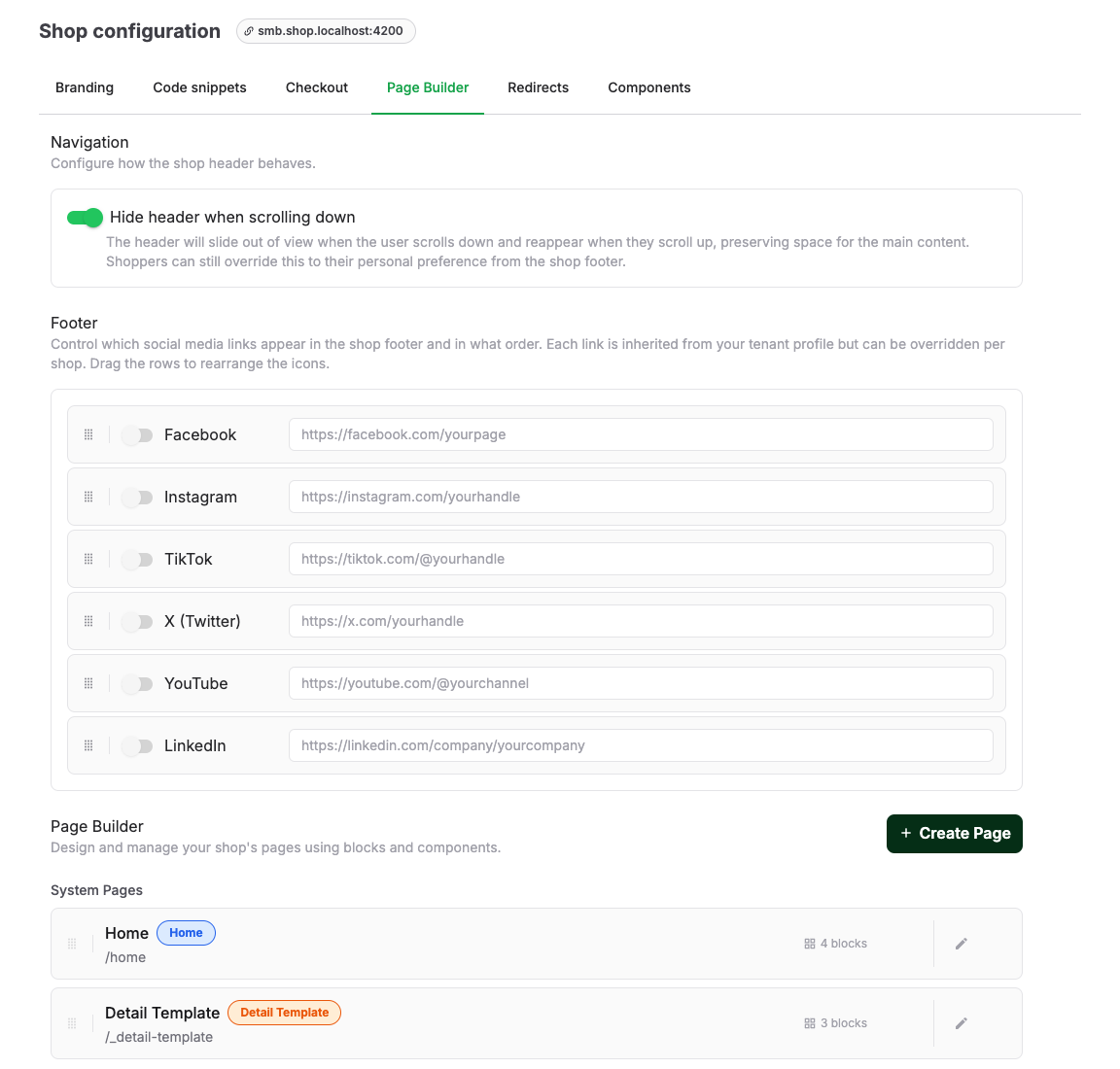
- The list groups System Pages (Home and the Detail Template), type pages such as Events or Products, and Custom Pages. Select Edit on a page, or Create Page with a Page Name and URL Slug for a new custom page.
- Under Page Settings, control the page's URL Slug, whether it is Enabled, Show in navigation, and the SEO & Meta fields. The shop menu order follows the page order in the Page Builder list.
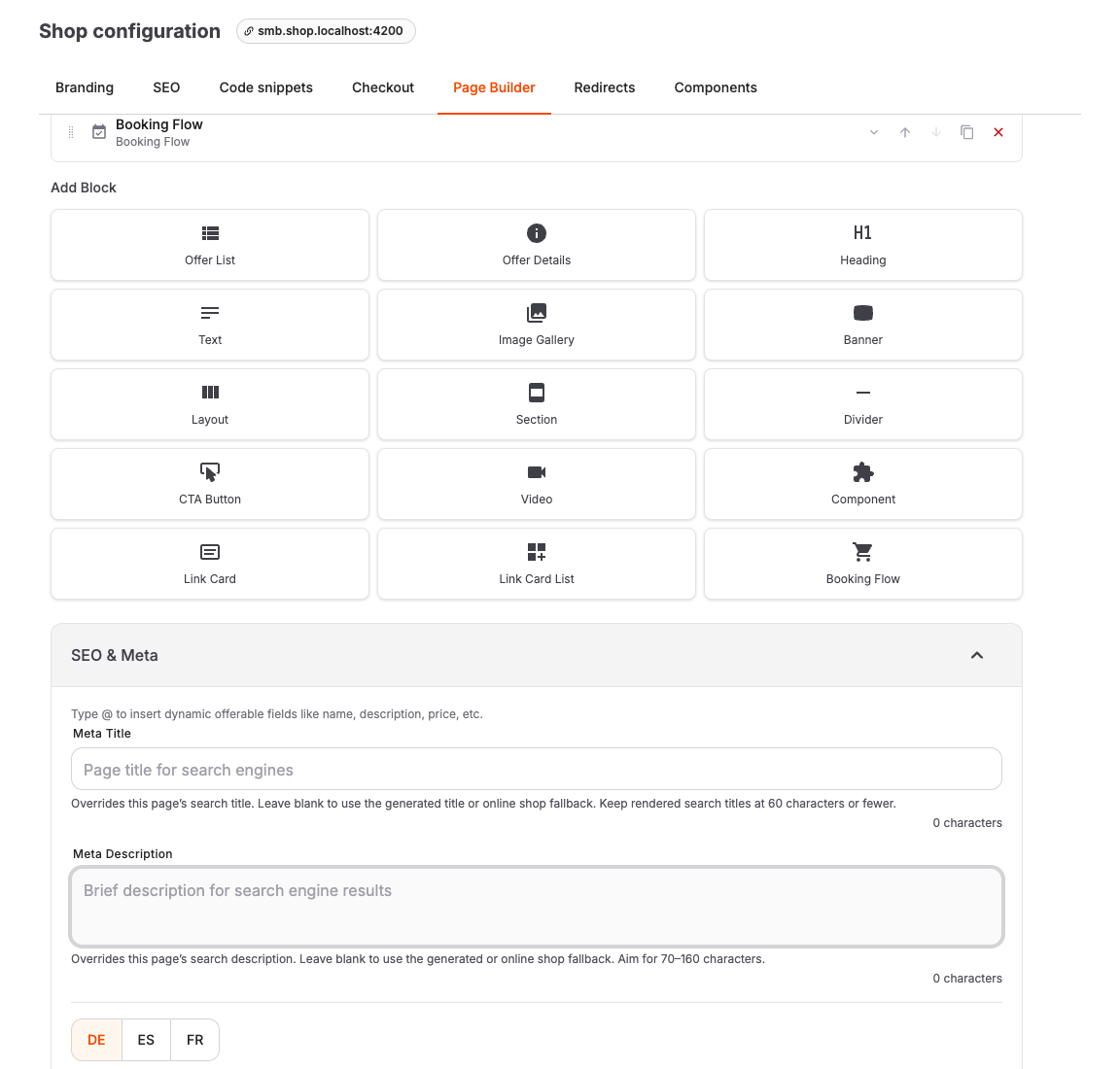
- Under Content Blocks, select Add Block and choose a block type: Offer List, Heading, Text, Banner, Layout, Section, Divider, CTA Button, Video, Image Gallery, Link Card, Link Card List, Component, and detail-page blocks such as Offer Header, Offer Details, and Booking Flow.
- Use the summary below each block type to identify its configured text, image, offer type, component, or nested blocks without opening every block. Longer sections, layouts, and card lists show the first entries and the number of additional items.
- Reorder blocks with Move up, Move down, or by dragging. To remove a block, select Delete block. The block is removed immediately; select Undo in the confirmation message to restore the complete block to its previous position.
- Use Preview to check the result, then select Save.
Set search and sharing details for the page
Expand SEO & Meta to override the generated search title or description, add a 1200 × 630 social sharing image with translated alternative text, or choose a page-specific indexing rule. Character counts and warnings help keep titles to 60 characters or fewer, descriptions near 70–160 characters, and alternative text to 125 characters or fewer. Leave a title or description blank to use the generated value or the online-shop default.
On the Detail Template, type @ in the title or description to insert dynamic offer fields. The description supports multiple paragraphs; the resulting metadata contains readable plain text rather than editor markup.
Edit the page visually
Open Visual editor from the page editor. The preview requires a shop domain. For a Detail Template, at least one shop offer with a shop URL must use that template.
- Select a block in the shop preview or in Layers. Use the Inspector for the block's full configuration. To edit supported headings, text, banner titles and subtitles, button labels, or Link Card text directly in the preview, double-click the text or focus it and press Enter. Press Enter to apply the edit or Escape to cancel it. In multiline fields, use Shift+Enter for a line break. The preview language determines which translation you edit.
- Add a block from the block palette, or drag it to a position in the preview. Move existing blocks by dragging in Layers or with the selected block's drag handle in the preview. Drop indicators show the insertion position or destination container.
- For precise changes, use Move up and Move down in Layers or the selected block toolbar, or Parent container in the Inspector. Page root moves a block out of its container. Destinations depend on the block type: for example, a Link Card List accepts Link Cards, and a Layout cannot contain another Layout, Section, or Component. If a drop is rejected, choose another position or container.
- Use Undo and Redo to reverse or repeat additions, deletions, duplication, text and settings changes, or moves. The history belongs to the current editor session and is cleared when the editor reloads. Outside text fields, Ctrl/Cmd+Z undoes a page change; Ctrl/Cmd+Shift+Z or Ctrl/Cmd+Y redoes it. Inside a text field, use its text-editing undo behavior.
- Check the layout with Desktop, Tablet, and Mobile, and switch preview languages to edit translated content. Resize or collapse Layers and Inspector, or expand the canvas to full screen for more preview space.
- Wait for draft saving to finish. Drafts let you leave and return to continue editing without changing the live page. Select Publish changes to make the draft visible to customers. Edits made while publication is in progress remain a draft for the next publication.
Continue after navigation or a preview error
Following a shop link in the preview can leave the page you are editing. The warning explains that the current page's blocks are no longer visible. Select Refresh preview to return, or Edit this page, when offered, to switch to the page shown in the preview.
If the preview is blank or blocks cannot be selected, use Refresh preview. If the warning remains, sign in again and reopen the editor. If Draft save failed appears, keep the editor open and use Refresh preview in the preview toolbar to retry saving before leaving or publishing.
Control which offers a list shows, and in which order
Open the configuration of an Offer List block:
- Offer source: Automatic list shows offers from filters and ordering rules; Manual selection shows only explicitly selected offers in the order you arrange them.
- For automatic lists, choose the Types (Events, Admissions, Products, Vouchers), optional Tags, and Offer Filters to narrow the selection.
- Order by sets the card order: Field (Position, Name, Created at, Updated at, or Start date) and Direction. With Start date, dated offers come first and undated offers follow.
- Limit and Grid columns control how many cards appear and the layout. On a dedicated page that contains only one automatic Offer List, Limit is the number of offer cards loaded per page. If more offers match, customers can continue with the pagination controls; the remaining offers are not hidden.
- Toggles: Show prices on offer cards, Show "View details" button, and Show filter bar on shop, which lets customers filter the list themselves.
- When the filter bar is enabled, Date filter display controls how customers choose a date. Monthly calendar loads one visible month at a time and shows the number of matching offers on each available day; use it for longer schedules. Date dropdown loads all available dates into one list and remains the default for existing blocks.
- Drag Link cards in grid into the list to mix promotional cards into the same grid.
Let customers filter a list
Show filter bar on shop works on any automatic Offer List, including lists that mix offer types and lists that sit on a page next to headings, banners, or other blocks. The filter bar appears directly above that list's cards, and only the offers in that list are filtered.
Which controls customers see depends on the Types you selected. A control appears when at least one selected type supports it:
| Selected type | Guests | Date | Category |
|---|---|---|---|
| Events | Yes | Yes | Yes |
| Admissions | Yes | Yes | Yes |
| Products | No | No | Yes |
| Vouchers | No | No | No |
For a mixed list, such as Events plus Products, customers get the guest and date controls from Events plus the category control shared by both. Offers without a date, such as products and vouchers, stay in the results when a customer picks a date, so a mixed list never empties out just because part of it is undated.
If a page has more than one filterable Offer List, each list gets its own filter bar and its own web address parameters, so filtering one list leaves the others untouched.
Without the Page Builder: the Pages tab
If your shop has a Pages tab instead:
- Navigation controls header behavior: Hide header when scrolling down and Enable shop search.
- Landing page banner adds a banner with text, colors, and images, switched on with Activate banner.
- Shop pages lists the built-in pages (Tickets, Events, Products, Vouchers). Use Activate this page to enable a page and Display the filter bar underneath the page title to give customers a filter bar.
If your shop has both editors, Display the filter bar underneath the page title and the Offer List block's Show filter bar on shop stay in sync: changing either one updates the other, so the shop always shows what you last set.
Expected result
The shop shows the pages you enabled, in the navigation order you set, and each offer list shows the intended offers in the configured order.
Troubleshooting
| Problem | What to check |
|---|---|
| An offer is missing from a list | The block's Types, Tags, and Offer Filters, plus the offer's publishing and visibility. |
| No filter bar in the shop | The block's Show filter bar on shop toggle, and whether the selected Types support any filter control. |
| Page not in the shop menu | The page's Enabled state and Show in navigation setting. |
| Order looks wrong | The Order by field and direction; undated offers sort after dated ones by start date. |
| Calendar month has no dates | The visible month and the selected category and guest quantity; calendar dates reflect the other active filters. |
| Edits not visible in the shop | In the visual editor, use Publish changes after draft saving finishes. In the classic editor, select Save. |
