Set up a membership
- Last verified
- Last verified Oct 9, 2026
This tutorial sets up an annual membership. Members pay once, receive 10% off admission in the online shop and at the POS for one year, and lose the discount when their year ends. Adapt the names, price, discount, and validity to your own membership.
If you are not sure that this is the right kind of membership, read Get started with memberships first.
Before you start
- You can make changes in KORONA.studio, or a colleague who manages KORONA.studio can follow the KORONA.studio steps.
- You can edit products in the KORONA Event back office.
- The KORONA.studio synchronization works. See Understand KORONA.studio synchronization.
- You have decided the membership's price, its validity, and the prices or discounts members receive.
Step 1: Create the customer group in KORONA.studio
- In KORONA.studio, create a customer group for your members, for example Members.
- If you offer several membership levels, create one customer group for each level.
KORONA Event imports customer groups from KORONA.studio. You cannot create or rename them in KORONA Event.
Step 2: Set up member prices in KORONA.studio
Set up the prices or discounts that apply to the customer group. For a percentage discount, create an automatic promotion without a discount code:
- In KORONA.studio, create a promotion of the type Immediate discount.
- Select the products the discount applies to, for example all admission products, and set the discount to 10%.
- Add a Customer group condition and select Members.
- Assign the promotion to the points of sale that should apply it, including the point of sale assigned to your KORONA Event online shop.
You can also use other customer-group pricing that your KORONA.studio account provides. KORONA calculates the member price in the online shop and at the POS from the customer group of the order's customer.
Step 3: Create the membership product in KORONA.studio
- In KORONA.studio, create the product customers buy, for example Annual membership, with its price.
- Give the product a ticket definition with a validity of one year after activation. The ticket's validity decides how long the membership lasts.
- Assign a production type that activates tickets.
- Wait for the next synchronization. In the KORONA Event back office, Admin > Integrations shows Last successful synchronization.
Step 4: Configure the membership in KORONA Event
- In the back office, open Services > Products and select the membership product.
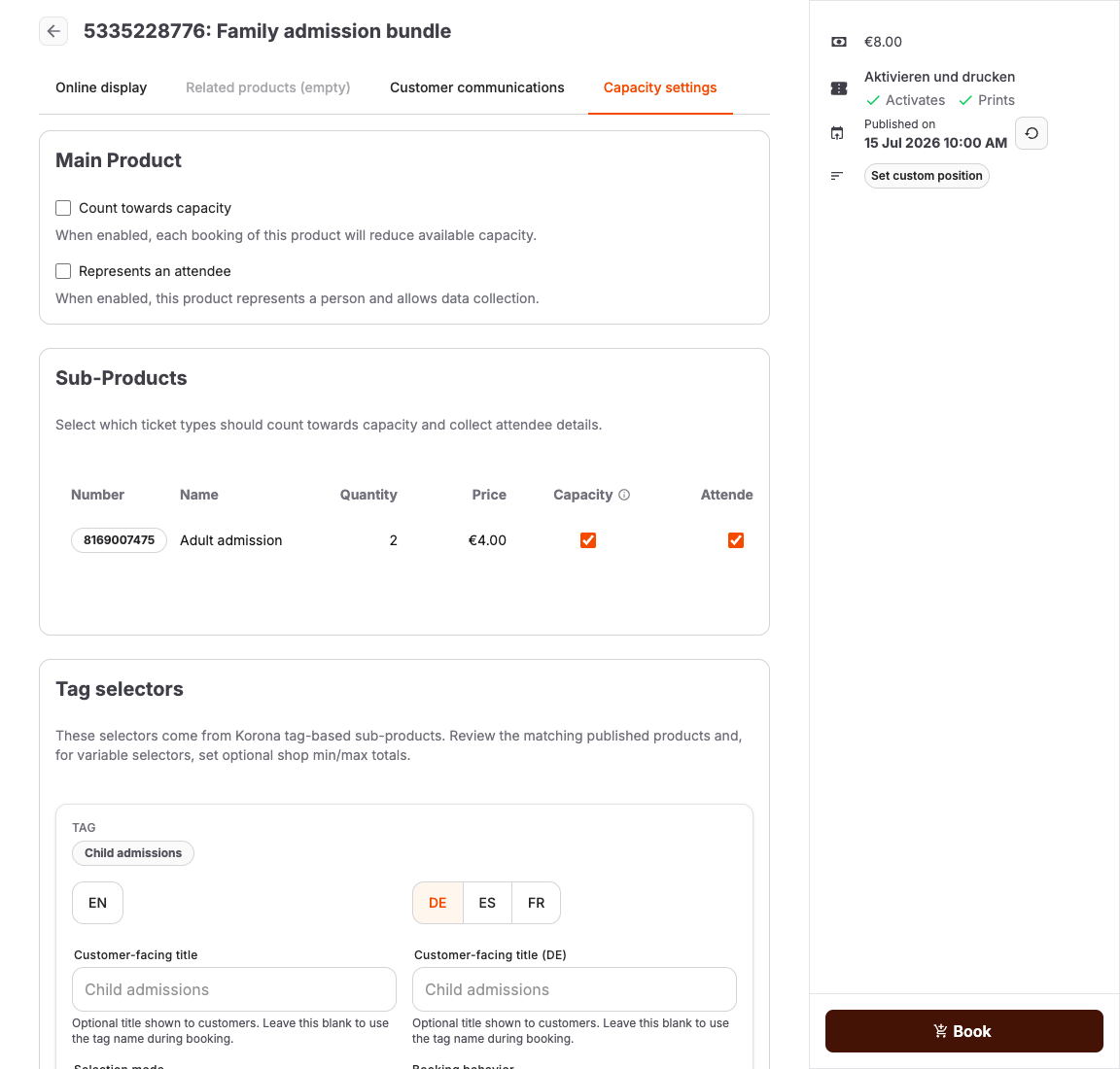
- Open Capacity settings. Make sure Represents an attendee is on, then select Save changes. The side panel shows the product's production type with Activates and Prints; the production type must activate tickets.
- Open Online display.
- Under Customer group after purchase, select Members.
- Under Customer group assignment duration, select Membership during ticket validity. If a warning says the product must create an attendance and use an activating production type, turn on Represents an attendee in Capacity settings or correct the production type in KORONA.studio.
- Check that the page shows that a customer account is required automatically.
- Select Update.
- Make the product available in the online shop like any other product. See Sell products online.
The two options under Customer group assignment duration are explained in Get started with memberships.
Step 5 (optional): Add a membership card
To print membership cards with the member's name, photo, and a scannable code, create a physical-card template and assign it to the product. See Configure physical membership cards.
Step 6: Test the membership
- Open the online shop and sign in with a test customer account, or create one during checkout.
- Buy the membership product.
- In the back office, open Sales > Customers, select the test customer, and find Membership benefits on the Overview tab. The membership first shows Awaiting ticket source, then Active with the product and its validity.
- In the online shop, sign in as the test customer and start a new order with an admission ticket. At checkout, the ticket is charged the member price.
- Cancel the test orders. The membership changes to Revoked, and the test customer returns to their previous customer group.
A ticket in the same order as the membership is charged the regular price, because the membership starts after the order is booked. Test the member price with a separate order.
Check your work
- The customer group exists in KORONA.studio and appears under Customer group after purchase.
- The member discount applies to the customer group and to the point of sale of your online shop.
- The membership product represents an attendee, uses an activating production type, and has a ticket validity of one year.
- Customer group assignment duration is Membership during ticket validity.
- A test purchase shows Active under Membership benefits, and a later order receives the member price.
