Check membership benefits
- Last verified
- Last verified Oct 9, 2026
Use this when a customer says they are a member but did not receive a member price, or when you need to know until when a membership is valid. The Membership benefits card on the customer record shows the membership status, the customer group it provides, and the tickets that support it.
The card lists memberships from products set to Membership during ticket validity. A customer group assigned permanently, or set directly by staff, appears only as the customer's Customer group.
Find the right customer record
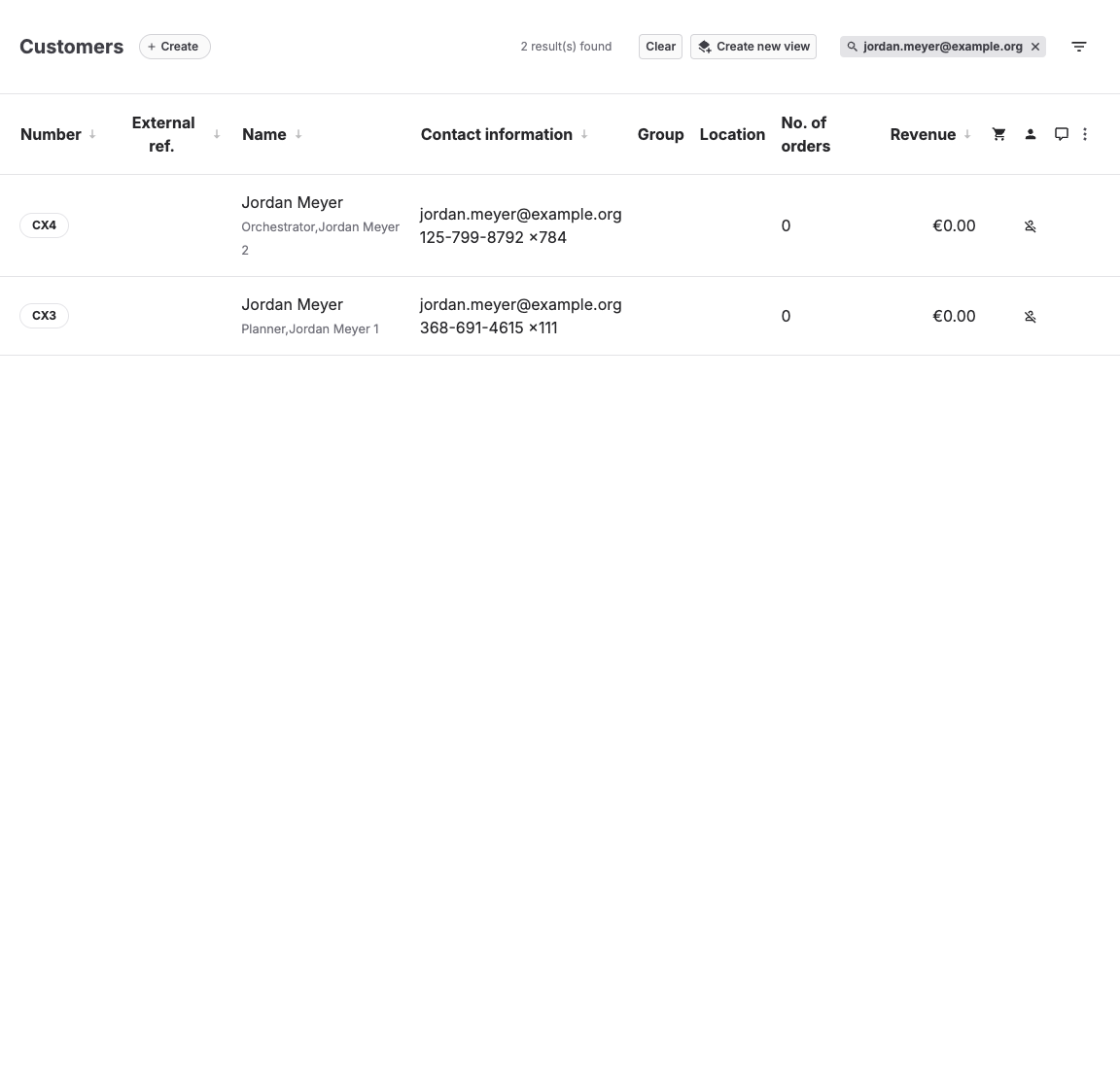
- Open Sales > Customers and search for the email address the customer used.
- If several records match the person, note all of them. A membership belongs to the record that bought it. Orders placed as a guest create separate guest records, which do not receive the member's prices. See Clean up duplicate customer records.
Read the Membership benefits card
Open the customer and find Membership benefits on the Overview tab. The card shows:
- Managed customer group: the customer group the membership provides.
- Benefit state: the current state of the membership.
- KORONA sync: whether KORONA has received the customer group.
- Supporting purchases and tickets: every ticket that supports the membership, with its order number, ticket number, ticket state, and validity.
| Benefit state | Meaning |
|---|---|
| Active | At least one supporting ticket is valid now. The customer has the managed customer group. |
| Awaiting ticket source | The order is booked, but its ticket is not available yet. This normally resolves within minutes. |
| Expired | The last supporting ticket reached the end of its validity. The customer returned to their previous group. |
| Revoked | The supporting ticket was cancelled or removed. The customer returned to their previous group. |
| Conflict | Valid tickets provide different customer groups. KORONA Event keeps the current group and does not choose one. |
| Manually overridden | The customer has a different, explicitly assigned customer group. KORONA Event leaves it alone. |
| Error | The membership could not be updated. The card shows the latest error and the next automatic attempt. |
KORONA sync shows Synced, Pending, Failed — retry scheduled, or Not required. Failed updates are retried automatically.
Understand when a membership starts and ends
- The membership starts when its order is booked. While KORONA Event matches the order to its ticket, the card shows Awaiting ticket source. If no ticket can be found within the automatic recovery time, the customer group is withdrawn and the card shows Error.
- The ticket's validity controls the membership. Locking or using the ticket does not end it; cancelling the ticket ends it immediately.
- With several valid tickets for the same customer group, the membership lasts until the last one ends.
- When the last supporting ticket ends, the customer returns to their previous customer group, or to the default customer group. If staff changed the customer group in the meantime, that change is kept.
Extend a membership
To extend a membership without an interruption, extend its supporting ticket before it expires:
- Open the attendee of the supporting ticket, for example from the order shown under Order number.
- On the attendee's Overview tab, find the ticket and select Edit entry.
- Change Valid to and select Save entry.
You need permission to update attendees. The membership follows the new validity. A customer who renews by buying the membership again receives a new supporting ticket; the membership continues or restarts when that ticket becomes valid.
Resolve a conflict
Conflict means valid tickets provide different customer groups, for example when a customer holds a Members ticket and a Family members ticket at the same time. Compare the products listed under Supporting purchases and tickets:
- Correct the product configuration if a product assigns the wrong customer group, so future orders are right.
- Cancel the incorrect ticket and issue the right one according to your normal order workflow.
Do not set a customer group manually to settle a conflict unless that group should stay permanently. A manual change turns the membership into Manually overridden.
When a member benefit is missing
Check in this order:
- Did the customer sign in to their customer account during checkout? Guest orders and orders from another customer record do not receive member prices.
- Is Membership benefits Active, with the expected product and validity?
- Was the ticket bought in the same order as the membership? It receives the regular price; member prices apply to later orders.
- Does the card show Conflict, Manually overridden, Error, or a failed KORONA sync?
- Does the member price in KORONA.studio apply to the customer group, the product, and the point of sale used for the order?
Troubleshooting
| Problem | What to check |
|---|---|
| No Membership benefits card | Whether the product uses Membership during ticket validity and the order belongs to this customer record. |
| Benefit applied for others, not here | Duplicate customer records and which record placed the order. |
| Membership ended too early | The validity and cancellation state of every ticket under Supporting purchases and tickets. |
| Membership did not end | Whether another valid ticket overlaps, or the customer group was set manually. |
| Manually overridden after the purchase | Whether the customer already had an explicitly assigned customer group. A membership does not replace it. |
| KORONA still has the old customer group | KORONA sync and its latest error. Pending and failed updates are retried automatically. |
