Set up external coupon numbers
Use external coupon numbers when customers or cashiers should enter a code you distribute yourself, such as a campaign code on a flyer or individual codes for partners. Each code needs a matching number range and couponing promotion in KORONA.studio. To allow each code only once or a fixed number of times, you also set up external coupon limits A KORONA Event record that validates an externally managed code and counts reserved and completed redemptions. It does not create the discount itself. in KORONA Event.
For how these parts work together, see How couponing promotions work with KORONA Event.
Before you start
Decide:
- the codes, or a common pattern such as a fixed prefix, for example
PARTNER-followed by four digits - the discount, the tickets or products it applies to, and the booking period
- whether codes may be reused or must be limited per code
You need access to KORONA.studio and, for limited codes, permission to manage External coupon limits in the KORONA Event back office.
Limited codes also need an external system call in KORONA.studio that sends codes to KORONA Event for checking. If your KORONA.studio account does not have one yet, ask KORONA Event support to set it up. Do not change its address or login data yourself.
Choose the number range function
| Codes | Number range function | Also needed in KORONA Event |
|---|---|---|
| Reusable, for example one campaign code | Redeem external coupon | Nothing |
| Limited per code, for example one-time codes | External System Call | Every code listed under External coupon limits |
You can use both functions side by side with separate number ranges, for example one for reusable campaign codes and one for one-time partner codes. At the POS, scanning or typing a matching code runs the configured function automatically; the cashier does not need to select it manually.
Identify the external system call for coupon limits
For limited codes, select the KORONA Event call that checks and reserves an external coupon number. In the screenshots, it is named Apply external coupon number. Names can differ between accounts, so identify the call by its purpose and configured address, not just its name.
The call must send a POST request to your KORONA Event API address with the path /api/korona/external-promotion-codes/apply. It uses HTTP Basic authentication with the integration user’s KORONA Event API key as the password. That user needs permission to update promotions.
Ask KORONA Event support to provide or confirm the account-specific address and credentials when setting up the call. Then select that call in the number range below. Importing the codes under External coupon limits alone does not connect the POS to this check.
Create the number range
- In KORONA.studio, open Settings > Number Ranges.
- Select Add Number Range.
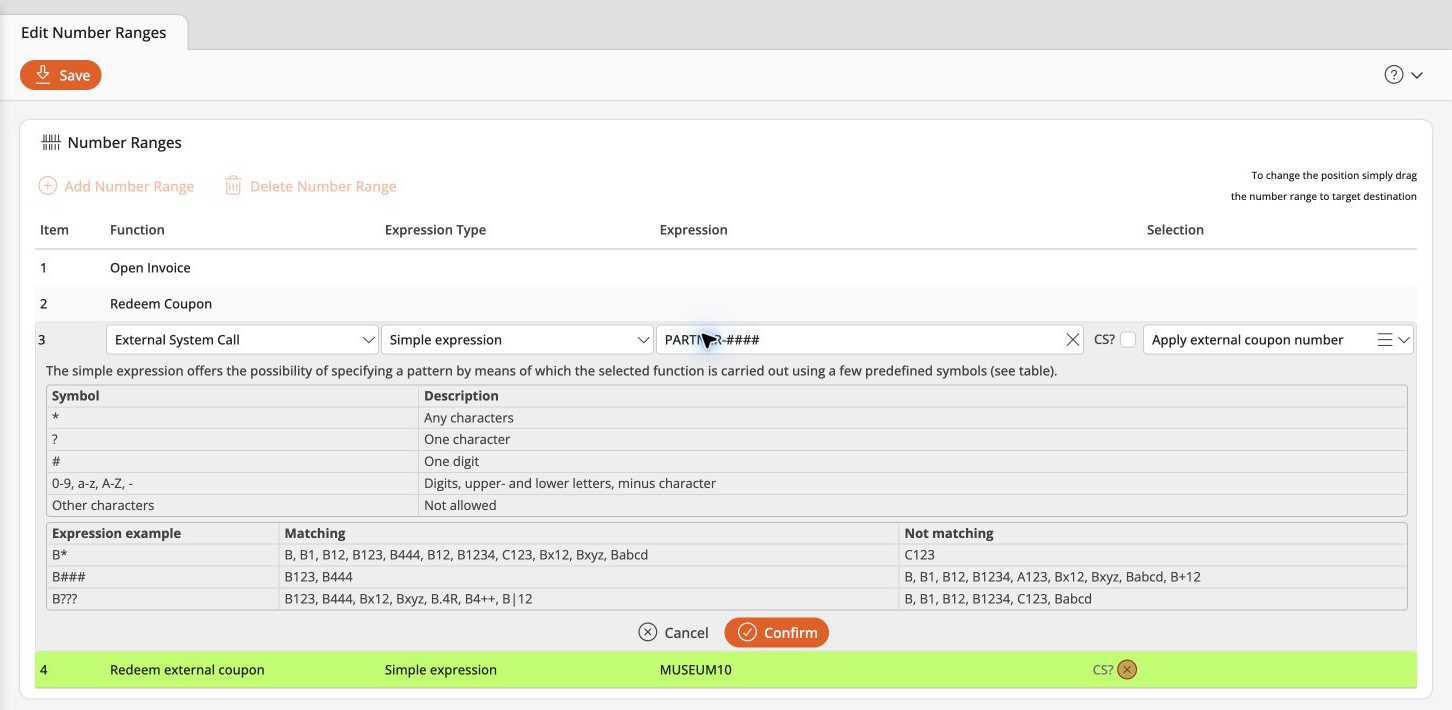
- Select the function Redeem external coupon for reusable codes, or External System Call for limited codes. For External System Call, also select the coupon-validation call identified above, shown here as Apply external coupon number.
- Set Expression Type to Simple expression and enter a pattern under Expression that matches all codes of the campaign.
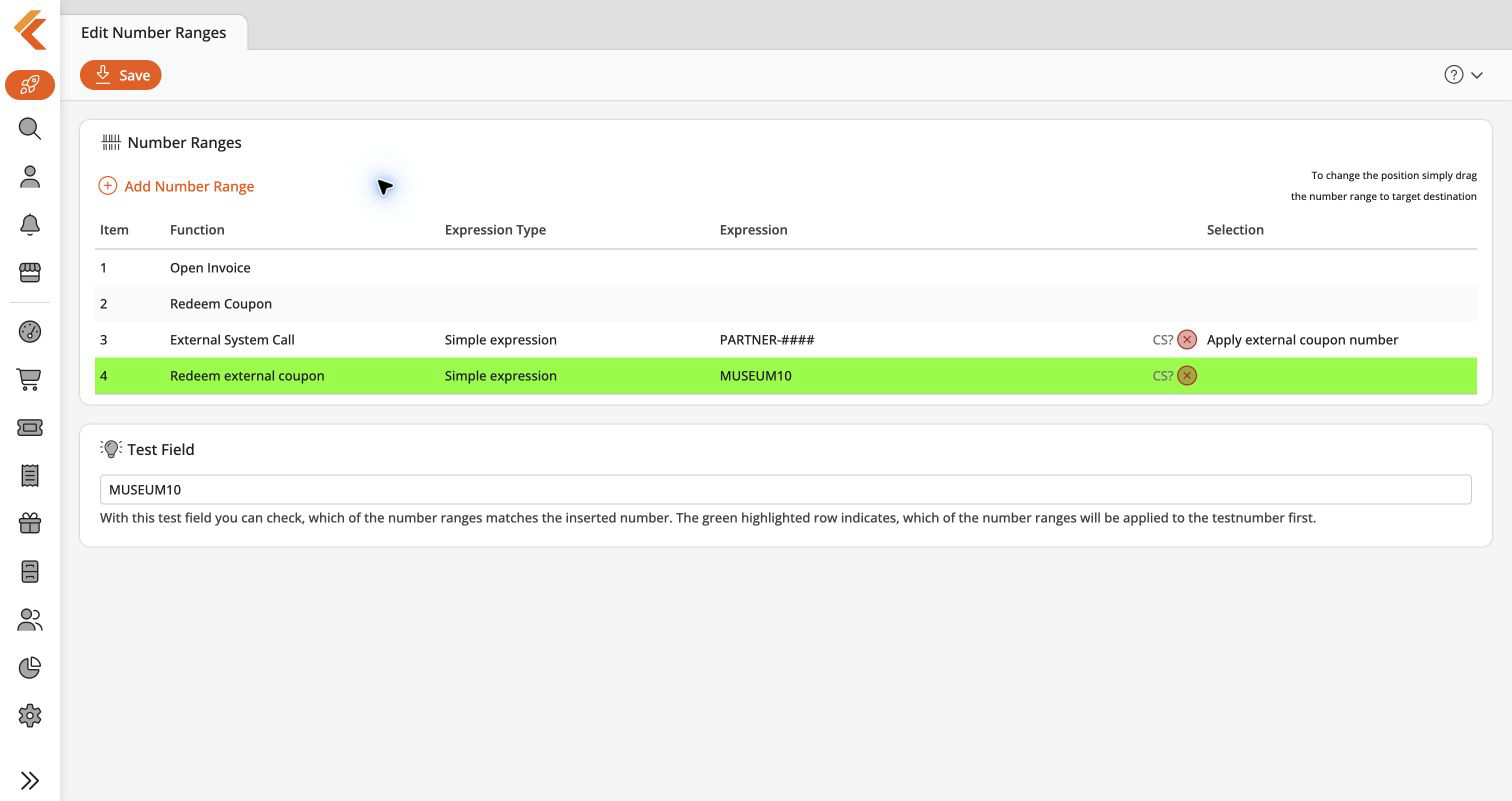
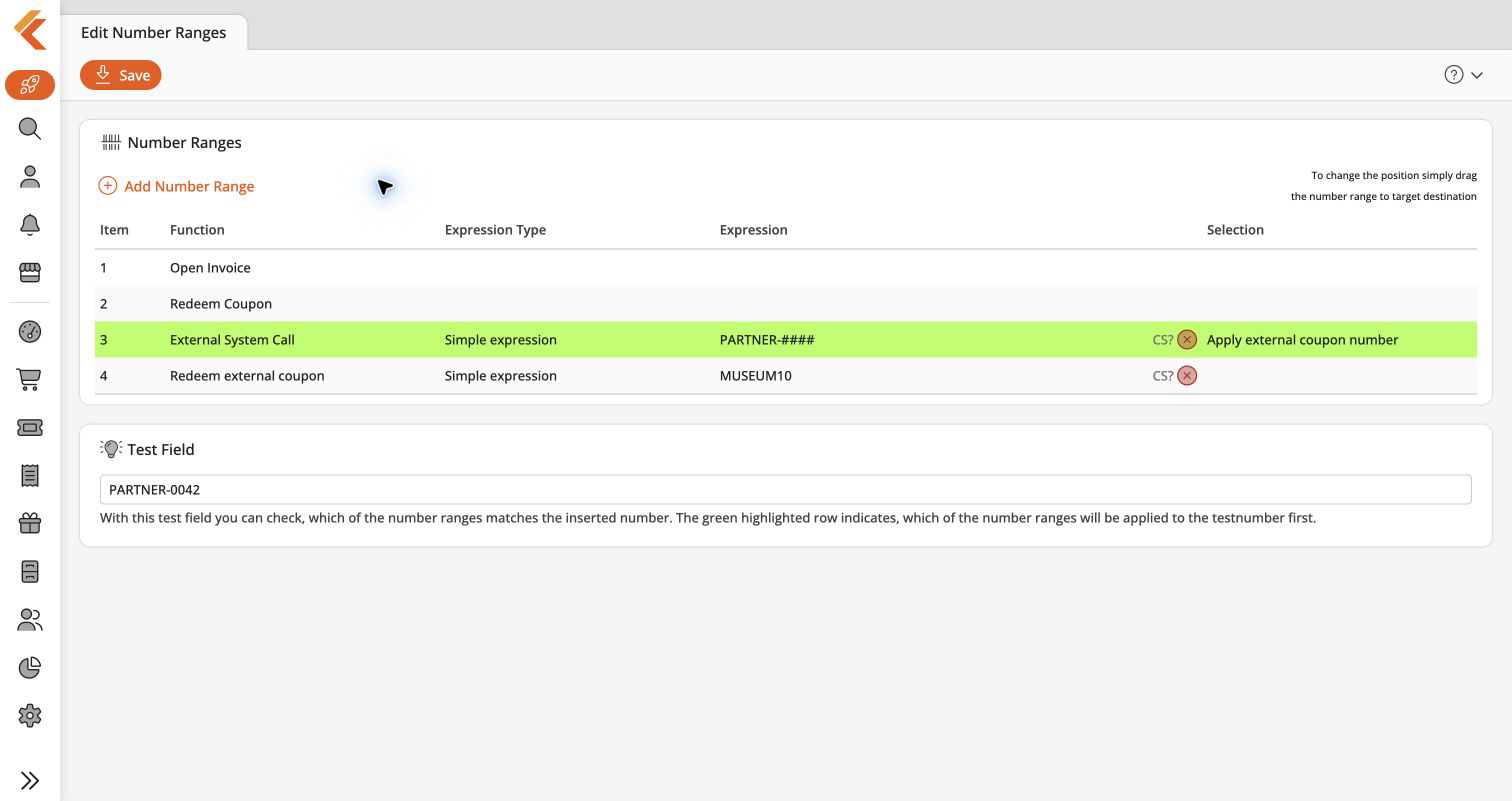
#stands for one digit and*for any characters, soPARTNER-####matchesPARTNER-followed by four digits. - Enter a sample code in Test Field and check that this number range is highlighted. Move more specific number ranges above general ones so that codes do not match a product, customer, or voucher number range first.
- Select Confirm below the row, then Save at the top of the page.
Create the couponing promotion
- In KORONA.studio, open Couponing Promotions in the Promotions menu and select New.
- Set the type to Immediate Discount.
- Under Validity, set the booking period and the points of sale. When the codes should work online, include the point of sale assigned to the online shop.
- Under Benefit, switch to Advanced.
- Under Item Selection Set, set Affected are to Coupon Number and enter all codes.
- Under Discount Calculation, set Operator and Operand for the discount, for example
%and10for 10%. Expand Advanced and Ranges as needed. Under Discount Value Repetition, set From to Coupon Number and enter the same codes again. - Leave the codes out of Trigger. Use Trigger only for additional conditions, such as a minimum receipt amount.
- Save the promotion.
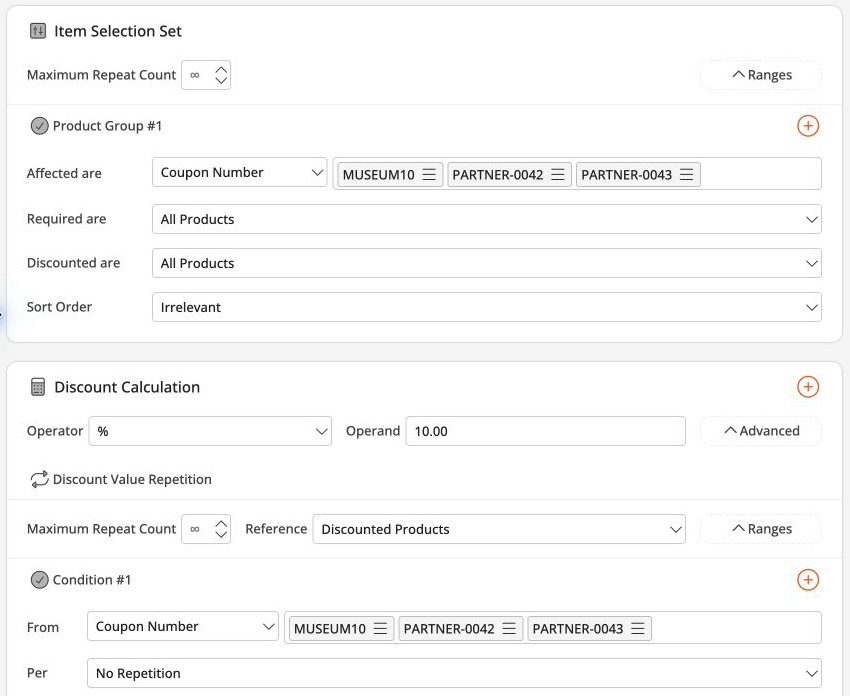
Within each list, any one code is enough. Do not add the codes as separate External Coupon Number triggers instead: triggers in one promotion must all be present at the same time.
The codes must also be listed in the couponing promotion when you limit them in KORONA Event. The external system call only checks and counts each code; the promotion still decides the discount.
Limit redemptions per code
Skip this section for reusable codes.
- In the KORONA Event back office, open Settings > External coupon limits.
- Select Import and upload a CSV file with the codes, exactly as they are listed in the couponing promotion.
- Enter a Default redemption limit, for example
1for one-time codes, and select Import.
Every code in a number range that uses External System Call must be listed and active here. The POS rejects codes that are missing, inactive, archived, or used up. For the CSV format and individual limits, see Import coupon codes in bulk.
Synchronize the changes
- In the KORONA Event back office, open Admin > Integrations.
- Under KORONA.studio integration, select Synchronize.
- Check that Last successful synchronization shows the current time.
Without this step, KORONA Event picks up the changes with the next scheduled import, about every 15 minutes. Until then, the online shop keeps using the previous couponing promotions.
At each KORONA POS, retrieve the master data and restart the POS so that it loads the new number range.
Test the codes
- In the online shop, add a ticket that the discount applies to, enter a code in the cart, and check that the price changes.
- At the POS, use a different unused code for limited codes: the online cart reserves a use, so that one-time code cannot also be used at the POS. Reusable codes can use the same code. Check that the discount appears on the receipt.
- For limited codes, open Settings > External coupon limits. An open cart shows the code as Reserved; a completed order or finalized receipt shows it as Redeemed.
- Enter a code that has reached its limit and check that it is rejected.
Expected result
Valid codes reduce the price in the online shop and at the POS. Limited codes stop working once they reach their redemption limit, and External coupon limits shows which order or receipt used each code.
Troubleshooting
| Problem | What to check |
|---|---|
| The online shop rejects the code | Code in both coupon number lists, booking period under Validity, point of sale of the online shop, matching tickets in the cart, and Last successful synchronization. |
| Only one of several codes works | The codes were entered as separate triggers instead of in the coupon number lists, or a code is missing from one of the two lists. |
| The POS treats the code as a product or another number | Number range pattern, its position in the list, and whether the POS master data was retrieved after the change. |
| The POS says the coupon code is unknown or no longer available | The code is listed, active, and not used up under External coupon limits, and spelled the same way as in the couponing promotion. |
| The code is accepted but the price does not change | Discount calculation, discountable products, tag or commodity group of the tickets, and whether another exclusive promotion applies. |
| A one-time code can be used several times | The number range uses External System Call, and the code has a redemption limit under External coupon limits. |
| A changed booking period or discount is not applied yet | Select Synchronize under Admin > Integrations, and retrieve the master data at the POS. |
